Manual contents
5.1 Settings – Online Music Transfer
On this page
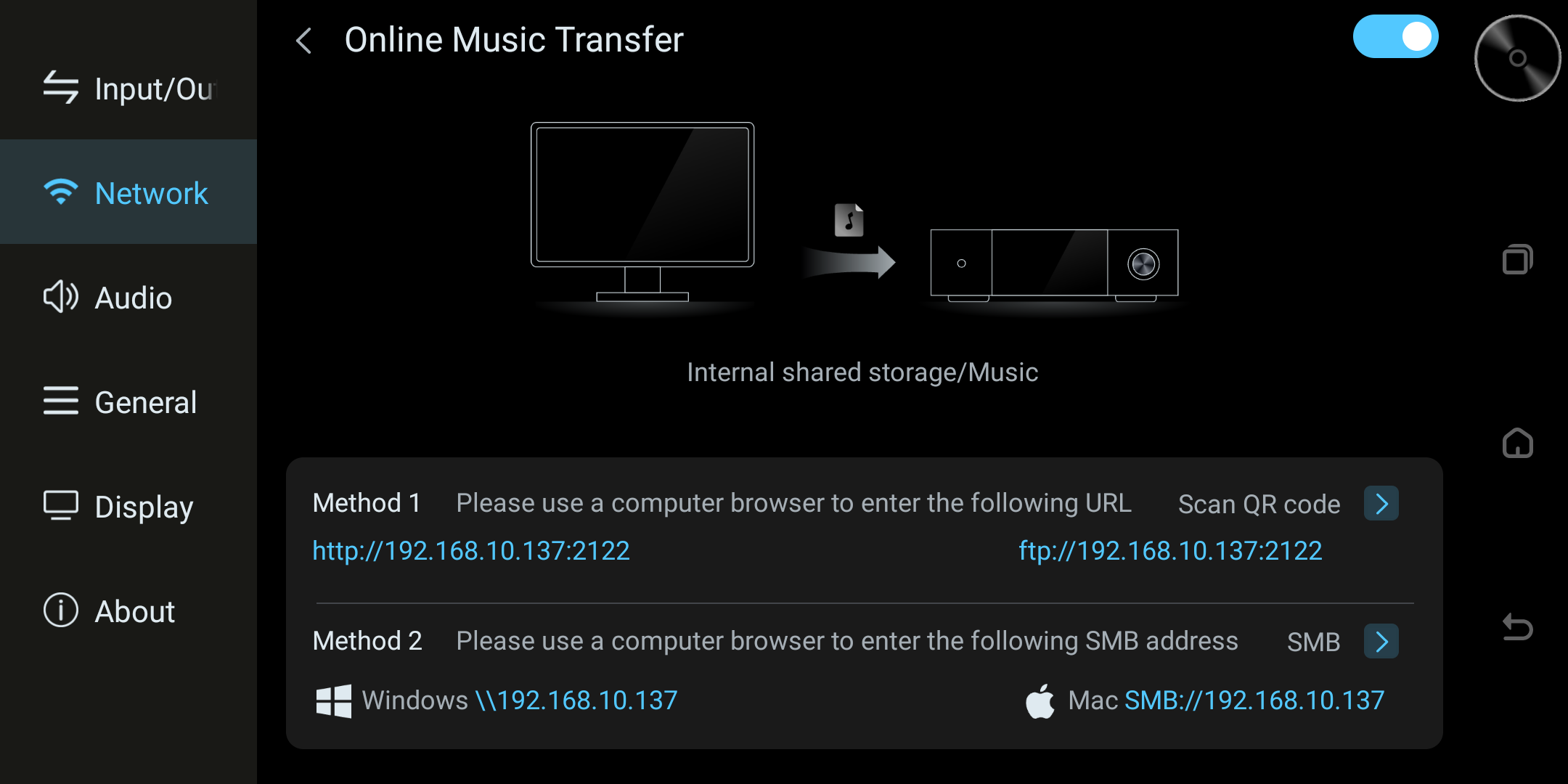
⚠️ Prerequisite: you must enable Settings → Online Music Transfer on every device first.
1. Transfer via Samba
Windows
- In Online Music Transfer, note the SMB address displayed by this device. In File Explorer, enter
\\<device-IP>using that displayed address, then press Enter.
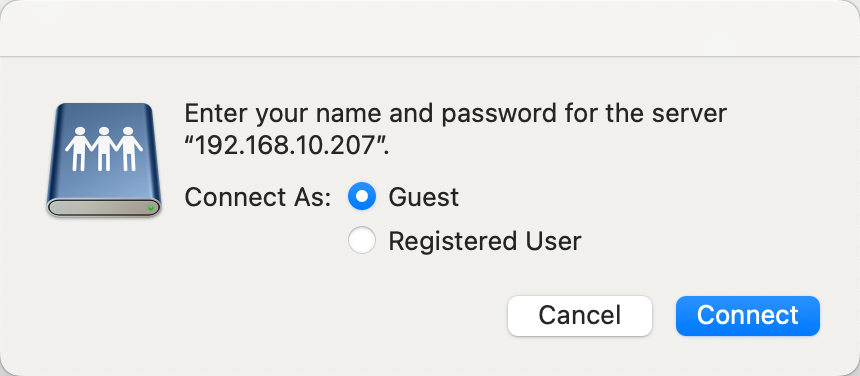
If the sign-in dialog offers Guest access for the current device configuration, choose Guest. If it requires Registered User access, use the credentials configured on the device; this guide does not define default credentials.
Mac
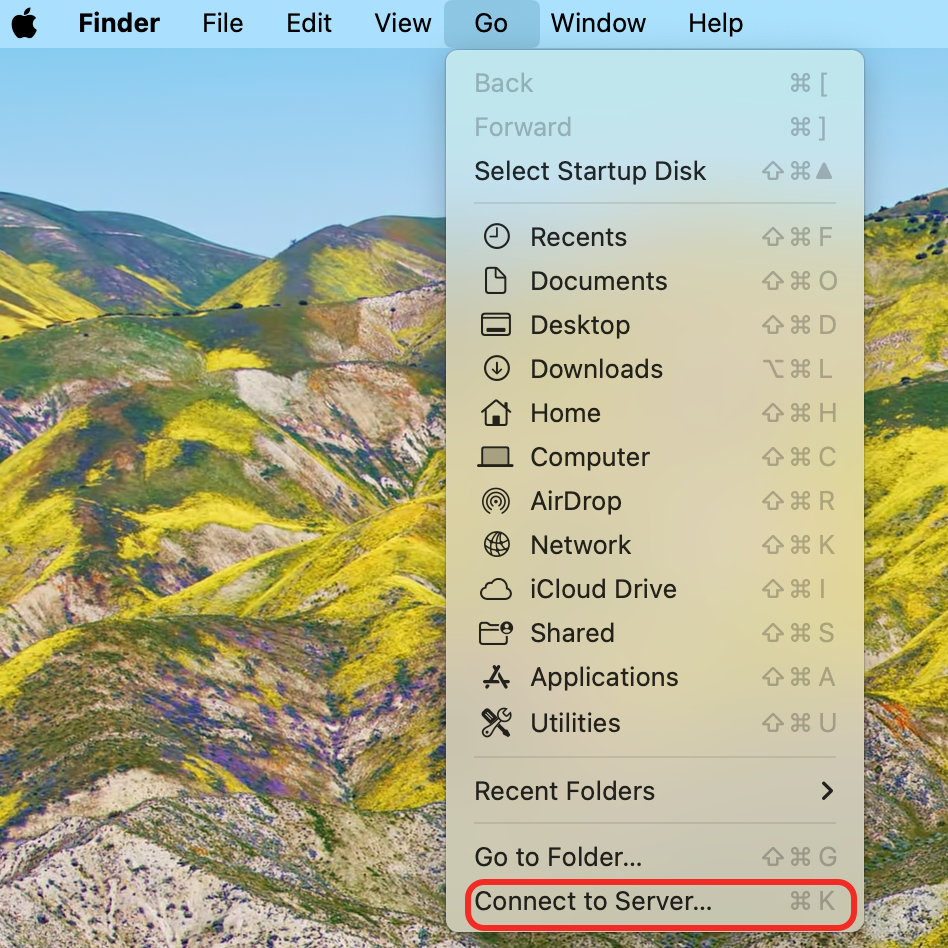
- Open Finder, then choose "Connect to Server".
- Enter the SMB address displayed by the device, for example
smb://<device-IP>.
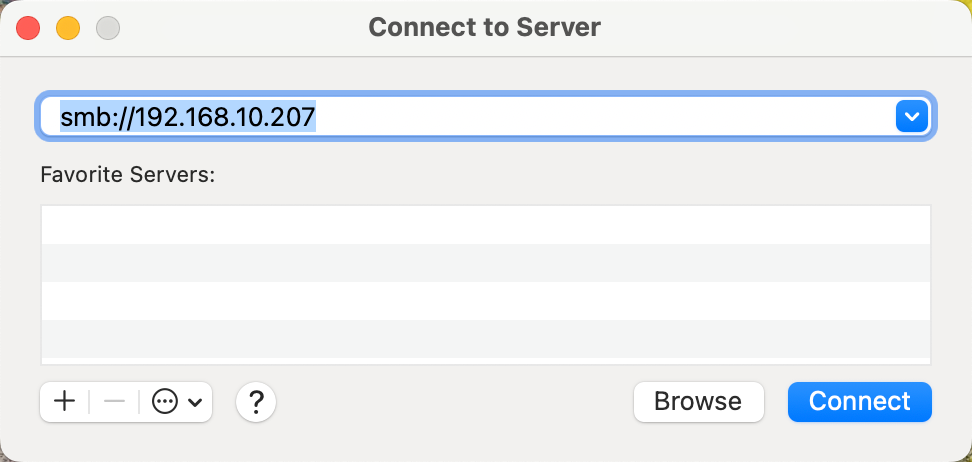
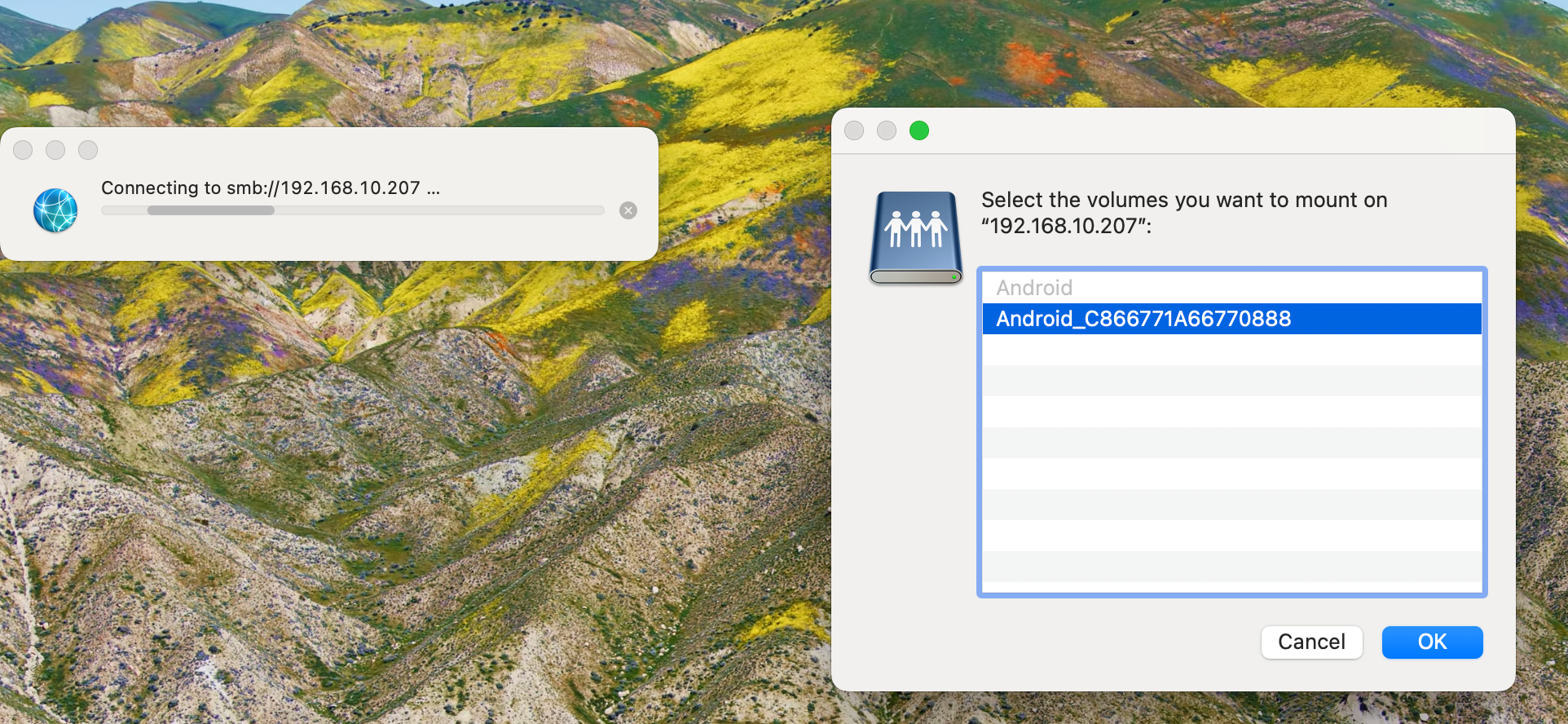
- Click Connect to mount the device. Finder may then show two volumes:
- Android: built-in storage volume.
- Android_<ID>: external storage volume; the ID varies by device.
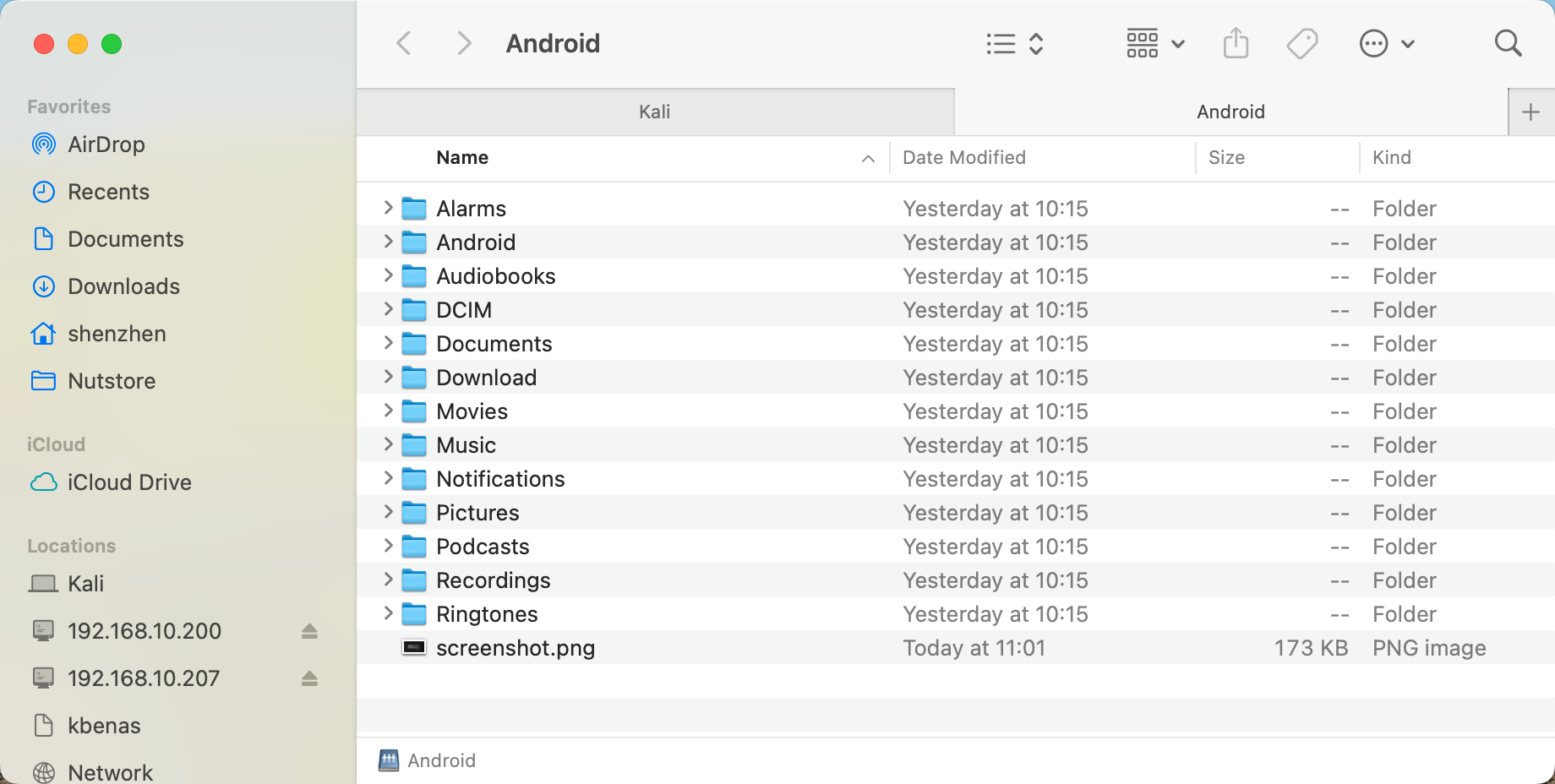
2. Transfer via FTP Website
After enabling Online Music Transfer on the device, open the address shown on that device from a phone or computer on the trusted local LAN. Do not expose this transfer page to the internet.
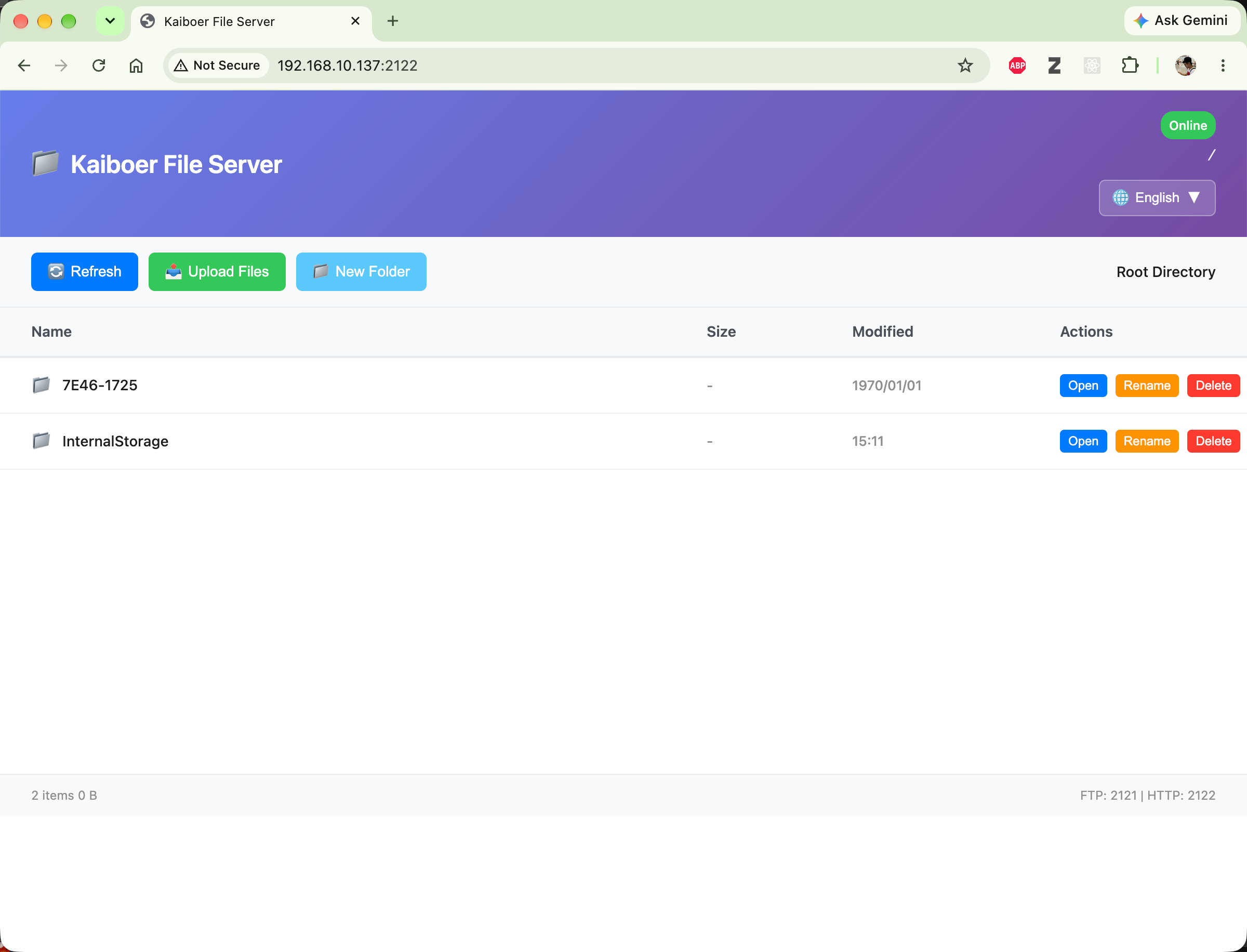
You can then create folders and upload files (entire folders can also be uploaded directly).
3. Transfer via OTG Mode
Mac Computer
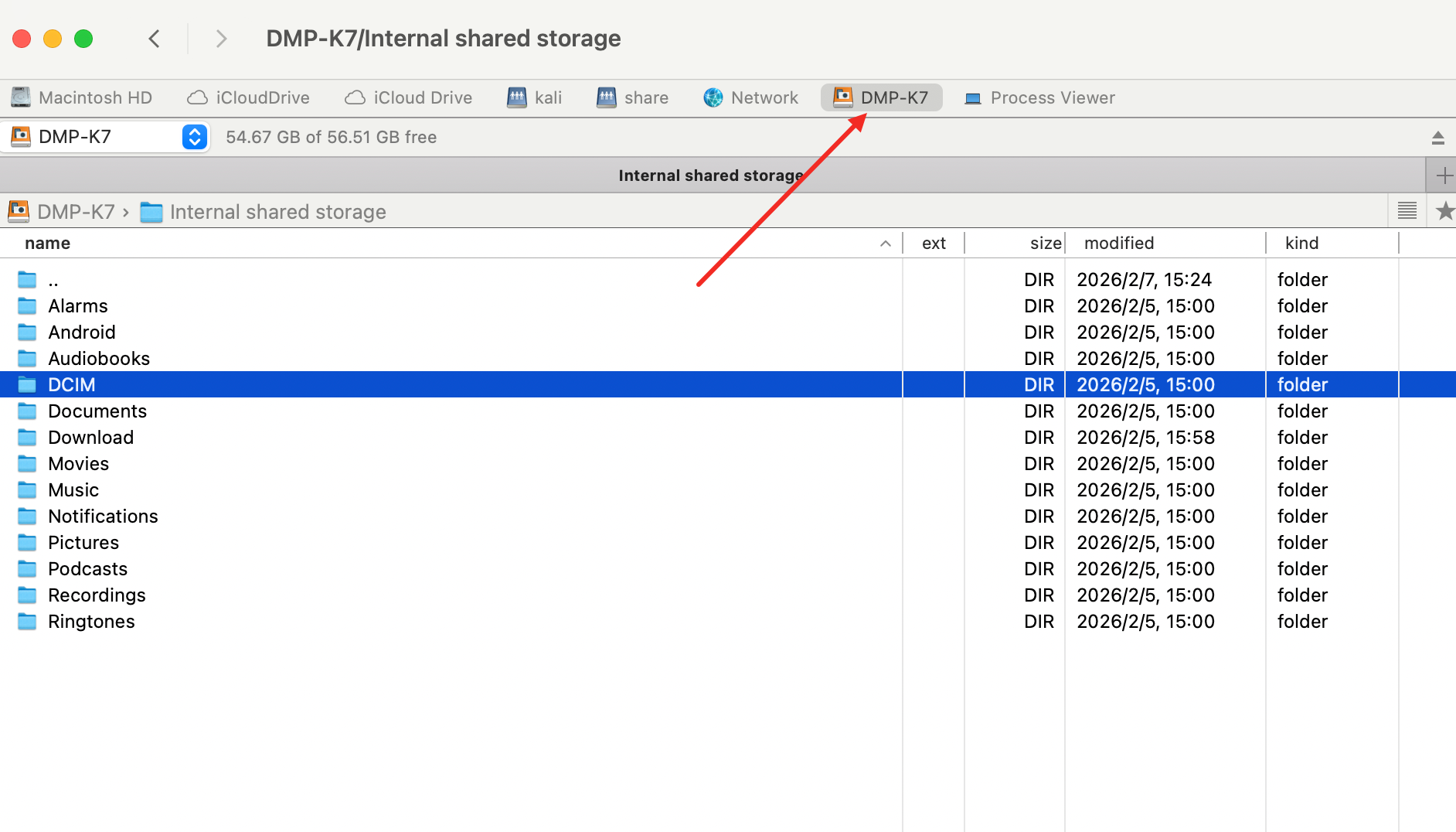
macOS Finder does not natively browse this USB device in OTG mode. Install a compatible MTP file-transfer client (for example, Commander One Pro) and use a data-capable USB-C cable. The steps are:
a. In the device's Settings app, set the USB mode to OTG.
b. Connect the Type-C port of the computer and the device with a USB cable.
c. Open the third-party tool on the Mac (e.g., Commander One Pro) and use it.
Appendix
Windows Samba saved-credential issue
If Windows saved an incorrect SMB sign-in, disconnect that saved SMB connection, then reconnect using the access option required by the current device configuration.
Open Command Prompt if you need to remove the saved connection.
- Run net use \\<device-IP> /delete, replacing <device-IP> with the host or IP shown on the player. Use two leading backslashes for a UNC path; do not paste an smb:// URL.
- Reconnect in File Explorer with
\\<device-IP>and choose Guest or Registered User according to the current device configuration. Do not infer or reuse credentials from older examples.