Manual contents
3. File App
On this page
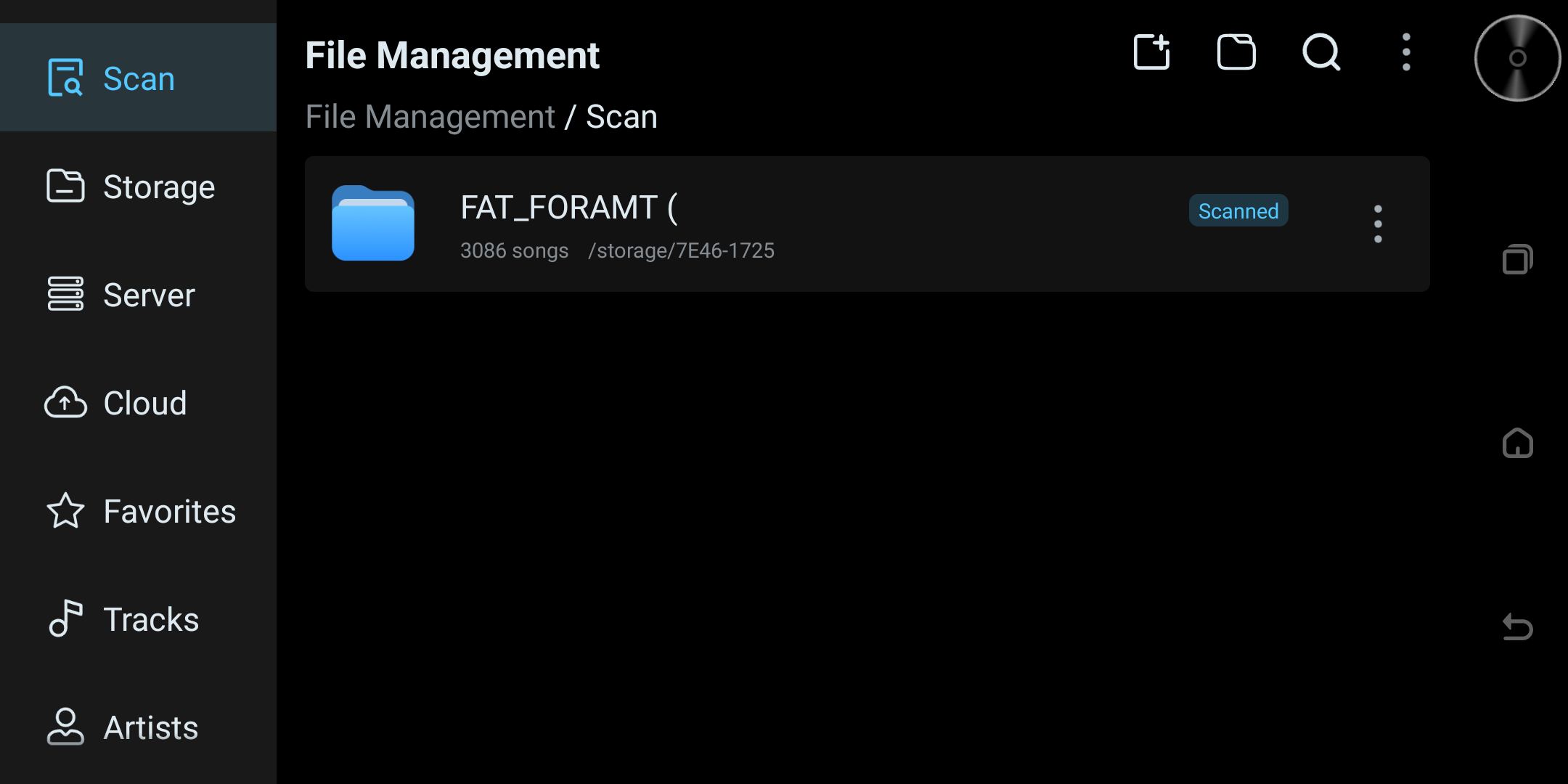
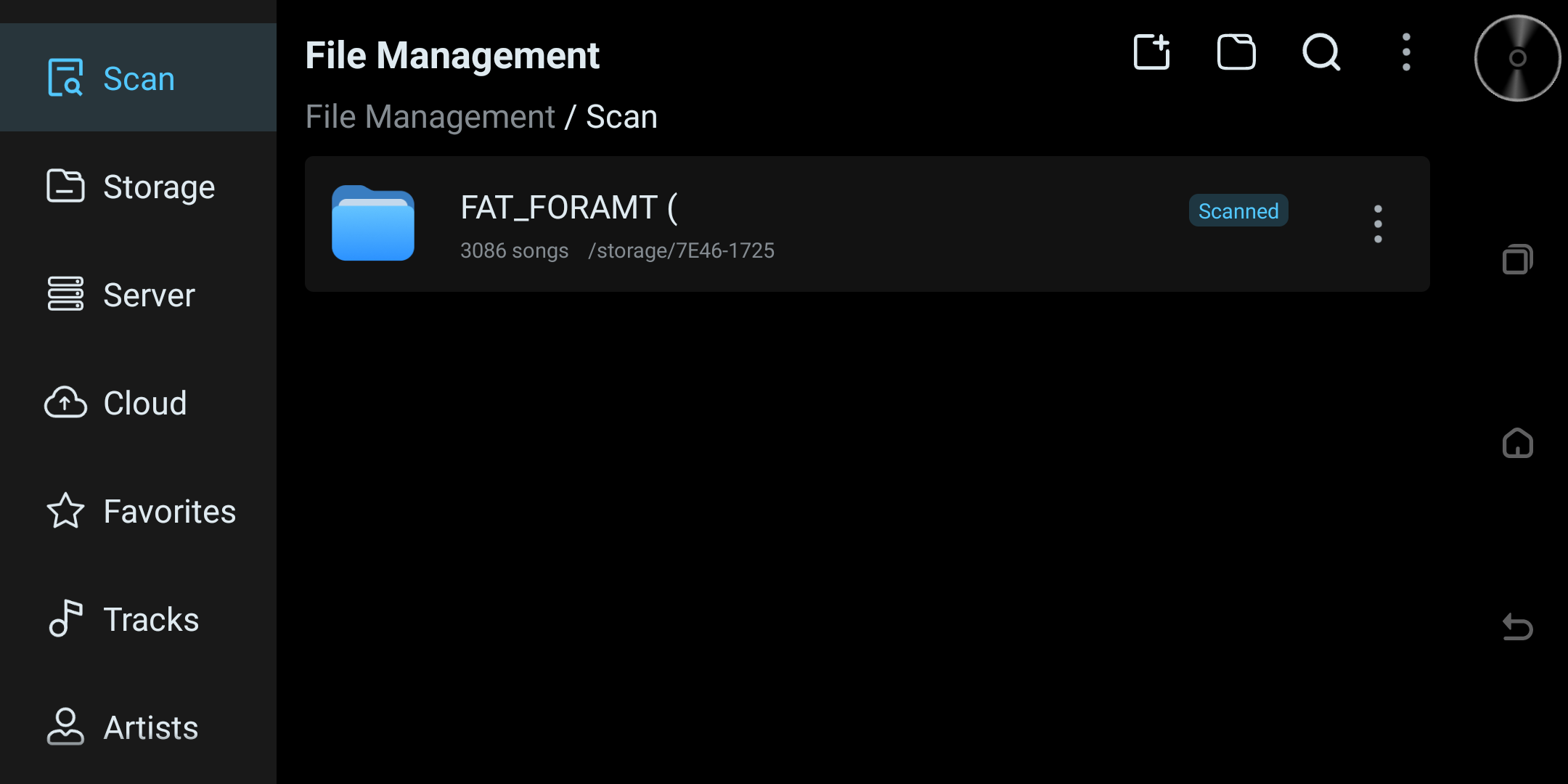
Scan (Music Scan Library)
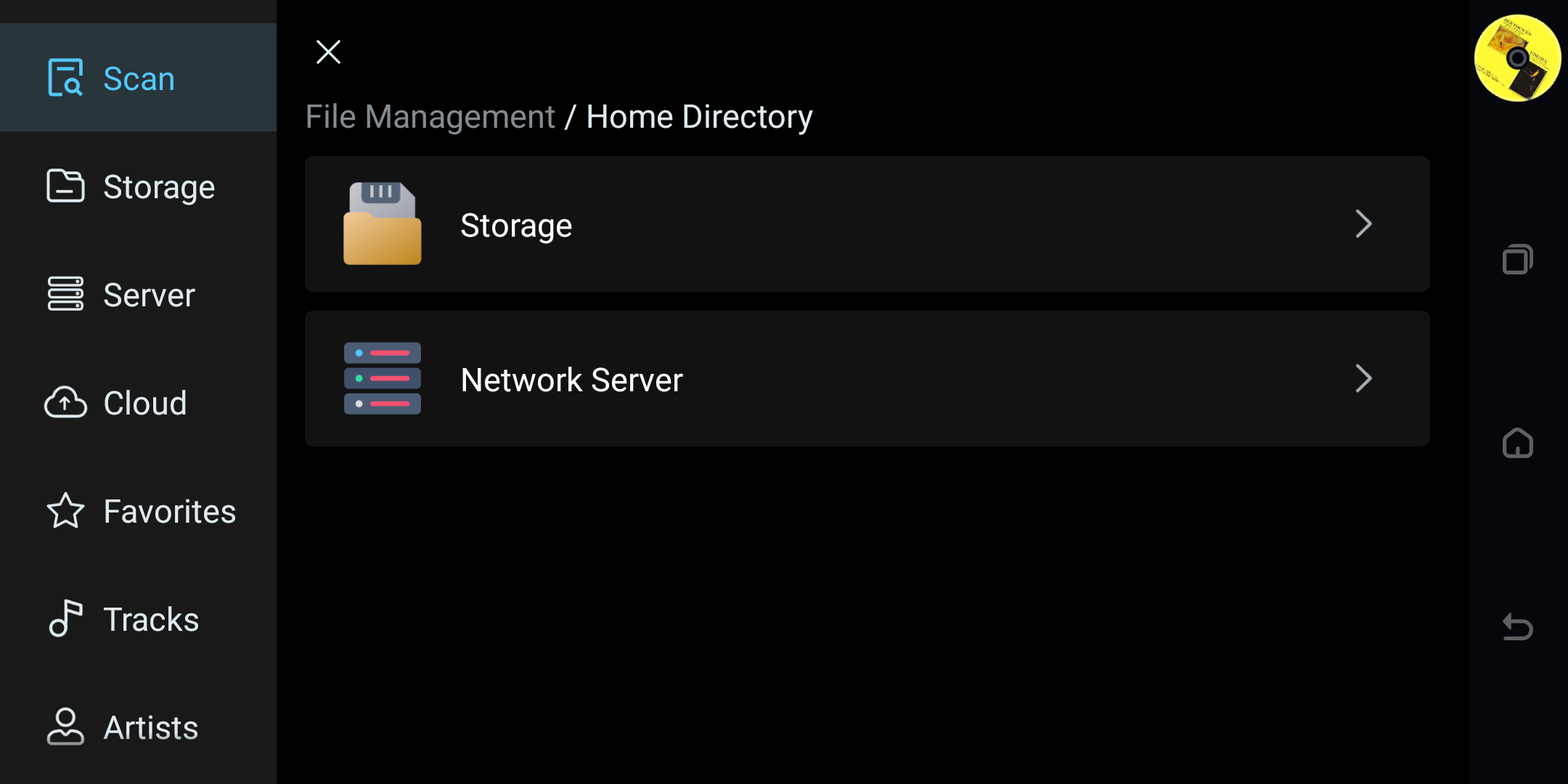
Entry: navigation bar "Scan".
Purpose: manage the source directories (local / NFS / SMB) of the "music scan library", and display scan progress and status.
Instructions
Add Scan Source
- Tap the "Add" button at the top-right.
- If a scan task is currently running, a "Scan in progress" prompt appears asking whether to stop it.
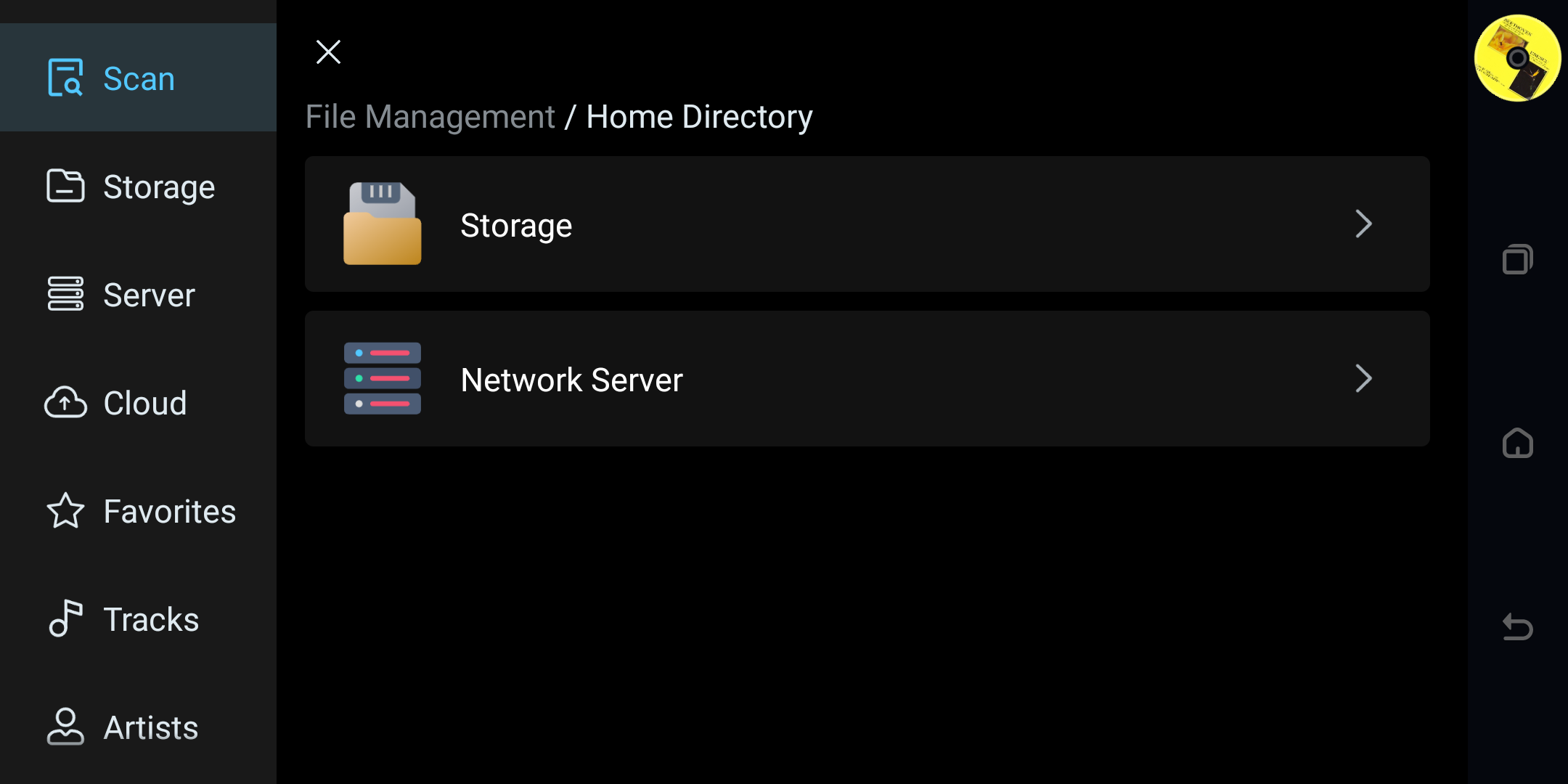
- Enter file selection (local / NFS / SMB), select the target, then tap "OK".
- After adding, it is written to the scan library and a scan is triggered.
- After a source is added or re-scanned, the library updates its music index. When files have been moved, the scan-memory function can update their scan data without affecting existing favorites or playlist records.
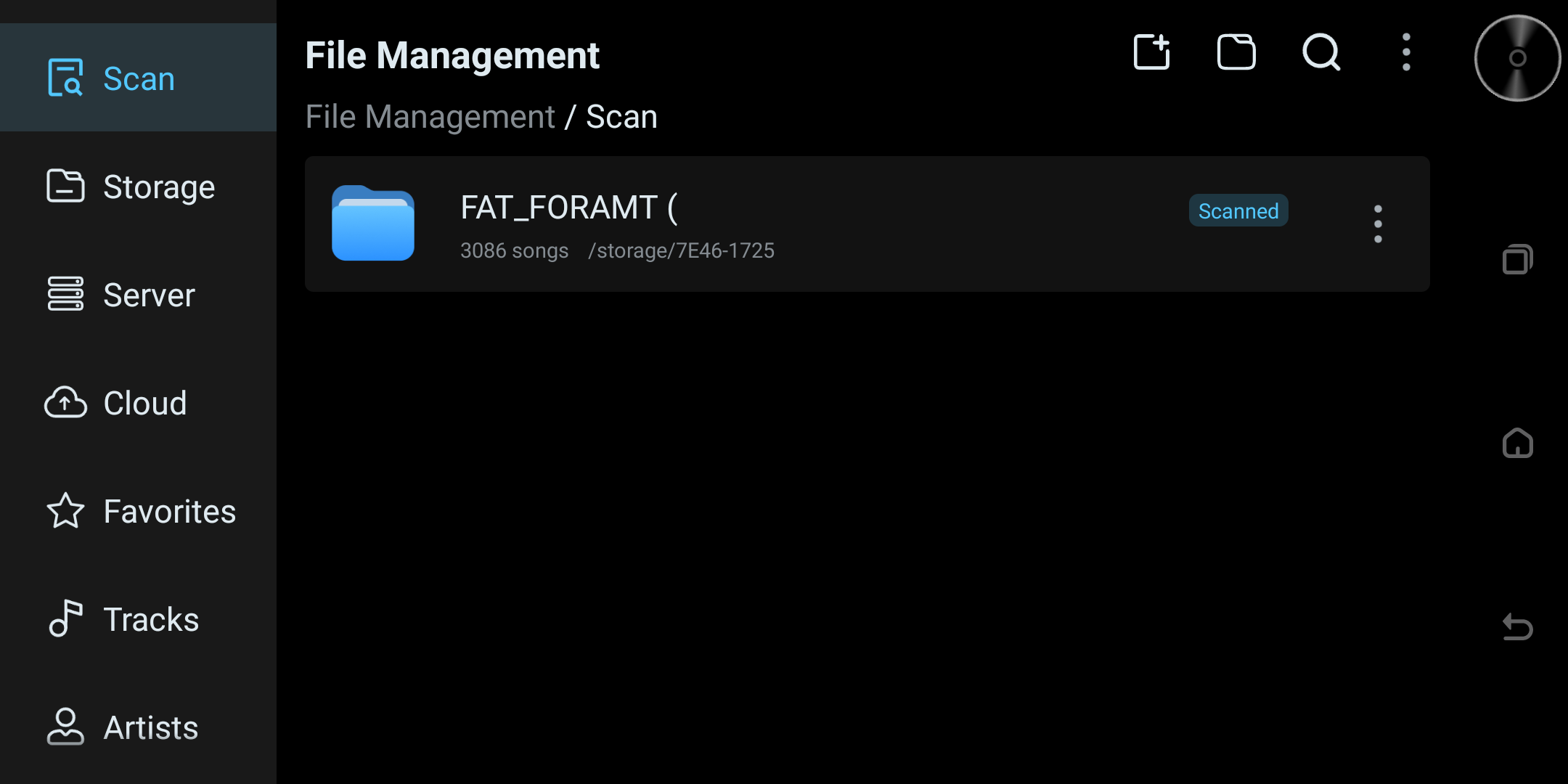
Scan Status Description
- Scanning: shows progress percentage.
- Scanned: shows "Scanned".
- Scan failed: shows "Scan failed".
- Scan interrupted: shows "Scan interrupted".
- Invalid: the device or path is unavailable.
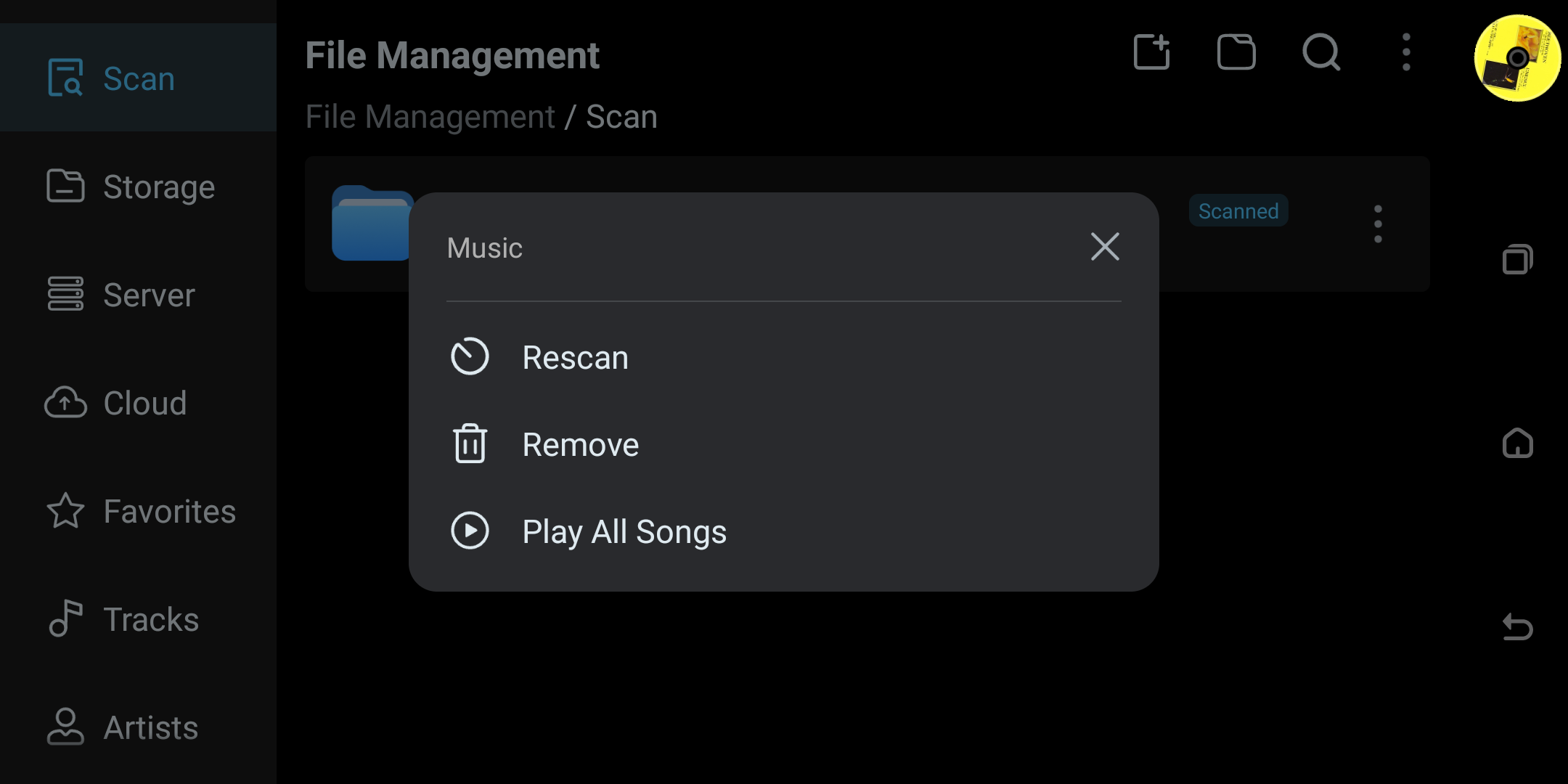
Scan Memory Function
If a user's song files are moved, the software provides a scan-memory feature that can quickly re-scan the moved songs and update the scan data, without affecting the user's favorites or playlist records for those songs. (Added in version 1.1.25)
Cleanup
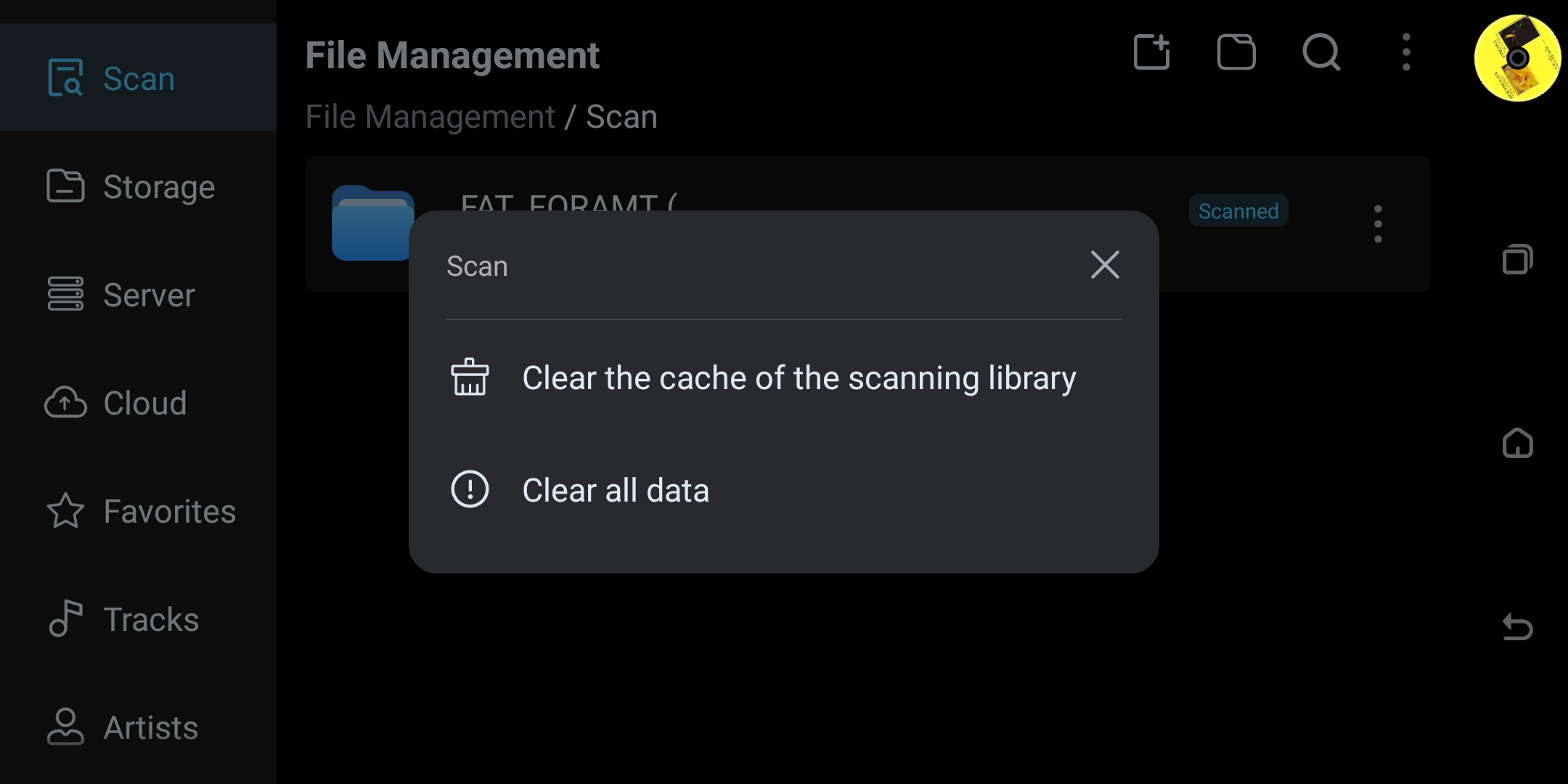
- Tap the "Cleanup" button to pop up a menu:
- ① Clear cache: delete cached files.
- ② Delete data: clear scan-library records + music-library data.
Search Button
- Tapping Search jumps to the Search app.
Storage (Local Disk)
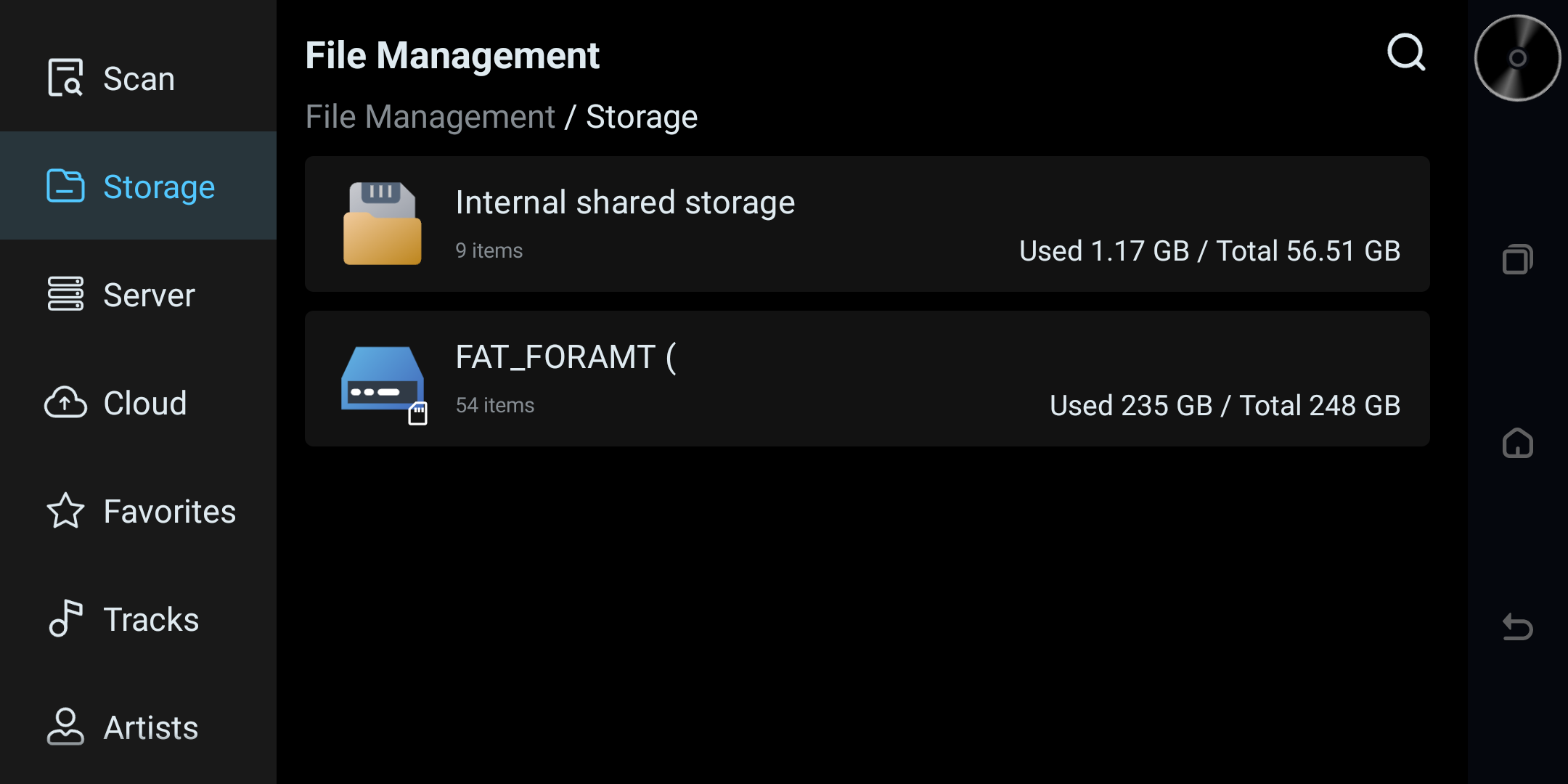
Entry: navigation bar "Storage".
Purpose: manage local files, supporting select, copy / cut / paste, delete, rename, and add-to-scan-library.
Instructions
File Browsing
- Shows the local disk entry by default, with multi-level path breadcrumb navigation.
Edit Mode
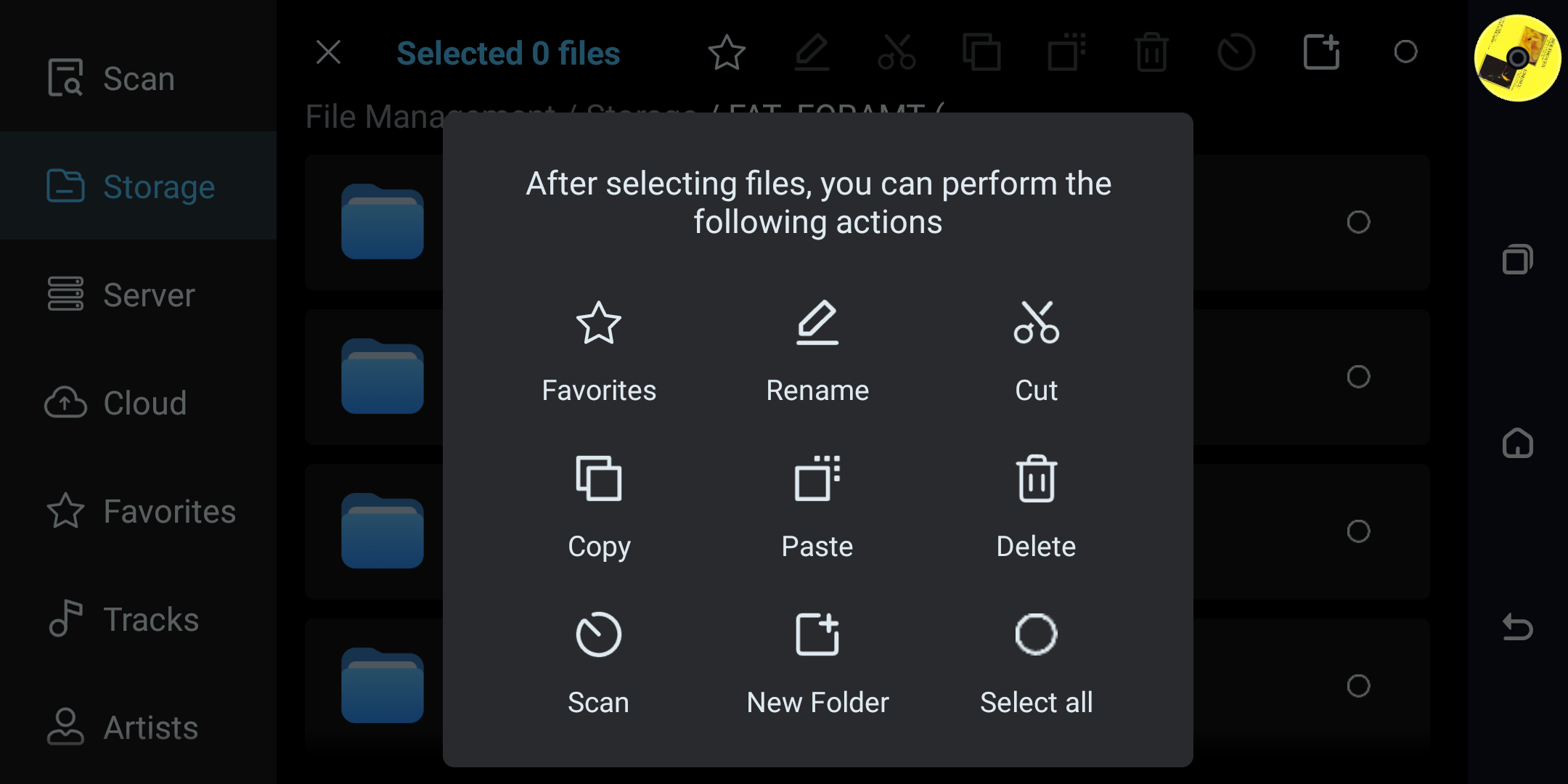
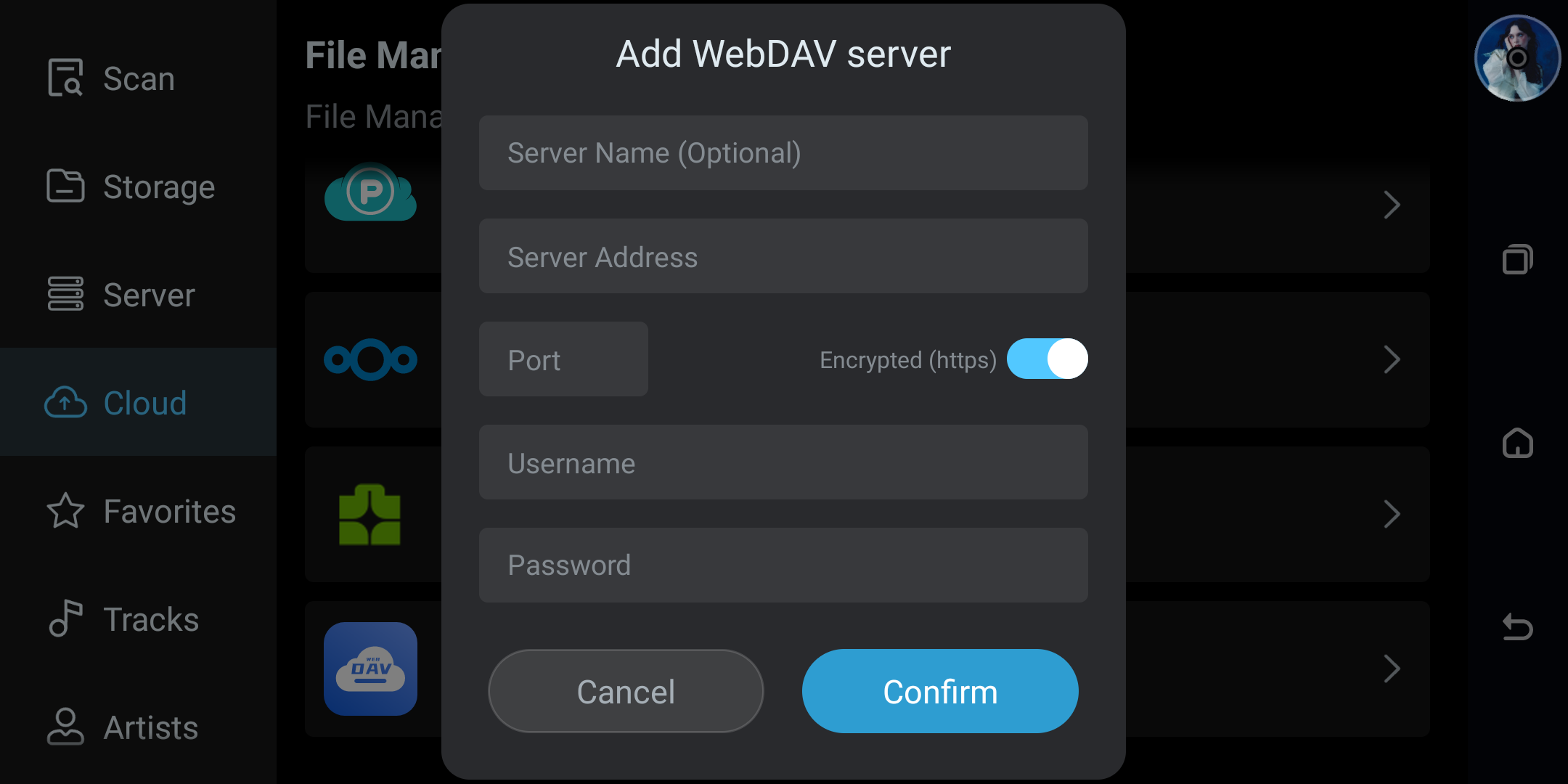
- Tap "Edit" to enter selection / operation mode:
- Select all / invert selection: select or deselect the files or folders on the current page for batch operations.
- New folder: create a new folder.
- Scan: add the selected directory to the scan library. (Scan can only run on "folders"; non-directories prompt that they cannot be scanned.)
- Delete: delete the selected files.
- Copy / Cut / Paste: copy or cut the selected files. (Supports cross-module paste between local and server files.)
- Rename: modify the name of a file or folder. (Renaming a music file does not modify its metadata.)
Server (NFS / SMB)
Entry: navigation bar "Server".
Purpose: discover / manage NFS / SMB servers and shared directories, supporting file operations and scan library.
Instructions
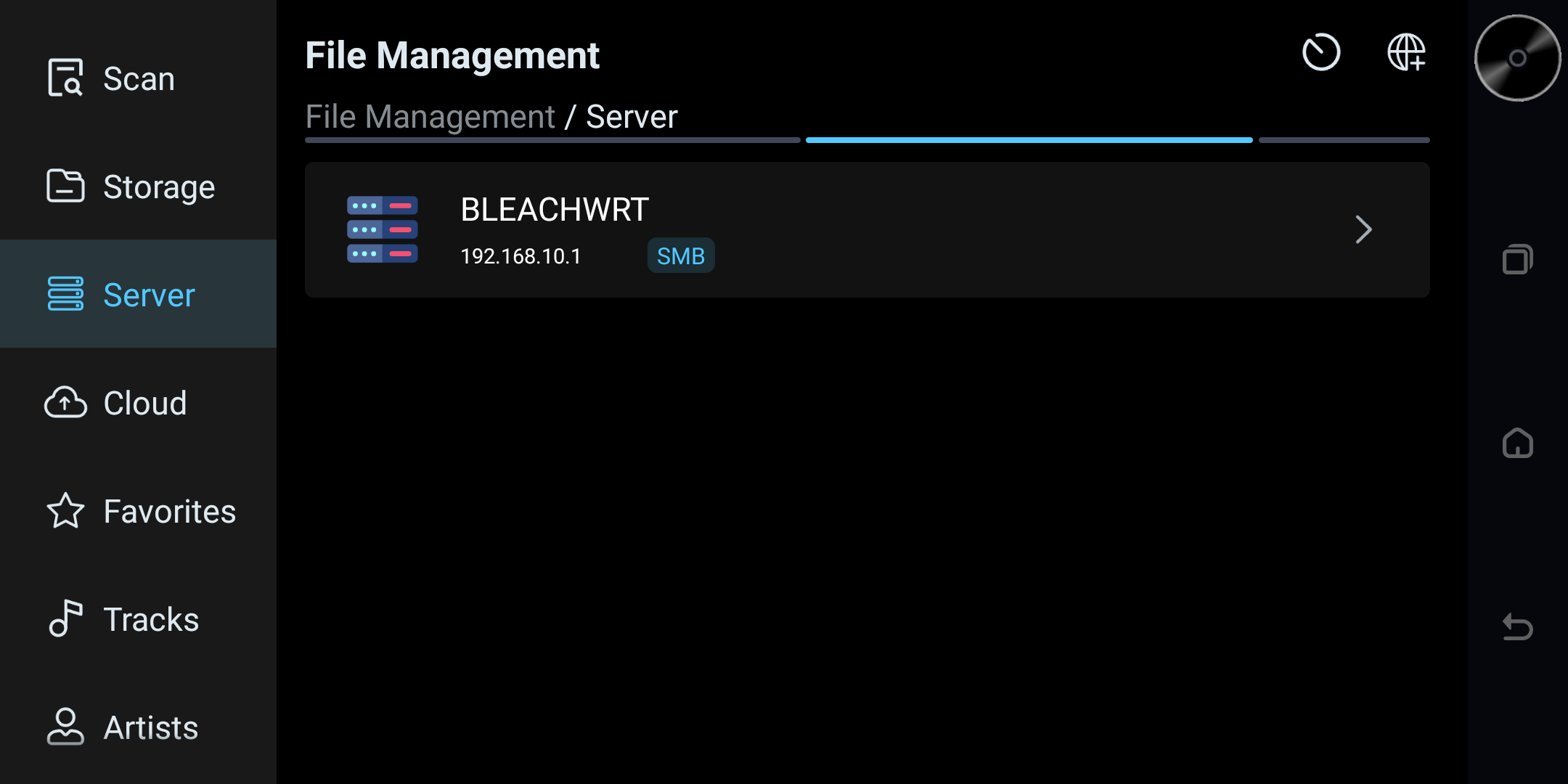
Auto Discovery
- The Server page automatically discovers available NFS / SMB servers on the local network and lists them.
Add SMB Manually
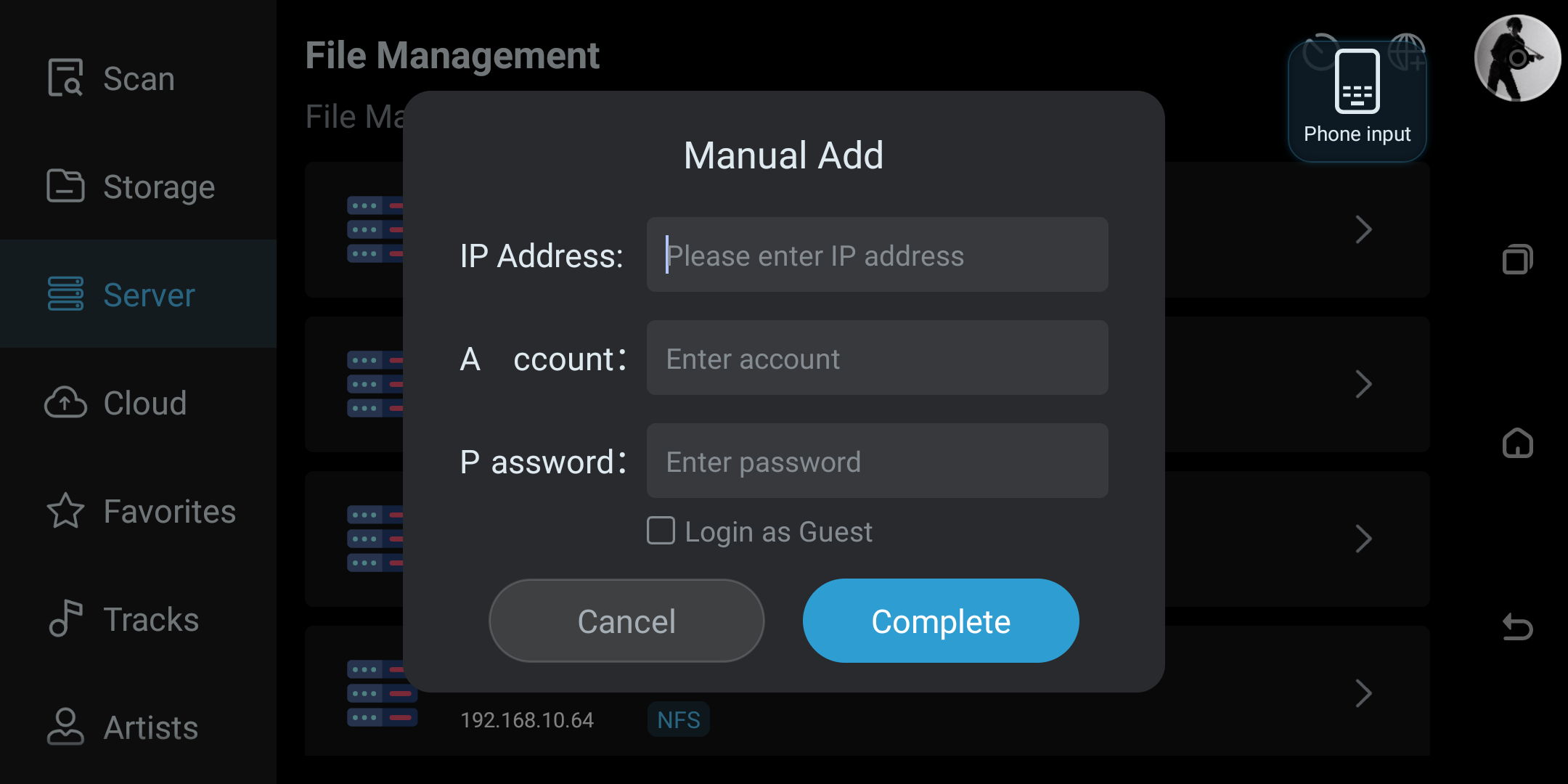
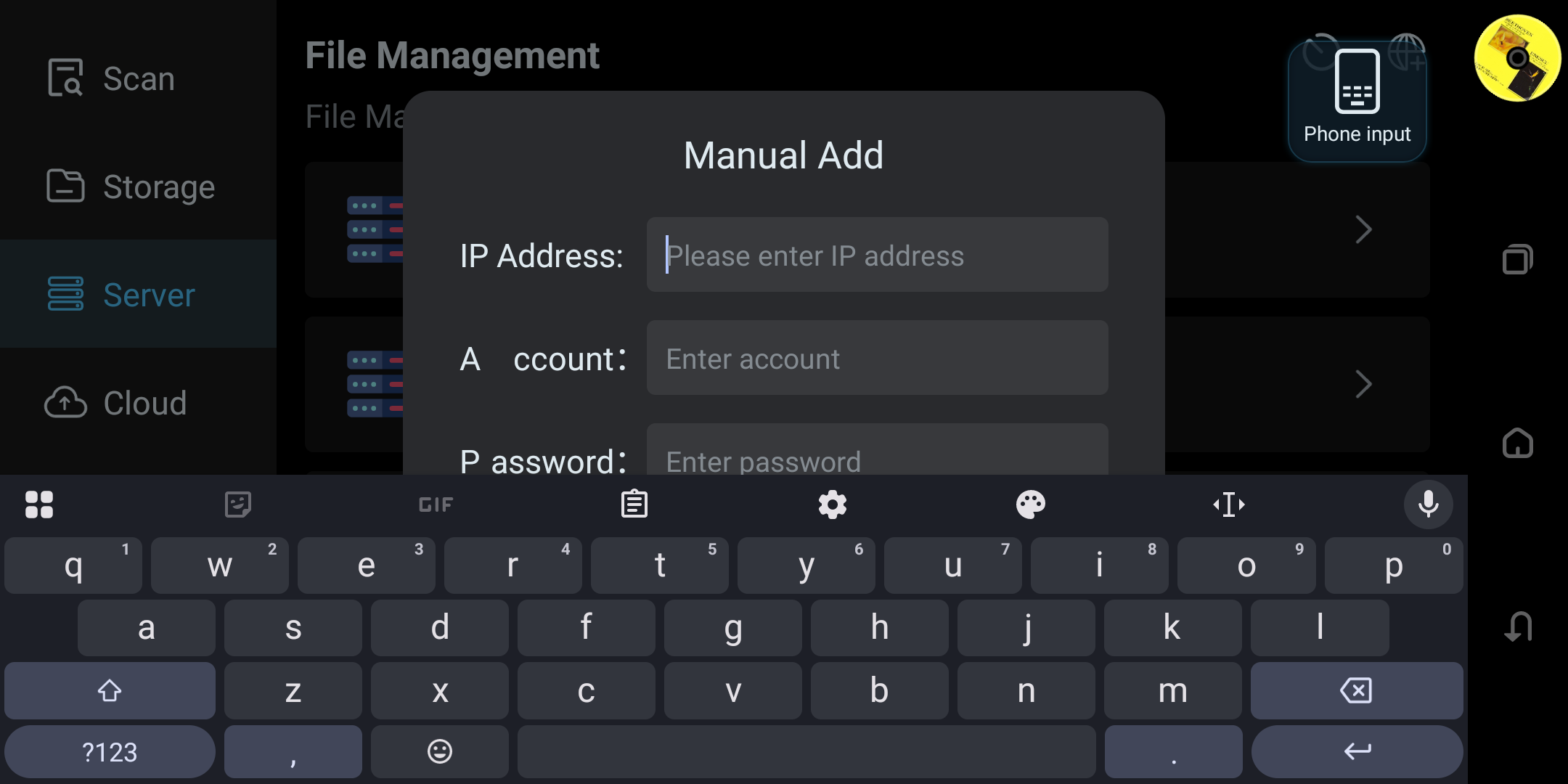
- Tap "Add manually", enter IP, account and password; credentials are saved locally.
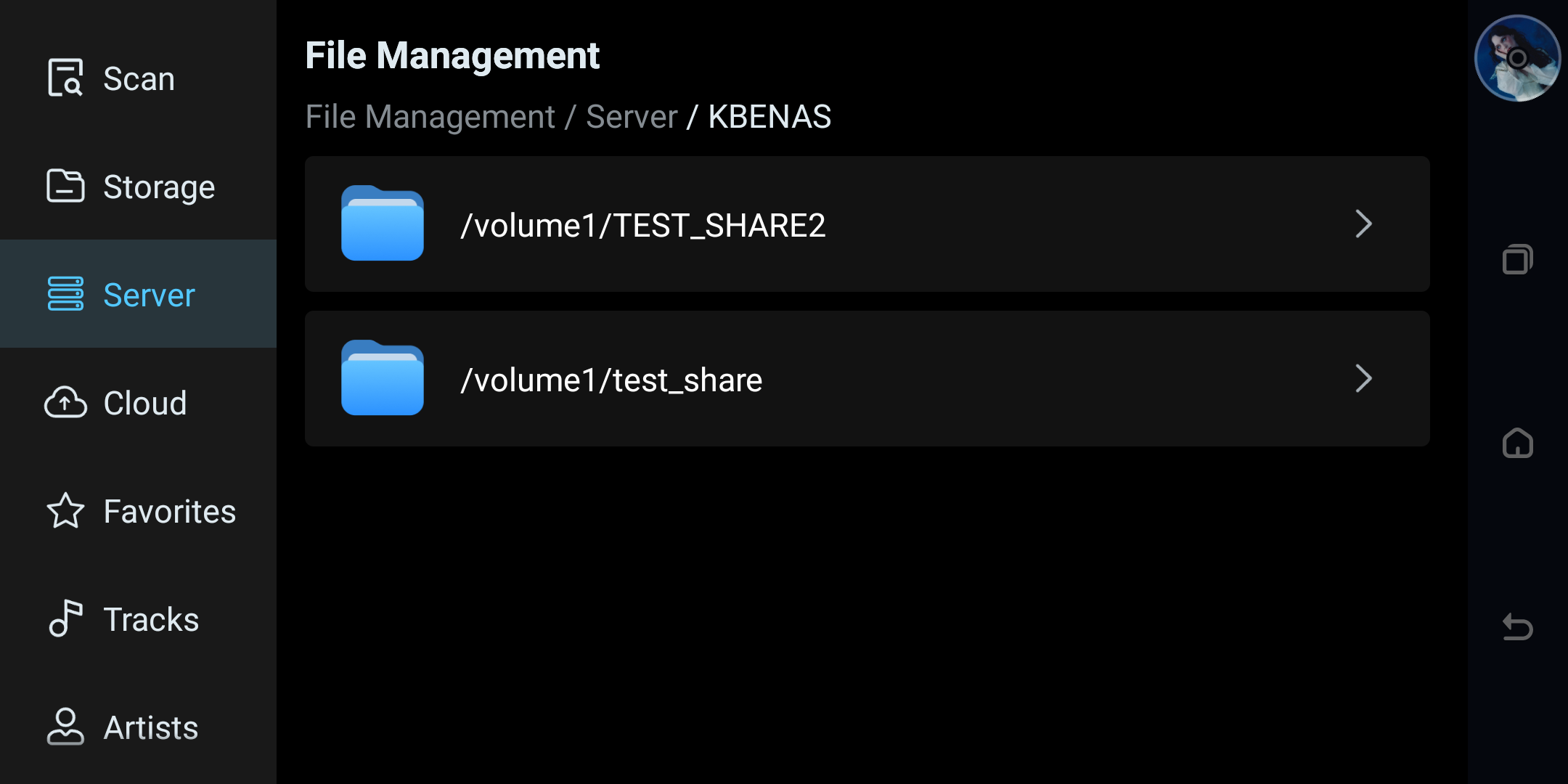
- After success, enter the corresponding shared directory list.
File Operations (same as local)
- Edit mode: select all / invert, new, scan, delete, copy, cut, paste, rename.
- Add the selected directory to the scan library (type NFS / SMB). The selected path is written to the scan library and the network server info is saved.
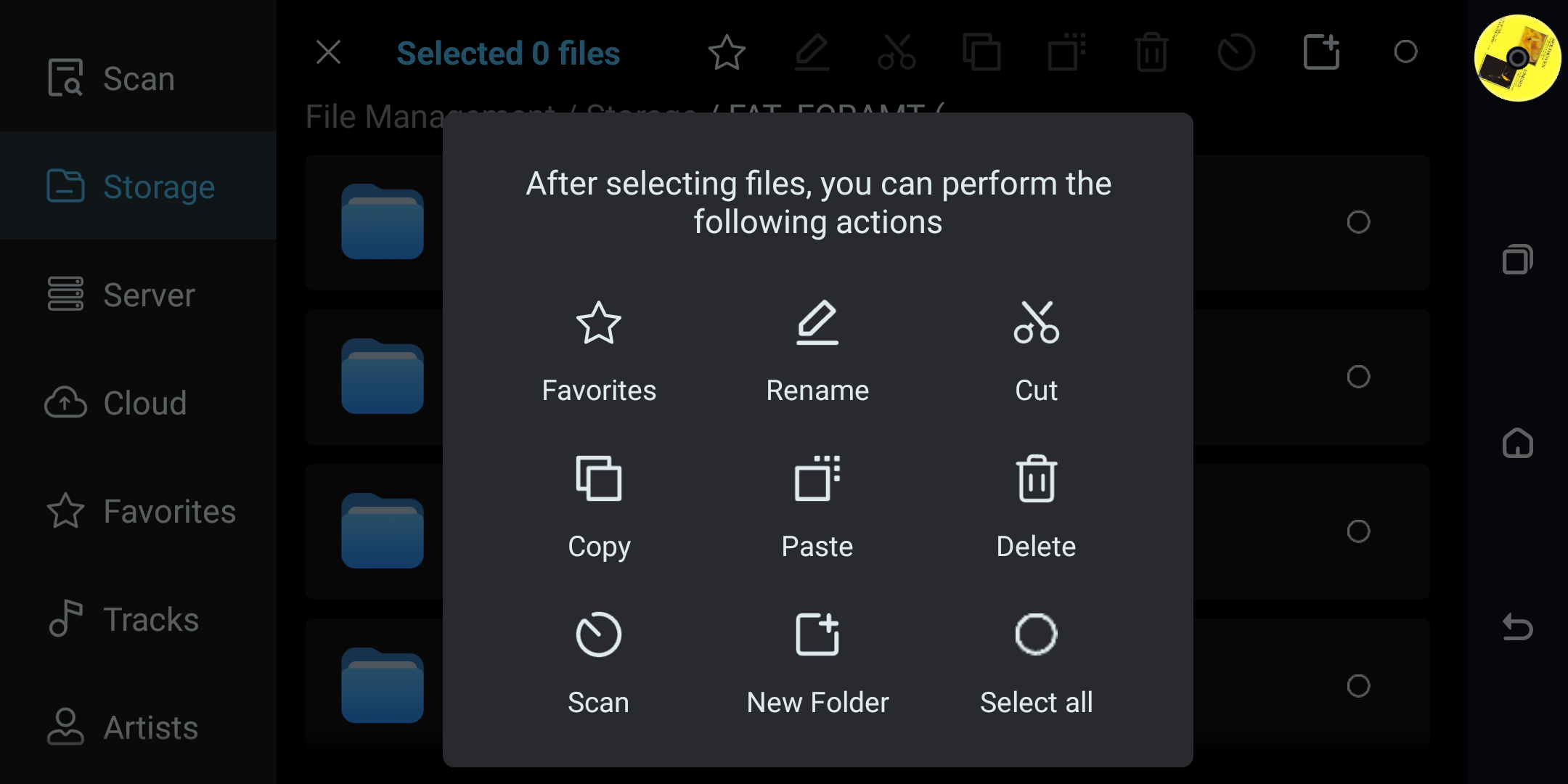
Cloud (Current K-Link Entry and Legacy File Cloud UI)
Current firmware (tested on 1.5.39): select a provider from File > Cloud to open K-Link. For provider setup and playback, see 7. Klink Cloud Storage User Guide. The direct File Cloud actions below apply only to older firmware that actually shows those controls.
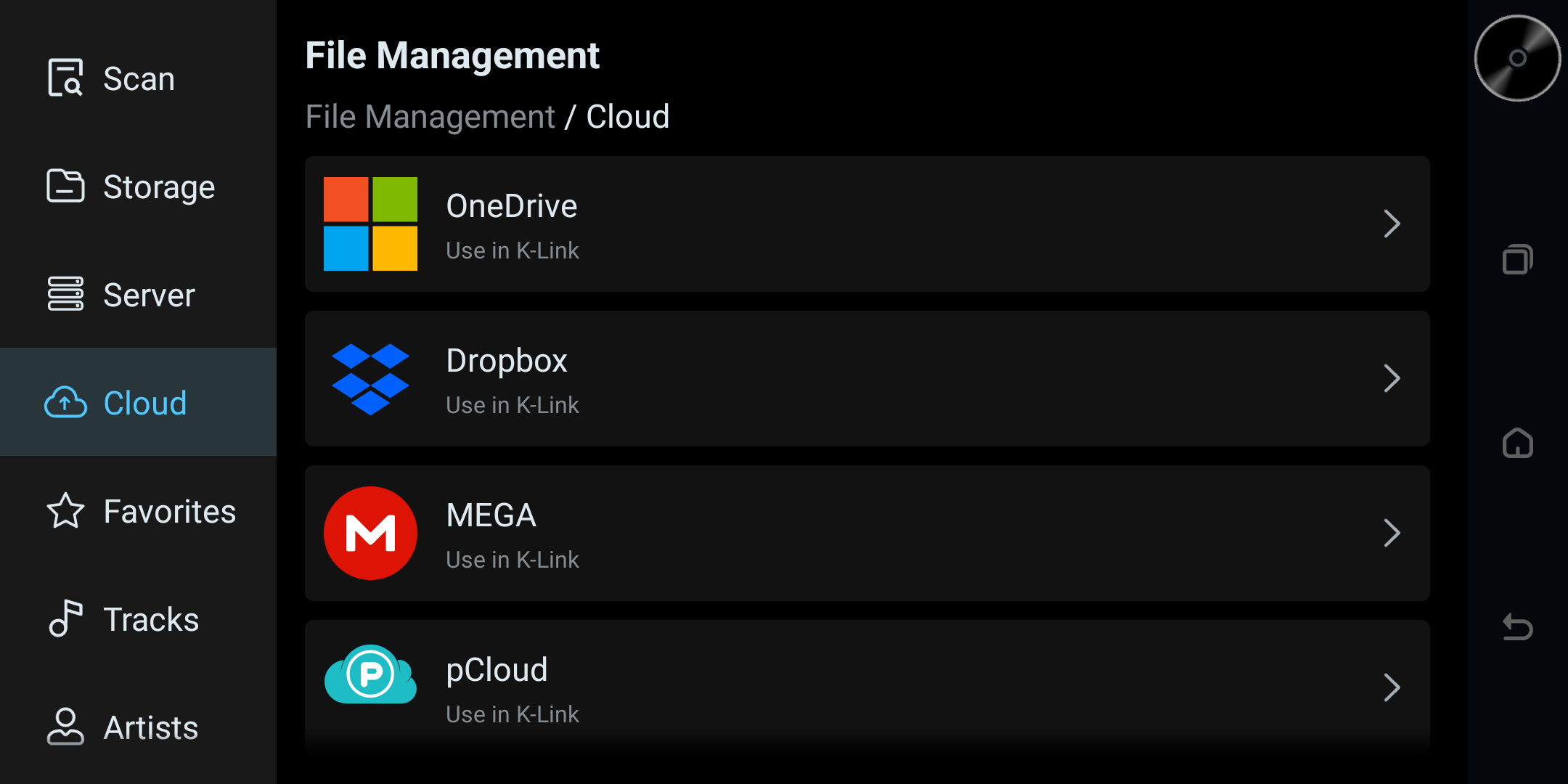
Entry: navigation bar "Cloud" (the label may be "Cloud Storage" on older firmware).
Purpose: view the cloud-service entries available on the installed firmware. Some entries direct to K-Link; operations such as browse, download, rename, delete, or sign out depend on the selected service and app version.
Legacy File Cloud UI (only if these controls appear)
- Browse cloud drive
- Loads the cloud-drive list by default.
- Sign out
- Tap the "Sign out" button to clear the current account Token and return to the root directory.
- Edit-mode operations
- Rename (single select)
- Delete (multi select)
- Download (multi select, directory recursion supported)
- Download
- Shows download progress while files are being downloaded.
- Checks storage permission and creates the download directory.
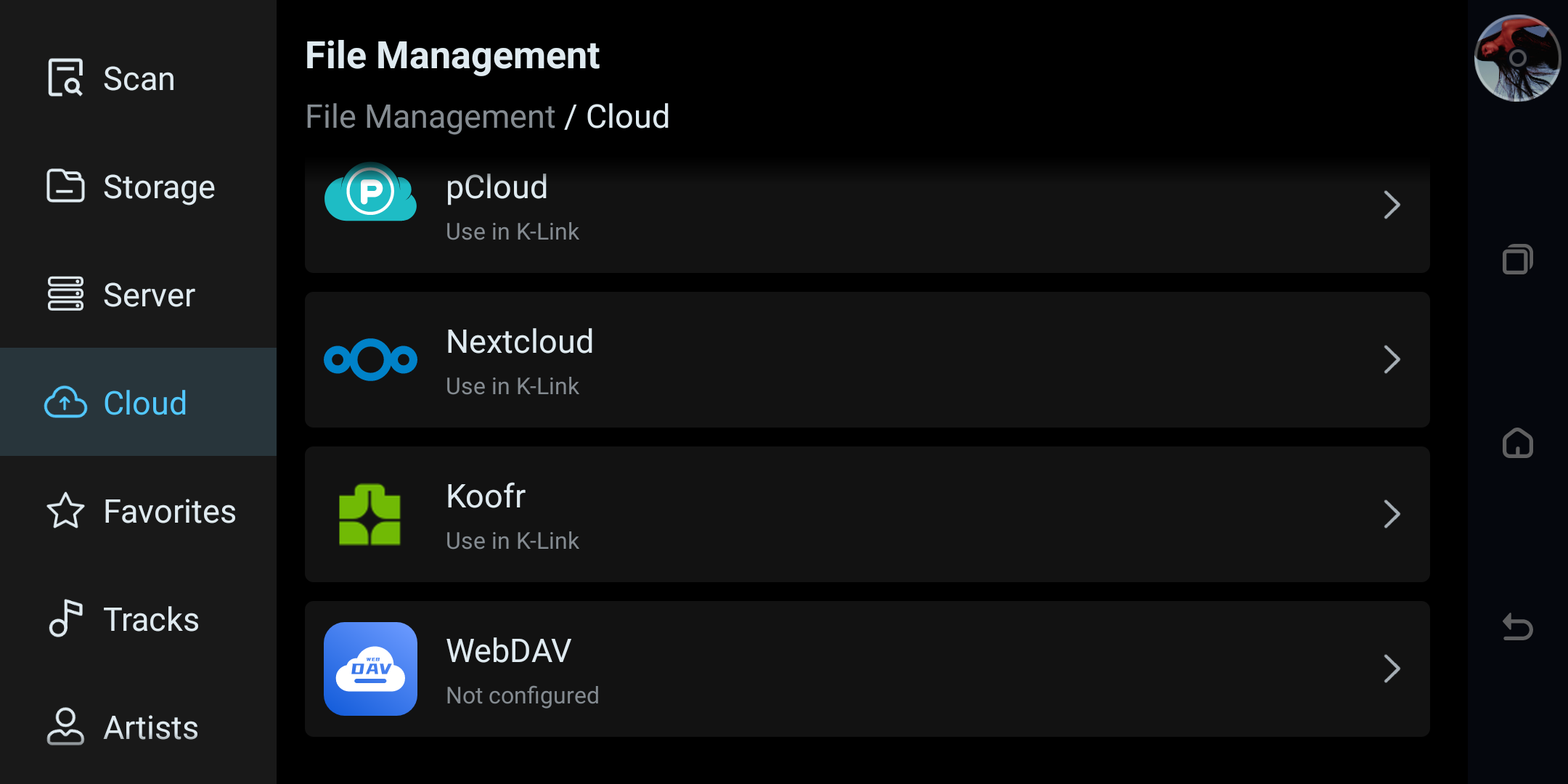
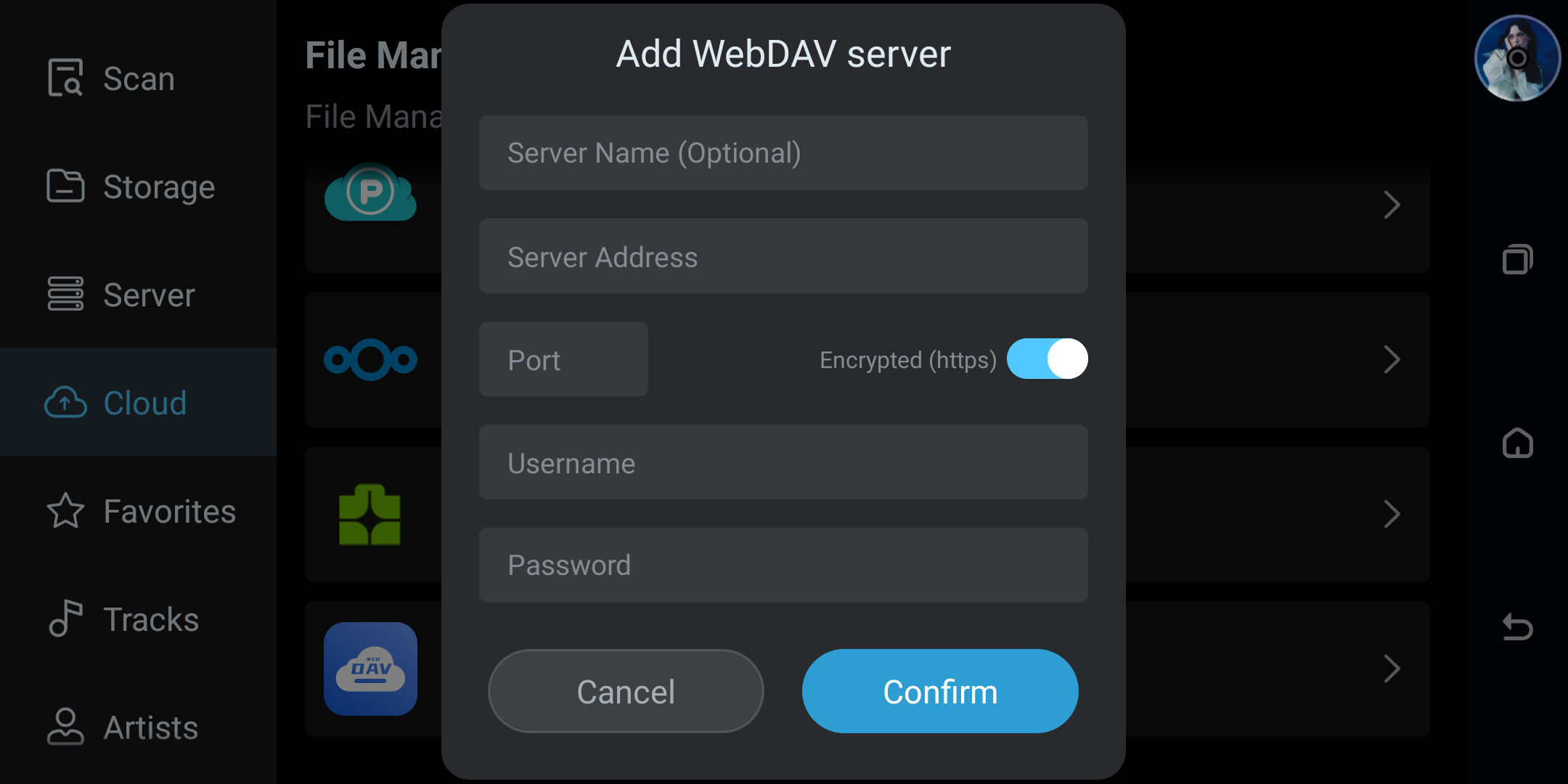
WebDAV configuration (when the Cloud page shows a WebDAV entry):
Music Library – Tracks
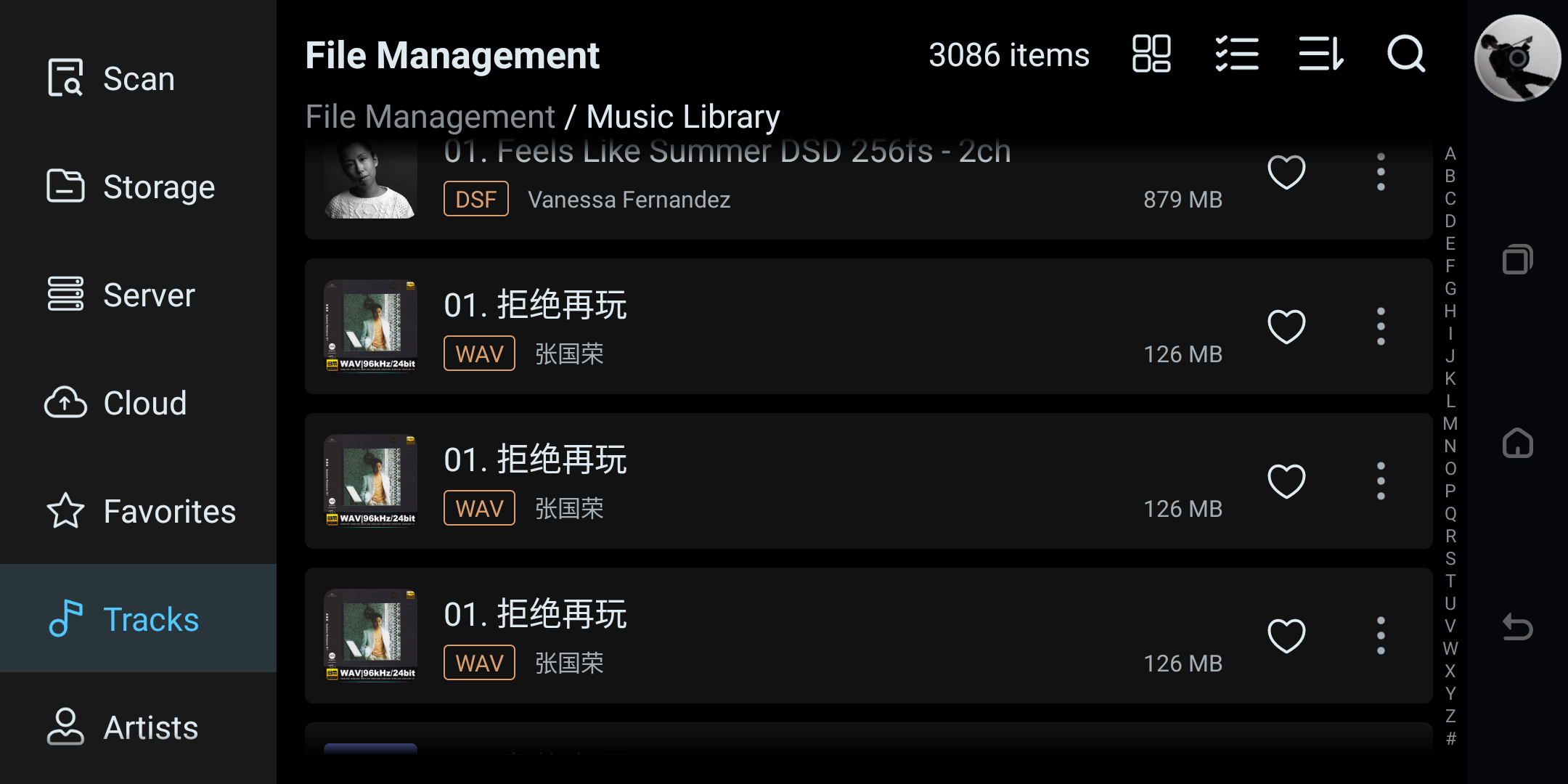
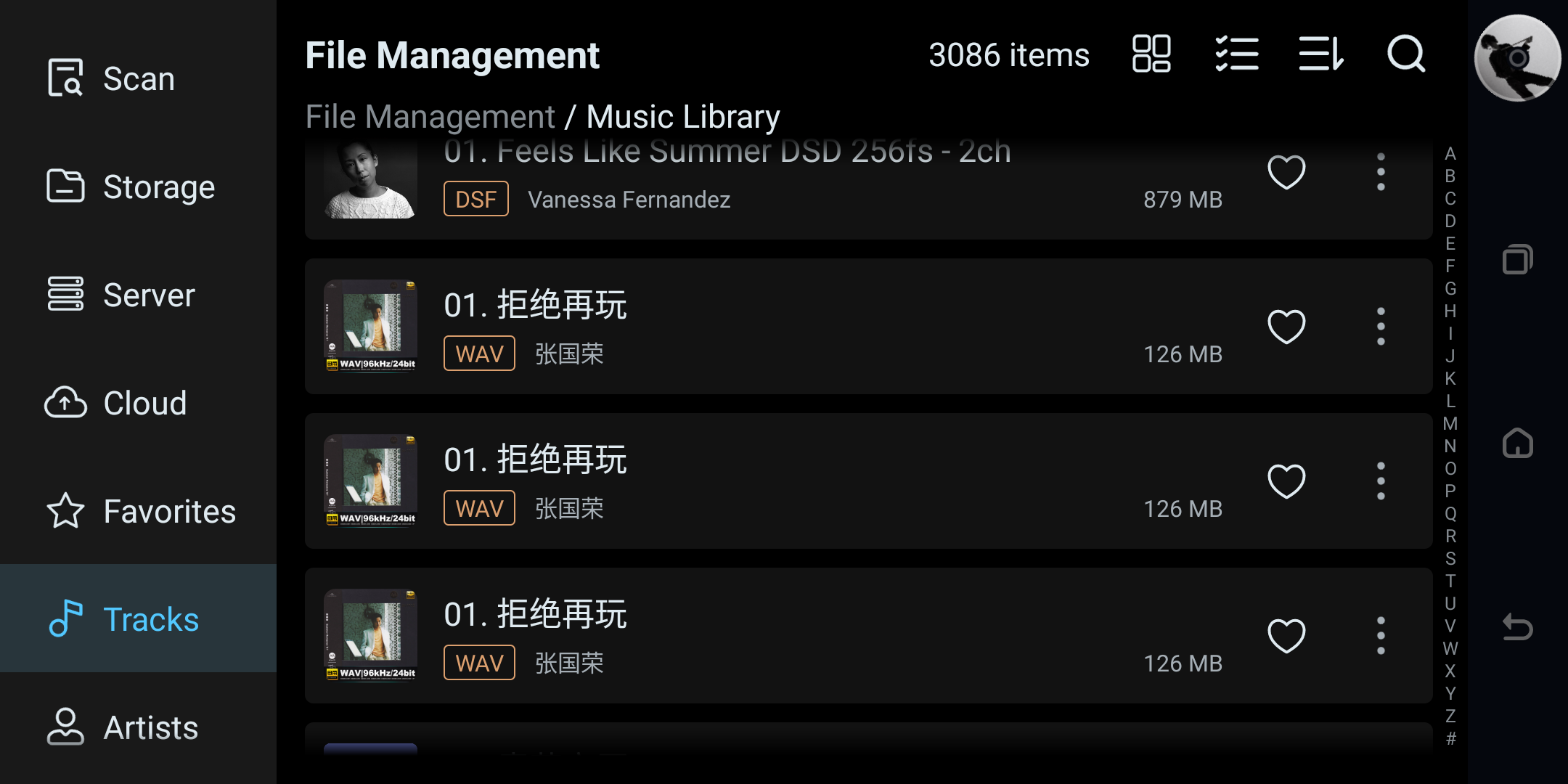
Entry: navigation bar "Tracks".
Purpose: display music scan results, play, favorite, and perform batch operations.
Instructions
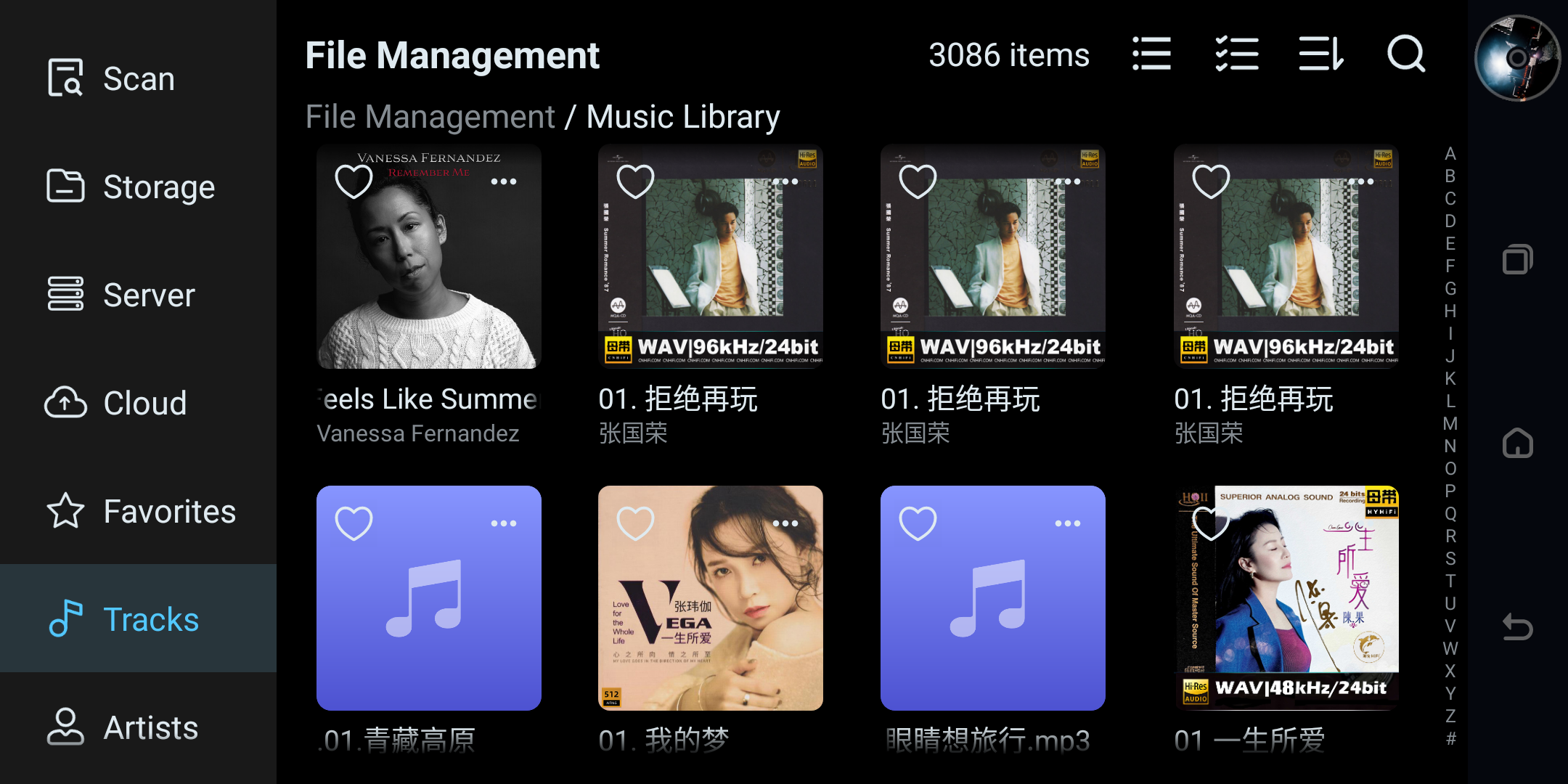
- List / grid toggle
- The list/grid icon at the top-right toggles between list and grid view.
- Search
- Tap the search button to jump to the Search app.
- Refresh & pagination
- Pull down to refresh and reload; scroll to bottom to auto-load the next page.
- Play
- Tap a song to play; single / list play strategy can be controlled by system attributes.
- If the file path is unavailable, a prompt to refresh the database appears.
- Selection mode
- After entering selection mode, the following are supported:
- Select all / invert selection
- Delete (can delete files)
- Add to current playlist
- Add to playlist
- After entering selection mode, the following are supported:
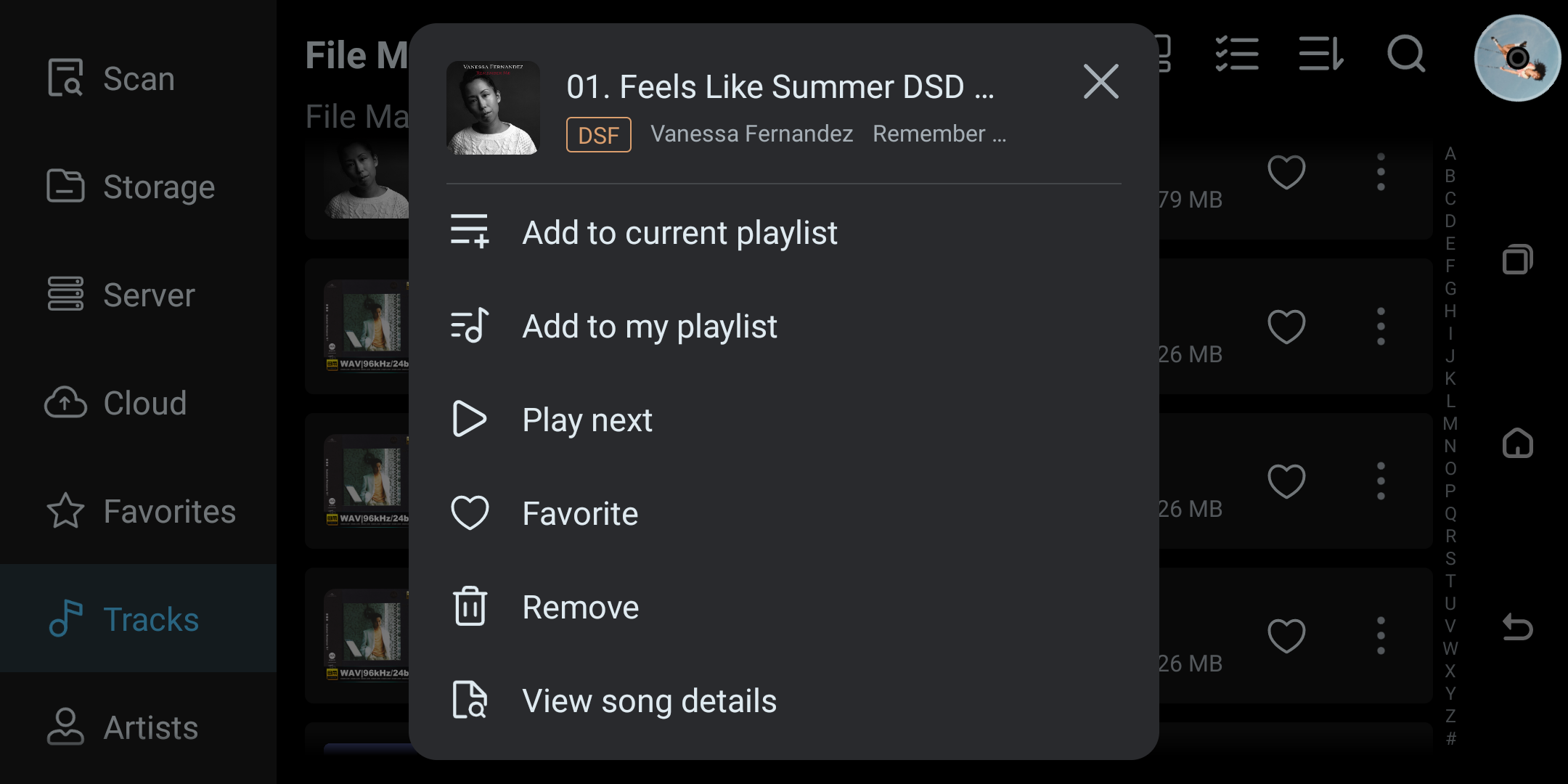
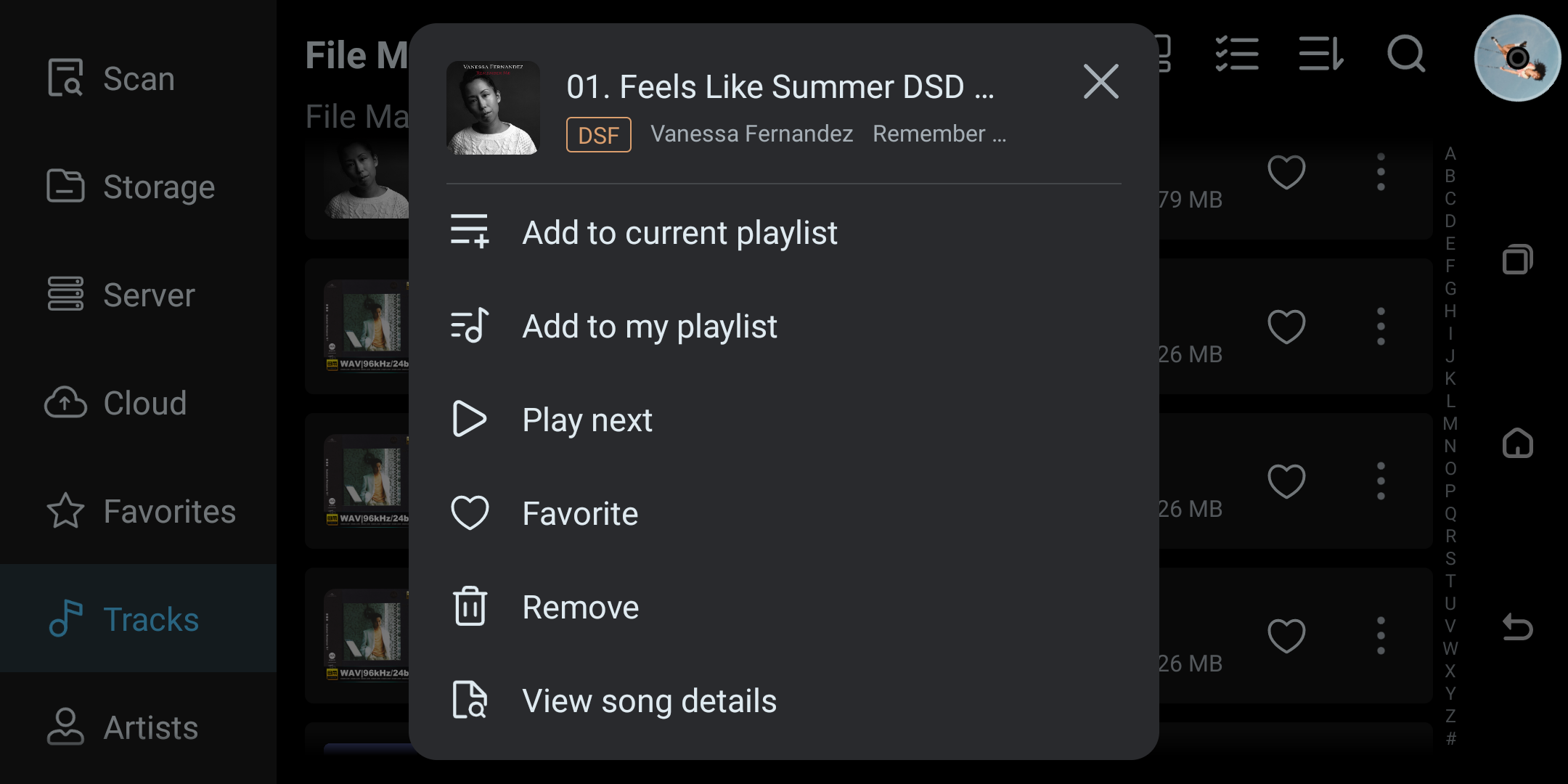
- More operations (single-song menu)
- Favorite / unfavorite
- Delete
- View details
- Add to current playlist
Music Library – Artists
Entry: navigation bar "Artists".
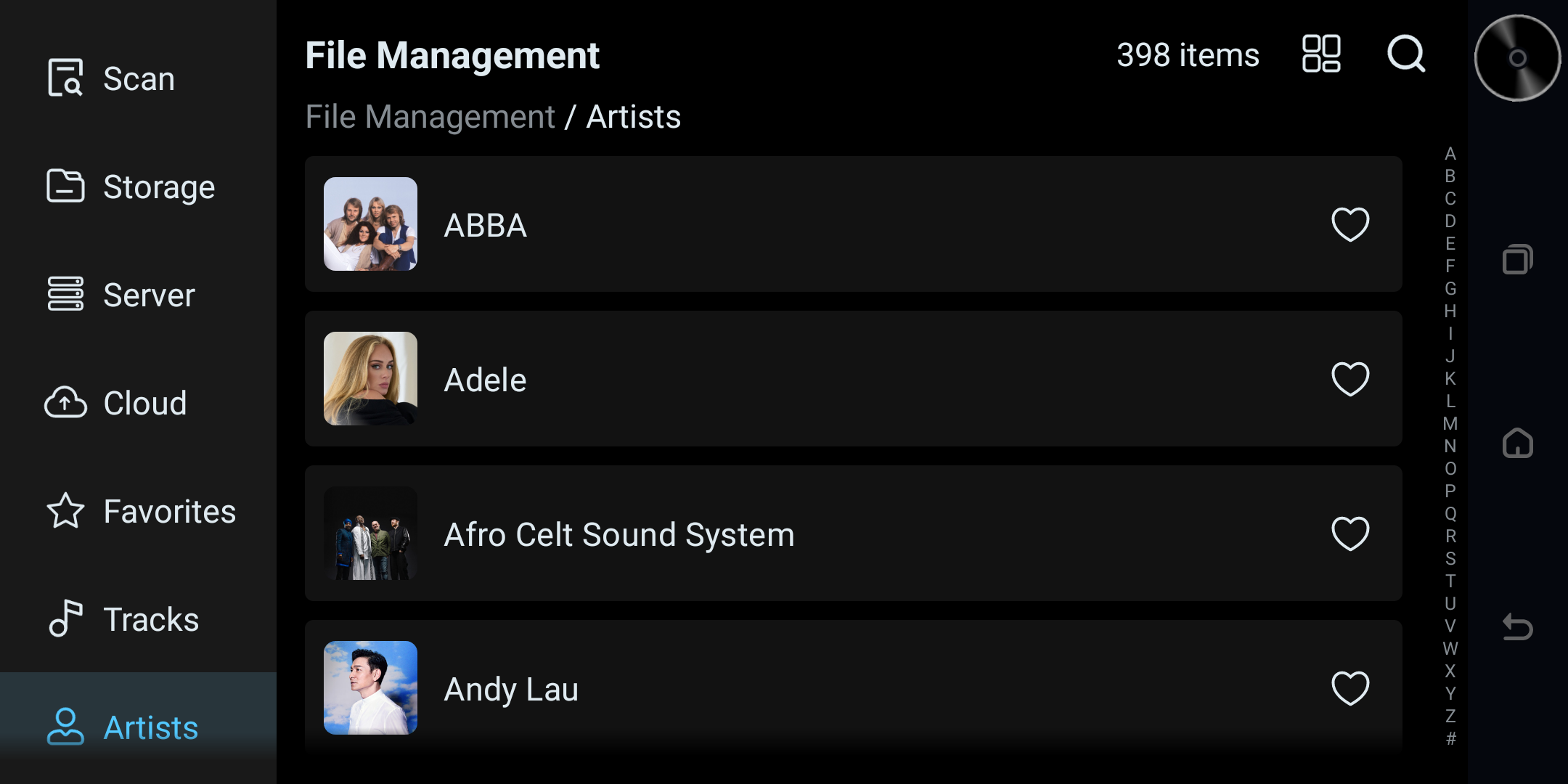
Purpose: display songs grouped by artist, supporting play and batch operations.
Instructions
- Style toggle: grid / list style switch.
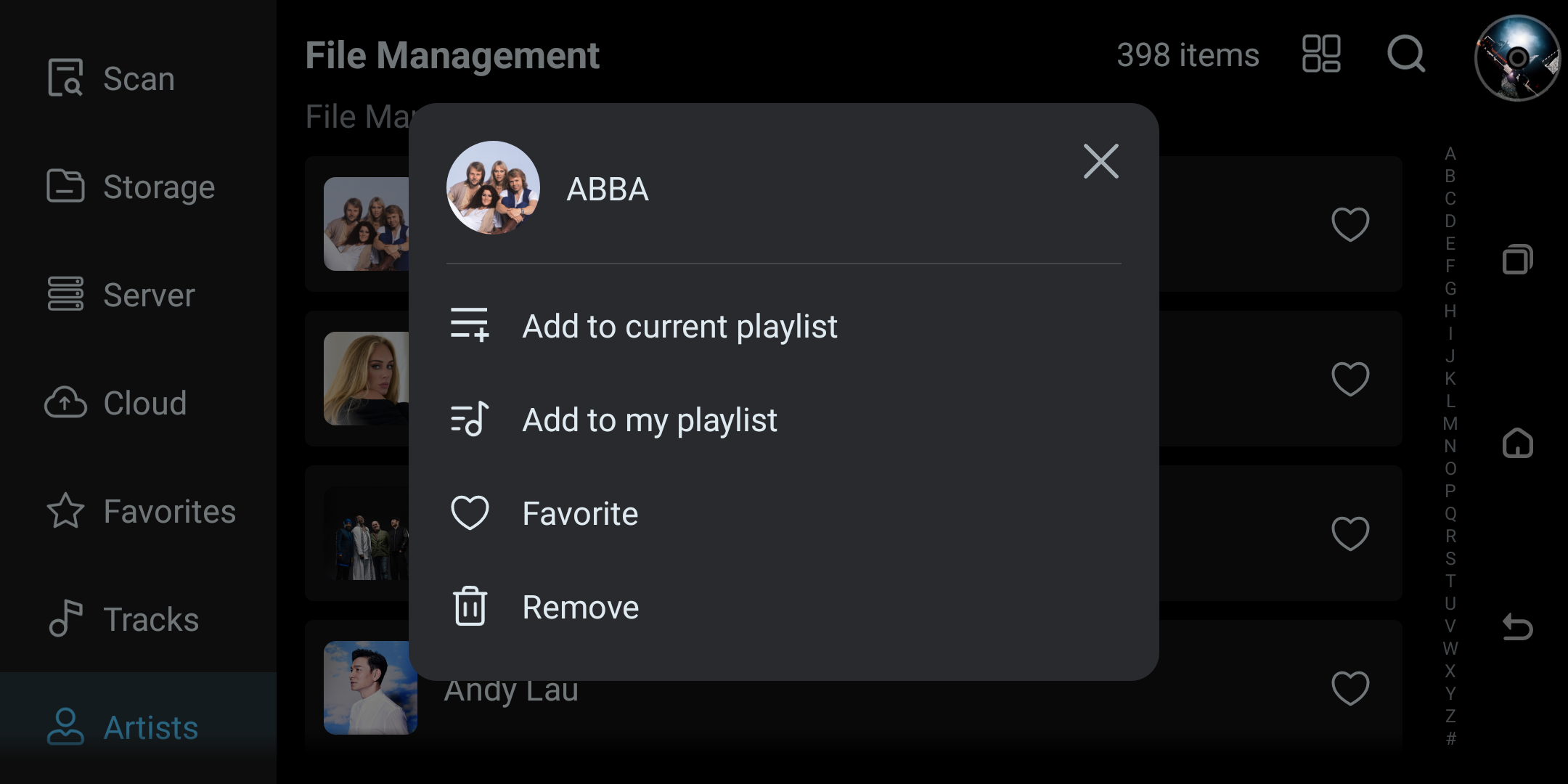
- Selection mode: select all / invert, delete, add to current playlist, add to playlist.
- "More": enter the artist's track detail list.
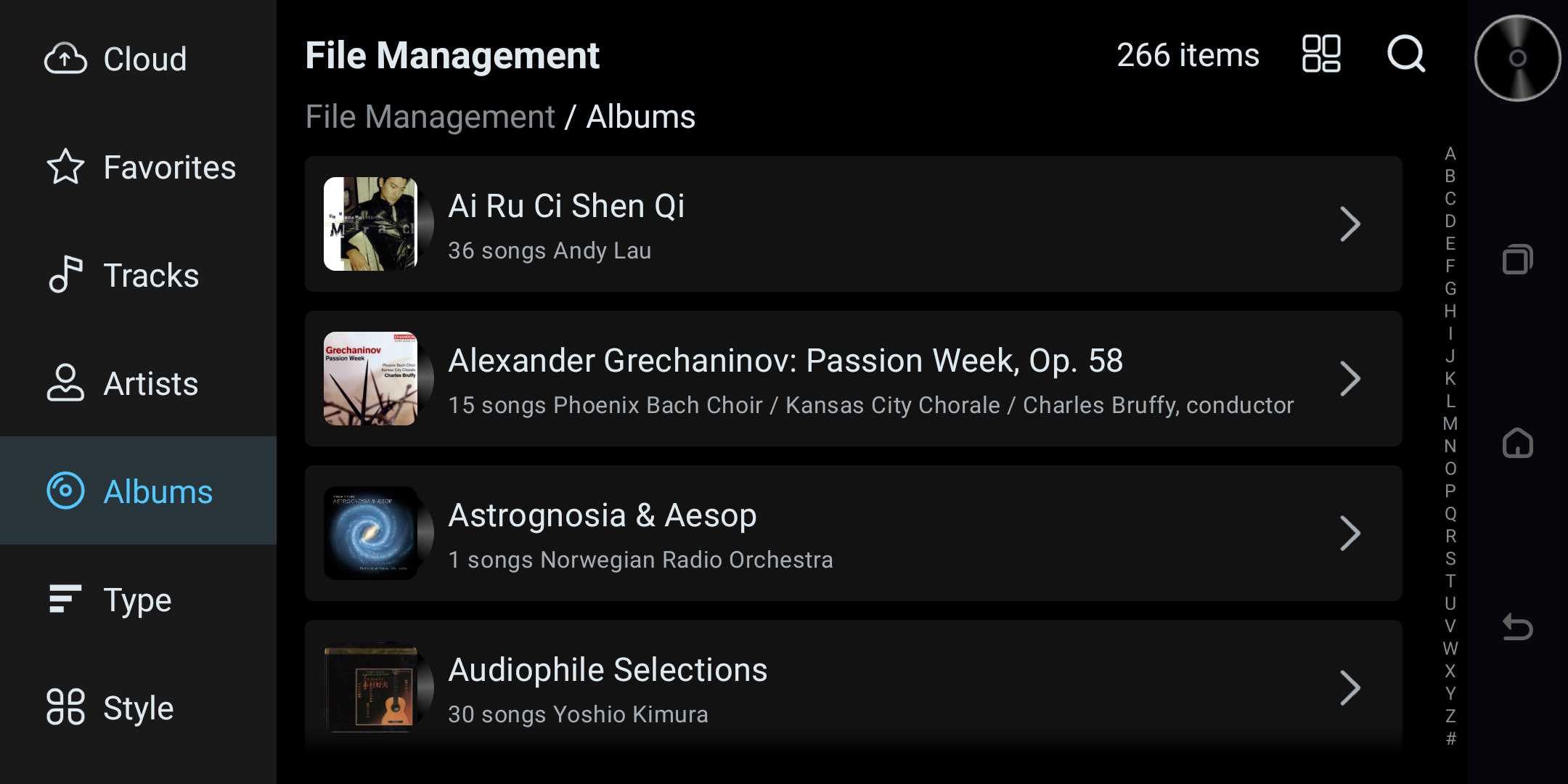
Music Library – Albums
Entry: navigation bar "Albums".
Purpose: display grouped by album; operations are similar to Artists.
Instructions
- Style toggle: grid / list style switch.
- Selection mode: select all / invert, delete, add to current playlist, or add to a playlist.
- "More": enter the album detail list.
Style
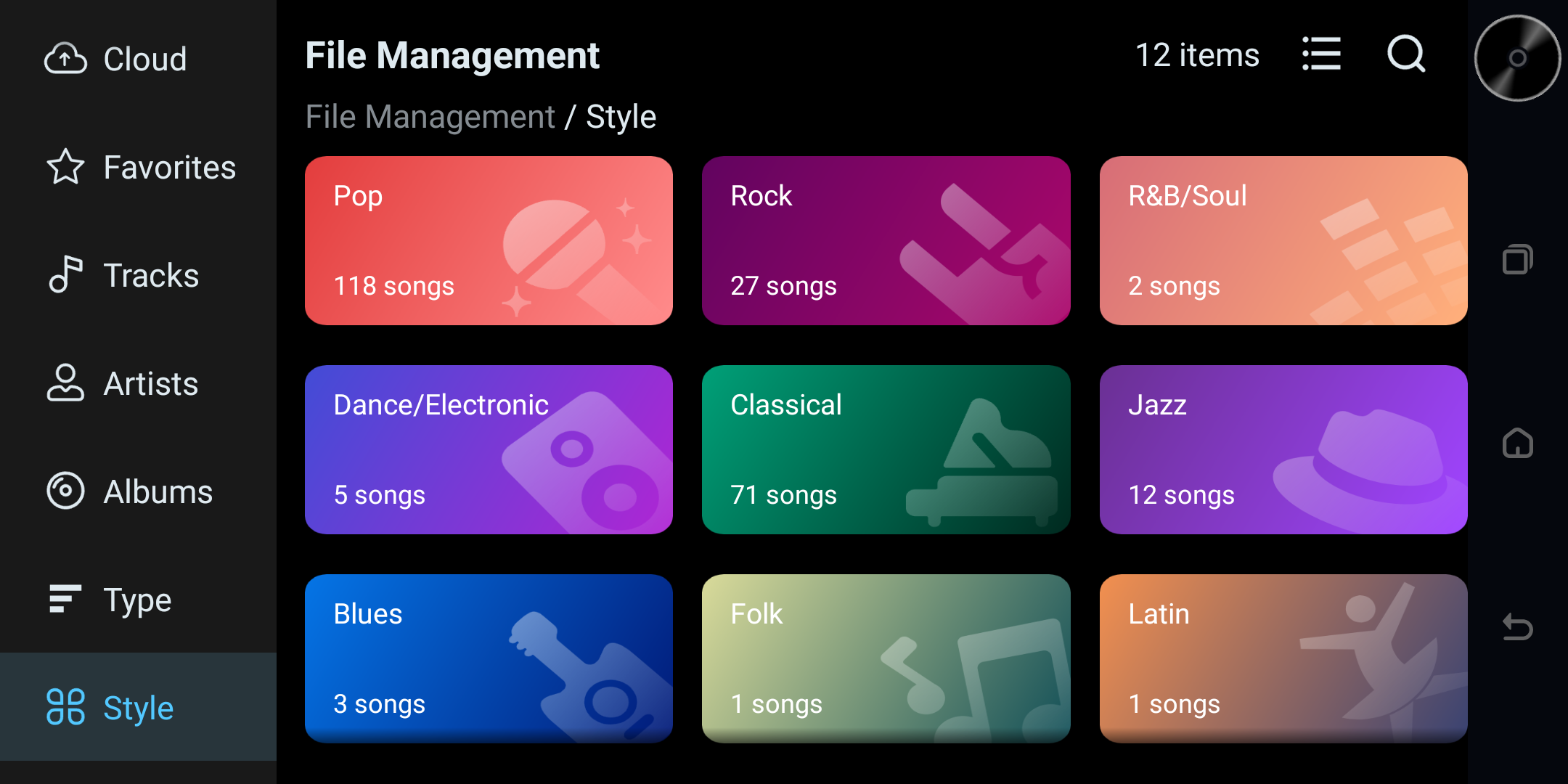
Entry: navigation bar "Style".
Purpose: display the style-category list, supporting style toggle and search.
Instructions
- Style toggle: grid / list style switch.
- Search: open the Search app.
Cross-module notes
- When a scan is in progress, switching modules may show a "Scanning" prompt.
- Storage and network permissions affect: scanning, cloud-drive download, and local file operations require storage permission; network features require internet access.