Manual contents
(FAQ) Frequently Asked Questions
On this page
Usage Notes
- This document is for quickly solving common problems you encounter while using the device, and publicly discloses currently known product limitations and temporary workarounds.
- Please jump to the corresponding section based on where the problem occurs (the streamer itself, streaming playback, app control, phone streaming).
- If the problem is outside the scope of this document, please contact customer service for further support.
- Phone users can tap "Find" in the top-right "More" menu to quickly find the relevant keyword.
DMP Device Functions
File Management
Q: After scanning songs on a USB drive or hard disk, how do I display them by folder?
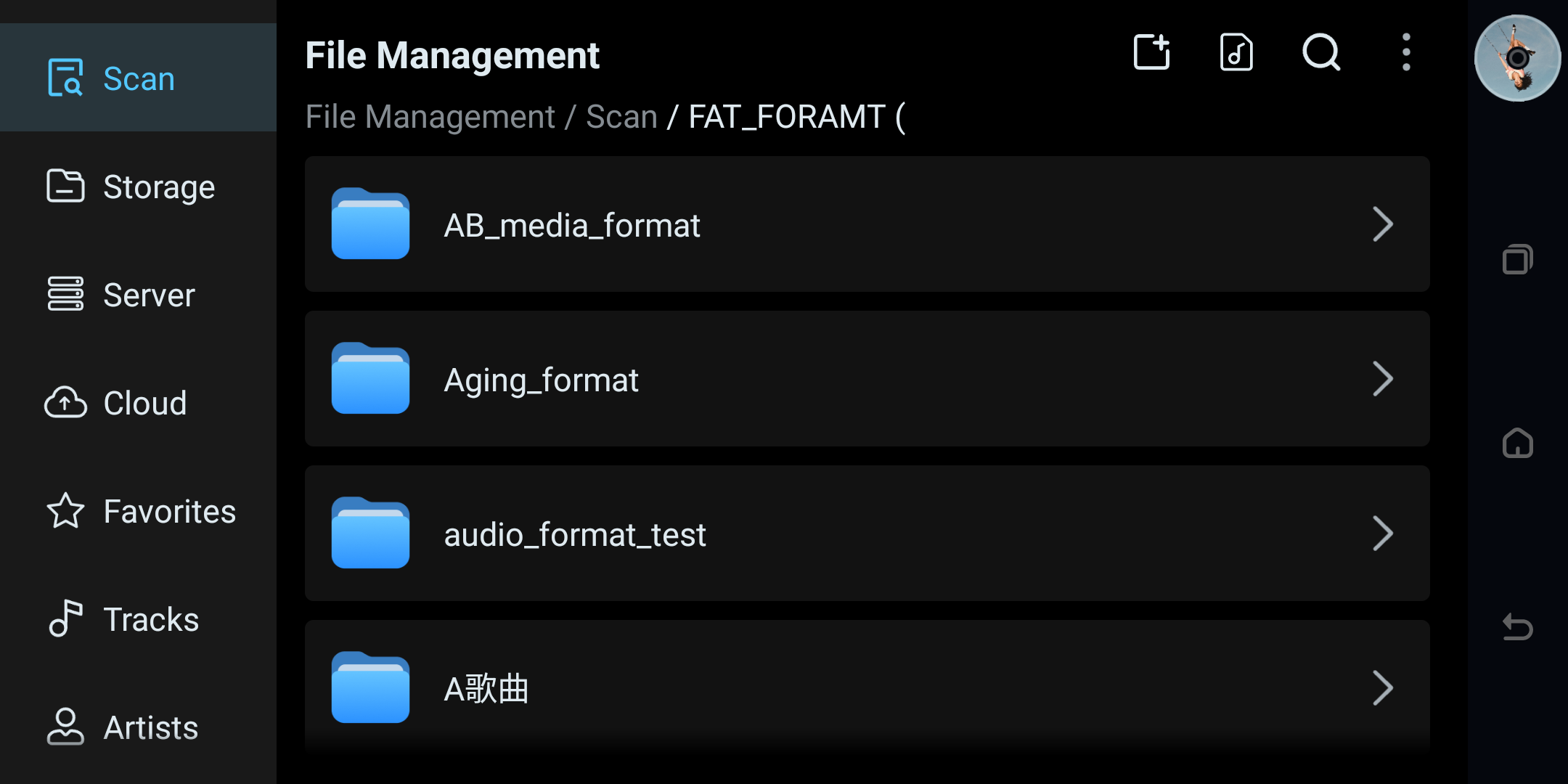
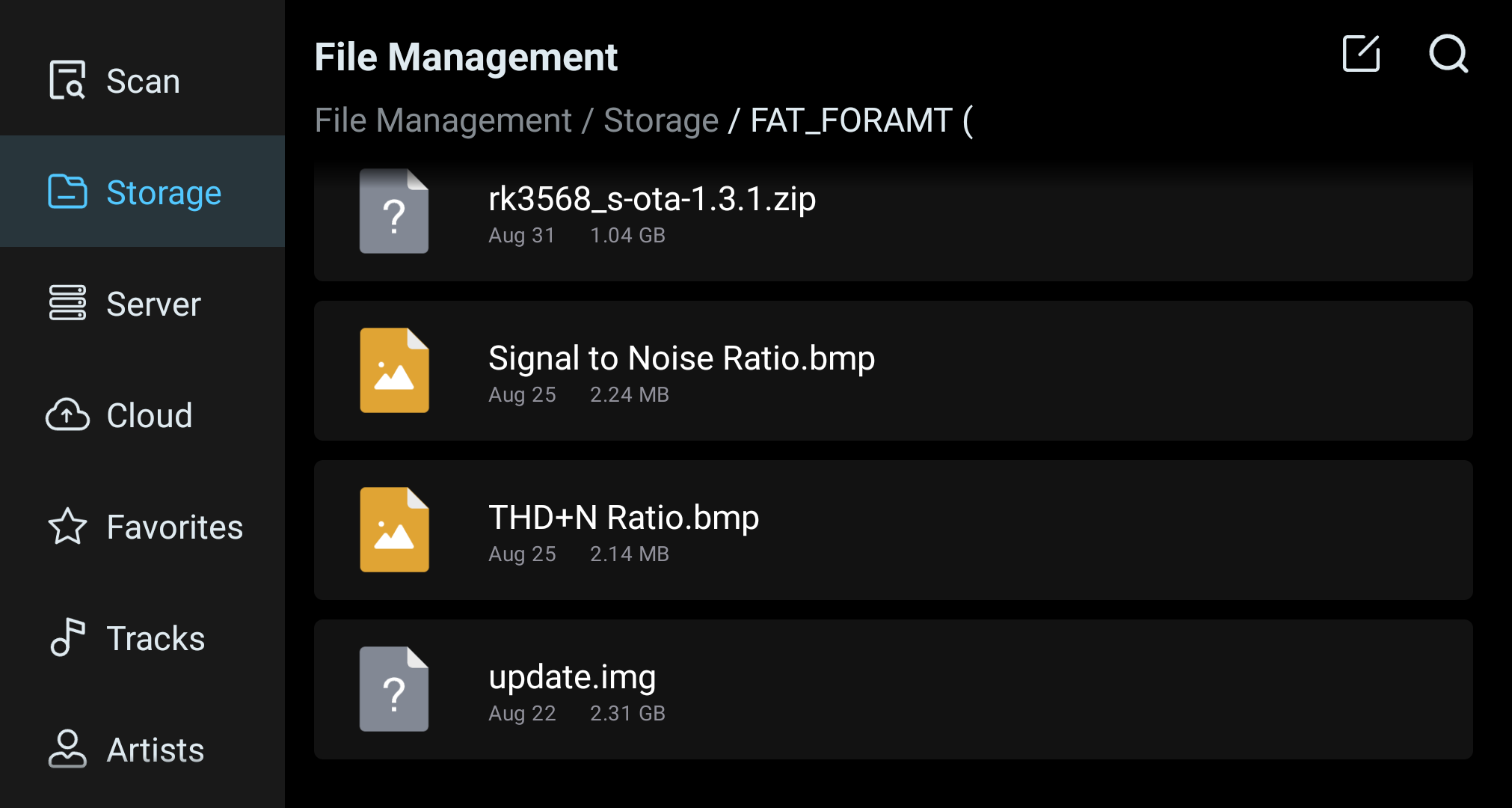
A: Open File Management → Scan, then open the scanned USB drive or disk source. Use the music-note control in the top toolbar to switch between folder hierarchy and flat song list. In the screenshot, folder hierarchy is active; tap the control again to return to the flat song list.
Q: SMB server connection account and password
A: If the current Online Music Transfer configuration shows Guest access, choose Guest. If it asks for a registered account, use the credentials configured on the device. This guide does not define a default account or password.
Q: Which method is best for file transfer between phone and computer?
A: Recommended order for local transfer: OTG, then SMB. Use these methods only on a trusted local network.
① OTG transfer (fastest and most stable): In Settings → General, change USB Mode from Host to OTG, connect the device to a computer with a USB data cable, then copy music files.
② SMB connection (recommended within the LAN): Enable Online Music Transfer on the device, then use the SMB address displayed by that device. On Windows, enter \\<device-IP> in File Explorer; on Mac, use smb://<device-IP> in Finder → Go → Connect to Server. Select Guest only if that option is shown for the current device configuration; if registered access is required, use credentials configured on the device.
For detailed illustrated steps, see the 5.1 Settings App – Online Music Transfer guide.
Summary: For routine local transfers, use SMB. For large-file transfers, use OTG direct connection.
Q: Does it support accessing an off-premise NAS?
A: The device cannot directly access an off-premise NAS. This guide covers local-network access only; use a supported remote-access service only when it is configured and secured by the network administrator.
Q: USB drive songs cannot be played, and there is a ._ prefix before the file name. Why?
A: Files starting with ._ are usually hidden files generated by macOS, not real audio files, which may cause recognition or playback errors. It is recommended to delete all ._-prefixed hidden files in the USB drive on your computer before scanning and playing.
Player
Q: There is no sound when the device volume is turned above 13. What to do?
A: First confirm the device system version number, upgrade to the latest version and try again. If the problem persists after the upgrade, contact after-sales to confirm whether it is a known hardware compatibility limitation.
Q: Playback is intermittent and unstable. What to do?
A: Prioritize checking the network environment. If playing over Wi-Fi, try switching to a wired connection, or restart the router. If playing locally, close unnecessary background apps, and check whether the M.2 SSD or USB drive reads steadily.
Q: When playing DSD512 songs, why is the spectrum and VU meter not displayed?
A: This is normal, not a device fault.
DSD512 is a high-bitrate, high-load audio format that requires high system decoding and data processing performance during playback. To ensure the stability, smoothness, and sound quality of DSD512 playback, the device prioritizes the audio playback itself during DSD512 playback, so it automatically turns off the spectrum and VU meter display functions to reduce extra performance overhead.
App
Q: Baidu Netdisk opens very slowly or lags. What to do?
A: Baidu Netdisk's online playback and loading speed are related to account membership and network environment. It is recommended to confirm whether the account has Baidu Netdisk membership enabled, and prioritize using a wired network connection.
CD Function
Q: Where are the CD-ripped files saved?
A: CD-ripped files are generally saved at: Files → Storage → Internal Shared Storage → Download → cD_Import.
Other Settings
Q: How to pair the remote control?
A: Enter Player Settings → General → turn on the remote-control switch. Then press and hold the remote's "OK" and "Back" keys simultaneously, wait for the LED to flash rapidly to enter pairing mode, then search for STREAMER-REMOTE6 in the player's Bluetooth settings and connect.
Device Lag/Overheating
Q: The device operation is laggy and slow to respond. How to troubleshoot?
A: Troubleshoot step by step in the following order:
Step 1: Confirm whether it is overheating
- Feel the top cover of the device; is it noticeably hot?
- Check whether the placement is well-ventilated (do not stuff it in a closed cabinet)
- Is the ambient temperature too high (keep room temperature below 25°C recommended)
- If overheating → power off and disconnect, wait about 30 minutes for the device to cool fully, turn on the air conditioner to lower the ambient temperature, then restart
Step 2: Clear background apps
- Exit unused streaming apps (e.g. Apple Music)
- Enter Settings → App Management, clear the cache of each app
Step 3: Restart the device
- Long-press the power button or unplug to restart
- Most temporary lags recover after restart
Step 4: Check firmware version
- Settings → About Device, check whether it is the latest version
- If not, upgrade the firmware and retry
Step 5: Factory reset (when all the above steps fail)
- Settings → Factory Reset
- Note: This will clear personal data and installed apps
- If it is still laggy after reset → contact customer service
Mobile App Functions (Kaiboer Home)
Q: Why is screen mirroring slow or laggy on some phones?
A: Screen-mirroring delay and lag are related not only to the network but also greatly to the decoding capability of the receiving device. Different phones/tablets have different chip performance, system versions, and hardware decoder implementations, resulting in significant differences in actual reception.
Screen-mirroring latency can vary by phone or tablet model, operating system, hardware decoder, and network conditions.
Therefore, some Android devices, although they can mirror normally, may experience large picture delay, poor operation follow-up, and unsmooth playback due to high decoding/processing chain overhead. Apple devices, especially iPad/iPhone, usually perform better in hardware decoding stability and low latency.
Music Apps
Streaming Playback
Q: Streaming playback has no sound when master/hi-res quality is enabled, but switches to normal lossless normally. What to do?
A: This is a typical manifestation of USB interface instability. Troubleshoot as follows:
- Open the local player app and see if the home page has a jumping spectrum
- Jumping → The streamer output is normal; the problem is not in the streamer
- No jumping → No audio data output
- Check the output-port setting to see if it is automatically switched to optical/HDMI (occasional USB jitter can cause misjudgment)
- Judge the phenomenon:
- Progress bar moving but no sound → High sample-rate playback triggers USB disconnection
- Phone app selecting master also has no sound → USB hardware problem
Root cause: The USB interface is unstable; playing high sample-rate audio triggers USB enumeration/disconnection, and the system automatically switches to optical output
Solution:
- You can request a replacement (7-day return/exchange)
- Upgrade to a version with external USB 3.0 flash (enhanced stability)
- Our current version has a USB anomaly prompt; you can check whether the device has an anomaly prompt
- Try a higher-quality USB cable
Q: Streaming app playback is unresponsive. What to do?
A: You can enter the App Center, long-press the corresponding music app, enter "App Info", select "Storage and Cache", clear the storage space, then reopen the app and log in to the account. This method applies to situations where streaming apps have abnormal playback, no response on tap, or abnormal playlists.
Apple Music Streaming
Q: Some foreign-region Apple Music songs cannot be played. What to do?
A: Some tracks in Apple Music streaming cannot be played, rooted in official copyright/permission restrictions that block audio resource reading. This is a normal platform mechanism.
Q: Why is there no sound when Apple Music automatically plays the second song?
A: Check whether the phone's Apple Music has the "Crossfade" function enabled.
If this function is enabled on the phone, the device may trigger a no-sound issue when playing the next song.
Enter iPhone Settings → Music → turn off the "Crossfade" switch to recover.
Q: Apple Music cannot log in. What to do?
A:
- Problem phenomenon
After entering the Apple ID and password on the device, Apple Music stays on the login page or prompts login failure.
- Common cause
DNS resolution problem. If the device network uses Google's DNS (8.8.8.8), due to the unstable resolution of Google DNS in the domestic network environment, Apple Music's authentication request cannot be completed normally.
- Solution
Change the DNS to 114.114.114.114 (domestic common public DNS).
Path: Device Settings → Network → Wi-Fi/Ethernet → Current connection details → Network configuration → Open manual edit → Fill in the DNS field with 114.114.114.114 → Save and retry login.
Network Connection
Q: After plugging in the network cable, Wi-Fi automatically disconnects and prompts "Auto-connect off". How to enable Wi-Fi?
A: This is Android's network policy — it prioritizes wired network; after plugging in the network cable, Wi-Fi automatically disconnects, which is normal product behavior. To switch back to Wi-Fi, unplug the network cable and Wi-Fi will reconnect automatically. If it still does not connect automatically after unplugging, enter Settings → WLAN and turn the Wi-Fi switch back on.
Q: Wired and wireless networks cannot be used at the same time (cannot coexist). Why?
A: This is Android's network design: when both wired and wireless are connected, the system only uses one channel (usually prioritizing wired) and does not use both simultaneously. This is a normal product limitation, not a fault. To use Wi-Fi, just unplug the network cable to switch automatically.
Q: The phone app cannot connect to the device. What to do?
A: Please confirm the phone and streamer are on the same network. If it still cannot connect, it may be related to router settings. You can temporarily test with the phone's hotspot; if it can connect under the hotspot, it means the original network or router settings need adjustment.
Q: The device IP always changes and the phone app frequently drops. What to do?
A:
- Solution: Set a static IP
- Open Device Settings → Network → Wi-Fi (or Ethernet)
- Tap the ⚙️ gear/exclamation icon next to the currently connected Wi-Fi name
- Find Network configuration, turn on the manual edit switch
- Fill in the following information:
- Save and reconnect
Before assigning a static IP address, use a DHCP reservation or obtain an unused address from the router or network administrator. Keep the subnet mask, gateway, and DNS values correct. If the device loses connectivity, return to DHCP and verify the current network settings.
Q: After connecting the network cable, the device cannot access the internet; the IP address shows 10.xxx.xxx.xxx
A:
A router or gateway may assign a LAN port to an isolated VLAN or an IPTV service. Check the actual port configuration, subnet, gateway, DNS, and reachability. An IP address beginning with 10 is also valid on ordinary private networks and does not identify an IPTV port by itself.
Solution
- Unplug the network cable from the current LAN port
- Plug it into another LAN port of the router and reinsert
- Check the IP address in the device network settings
- Confirm that the player has a valid address for the intended LAN, the correct gateway and DNS, and can reach the required local devices and internet services.
- Test whether the network has recovered
A 10.x.x.x address is a private-network address and does not by itself identify IPTV or an isolated LAN. If the player cannot reach the internet or other local devices, ask the router or network administrator to verify the LAN-port and isolation configuration before changing settings.
Q: Kaiboer Home cannot find the device, screen mirroring fails, or the connection drops. How do I troubleshoot?
I. Fault phenomenon
- The phone and machine are connected to the same Wi-Fi name, but the app cannot scan the device;
- QR scan can attempt to connect, but the success rate is low, and normal screen mirroring is not possible;
- After the device connects successfully, it cannot mirror, or automatically disconnects and goes offline shortly after operation.
II. Root cause
Discovery and screen mirroring require the phone and device to be reachable on the local LAN. A shared Wi-Fi name alone does not prove reachability; a wired device and Wi-Fi phone can work when the router bridges those clients and does not isolate them.
- Dual-band steering can move clients between 2.4 GHz and 5 GHz. Whether those clients can communicate depends on the router or access-point configuration.
- Guest Wi-Fi, AP/client isolation, VLAN or subnet isolation can block device-to-device traffic.
- Router policies that block LAN multicast or broadcast can also prevent discovery or casting, even when both clients appear connected.
III. Complete troubleshooting steps
- Check LAN reachability: avoid guest Wi-Fi and confirm the phone and device are on a reachable local LAN. A wired device and Wi-Fi phone may be used when the router bridges them.
- Check the router or access point for AP isolation, client isolation, guest-network isolation, or LAN access restrictions. Depending on the router configuration, these features can block local traffic between the phone and player and may prevent discovery, mirroring, or a stable connection.
- Troubleshoot network signal and channels: Check surrounding Wi-Fi channel interference and 5G signal strength; confirm whether the device frequently switches bands and the network fluctuates due to network congestion;
- Troubleshoot device connection status: Confirm the machine's Wi-Fi connection is normal with no offline status, and the phone app's permissions and network permissions are normal with no background network disconnection restrictions.
IV. Solution (operate by priority)
Solution 1: Check router and access-point isolation settings
In the router or access-point settings, check for AP isolation, client isolation, guest isolation, VLAN isolation, and LAN multicast/broadcast restrictions. Change only a setting that the network administrator confirms applies. If separate 2.4 GHz and 5 GHz names are available, placing both clients on the same band is a useful temporary test, not a universal requirement.
Solution 2: Simplest stable solution
A wired connection can reduce wireless signal variability. It does not by itself bypass router isolation, so confirm that wired and wireless clients are allowed to communicate.
Solution 3: Auxiliary troubleshooting and repair
If the network administrator confirms that AP/client isolation is blocking local device communication, disable that applicable isolation setting, then reconnect the router, device, and phone app.
V. Supplementary explanation
These symptoms can result from local-network reachability or isolation settings. The appropriate fix depends on the router or access-point configuration; no single Wi-Fi setup resolves every network.
Cloud Drive Apps
Q: How to use WebDAV?
WebDAV lets a NAS or shared folder provide a network address. For this guide, use it only on a trusted local LAN and use the address, protocol, and credentials configured by the NAS administrator.
Information to fill in
- Where to use
- Phone/computer file manager: A file manager that supports WebDAV (such as ES File Explorer), select WebDAV when adding network storage
- Player: Select WebDAV as the music source in the streamer/music player
- Computer: Mac Finder → Go → Connect to Server → Enter the address
- Common problems
- Cannot connect: Check whether the IP and port are correct, and whether the NAS is powered on
- Common default ports: Synology 5005/5006, QNAP 8080, Windows IIS 80, self-built WebDAV generally 8080 or 8888
- Where to check: Open the NAS management backend → WebDAV service/network service settings page, the port number will be clearly written above
- Wrong account/password: Confirm it is the NAS login password, not the Wi-Fi password
- Protocol and address: use the WebDAV protocol and address configured by the NAS administrator. Keep this setup within the local LAN covered by this guide.
Q: Playback of Baidu Netdisk songs is laggy
A:
- Problem phenomenon
- When playing music online via Baidu Netdisk, there are interruptions, frequent buffering, and lag
- Normal-quality (MP3/16bit) barely plays; high-quality (FLAC/24bit/high sample rate) lags obviously
- Cause
Baidu Netdisk online playback is download-while-playing; high sample-rate songs (such as 96KHz/192KHz, 24bit) have a file size far larger than ordinary MP3, requiring higher network speed. When the home broadband download speed cannot keep up with the real-time bitrate of the song, buffering lag occurs.
- Solution
- Check network speed: Open a speed-test website in the device browser to confirm whether the download speed is sufficient (high sample-rate songs recommend 10 Mbps or more)
- Lower quality: If Baidu Netdisk supports quality selection, first select normal quality to try whether it is smooth
- Avoid peak hours: During evening peak hours, the home network's shared bandwidth is occupied and the network speed drops; try a different time slot
- Prioritize wired: Wi-Fi is more susceptible to interference than a network cable; try to plug in a network cable for playback
- Download then play locally: If the lag cannot be solved, first download the song to local/USB drive and then play it for the best experience
Song Casting (DLNA / AirPlay)
Q: After connecting our device with AirPlay, I can no longer connect to other AirPlay devices. Why?
AirPlay behavior depends on the player model and firmware. Builds that include AirPlay 2 can support synchronized playback to multiple receiving devices; earlier AirPlay 1 builds can play to one receiving device at a time.
Check Settings → About → Software Version and install an available update for the features supported by your player model.
Sound-related
EQ Function
Q: Why can't EQ be enabled for some songs?
A:
The EQ function only supports songs with a sample rate of 192 kHz and below. When playing songs higher than 192 kHz (such as 352.8 kHz, 384 kHz, 768 kHz, etc.), EQ automatically turns off and is disabled.
This is not a technical inability, but intentional: the signal processing volume of high sample-rate songs is extremely large; overlaying EQ on such songs introduces calculation errors, leading to sound quality loss and distortion, which instead destroys the original purity of hi-res audio. To protect the user's listening experience, the system automatically skips EQ above 192 kHz, ensuring authentic hi-res playback.
Connected Equipment
External DAC
Q: DMP series, connecting to a niche brand or old DAC causes a crash; unplugging the DAC cable allows normal boot. What to do?
A: This is a software compatibility issue between the device and the DAC, not a fault.
- First check the model name on the DAC's nameplate
- If you know the model, contact customer service with the model for technical compatibility correction
- If you do not know the model, it is recommended to send the DAC to the company for compatibility correction
- If it is not convenient to send, contact customer service to communicate other handling plans
- We recommend purchasing our official Kaiboer DAC, which is more compatible with our streamer
Q: USB output to the DAC has no sound, but coaxial is normal. What to do?
A: You can try unplugging the USB drive, or switch to another USB output interface and test again. In some cases, it may be related to USB power supply, interface occupation, or device recognition.
Amplifier
Q: No sound after connecting the device to the amplifier. How to troubleshoot?
A: Troubleshoot step by step in the following order:
Step 1: Check the wiring
- Confirm whether the streamer's audio output port (such as RCA/XLR/optical/coaxial/USB) and the amplifier's input port correspond correctly
- For example, if the streamer uses RCA output, the amplifier must switch to the corresponding RCA input channel
- Whether the cable is plugged in tightly and whether it is plugged into the wrong port (many people plug the output as input)
Step 2: Check volume and output settings
- Start with the amplifier or active-speaker volume low. Begin playback, then raise the device and amplifier volume gradually to a comfortable level.
- Confirm the output port is selected correctly (if USB is connected, do not select optical/HDMI)
- Play a test track and raise the volume knob gradually while listening for output.
Step 3: Restart the device
- Keeping the wiring unchanged, restart the streamer once
- Many situations recover after a restart
Step 4: Test with a USB drive
- If the above 3 steps do not solve the problem, find a USB drive and plug it into the machine to play music
- With sound → The streamer output is fine; the problem is in the streaming or network end
- No sound → May be a streamer hardware problem; contact customer service
Note: Do not skip the order. Most "no sound" situations are solved in the first two steps.
Q: The streamer output mode and amplifier adjustment are both correct, but there is no sound. What to do?
A: Recheck the selected output, input, wiring, and low initial volume first. If they are correct and there is still no sound, restart the device once and test again; if the issue remains, contact support with the output type and connected equipment.