Kaiboer Support
FAQ Troubleshooting Guide
Quickly find answers for Kaiboer devices, apps, network connections, streaming services, sound, and downstream audio equipment.
Usage Guide
- This guide helps you quickly solve common issues encountered when using Kaiboer devices, while also explaining known product limitations and temporary workarounds.
- Use the table of contents to jump to the relevant section: streamer device, music streaming, app control, mobile streaming, network connection, sound, or downstream audio equipment.
- If your issue is not covered here, please contact customer service for further support.
- On mobile, you can also use your browser’s Find in Page function to search for keywords.
Streamer Functions
File Management
01Q: After scanning songs from a USB drive or hard drive, how can I display them by folder?
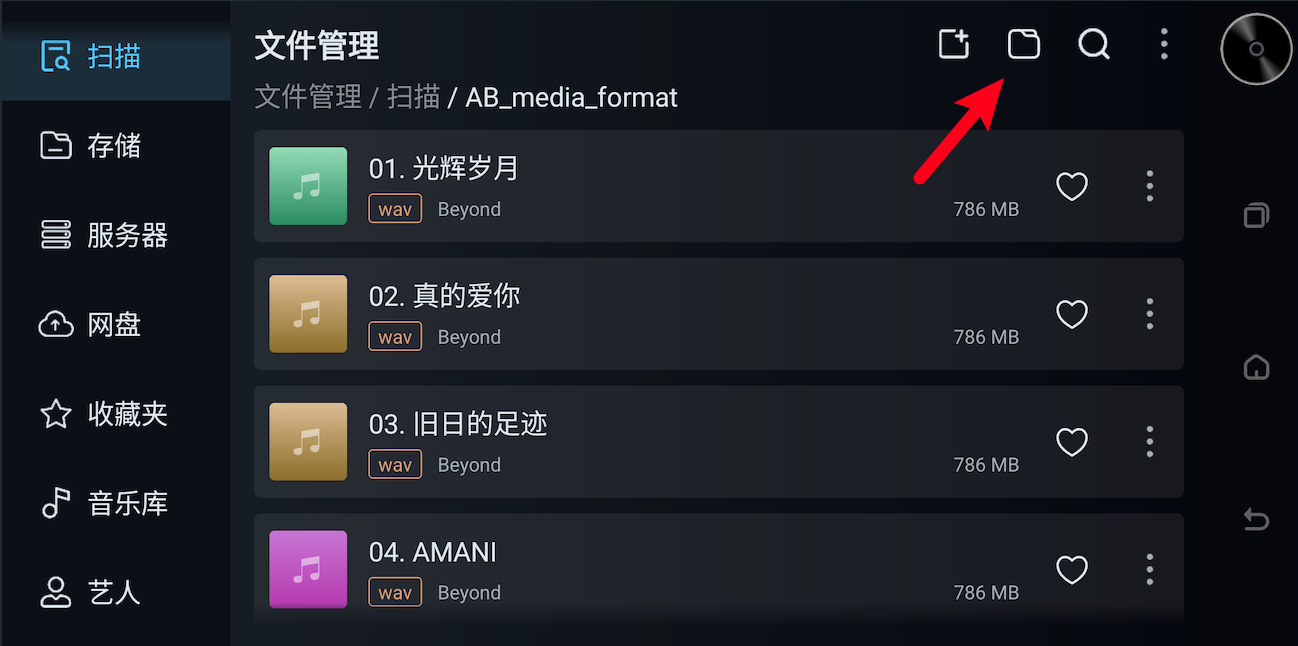
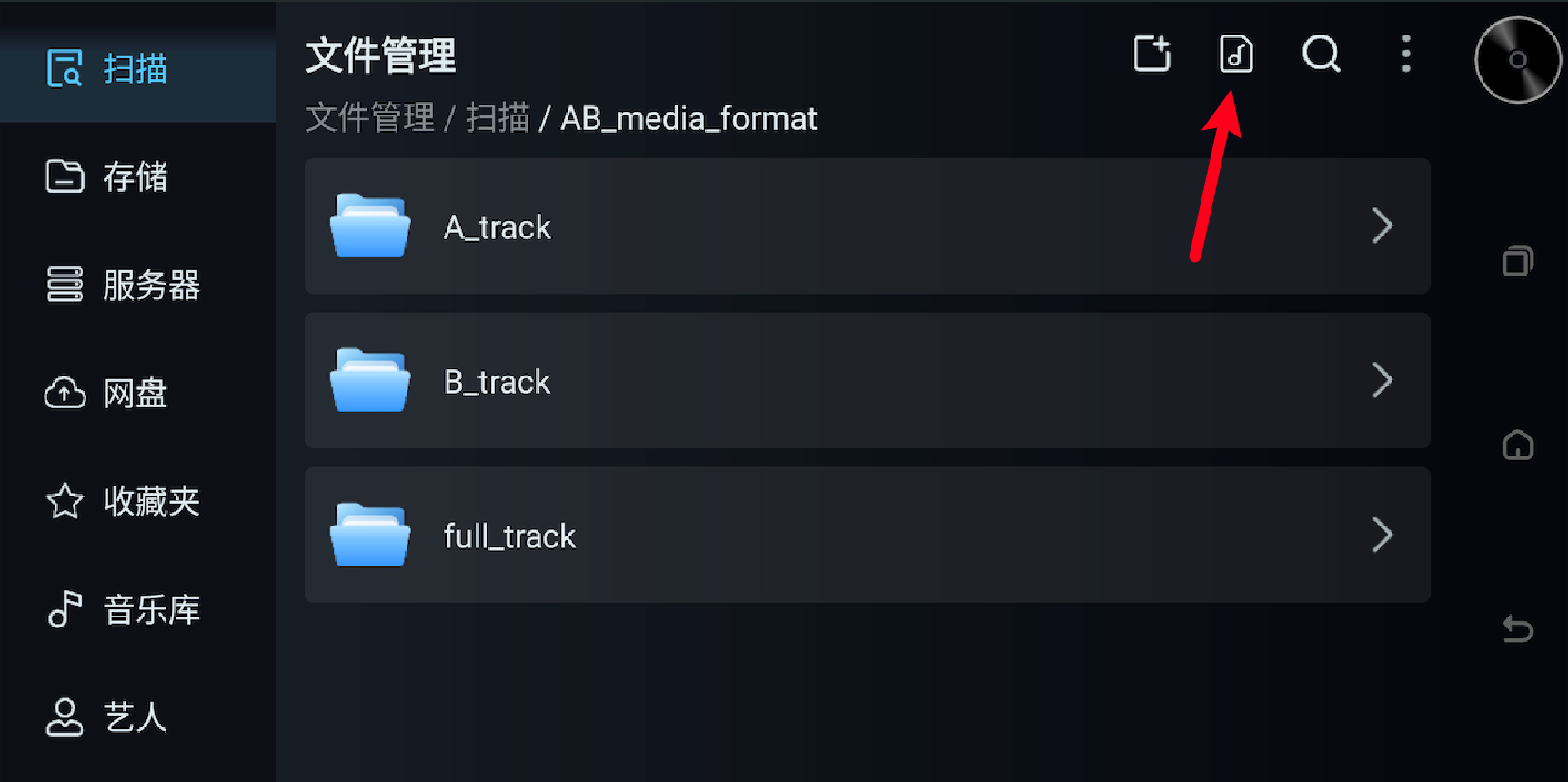
A: After scanning songs from a USB drive or hard drive, the default view is the song list. Tap the second icon in the upper-right corner, the music-note icon, to switch to folder display mode. Tap it again to switch back to song list mode. You can switch between the two display modes at any time.
02Q: What are the default SMB server username and password?
A: By default, the username is root and the password is root.
03Q: What is the best way to transfer files between a phone and a computer?
A: Recommended order: OTG > SMB > HTTP.
The differences are as follows:
- OTG transfer (fastest and most stable): connect the phone and computer directly with a USB cable. This provides the fastest transfer speed, up to USB 3.0 speed, with the lowest latency. It is suitable for transferring large batches of files. Operation steps will be added later.
- SMB connection (most recommended on a local network): access device files through SMB while both devices are on the same LAN. Transfer speed can exceed 100 MB/s, making it suitable for medium and large files without a USB cable. Operation steps will be added later.
- HTTP connection (local network use): also requires both devices to be on the same LAN. It is easy to configure through a browser or HTTP tool, but is usually slower than SMB.
Summary: for daily use, SMB is recommended because it is fast enough and does not require a cable. For large batch transfers, use direct OTG. For remote access scenarios, use HTTP.
04Q: Does the device support access to an external-network NAS?
A: The device cannot directly access an external-network NAS. If you need to access external resources, consider using WebDAV or HTTP access instead.
05Q: Can songs on a USB drive be displayed by folder?
A: Yes. In File -> Scan, tap the second icon in the upper-right corner to switch. When it changes to the music-note icon, songs can be displayed by folder.
06Q: Songs on a USB drive cannot be played, and some filenames start with ._. Why?
A: Files beginning with ._ are usually hidden files generated by macOS. They are not real audio files and may cause recognition or playback issues. Delete all hidden files beginning with ._ from the USB drive on your computer, then scan and play again.
Player
07Q: The device has no sound when the volume is set above 13. What should I do?
A: First check the device system version and upgrade to the latest firmware. If the issue remains after upgrading, contact after-sales support to confirm whether it is a known hardware compatibility limitation.
08Q: Playback is intermittent or unstable. What should I do?
A: Check the network environment first. If you are playing over Wi-Fi, test with a wired network or restart the router. If you are playing local files, close unnecessary background apps and check whether the M.2 SSD or USB drive is reading reliably.
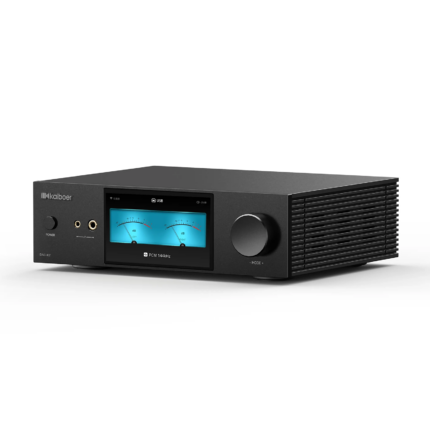
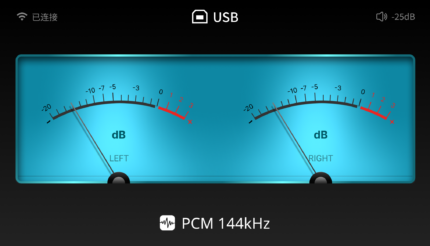
09Q: Why are the spectrum effect and VU meters not displayed when playing DSD512 songs?
A: This is normal and is not a device fault.
DSD512 is a high-bitrate, high-load audio format. Playback requires higher decoding and data processing performance. To ensure stable playback, smooth operation, and sound quality, the device prioritizes audio playback itself when playing DSD512 tracks. Therefore, the spectrum effect and VU meter display are automatically disabled to reduce extra system load.
Applications
10Q: Baidu Netdisk opens slowly or freezes. What should I do?
A: Baidu Netdisk online playback and loading speed depend on account membership and network conditions. Please confirm whether your Baidu Netdisk account has an active membership, and use a wired network whenever possible.
CD Function
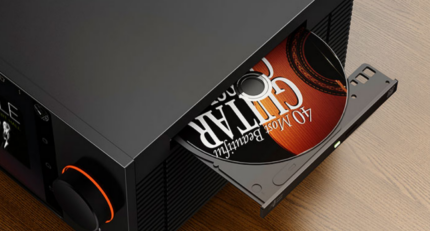
11Q: Where are CD-ripped files saved?
A: CD-ripped files are usually saved under: File -> Storage -> Internal shared storage -> Download -> cD_Import.
Other Settings
12Q: How do I pair the remote control?
A: Go to Player Settings -> General and turn on the remote-control switch. Then press and hold the OK and Back buttons on the remote at the same time until the LED flashes quickly and enters pairing mode. Next, search for STREAMER-REMOTE6 in the player’s Bluetooth settings and connect.
Device Lag / Heat
13Q: The device is lagging or responding slowly. How should I troubleshoot it?
A: Follow these steps in order:
Step 1: Check whether the device is overheating
- Touch the top cover and check whether it feels noticeably hot.
- Check whether the device is placed in a well-ventilated area. Do not place it inside a closed cabinet.
- Check whether the room temperature is too high. Keeping the room below 25 C is recommended.
- If the device is overheating, power it off, unplug it, wait about 30 minutes for it to cool down, lower the room temperature with air conditioning, and then restart it.
Step 2: Clear background apps
- Exit unused streaming apps such as NetEase Cloud Music and Apple Music.
- Go to Settings -> App Management and clear app caches.
Step 3: Restart the device
- Long-press the power button or unplug the power to restart.
- Restarting usually fixes most temporary lag issues.
Step 4: Check the firmware version
- Go to Settings -> About Device and check whether the firmware is up to date.
- If it is not the latest version, upgrade the firmware and test again.
Step 5: Restore factory settings
- Use this only if all steps above do not solve the issue.
- Go to Settings -> Factory Reset.
- Note: this will erase personal data and installed apps.
- If the device is still lagging after reset, contact customer service.
Mobile App Functions (Kaiboer Home)
14Q: Why is screen mirroring slow or laggy on some phones?
A: Screen mirroring latency and lag are not only related to the network. They are also closely related to the decoding capability of the receiving device. Different phones and tablets have different chip performance, system versions, and hardware decoder implementations, so actual receiving performance can vary significantly.
Test data shows that iPad uses VideoToolbox hardware decoding, with a decoding time of about 6.4ms, much lower than some mid-range Android devices:
| Device Type | Decoder | Decode Time | Processing Time | Frame Rate / Dropped Frames |
|---|---|---|---|---|
| Samsung Android mid-range | c2.qti.avc.decoder | ~56ms | ~79ms | 20fps / 0 |
| Huawei Android mid-range | OMX.hisi.video.decoder.avc | ~151ms | ~161ms | 20fps / almost 0 |
| iPad | VideoToolbox | ~6.4ms | ~42ms | 20fps / 0 |
Therefore, some Android devices may support screen mirroring normally but still show high latency, poor response, or unsmooth playback due to longer decoding and processing time. Apple devices, especially iPad and iPhone, usually perform better in hardware decoding stability and low-latency playback.
Music Apps
NetEase Cloud Music Streaming
15Q: NetEase Cloud Music has no sound when Master / high-quality audio is enabled, but normal lossless works. What should I do?
A: This is a typical sign of USB interface instability. Please check as follows:
- Open the local player app and check whether the spectrum is moving on the home screen.
- If the spectrum is moving, the streamer output is normal and the issue is not with the streamer.
- If the spectrum is not moving, no audio data is being output.
- Check the output port setting and see whether it has automatically switched to optical or HDMI. A brief USB instability can sometimes cause misdetection.
- Identify the symptom:
- The progress bar moves but there is no sound: high-sample-rate playback may have triggered USB drop-out.
- Master quality selected from the mobile app is also silent: this may indicate a USB hardware issue.
Root cause: the USB interface is unstable. High-sample-rate playback can trigger USB enumeration or drop-out, causing the system to switch automatically to optical output.
Solutions:
- You can request a replacement if the device is within the 7-day return or replacement period.
- Upgrade to the version with external USB 3.0 flash for improved stability.
- The current software version includes USB abnormality prompts.
- Try a higher-quality USB cable.
16Q: NetEase Cloud Music or QQ Music does not respond when playing. What should I do?
A: Open App Center, long-press the corresponding music app, go to App Info, select Storage and Cache, clear storage, then reopen the app and log in again. This method applies to NetEase Cloud Music, QQ Music, and similar apps when playback is abnormal, buttons do not respond, or playlists behave incorrectly.
Apple Music Streaming
17Q: Some Apple Music tracks from other regions cannot be played. What should I do?
A: Some tracks in Apple Music may fail to play due to official copyright and regional licensing restrictions. Audio resource access may be blocked by the platform. This is a normal platform limitation.
18Q: Why is there no sound when Apple Music automatically plays the second song?
A: Check whether Crossfade is enabled in Apple Music on your phone. If this function is enabled, the device may become silent when the next song starts. On iPhone, go to Settings -> Music and turn off Crossfade.
Network Connection
19Q: After plugging in an Ethernet cable, Wi-Fi disconnects automatically and says automatic connection is off. How do I enable Wi-Fi?
A: This is Android’s network policy. Wired network is prioritized, so Wi-Fi disconnects automatically after an Ethernet cable is plugged in. This is normal product behavior. To switch back to Wi-Fi, unplug the Ethernet cable and Wi-Fi should reconnect automatically. If it does not reconnect, go to Settings -> WLAN and turn Wi-Fi on again.
20Q: Why cannot wired and wireless networks be used at the same time?
A: This is the Android network design. When both wired and wireless networks are connected, the system only uses one channel, usually the wired network. They do not work at the same time. This is a normal product limitation, not a fault. If you need Wi-Fi, unplug the Ethernet cable and the device will switch automatically.
21Q: The mobile app cannot connect to the device. What should I do?
A: Confirm that your phone and streamer are on the same network. If connection still fails, the issue may be related to router settings. You can temporarily test with a phone hotspot. If the app connects successfully under the hotspot, the original network or router settings need adjustment.
22Q: The device IP keeps changing and the mobile app often disconnects. What should I do?
A: Try setting a static IP. The usual path is: Device Settings -> Network -> Wi-Fi -> tap the exclamation mark next to the current network -> Edit Network -> Complete.
Music Casting (DLNA / AirPlay / QPlay)
23Q: After connecting to our device with AirPlay, why can I no longer connect to other AirPlay devices?
A: The current device uses AirPlay 1. AirPlay 1 does not support connecting to multiple devices at the same time. It is a point-to-point connection, meaning one source device, such as a phone or computer, can stream audio to only one receiving device at a time.
After connecting to our streamer, the phone shows that it is already connected to this device and cannot cast to other AirPlay devices. This is a limitation of AirPlay 1 itself, not a device fault.
A future upgrade to AirPlay 2 will support multi-device casting.
Sound
EQ Function
24Q: Why can EQ not be enabled for some songs?
A: EQ only supports songs with a sample rate of 192 kHz or lower. When playing songs above 192 kHz, EQ is automatically disabled. This is a normal product limitation.
Downstream Audio Equipment
External DAC
25Q: The DMP series freezes when connected to a niche-brand or older DAC, but starts normally after unplugging the DAC cable. What should I do?
A: This is a software compatibility issue between the device and the DAC. It is not a device fault.
- First check the model name on the DAC nameplate.
- If you know the model, contact customer service and provide the model so that the technical team can make a compatibility adjustment.
- If you do not know the model, we recommend sending the DAC to the company for compatibility adjustment.
- If sending it in is inconvenient, contact customer service to discuss other options.
- We recommend using official Kaiboer DAC products with Kaiboer streamers for better compatibility.
26Q: USB output to the DAC has no sound, but coaxial output works. What should I do?
A: Try unplugging the USB drive, or switch to another USB output port and test again. In some cases, the issue may be related to USB power supply, port occupation, or device recognition.
Amplifier
27Q: There is no sound after connecting the device to an amplifier. How should I troubleshoot it?
A: Follow these steps in order:
Step 1: Check the cables
- Confirm that the audio output port on the streamer, such as RCA, XLR, optical, coaxial, or USB, matches the input port on the amplifier.
- For example, if the streamer uses RCA output, the amplifier must be switched to the corresponding RCA input channel.
- Make sure the cable is firmly inserted and is not connected to the wrong port. Many users accidentally connect output to output or input to input.
Step 2: Check volume and output settings
- Go to Settings -> Audio and set the main volume to maximum.
- Confirm that the correct output port is selected. If USB is connected, do not select optical or HDMI.
- Play a song in QQ Music and turn up the device’s volume knob.
Step 3: Restart the device
- Keep the cables connected and restart the streamer directly.
- Many cases recover after a restart.
Step 4: Test with music on a USB drive
- If the first three steps do not solve the issue, insert a USB drive and play local music.
- If there is sound, the streamer output is normal and the issue is likely related to streaming apps or the network.
- If there is still no sound, the streamer may have a hardware issue. Contact customer service.
Note: Do not skip the order. Most no-sound cases can be solved in the first two steps.
28Q: The streamer output mode and amplifier settings are correct, but there is still no sound. What should I do?
A: Restart the device directly while keeping the cables connected.