Manual contents
10.1 Apple Music Streaming Guide
On this page
Part I: Apple Music Device-Side Operation
1. Software Introduction
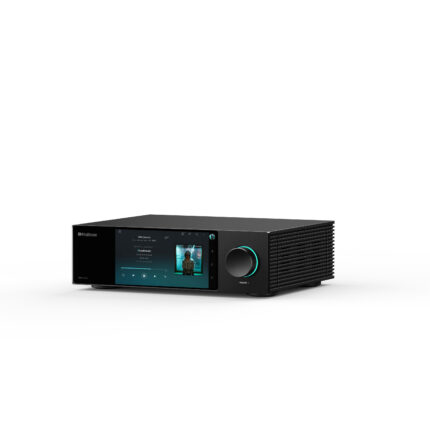
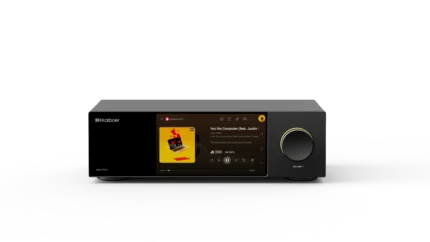
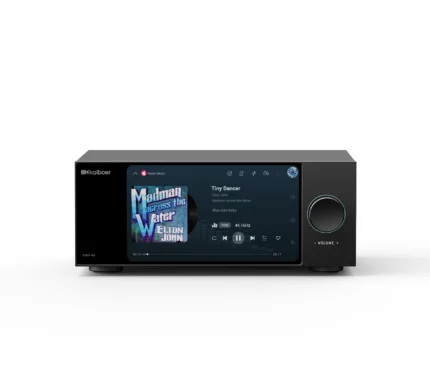
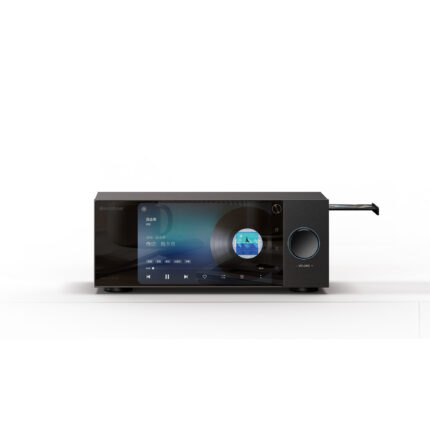
Apple Music on the player supports authorization, content browsing, search, library management, and playback control. Phone-side controls are available through Kaiboer Home after device-side authorization is complete.
2. Prerequisites
- Login requirement:
- Requires official MusicKit authorized login (the device must have Apple Music installed and complete user authentication).
- Subscription requirement: a valid Apple Music subscription.
3. Launch and Login
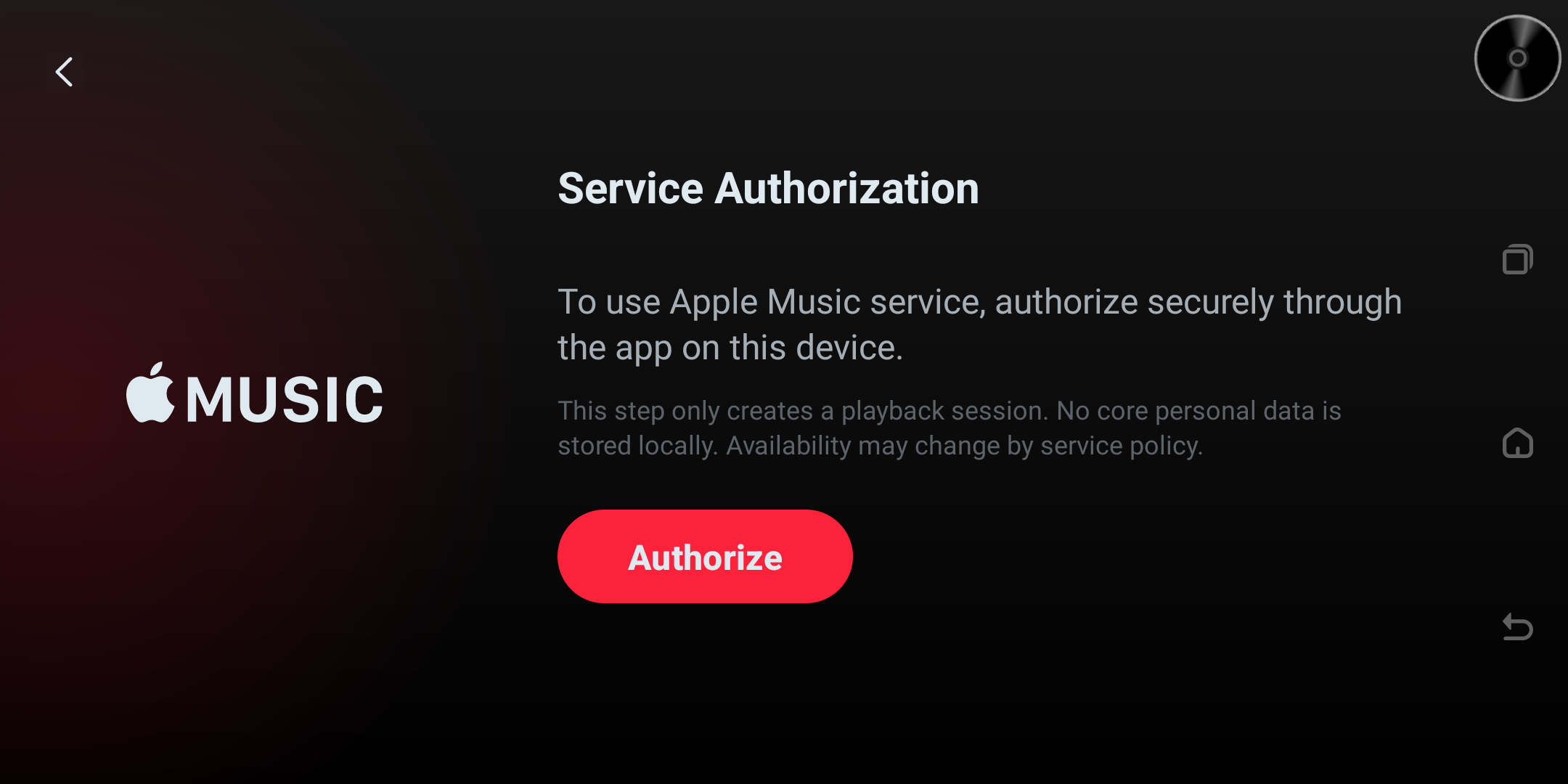
- After launching the app, it either opens the Apple Music main page or shows an authorization prompt.
- If authorization is missing or has expired, complete authorization on the player before continuing.
- If authorization remains valid, the app opens the main page.
Recommended Login Method
- Tap Authorize (or Start Authorization in earlier versions).
- Complete login following the official authorization flow.
- After success, automatically enter the main page.
4. Main Page Structure
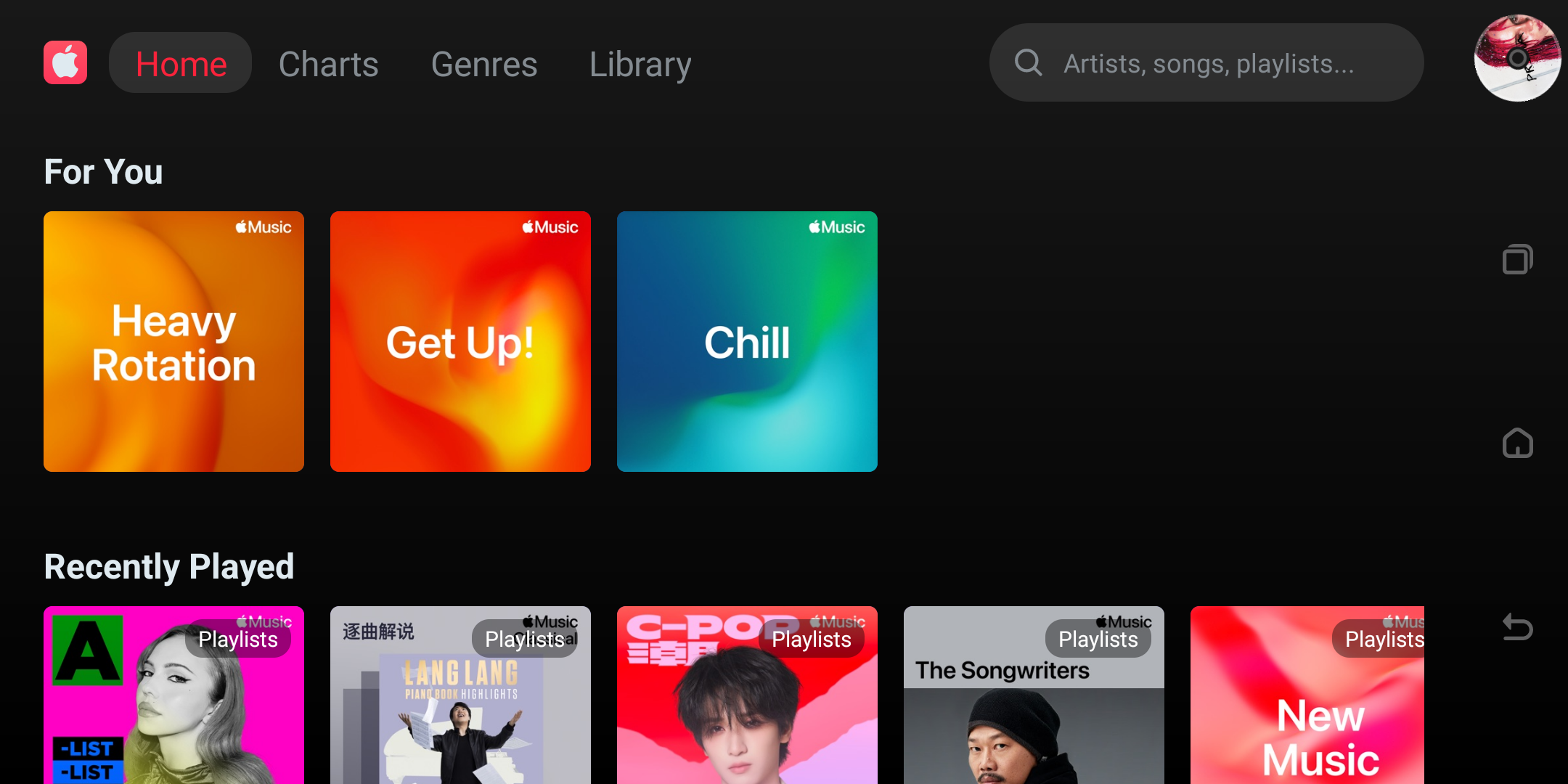
- Top search: enter the search page.
- The avatar appears in the current version but does not open an account-management page.
- Four tabs:
- Home
- Charts
- Genres
- Library
5. Tab Operations
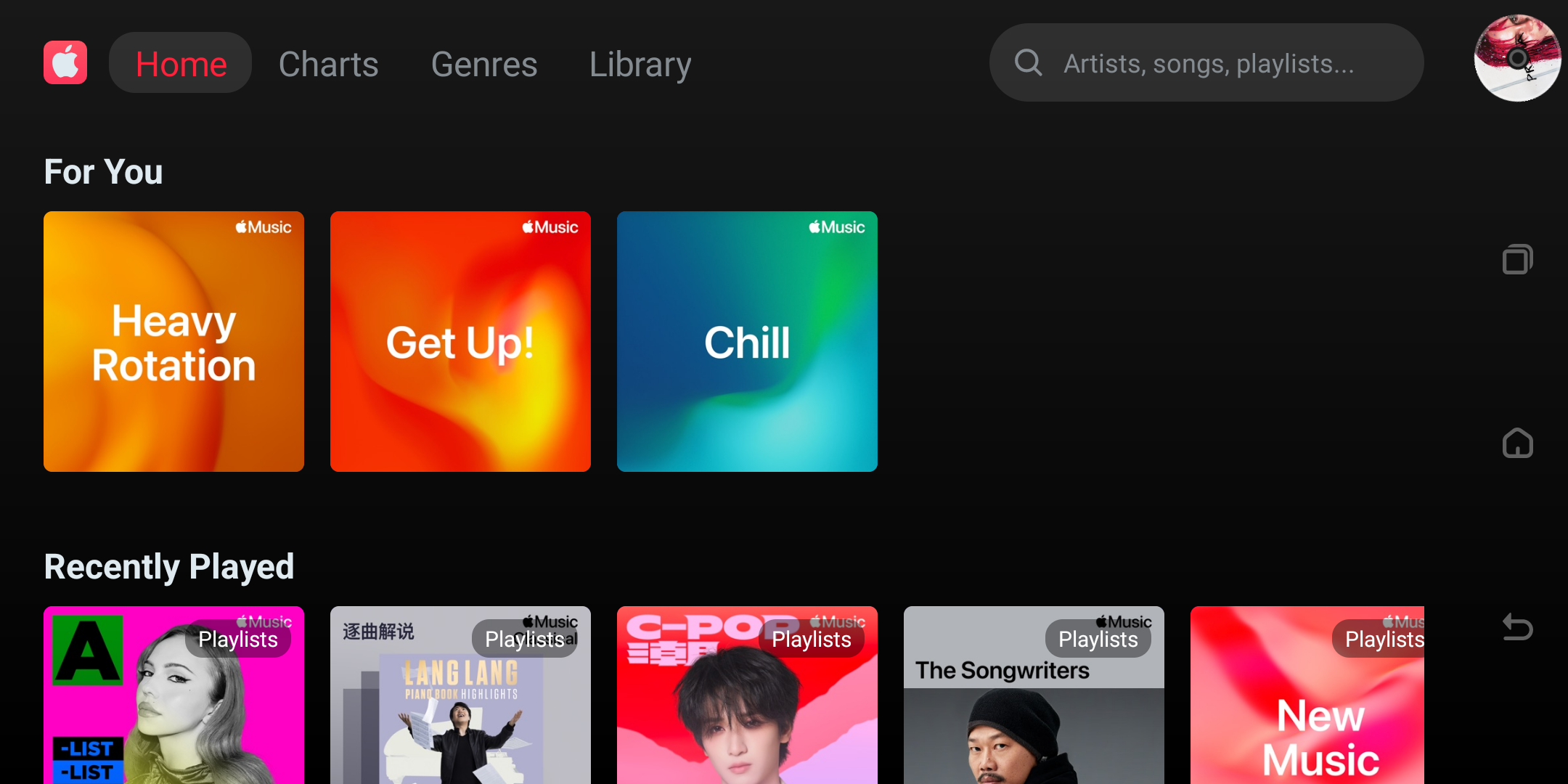
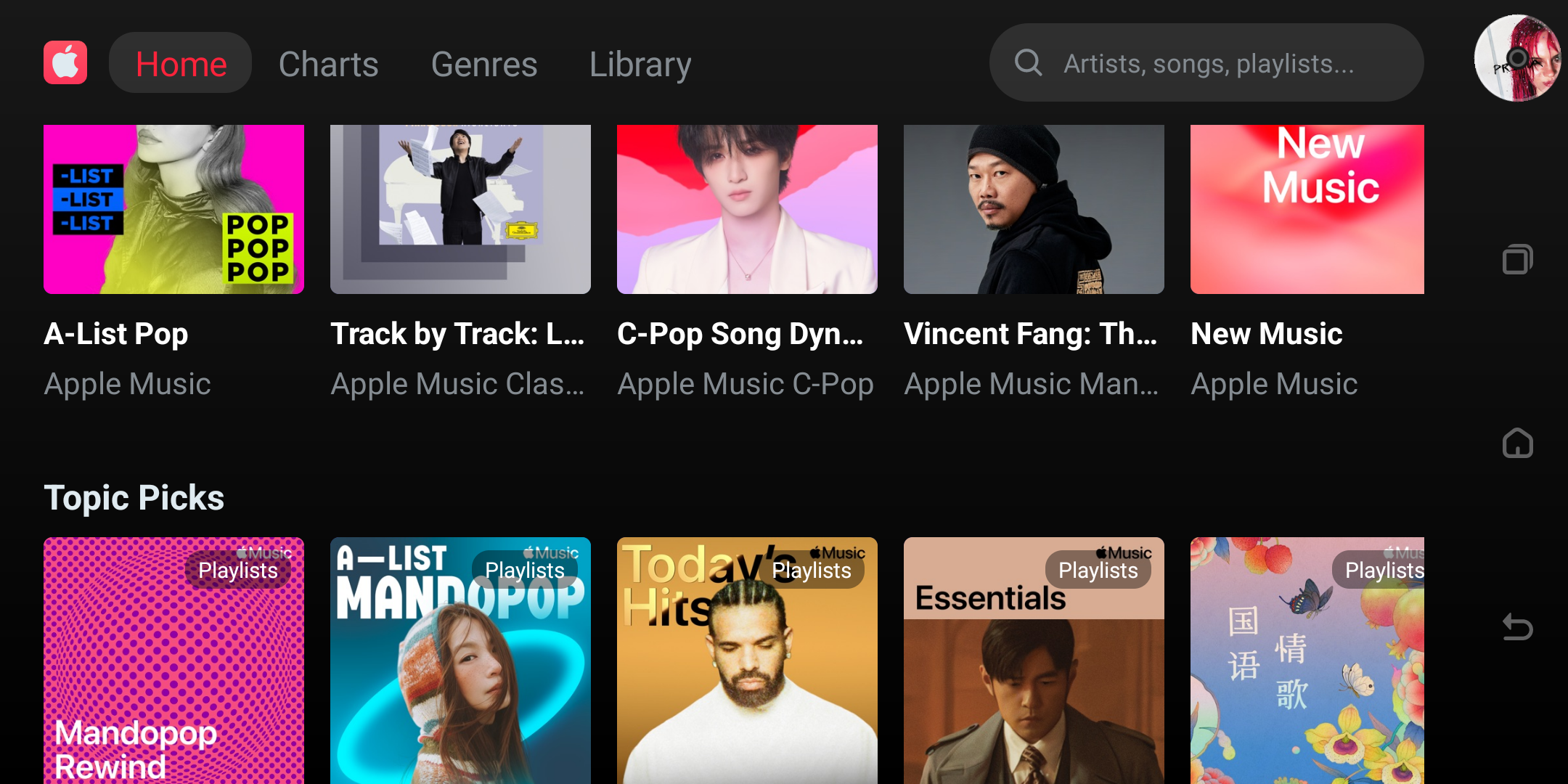
Home
- Groups include: For You, Topic Picks, Top Artists, Top Songs, Latest Releases, Daily Themes.
- Tap a card: song → play directly; album / playlist / artist → open detail page.
- Tap a group title → open the secondary list page.
- Supports pull-down refresh and error retry.
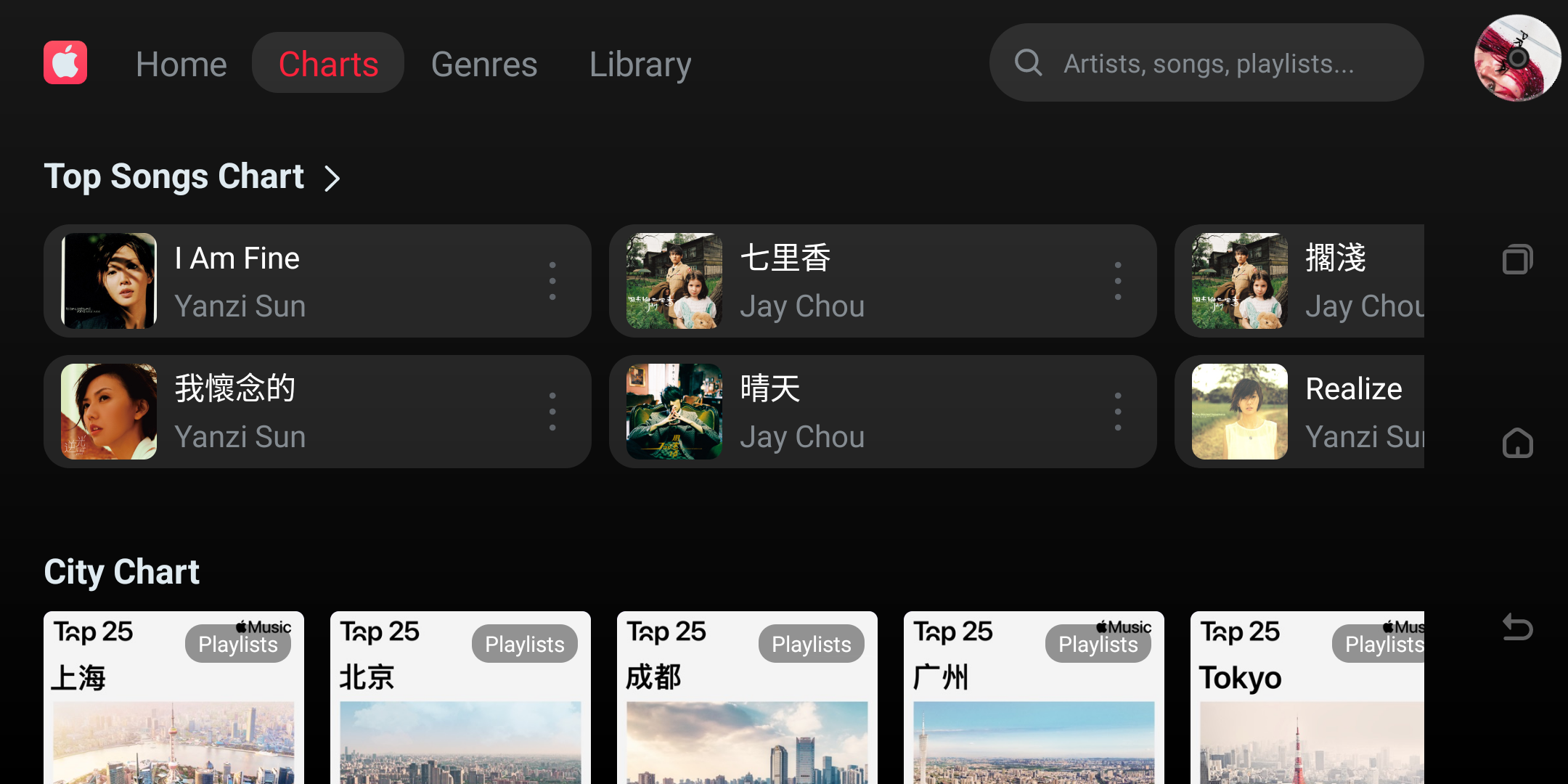
Charts
- Groups include: Top Songs, City Chart, Weekly Top 100, Top Playlists, Top Albums.
- Tap an item: song → play; others → open detail page.
- Tap a group title → open the group's full secondary page.
- Supports pull-down refresh and error retry.
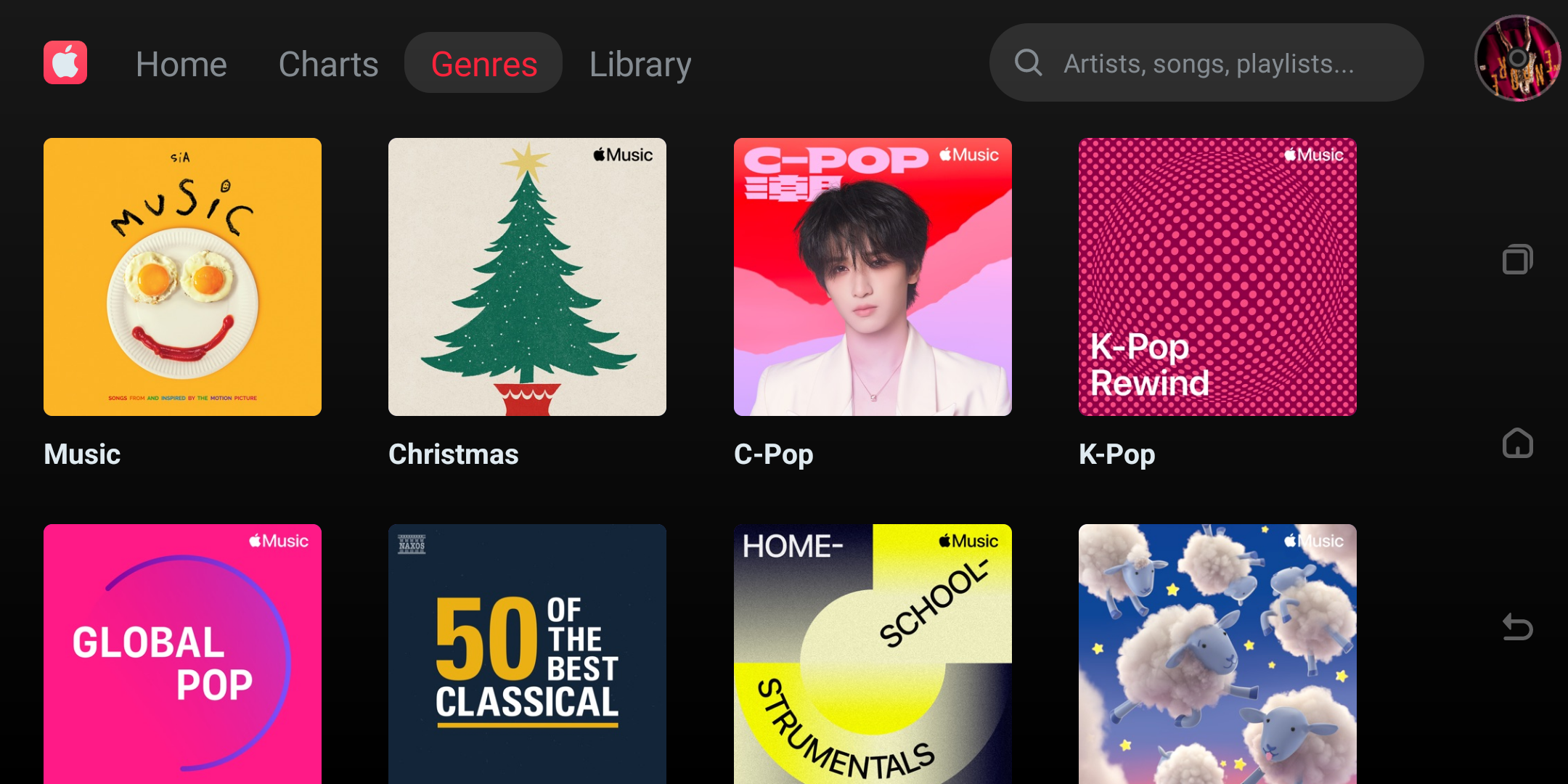
Genres
- Shows a grid of music types.
- Tap a type card → open the corresponding secondary list page.
- Supports pull-down refresh and error retry.
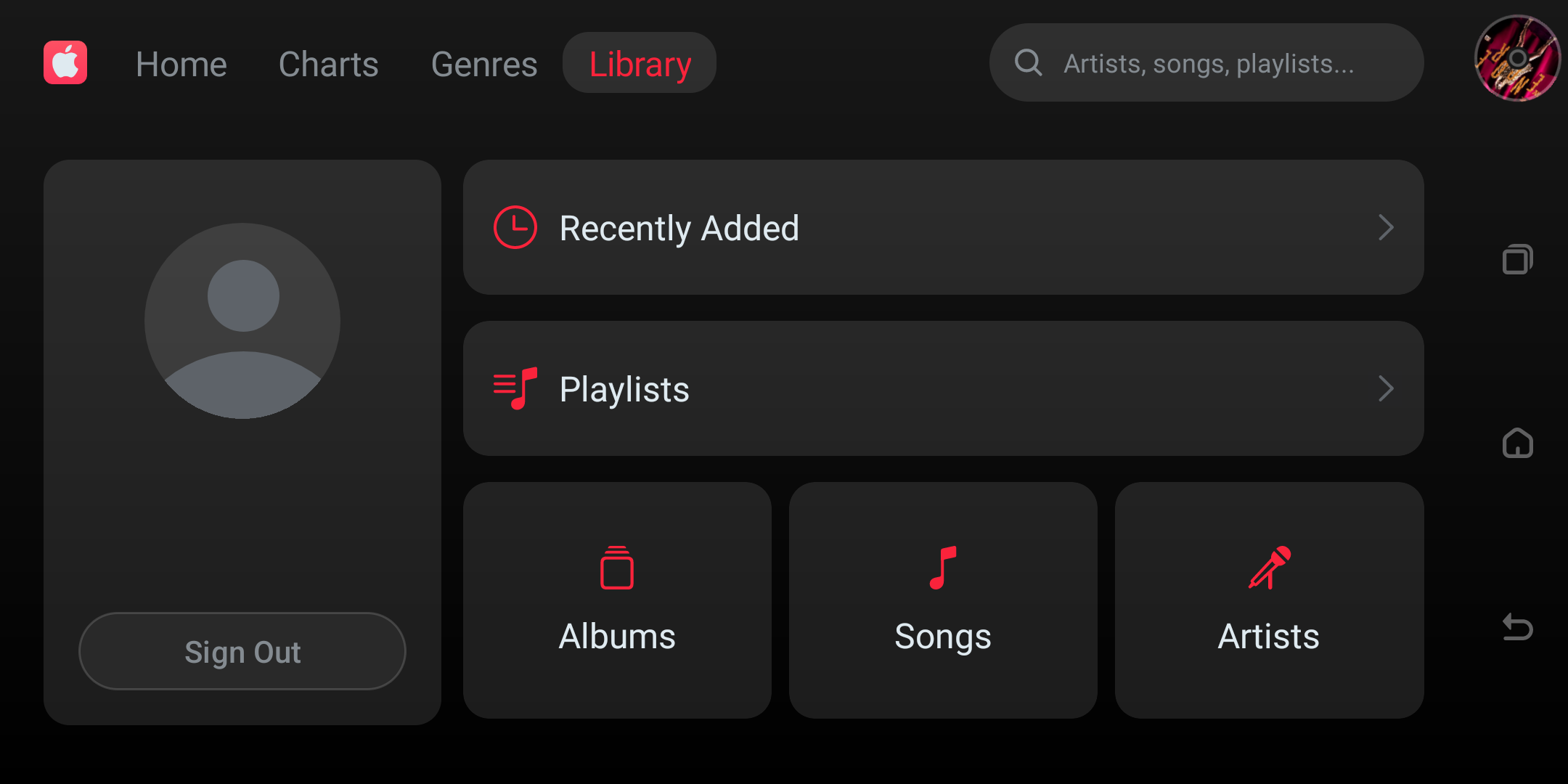
Library
- Entries include: Recently Added, Playlists, Albums, Songs, Artists.
- Tap an entry → open the corresponding library secondary page.
- Tap Sign Out → log out and return to the login page.
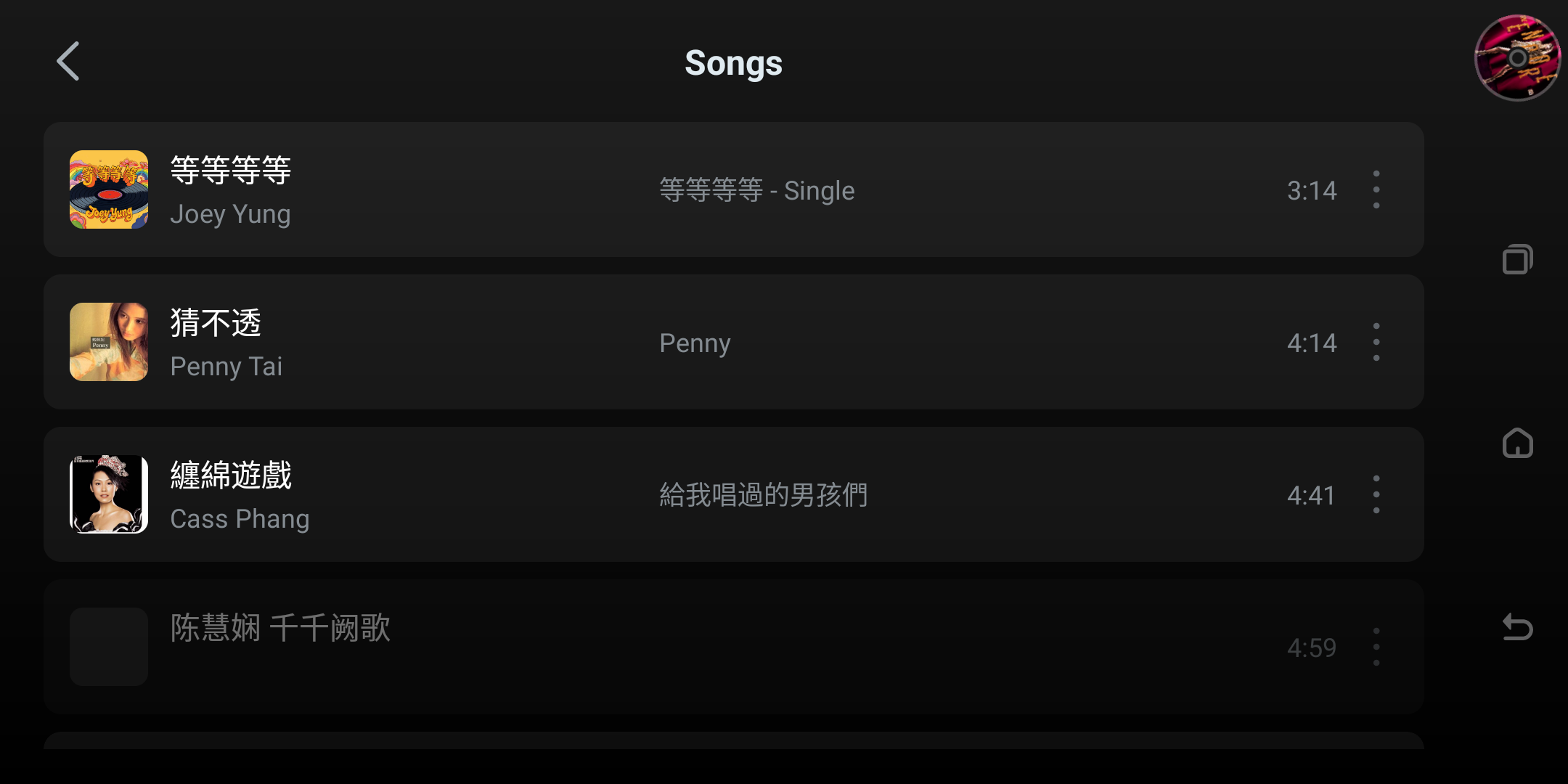
6. Secondary Page (LibraryDetail) Operations
- Source: Home / Charts / Genres / Library.
- Tap an item:
- Song lists support playing the whole column from the tapped position.
- Non-song types open the corresponding detail page.
- Tap an item's More → open the More menu.
- Pull-down refresh: reset loading.
- Scroll to bottom: auto paginate to load more.
7. Detail Page Operations
Album Detail
- Header: back, add to library, more.
- Play: Play All, Shuffle.
- Tracks: tap to play, More for extended actions.
- Supports paginated track loading.
Playlist Detail
- Header: back, add to library, more.
- Play: Play All, Shuffle.
- Tracks: tap to play, More for extended actions.
- Supports paginated track loading.

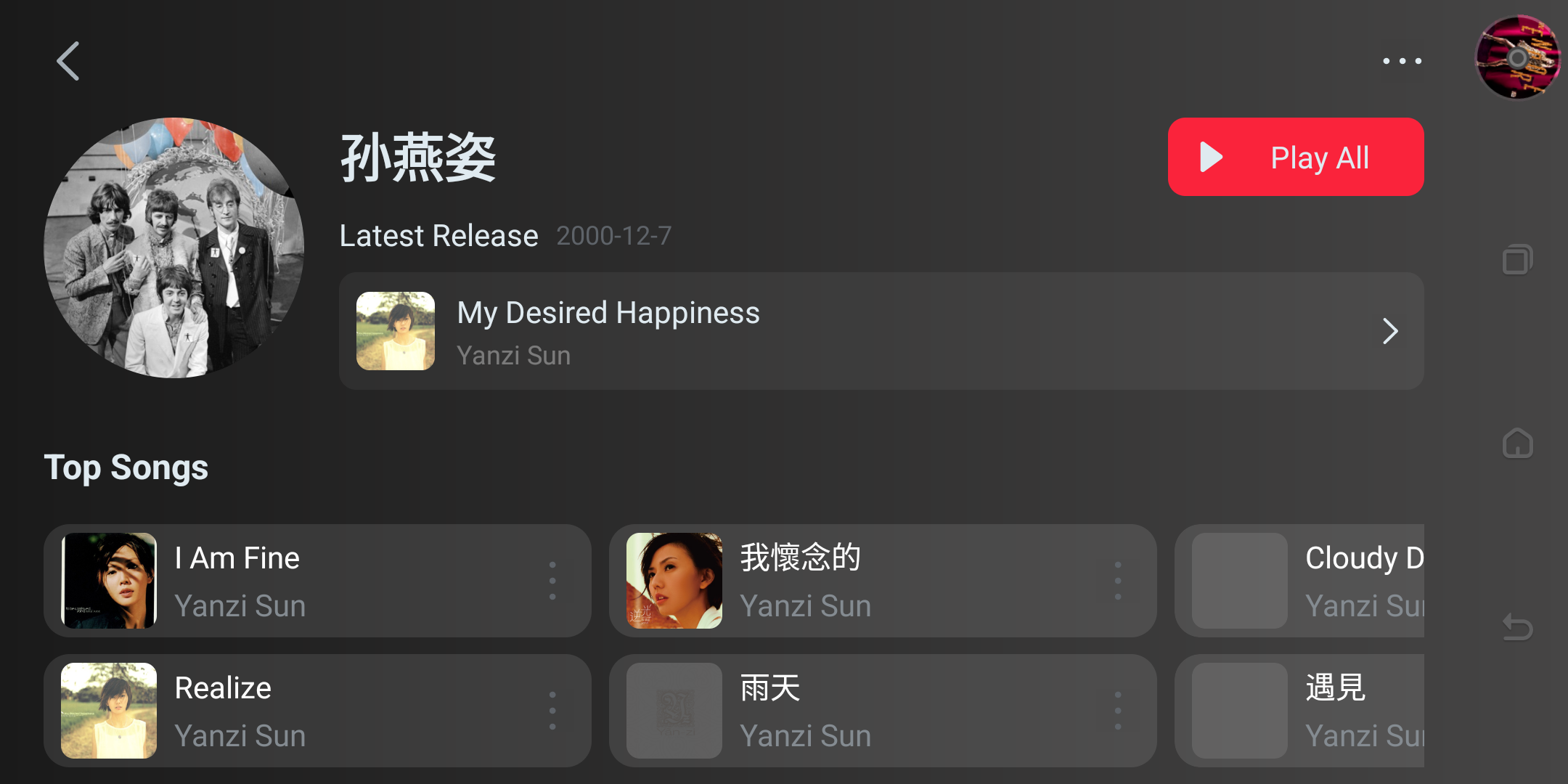
Artist Detail
- Content: Latest Release, Top Songs, Essential Albums, Appears On.
- Header: back, more.
- Play: Play All (top songs, whole column).
- Supports pull-down refresh.
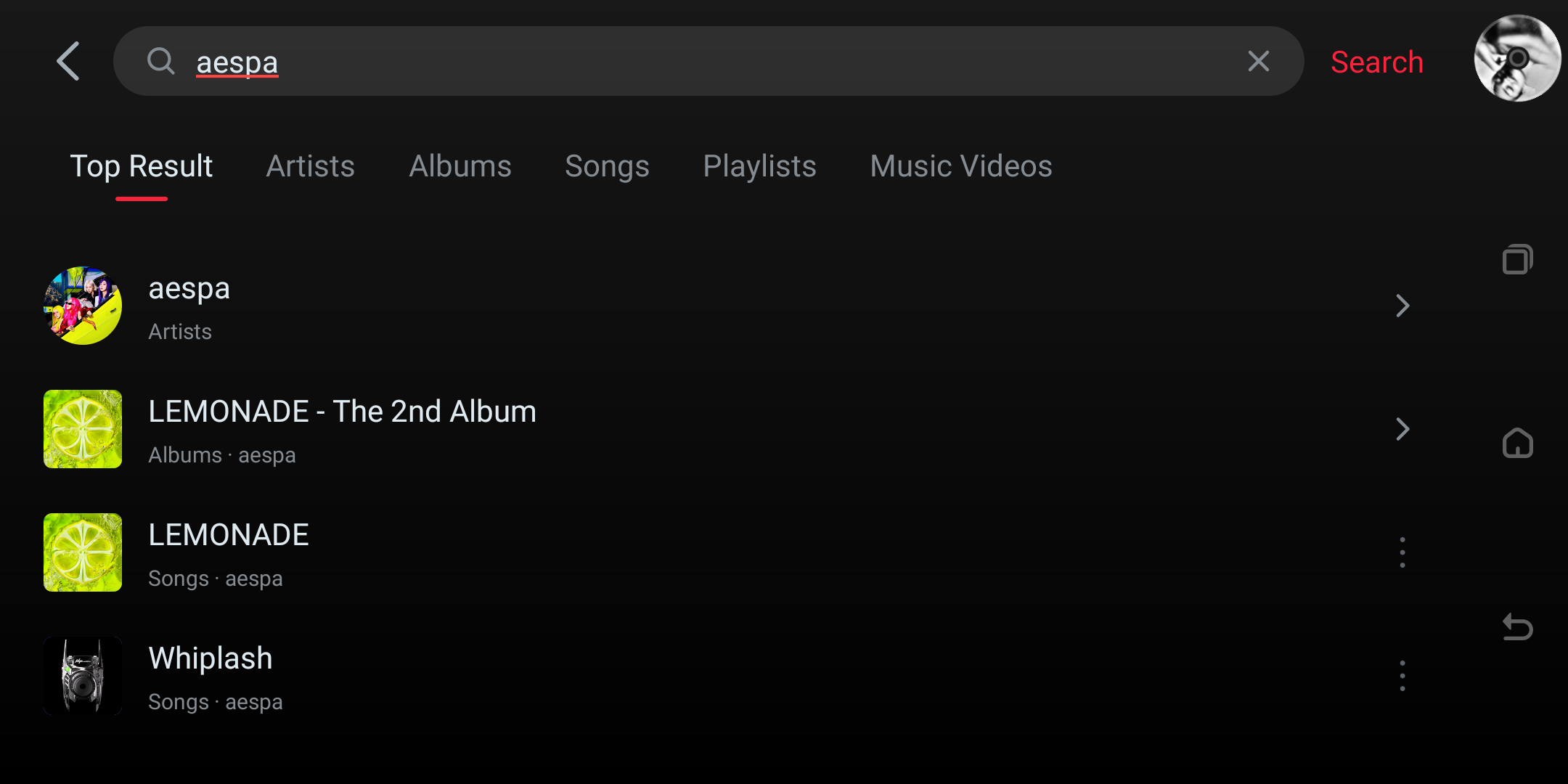
8. Search Page Operations
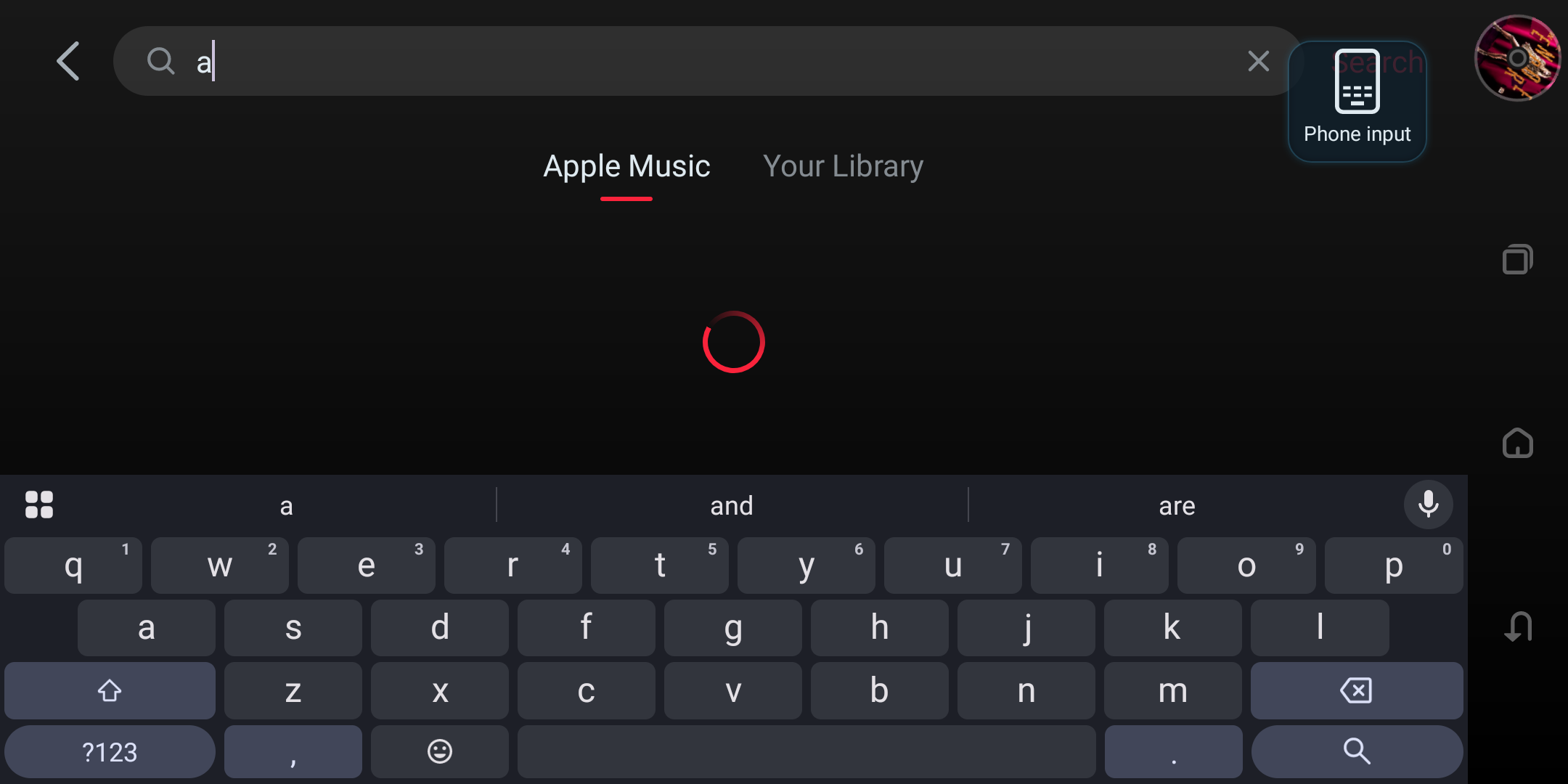
- After entering a keyword, first enter the preview stage (suggested words + preview results).
- After tapping the search button / keyboard search / suggested word / history word, enter the formal results.
- Supports type switching and scroll-to-load-more.
- Supports recent searches display and clearing.
9. More Menu (More)
Notes:
- Actions requiring login first validate the session.
- Before adding to My Playlist, the library playlists are fetched for selection first.
10. Playback Control Notes
- The app supports:
- Single-song playback
- Replace-play the whole column
- Shuffle replace-play
- Append to current queue
- After playback is triggered, the Kaiboer player is launched.
Part II: Apple Music Phone-Side Operation
The phone screenshots show the Apple Music controls inside Kaiboer Home 1.3.0 on Android. The DEBUG ribbon identifies the build used for these examples. Music titles, genre names, and cover artwork may follow the Apple Music account region and differ from the interface language.
1. Function Introduction
The Apple Music module is used on the phone to browse Apple Music content, search songs and albums, view artist and playlist details, and send playback commands to the current device player.
Current capabilities:
- Home content browsing
- Charts browsing
- Music type browsing
- Library browsing
- Search Apple Music and library content
- Album, playlist, artist detail viewing
- Single play, play all, add to current playlist
- Add to library
- Add to My Playlist
2. Enter the App
If the phone page shows a login-required state, complete Apple Music authorization on the player, then reopen Apple Music in Kaiboer Home.
- After opening the Apple Music page, the app first checks the device-side login state.
- If the device-side Apple Music is logged in, the page enters the main interface.
- If the device side is not logged in or authorization has expired, the page shows a "Please complete authorization on the device side first" prompt.
- At this point you need to complete Apple Music login or re-authorization on the device side first, then tap the refresh button at the top-right to re-detect.
Notes:
- The phone page does not provide a standalone login entry.
- When the device side returns a login timeout status, the page stays on the authorization prompt screen.
3. Main Interface Structure
The top of the main interface contains:
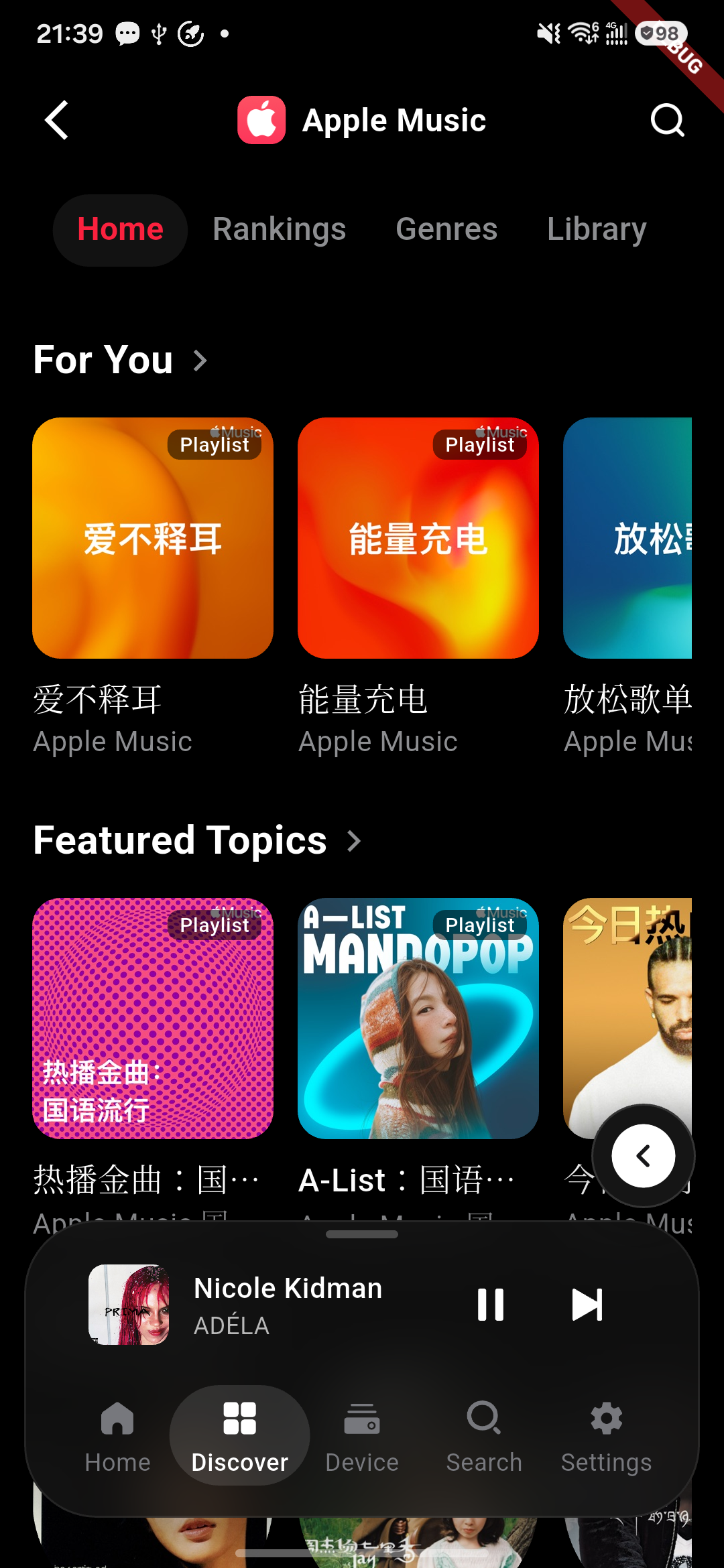
- Back button
- Apple Music title bar
- Search button
The page body is divided into 4 tabs:
- Home
- Charts
- Music Types
- Library
A persistent mini-player sits at the bottom, showing the currently playing song info on the device.
4. Home
The Home page supports pull-down refresh. Common content modules include:
- Personal recommendations
- Topic recommendations
- Hot artists
- Hot songs
- Latest releases
- Recommendations for each music type
Operation:
- Tap the arrow on the right of a module title to enter that module's secondary collection page.
- Tap a song card to play directly.
- Tap an album card to open the album detail page.
- Tap a playlist card to open the playlist detail page.
- Tap an artist card to open the artist detail page.
- Pull down the page to reload home content.
Supplement:
Personal recommendations are available after Apple Music authorization is complete on the device. Availability depends on the account and region.
5. Home Secondary Collection Page
After tapping a module title on the Home page, you enter the corresponding secondary collection page.
Operation:
- The page shows content in a two-column grid.
- Tap a song to play directly.
- Tap an album, playlist, or artist to open the corresponding detail page.
- Pull down to refresh the current list.
- Scroll down near the bottom to auto-load more content.
6. Charts Page
The Charts page supports browsing different types of ranking content. Common modules include:
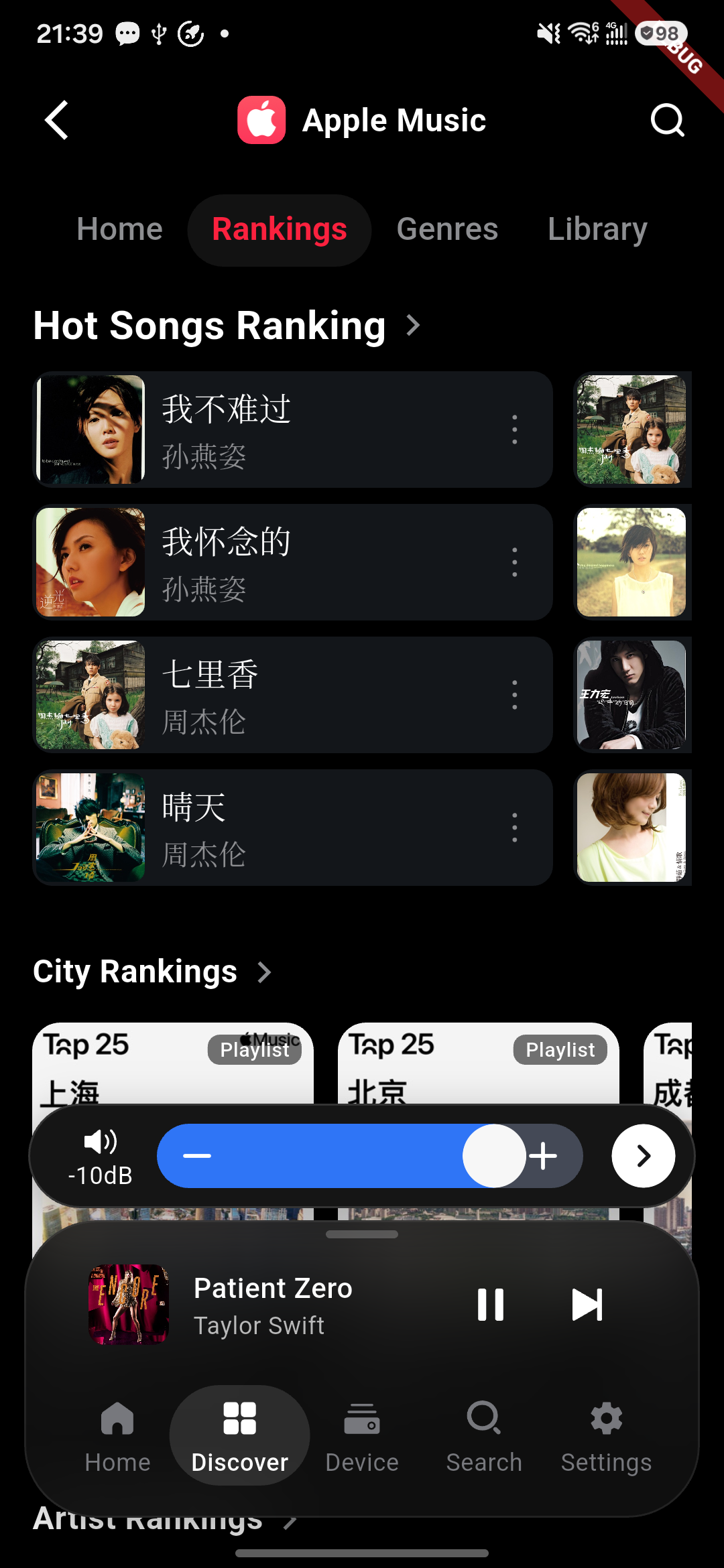
- Song rankings
- City rankings
- Artist rankings
- Weekly hot
- Hot playlist rankings
- Hot album rankings
Operation:
- Tap a song in the song rankings to play directly.
- Tap the More button to the right of a song to open the song action menu.
- Tap cards in City rankings, Artist rankings, Hot playlist rankings, Hot album rankings to open the corresponding detail page.
- Tap each module title to enter that module's full list page.
- The page supports pull-down refresh.
7. Charts Secondary Page
After tapping a title in the Charts module, you enter the corresponding secondary list page or collection page.
Common cases:
- Song rankings: enter the song list page.
- Other rankings: enter the collection page.
Operation:
- In the song list page, tap a song to play directly.
- The More button in the song list page opens the song action menu.
- In the collection page, tap album, playlist, or artist cards to open the corresponding detail page.
8. Music Types Page
The Music Types page shows music content of different style categories.
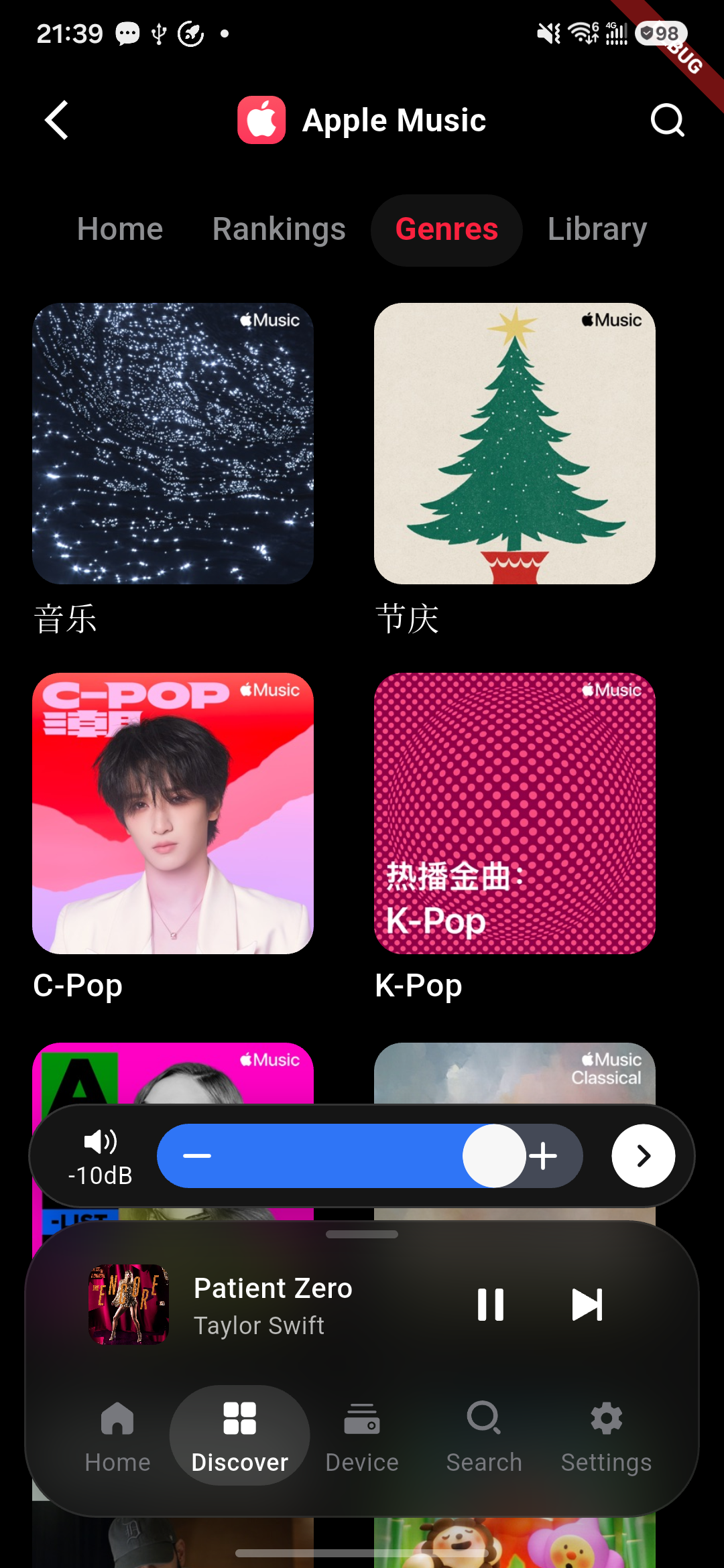
Operation:
- Tap a music type card to open that type's secondary collection page.
- In the secondary collection page you can browse albums, playlists, songs, or artist content of that type.
- The page supports pull-down refresh.
9. Search Page
Tap the search button at the top-right of the main page to enter the search page.
9.1 Search Structure
The search page supports two search domains:
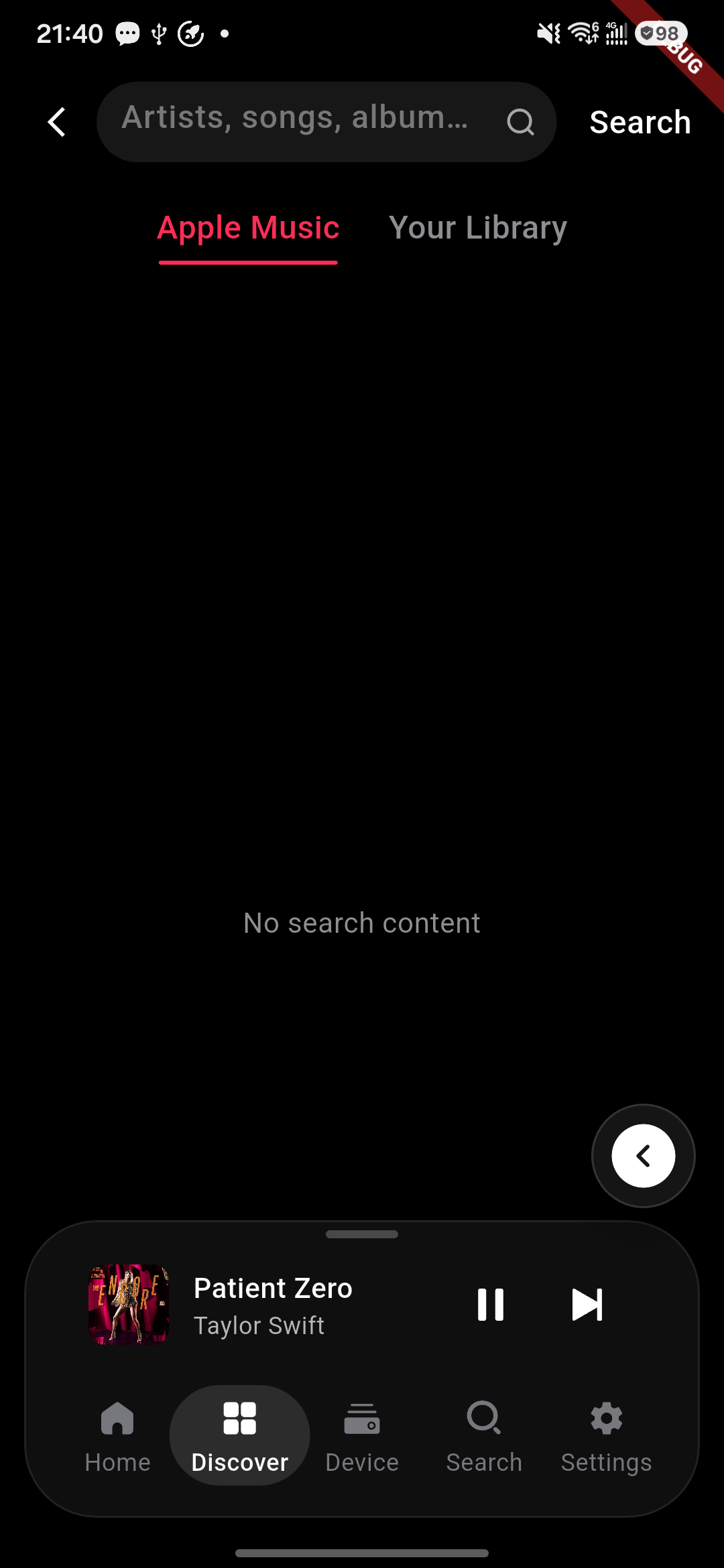
- Apple Music
- Library
Search results support multiple type switches, commonly including:
- All
- Songs
- Albums
- Artists
- Playlists
9.2 Search Operations
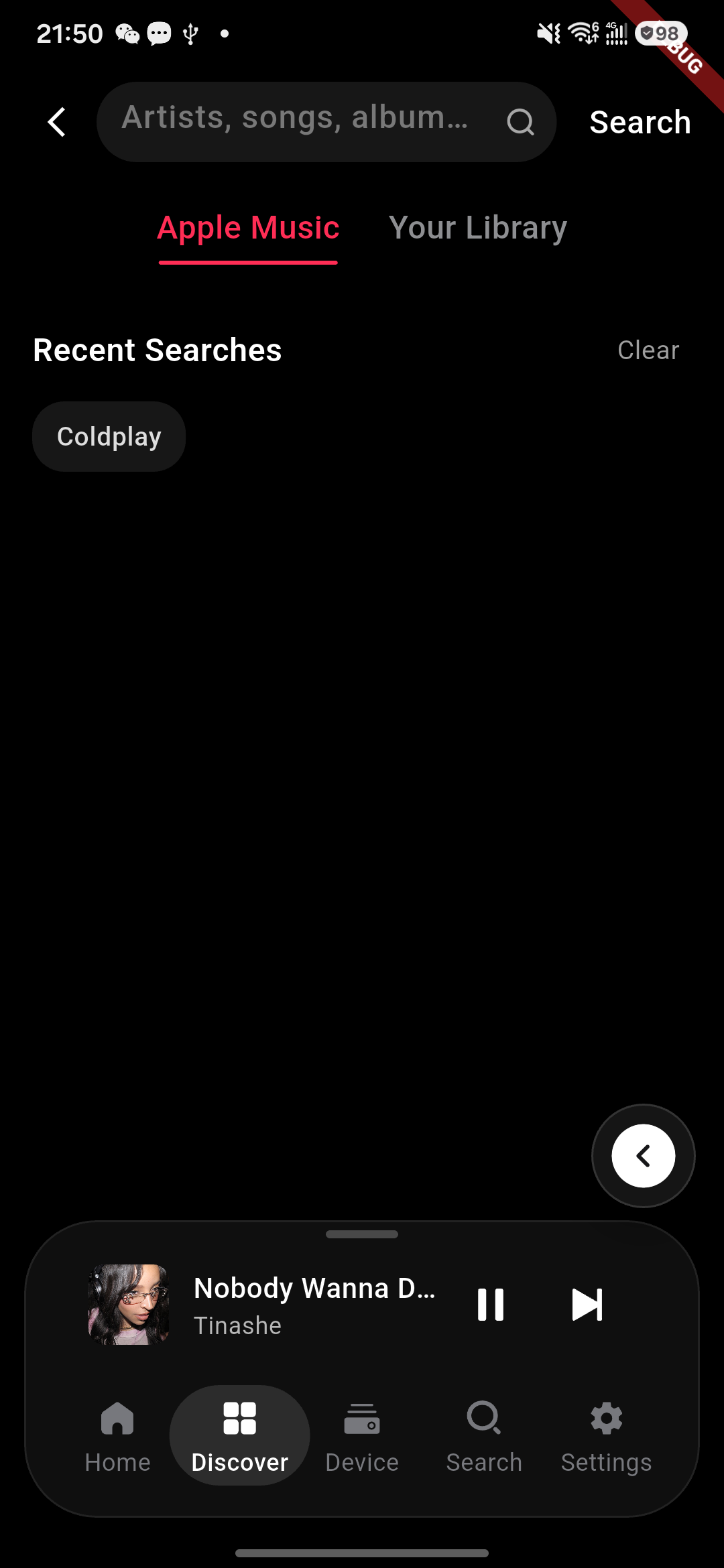
- Enter a keyword in the input box.
- Tap "Search" or use the keyboard search key to initiate a search.
- During input, a suggested-word list is shown.
- If recent searches exist, the search home shows recent search history.
- Tap different search-domain tabs to switch the search scope.
- Tap different type tabs to switch the result type.
9.3 Search Result Operations
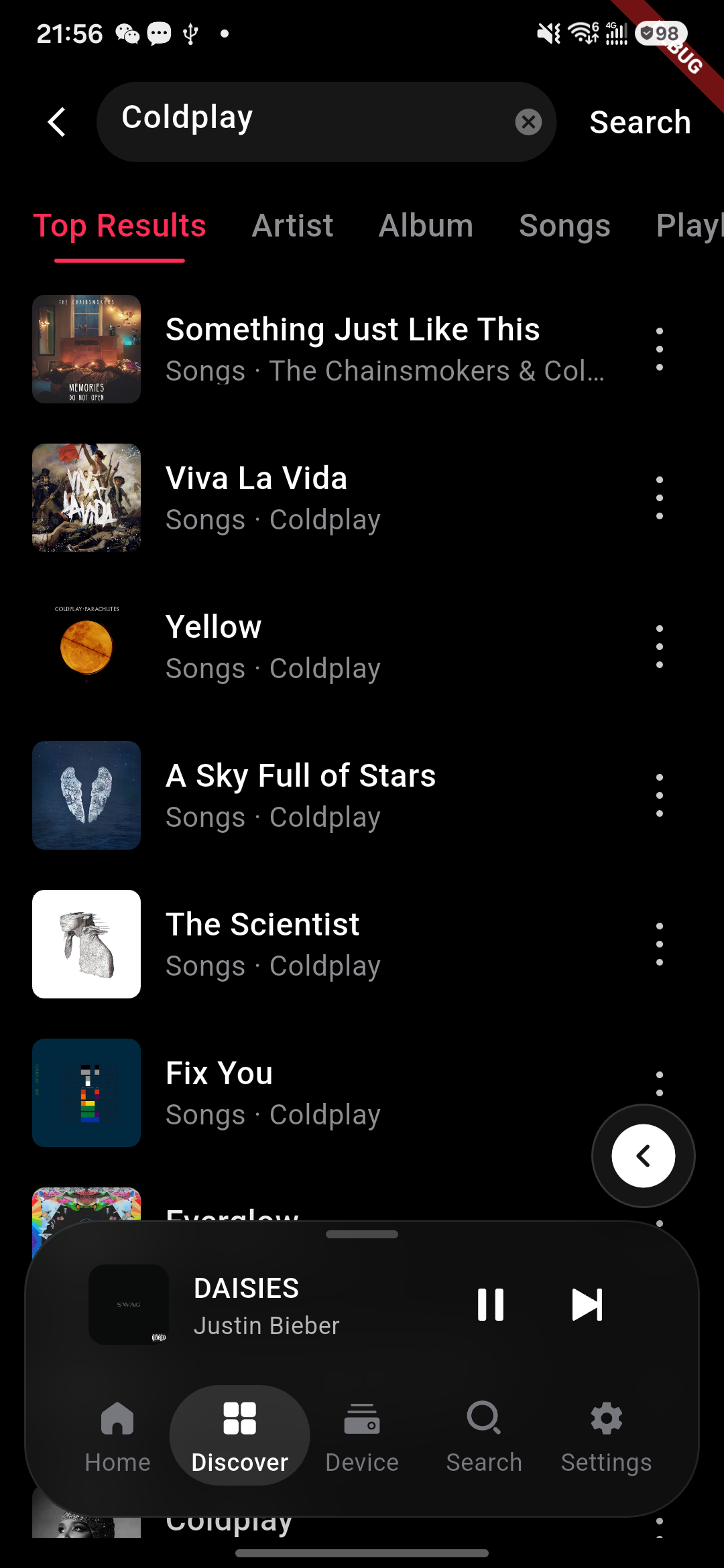
- Tap a song to play directly.
- Tap the More button to the right of a song to open the song action menu.
- Tap an album to open the album detail page.
- Tap a playlist to open the playlist detail page.
- Tap an artist to open the artist detail page.
10. Library Page
The Library page provides the Apple Music user library entry.
Current entries include:
- Recently Added
- Playlists
- Albums
- Songs
- Artists
Operation:
- Tap any entry to open the corresponding library secondary page.
- The top of the page shows the library avatar and nickname area.
11. Library Secondary Pages
11.1 Recently Added / Playlists / Albums / Artists
These pages show content in a two-column grid.
Operation:
- Tap an album to open the album detail page.
- Tap a playlist to open the playlist detail page.
- Tap an artist to open the artist detail page.
- If the list contains song-type content, tap a song to play directly.
- The page supports pull-down refresh.
- Scroll down near the bottom to auto-load more.
11.2 Songs
The library songs page shows content as a list.
Operation:
- Tap a song to play directly.
- The song duration is shown on the right.
- Tap the More button to the right of a song to open the song action menu.
- The page supports pull-down refresh.
- Scroll down near the bottom to auto-load more songs.
12. Playlist Detail
The playlist detail page shows the playlist cover, title, description, and song list.
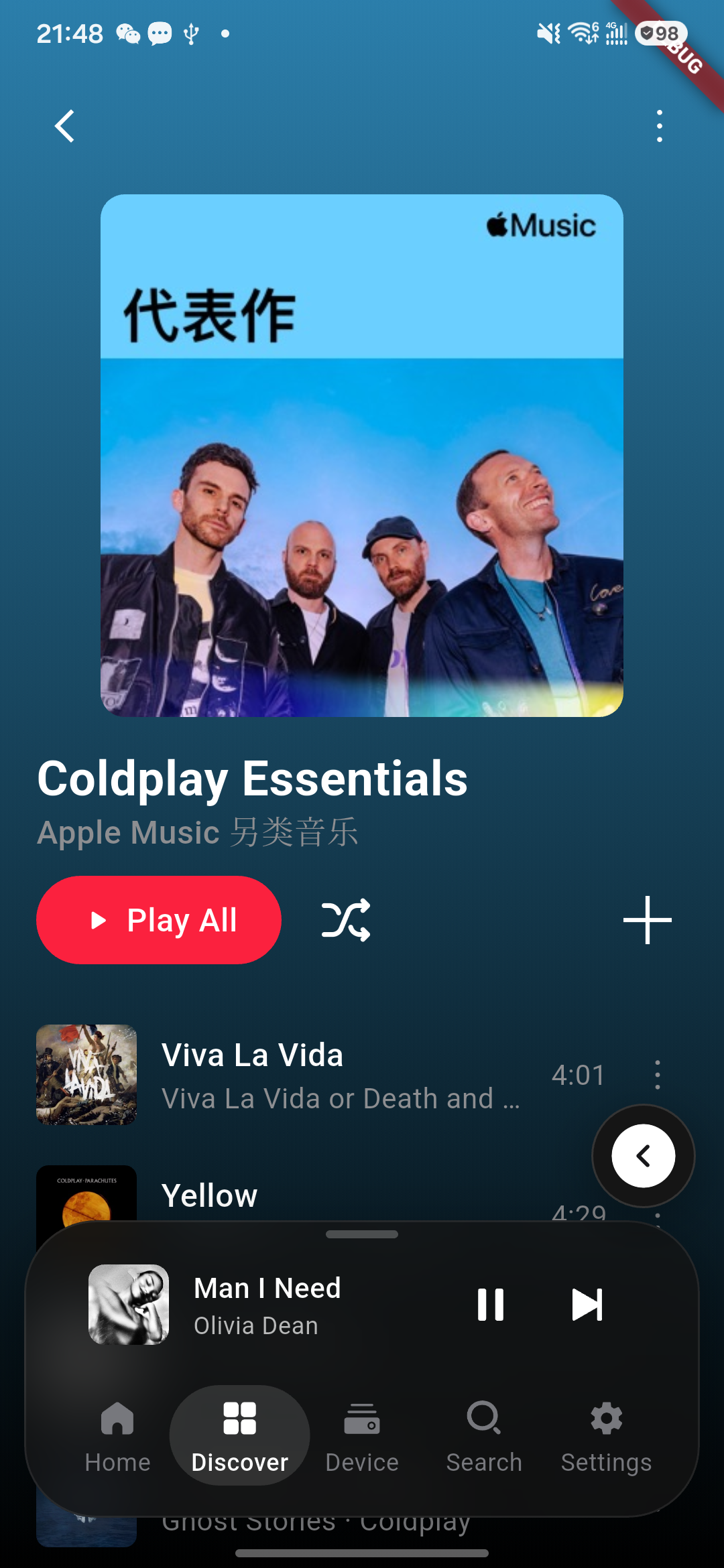
Operation:
- Tap "Play All" to batch-play the current playlist's songs.
- Tap the More button at the top-right of the page to open the playlist action menu.
- Tap a song to play directly.
- Tap the More button to the right of a song to open the song action menu.
- The page supports pull-down refresh of playlist tracks.
- The currently playing song is highlighted in the list.
The playlist action menu supports:
- Add to Library
- Add to My Playlist
- Add to Current Playlist
13. Album Detail Page
The album detail page shows the album cover, album name, artist name, and track list.
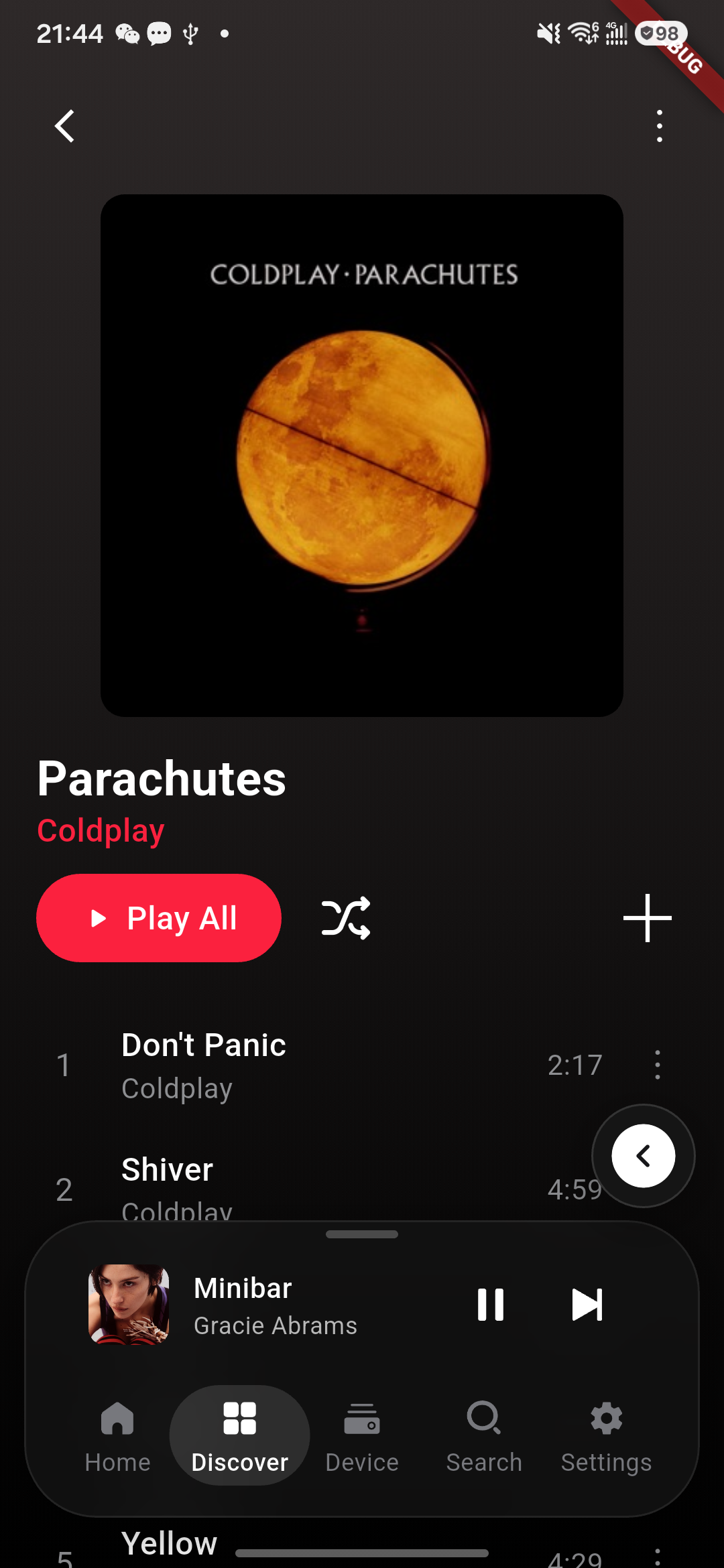
Operation:
- Tap the artist name to open the artist detail page.
- Tap "Play All" to batch-play the album's songs.
- Tap the More button at the top-right to open the album action menu.
- Tap a song to play directly.
- Tap the More button to the right of a song to open the song action menu.
- The page supports pull-down refresh of album tracks.
- The currently playing song is highlighted.
The album action menu supports:
- Add to Library
- Add to My Playlist
- Add to Current Playlist
14. Artist Detail Page
The artist detail page shows the artist avatar and related content, usually including:
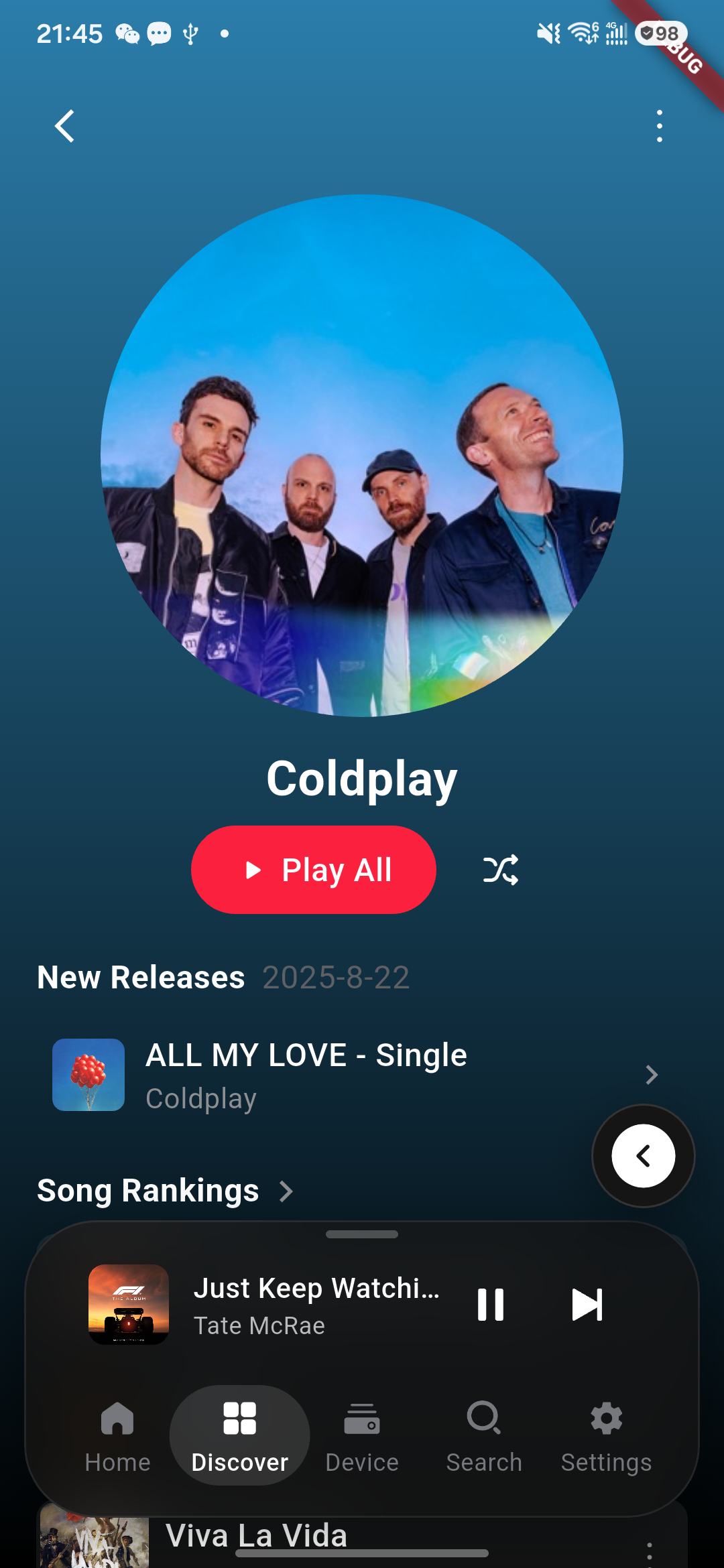
- Latest Release
- Song Rankings
- Essential Albums
- Appears On
Operation:
- Tap "Play All" to batch-play the artist's hot songs.
- Tap the More button at the top-right to open the artist action menu.
- Tap content in "Latest Release" to open the album detail page.
- Tap a song in the song rankings to play directly.
- Tap the More button in the song rankings to open the song action menu.
- Tap cards in Essential Albums or Appears On to open the corresponding detail page.
- The page supports pull-down refresh of artist details.
The artist action menu supports:
- Add to Library
- Add to My Playlist
- Add to Current Playlist
- View Album (when Latest Release exists)
15. Song Action Menu
In the search page, charts page, library songs page, playlist detail page, album detail page, artist detail page, and other scenarios, songs usually have a More button on the right.
The song action menu supports the following capabilities:
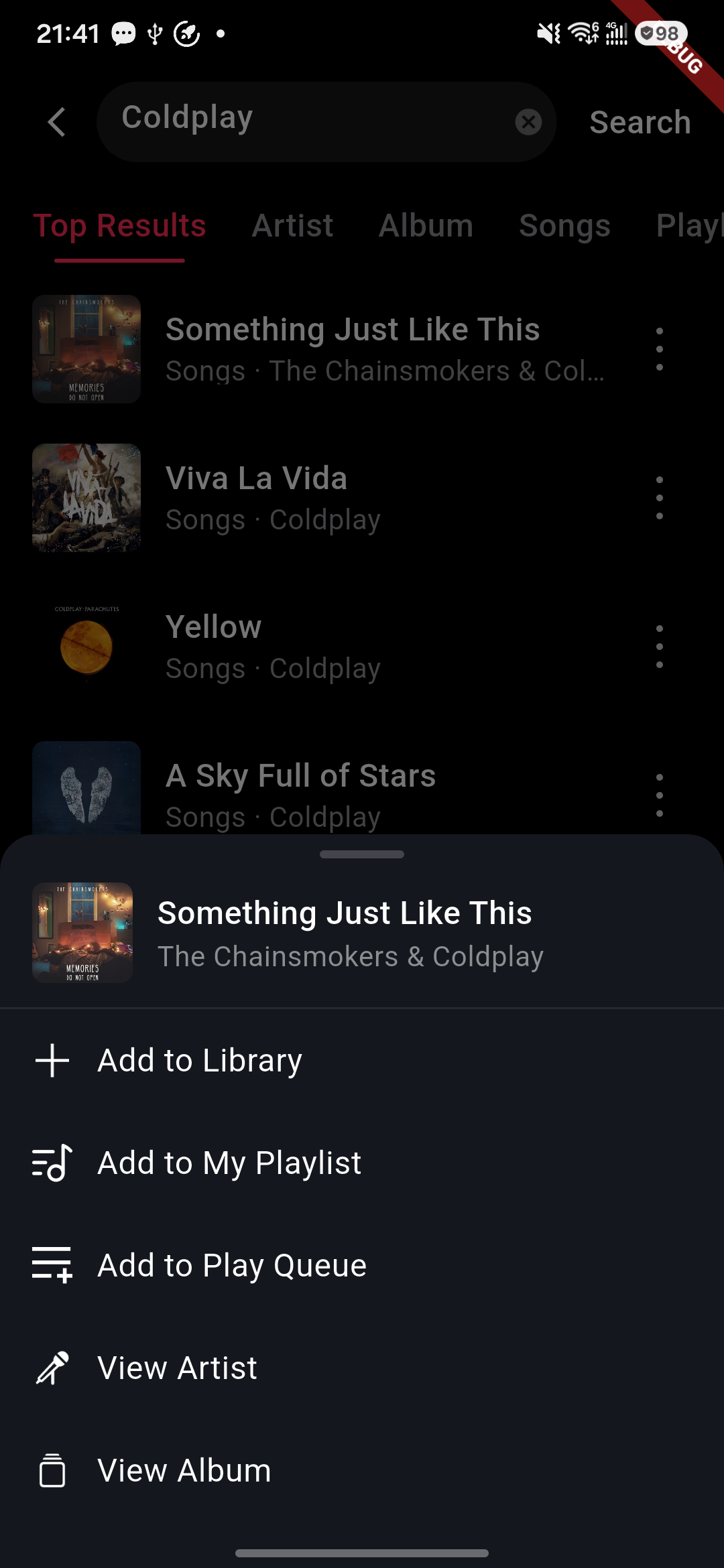
- Add to Library
- Add to My Playlist
- Add to Current Playlist
- View Artist
- View Album
Notes:
- "Add to Library" adds the current song to the Apple Music library.
- "Add to My Playlist" first pops up the playlist selection panel, then adds the song to the selected playlist.
- "Add to Current Playlist" appends the song to the current device playback queue.
- "View Artist" enters the artist detail page.
- "View Album" enters the album detail page.
16. Playback Notes
- When tapping a single song, the app sends a single-song playback command to the device player.
- When tapping "Play All", the app dispatches the whole group's playlist to the device.
- "Add to Current Playlist" means appending to the current playback queue, without immediately replacing the current playing content.
- The currently playing song in the list shows a highlight or playback marker.
- The bottom mini-player continuously shows the current playback status.
17. Common Abnormal Conditions
17.1 Page Prompts Login Required
Possible causes:
- Device-side Apple Music login not completed
- Device-side user authorization expired
- Apple Music authorization is unavailable or has expired on the device.
Handling:
- Complete Apple Music login on the device side first.
- Return to the phone side and tap the refresh button to re-detect.
17.2 Page Cannot Load Content
Possible causes:
- Network anomaly
- Device-side token expired
- The Apple Music service did not return content for the request.
Handling:
- Pull down the page to reload.
- Check the network status.
- Confirm the device-side login is still valid.
17.3 Cannot Play or Add to Playlist
Possible causes:
- The selected item is currently unavailable for playback.
- The device player is unavailable or not ready.
- The requested Apple Music action did not complete.
Handling:
- Try another song.
- Return to the previous page and re-enter.
- Check whether the device player is in a usable state.
17.4 Cannot Add to Library or My Playlist
Possible causes:
- Current account lacks the corresponding permission
- Apple Music authorization is unavailable or has expired on the device.
- The selected playlist is unavailable or cannot be changed by the current account.
Handling:
- Confirm the device-side account is logged in and authorization is valid.
- Retry later.
- Confirm there is a selectable personal playlist under the current account.