Manual contents
8.1 Device Performance Tool
On this page
This tool is used to test the device's storage performance and network quality, helping users quickly locate read/write speed bottlenecks of external storage devices (USB drives, portable hard disks, etc.), as well as the bandwidth and stability of the current network connection.
1. Main Screen Overview
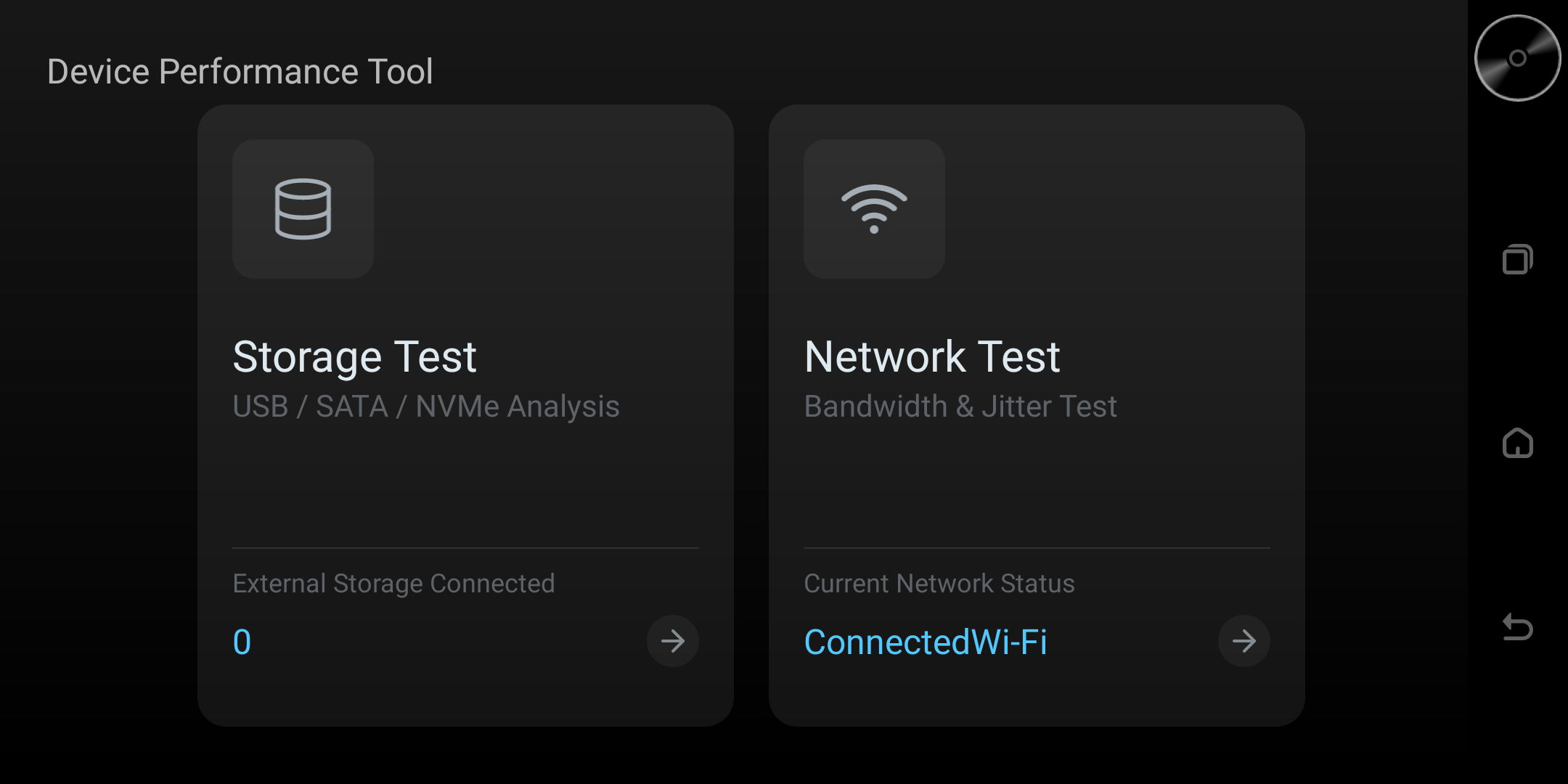
The main screen is divided into two core modules:
- Storage Test
- Network Test
The top provides function-switching entries, and the bottom shows the connected external storage devices and the current network status.
2. Storage Test Module
|
Step |
Action |
Check |
|
1 |
Connect the USB, SATA, or NVMe storage to test. |
The device appears in Storage Test. |
|
2 |
Select the device; refresh the device list if it is missing. |
Capacity, interface, and file-system details are shown. |
|
3 |
Start the read/write speed test and wait for it to finish. |
Record the read and write results before disconnecting storage. |
2.1 Select an External Storage Device
- The system automatically recognizes connected USB / SATA / NVMe external storage devices.
- Tap the dropdown or list to select the device to test (e.g.,
Lenovo VFAT 31.99GB). - If the device is not shown, tap the Refresh Devices button to rescan.
2.2 Storage Information Display
After selecting a device, the following information is displayed:
|
Item |
Description |
|
Device Name |
e.g. |
|
Interface Type |
e.g. |
|
File System |
e.g. |
|
Capacity Used |
e.g. |
|
Supported Specs |
Shows lossless / Hi-Res / DSD512 etc. (for audio-related detection) |
2.3 Read/Write Speed Test
- Write speed: the rate at which test data is written to the external storage (MB/s).
- Read speed: the rate at which test data is read from the external storage (MB/s).
The test runs after tapping the Start Speed Test button.
⚠️ Note: do not unplug the device during the test to avoid data corruption.
2.4 Usage Suggestions
- USB2.0 devices usually have read/write speeds no higher than 40 MB/s.
- If read/write is significantly low (e.g., < 5 MB/s), possible causes include:
- Poor-quality cable or bad contact at the connector.
- Aging device or file system error.
- Other high-load apps running at the same time.
3. Network Test Module
The available reference build has mixed-language detail labels, so those screenshots are omitted until an officially localized build is available. The procedures below describe the observed workflow; item names and available tests can vary by version and device.
|
Step |
Action |
Check |
|
1 |
Open Network Test and verify the connection name, type, and IP address. |
The interface reports a reachable network. |
|
2 |
Observe upload and download values while the network is in use. |
The chart and rates change over time. |
|
3 |
Enable the floating-rate display only when ongoing monitoring is needed. |
Rates remain visible over other supported screens. |
3.1 Basic Network Information
|
Item |
Example Value |
Description |
|
Network Name |
Wired |
User-defined or system-recognized connection name |
|
Network Type |
|
Ethernet wired connection |
|
IP Address |
|
Current local IPv4 address |
|
Network Availability |
Available (Ping succeeded) |
Shows the reachability status reported by the test. A successful ping indicates that the configured ping target is reachable; it does not by itself confirm general Internet availability. |
Supports automatic recognition of both wired and Wi-Fi networks.
3.2 System-wide Traffic Monitoring
- Real-time download (KB/s)
- Real-time upload (KB/s)
Values update in real time, reflecting the device's overall network load.
3.3 Real-time Speed Chart
- Provides a simple time-series curve.
- X-axis is time, Y-axis is transfer rate (KB/s).
- Can switch between showing total bytes / real-time rate.
3.4 Floating Window Feature
- After enabling Show Floating Window, you can view up/down rates on top of other apps in real time.
- Suitable for monitoring network status during background downloads or live streaming.
3.5 Bandwidth Throughput and Jitter Detection (Advanced)
- Tests the current network's maximum throughput (supports both Ethernet and Wi-Fi).
- Detects jitter, evaluating network stability — important for video/audio calls and cloud gaming.
This test consumes a small amount of data; use caution on mobile networks.
4. Typical Use Cases
|
Scenario |
Recommended Action |
|
Newly bought USB drive / portable disk |
Storage Test → read/write speed test |
|
Slow network on PC or TV box |
Network Test → view real-time traffic → throughput test |
|
Suspected USB port failure |
Change port, then refresh devices and re-test |
|
Video conference stuttering |
Check jitter and real-time up/download rate |
5. FAQ
Q1: Why do storage speed test results fluctuate a lot?
A: It may relate to file size, caching strategy, and device temperature. It is recommended to run 3 consecutive tests and take the average.
Q2: Network test shows "Unavailable"?
A: Check whether the network cable is plugged in tightly and whether Wi-Fi obtained an IP normally.
Q3: USB device is shown but the speed test fails?
A: The device may be read-only or the file system may be corrupted. Try formatting (back up your data first).
6. Version History
Documented reference version: 1.1.3. Confirm the installed tool version and available options on the device before following version-specific steps.