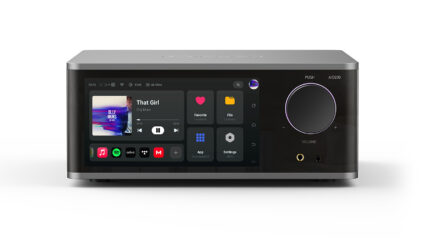
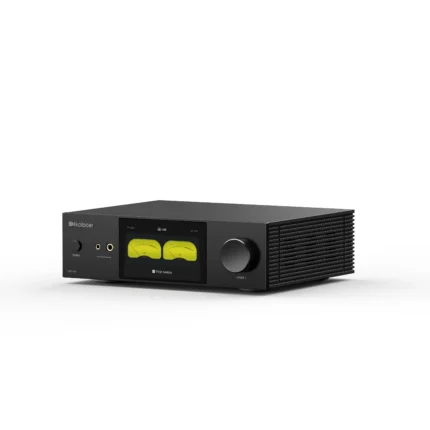
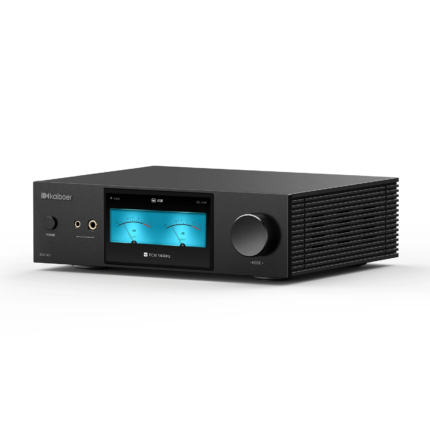
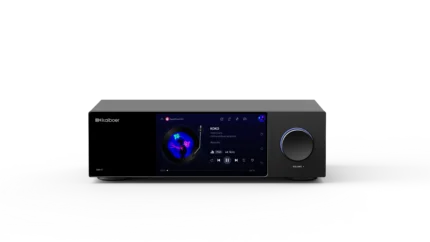
Kaiboer Home is the official companion app for remotely controlling and managing your Kaiboer DMP series devices from a phone or tablet. This guide covers daily operation; for the full change history, see Kaiboer Home Update Log.
Quick Start
On the player, go to Settings > Network > Mobile Control, and scan the QR code to install Kaiboer Home; you can also download it from the resources page on our official website.
Make sure the device and your phone are on the same Local Area Network (LAN).
Launch the app, select your unit from the device list at the bottom of the pairing page, and complete the connection. After a successful sync, the app opens its Home screen. For the detailed connection and recovery flow, continue with Before You Start and Connect below.
Before scanning to connect, grant Kaiboer Home permissions for Bluetooth, LAN access, and Camera.
For troubleshooting connection failures, see the Tutorial for Mobile & Tablet Control Devices section in the main manual.
At a Glance
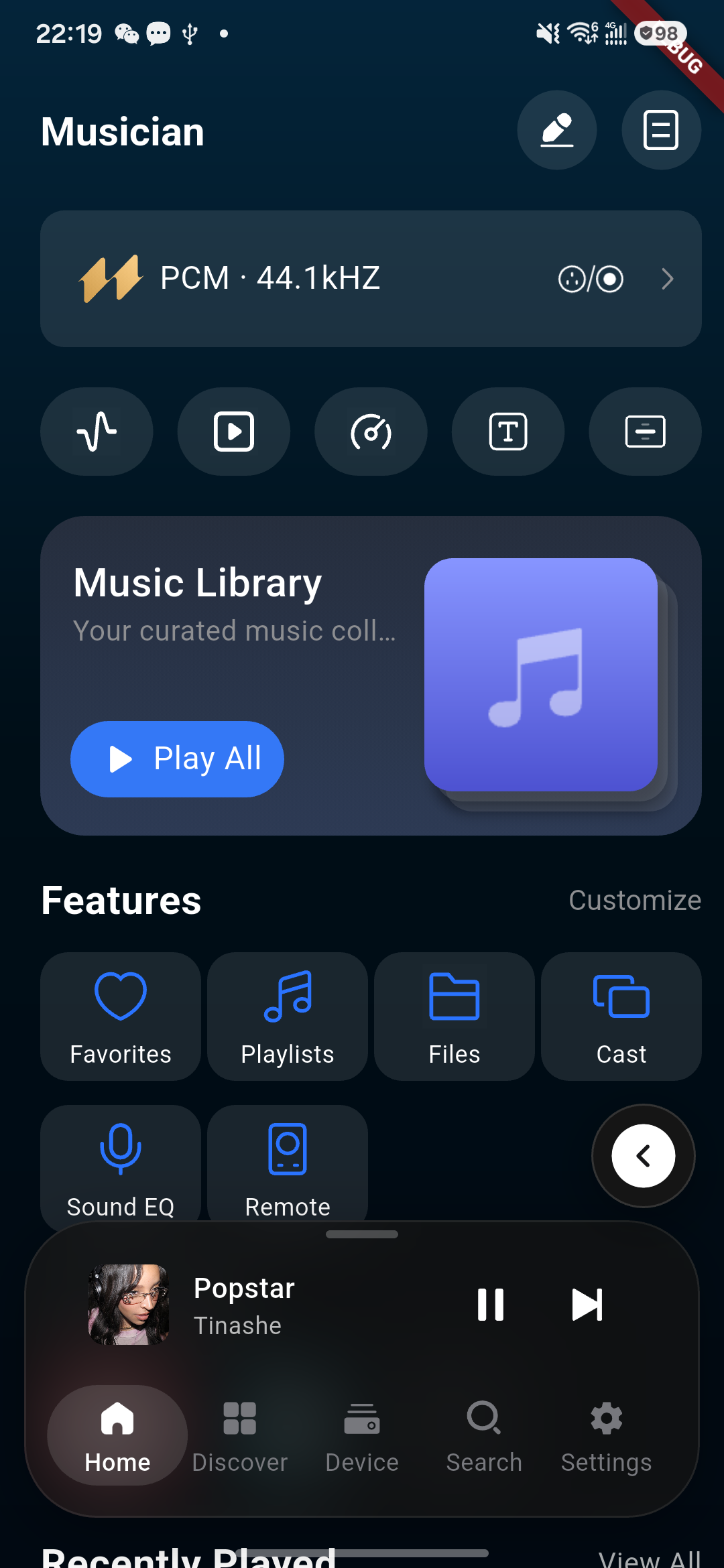
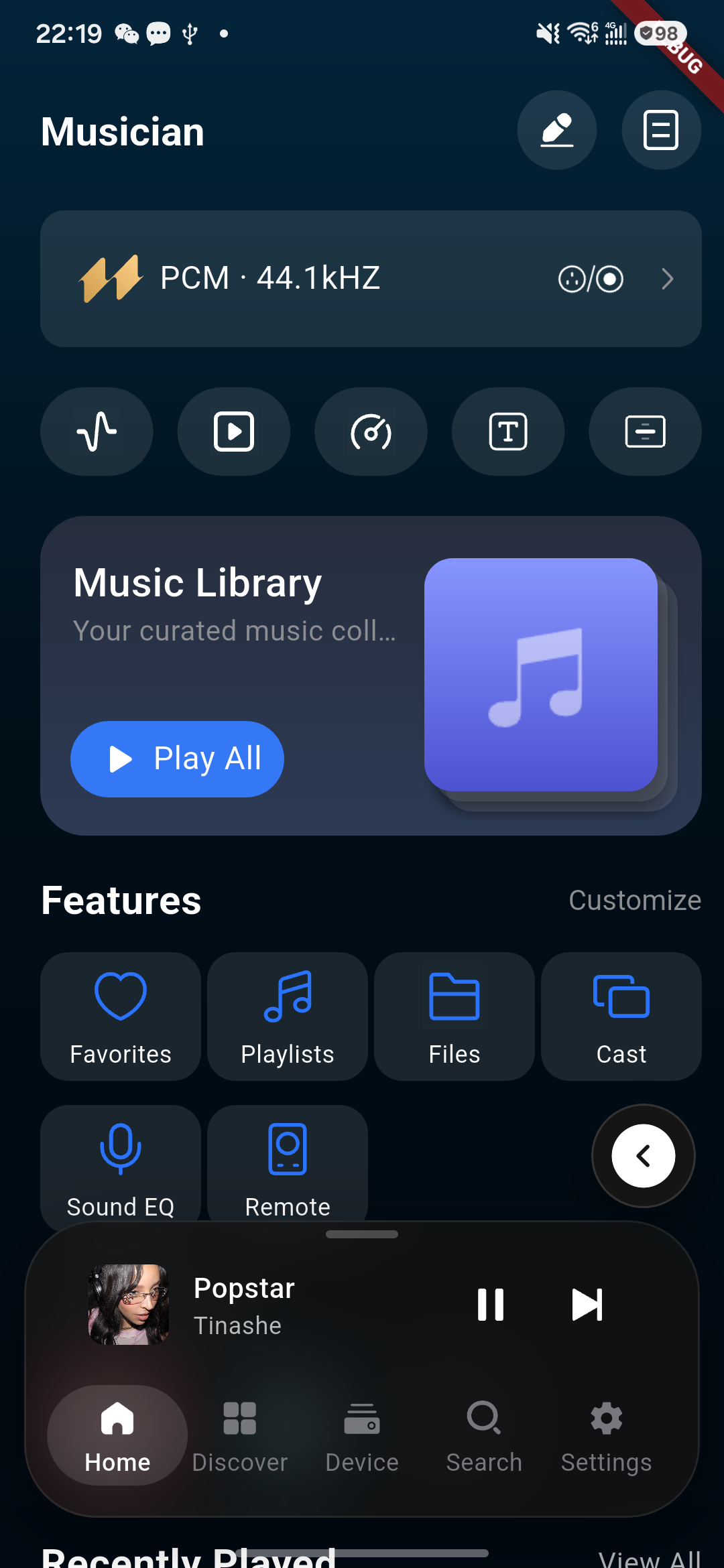
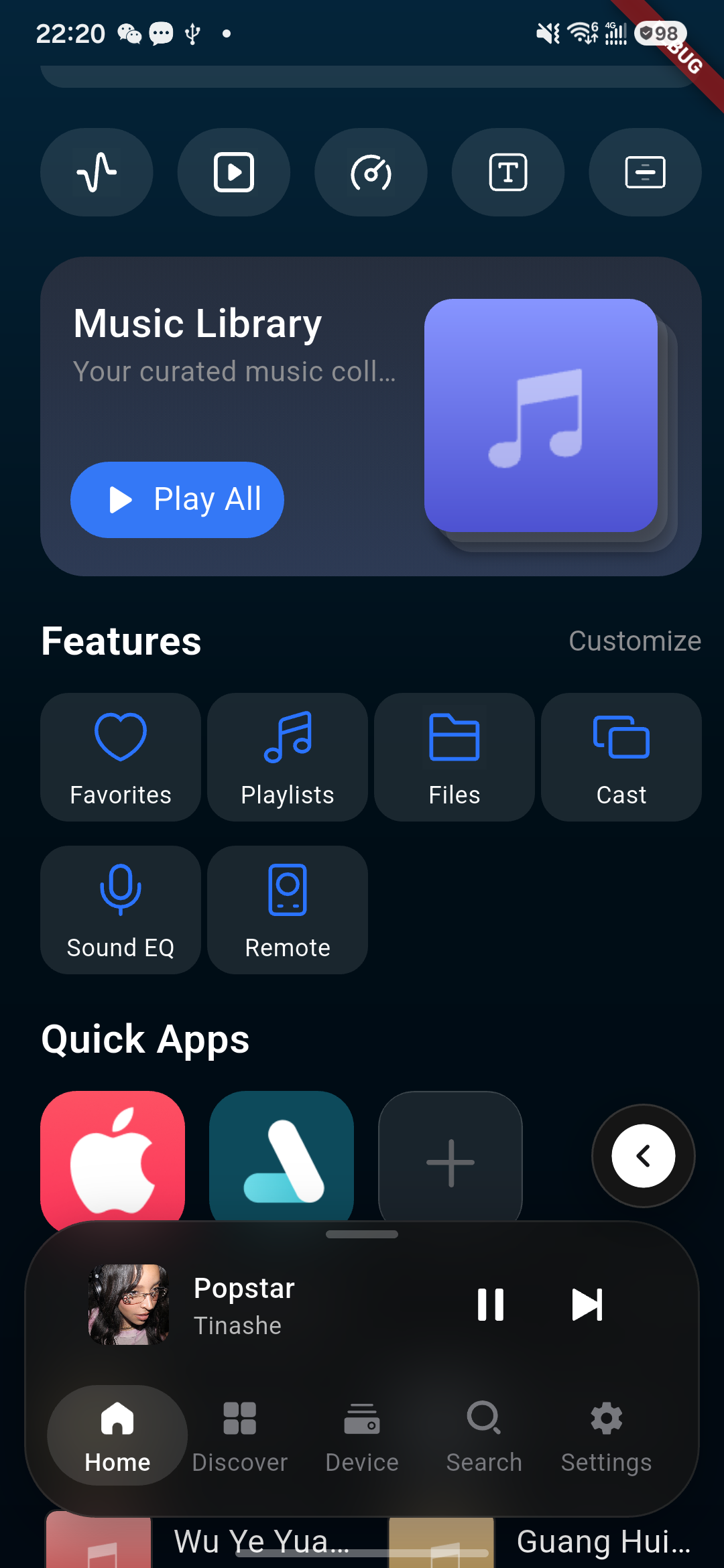
The redesigned home screen supports custom function entrances, content sections, and quick-access apps, with a cleaner, more elegant layout for the music library overview, Favorites page, and remote text input.
Key Features
Remote playback control: Browse and play your library, control playback, adjust volume, and switch tracks from the app.
Physical volume keys: During playback, use your phone or tablet's volume keys to adjust the device's volume (added in V1.2.6).
File Favorites: Browse and play favorites from local storage, USB devices, network storage, and cloud storage (added in V1.2.5).
On supported app versions and device models, equalizer presets and related audio-display or theme options may be available (added in V1.2.5).
Audio CD browsing: Browse and play audio CD tracks (added in V1.2.5).
MultiRoom linkage: Group devices, synchronized playback, and volume control — manage your MultiRoom group directly from the app (see MultiRoom Linked Playback).
On supported models, room acoustic calibration can use the phone or a supported measurement microphone; see the acoustic calibration chapter in the main manual.
Unified Favorites: Manage local music, recently played, and streaming favorites (e.g., Apple Music) in one center (added in V1.2.4).
Local playlists: Create local playlists, remove songs, and clear recently played history (added in V1.2.4).
Tips
Keep Kaiboer Home updated to the latest version for the best experience. Device-side features such as MultiRoom and room calibration require Kaiboer Home V1.2.0 or later; some features require device version 1.3.55 or higher.
The app download links (Android / iOS) are listed in the Tutorial for Mobile & Tablet Control Devices section of the main manual.
Note: Different device models, firmware versions, and app versions may show different function entries. Please refer to what is actually displayed on the current page.
Before You Start
Before using Kaiboer Home, please confirm:
The phone has Kaiboer Home installed and opened.
The Kaiboer device is powered on and started normally.
The phone and device are connected to the same available network.
If you need to use streaming services, the corresponding account is prepared.
If you need to play local music, the device storage, USB drive, or other media source is properly connected.
Kaiboer Home is mainly used to connect to and control Kaiboer devices, browse local or online music content, and perform playback, collection, playlist, and device settings operations.
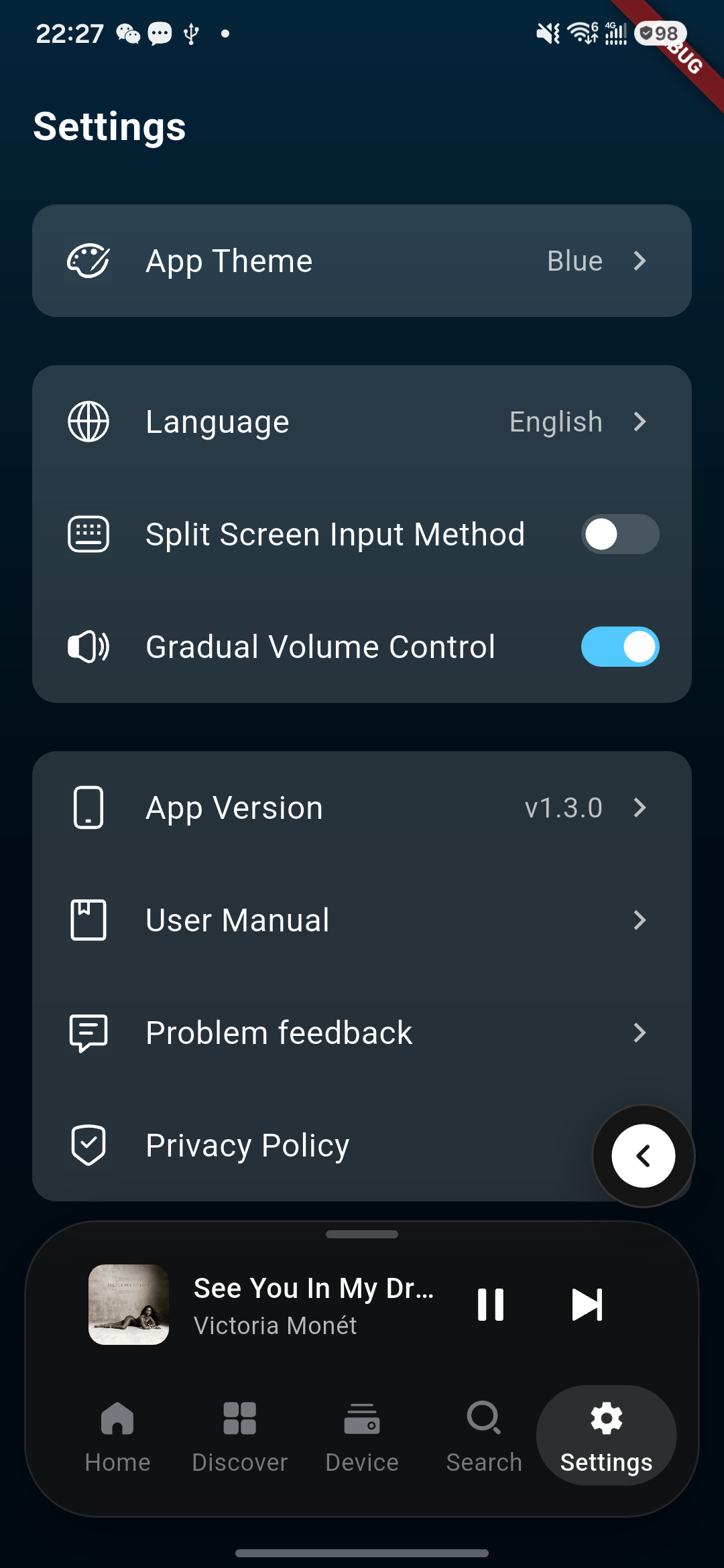
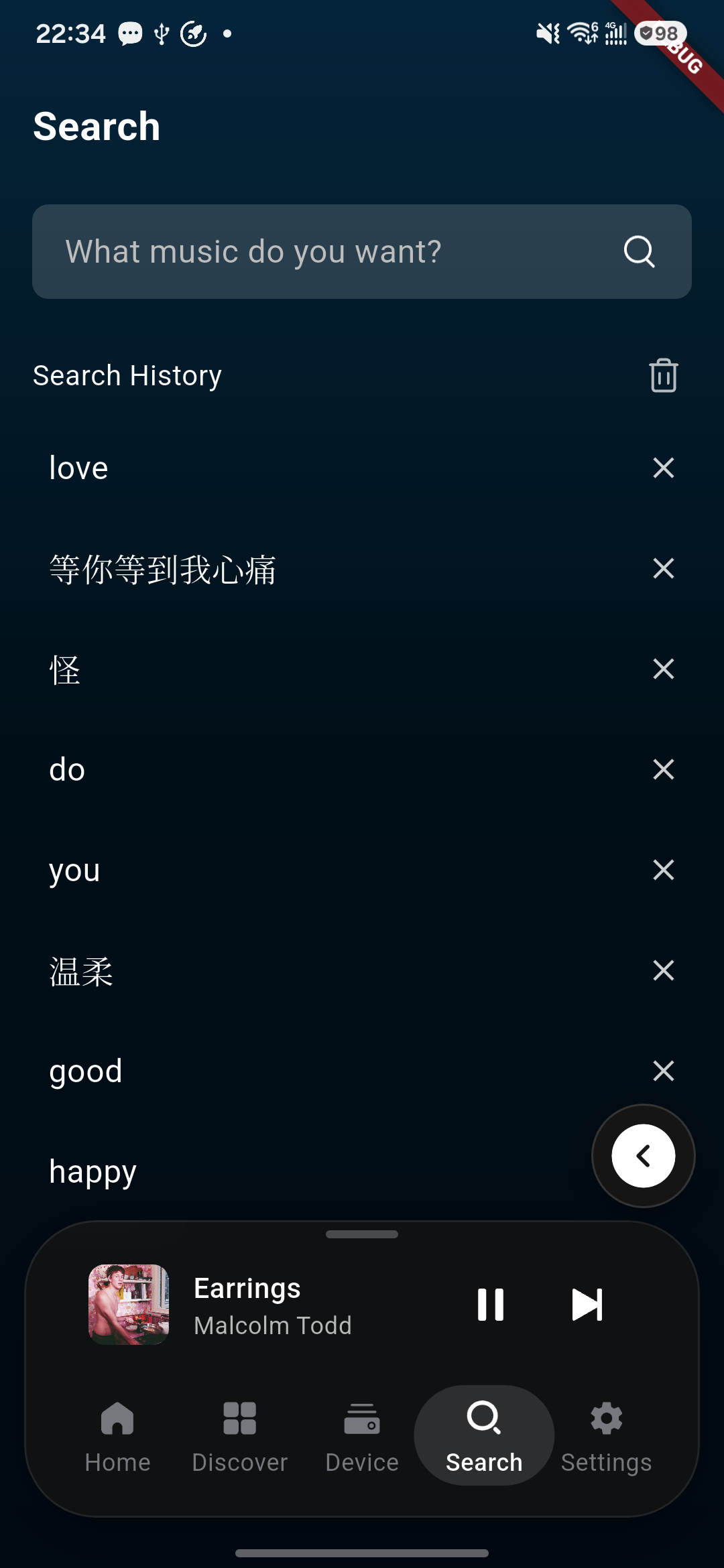
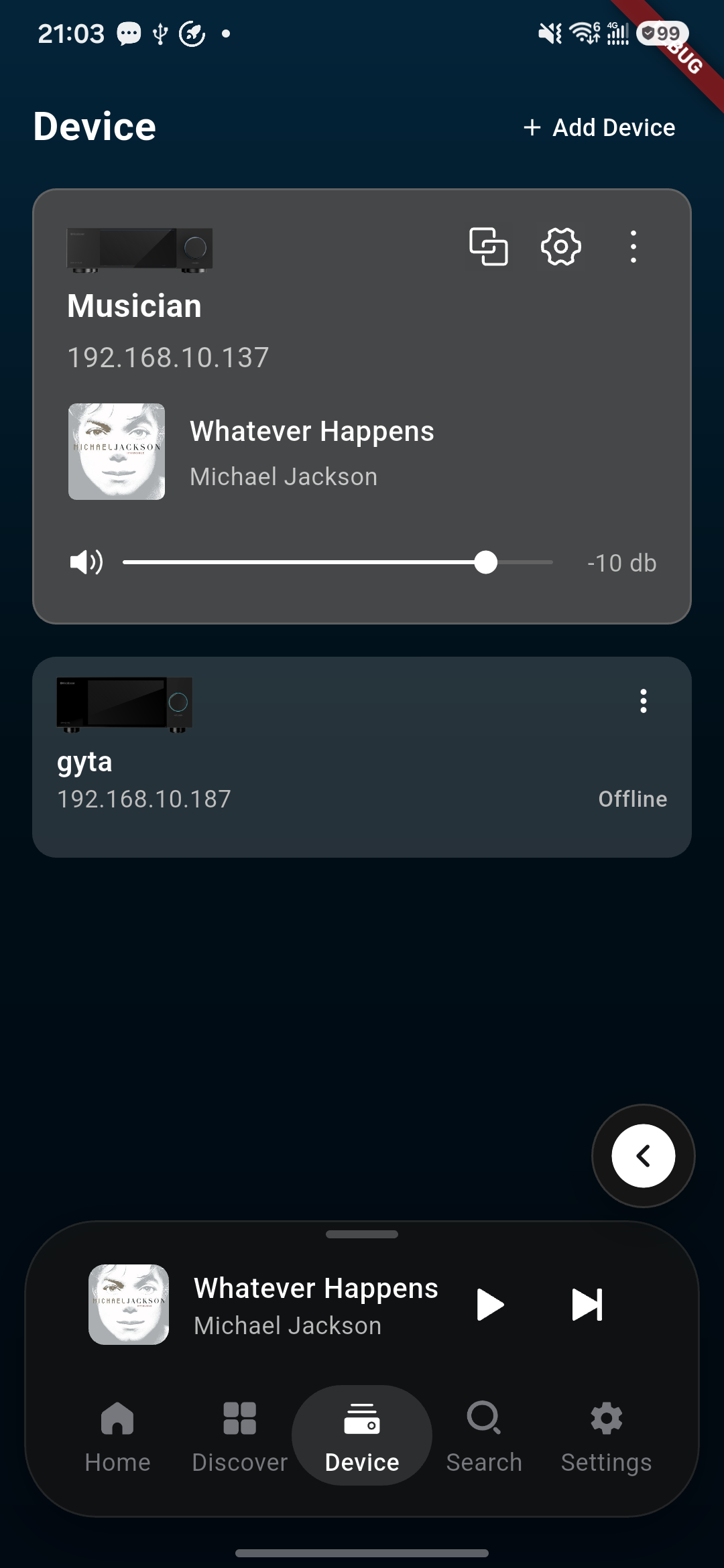
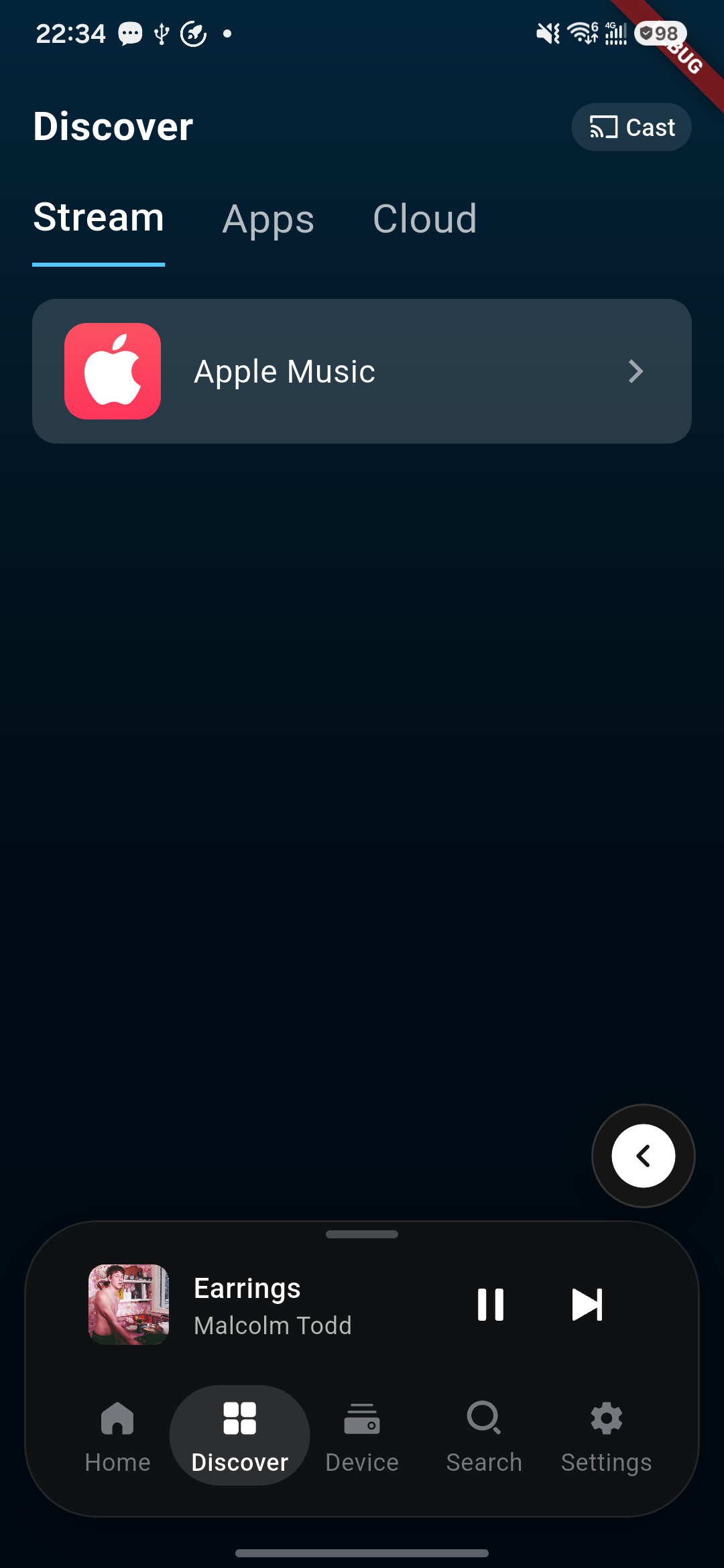
Kaiboer Home Settings tab.Kaiboer Home search-history screen.Device: connected and offline devices.Kaiboer Home Discover tab.Kaiboer Home dashboard.
Connect
Connect Device
On first use, you need to establish a connection between the phone and the Kaiboer device.
Open Kaiboer Home and enter the device or connection entry.
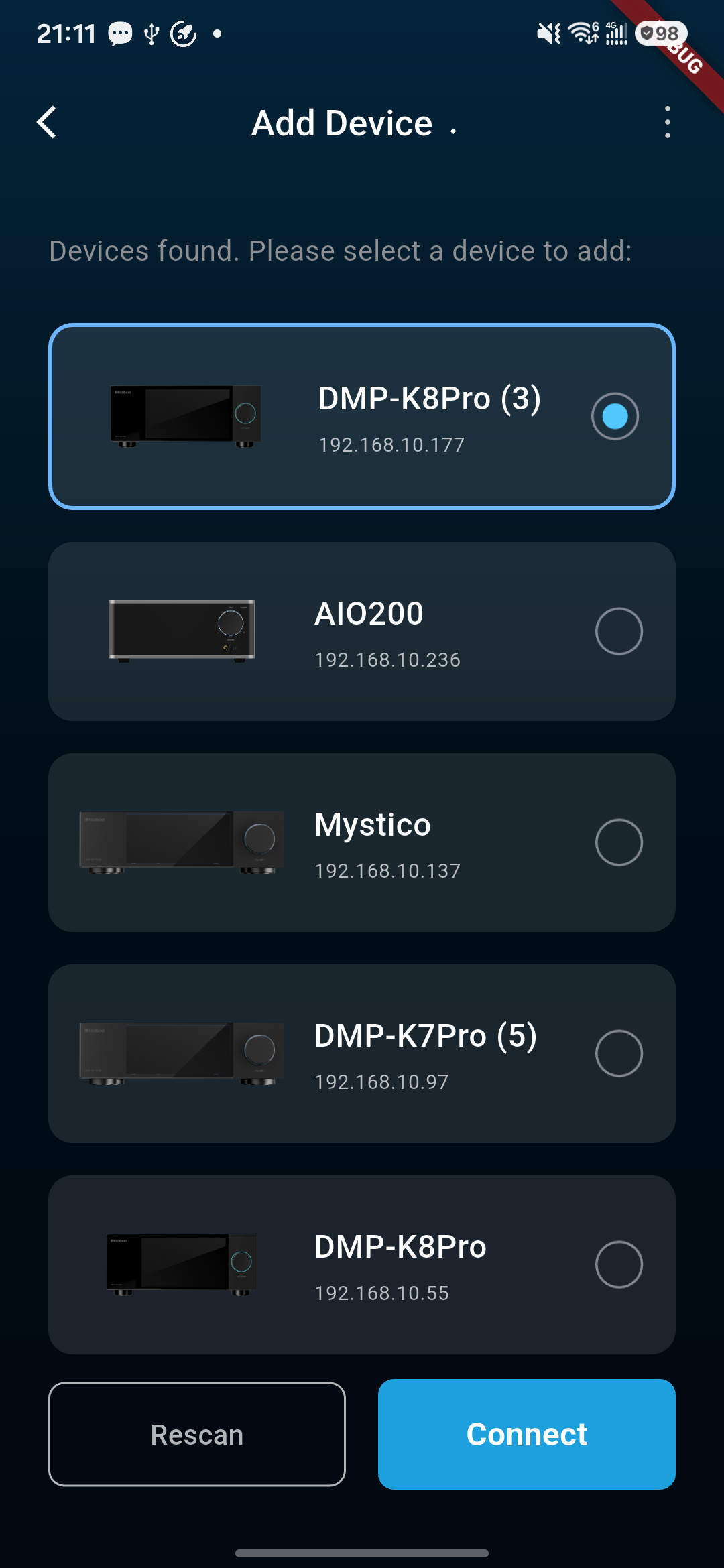
Wait for the app to search for nearby devices.
Select the target device in the device list.
Verify the device name, model, and network information.
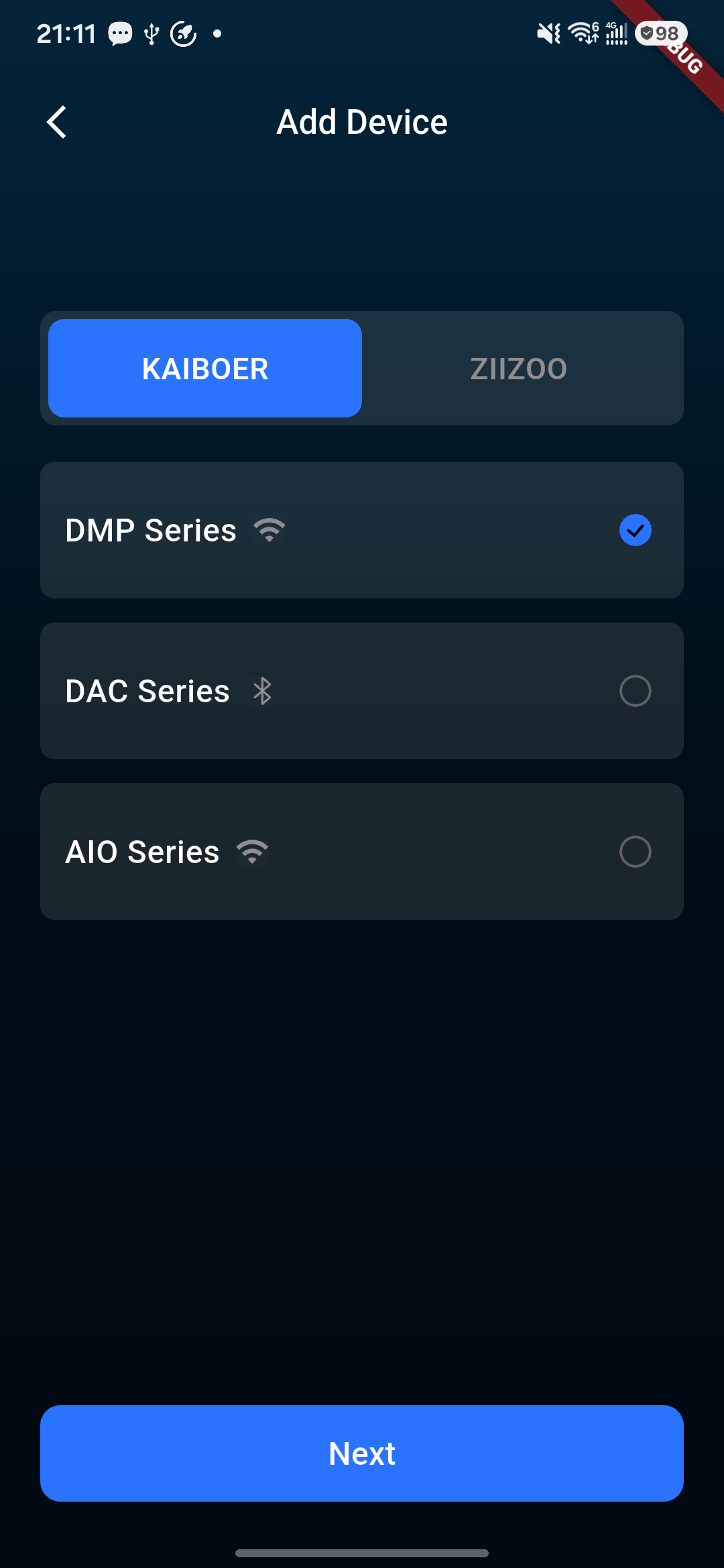
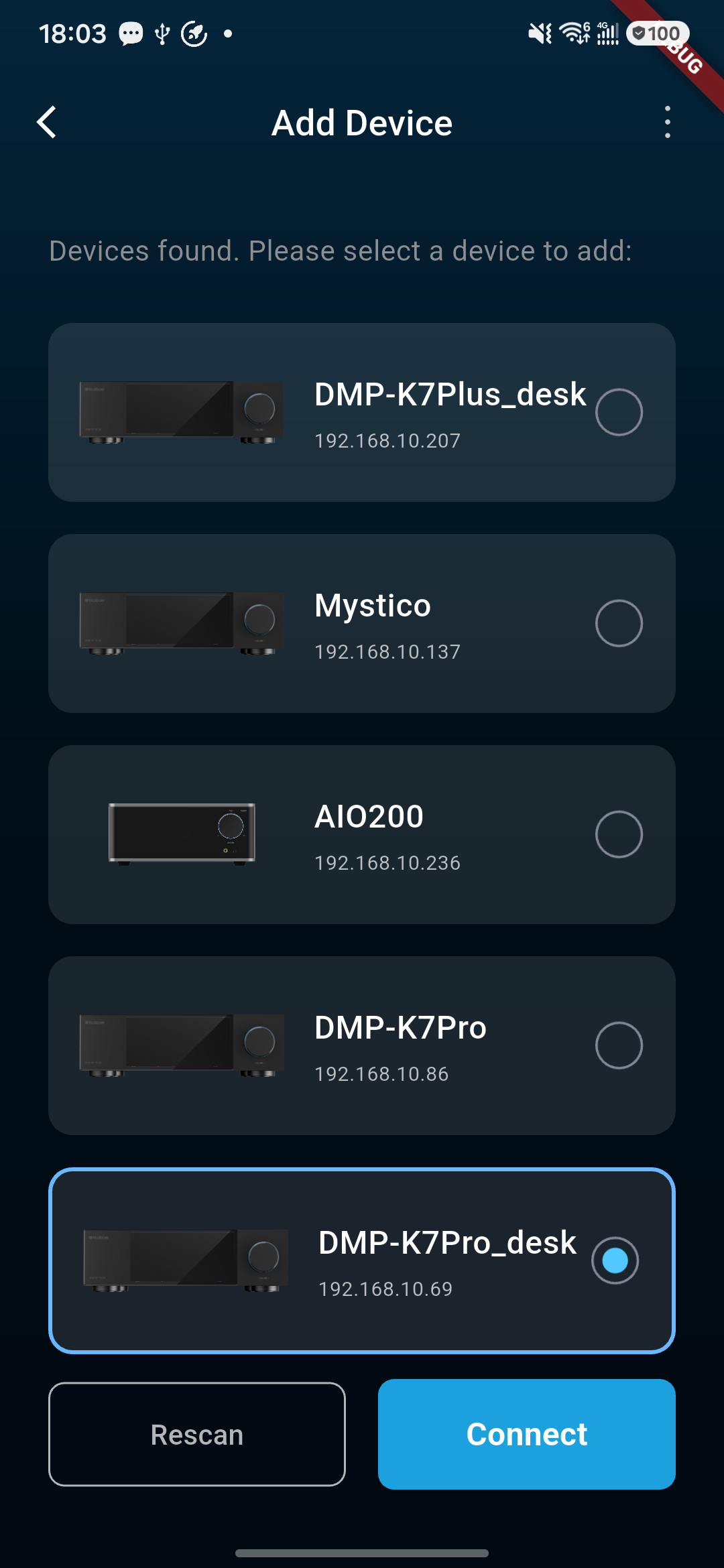
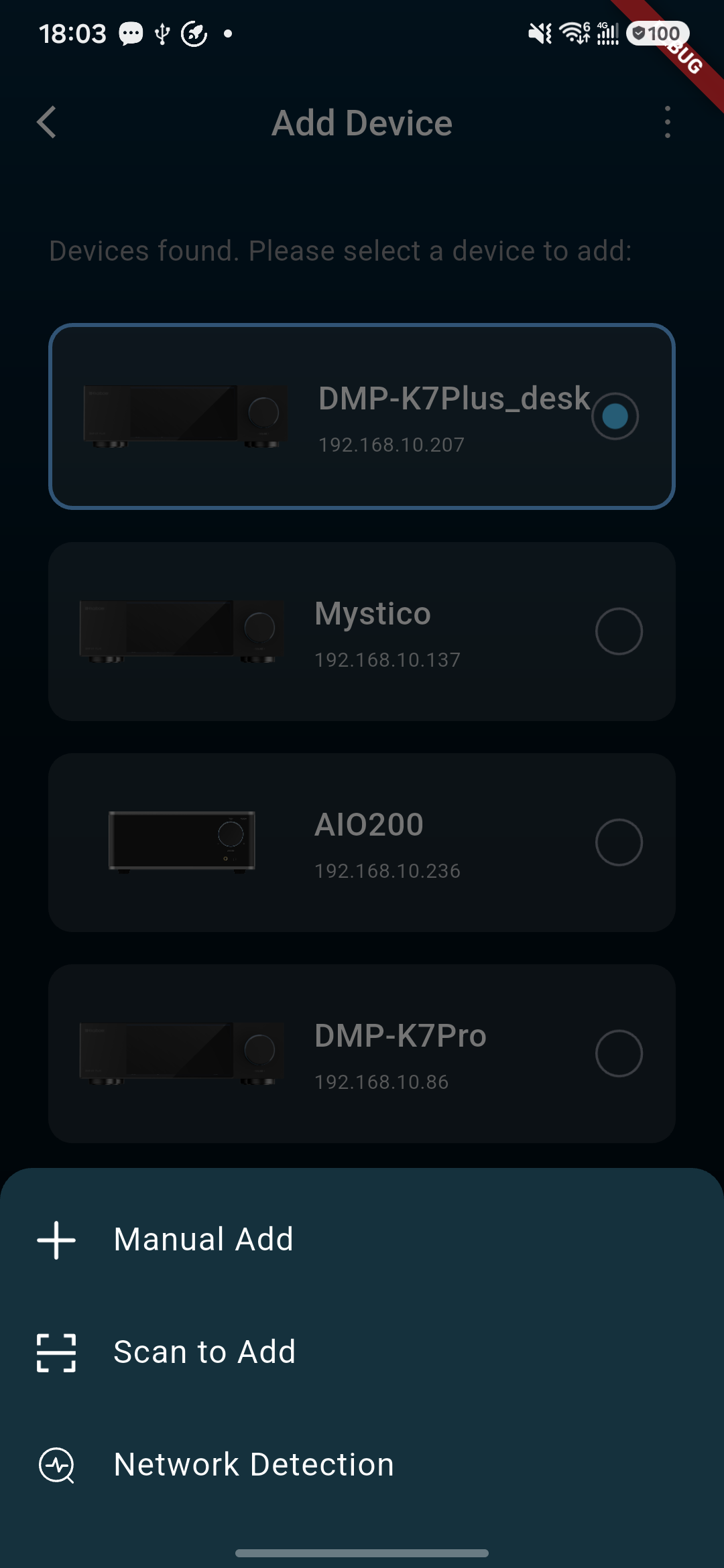
Add Device: devices found on the local network.Add Device: choose a device series before searching.
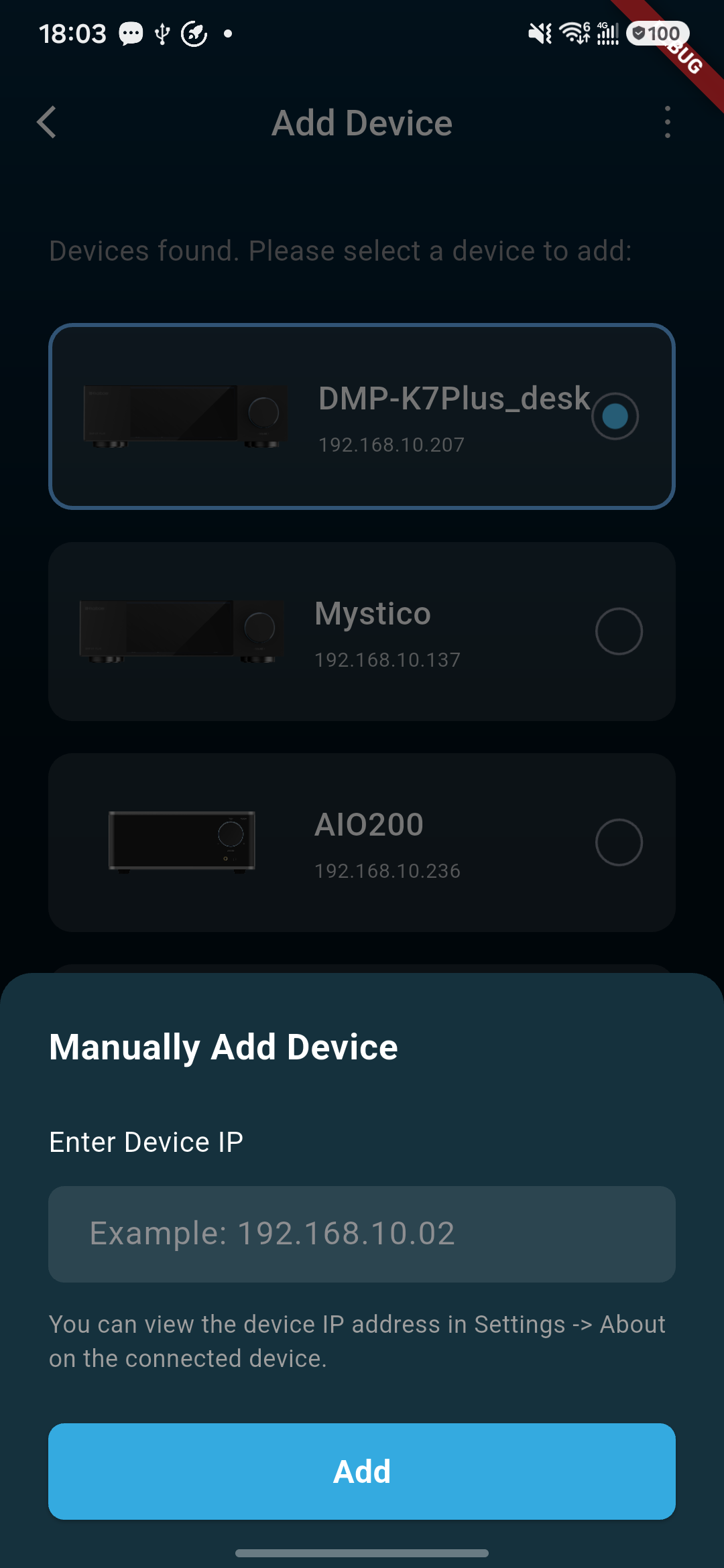
Manually Add Device
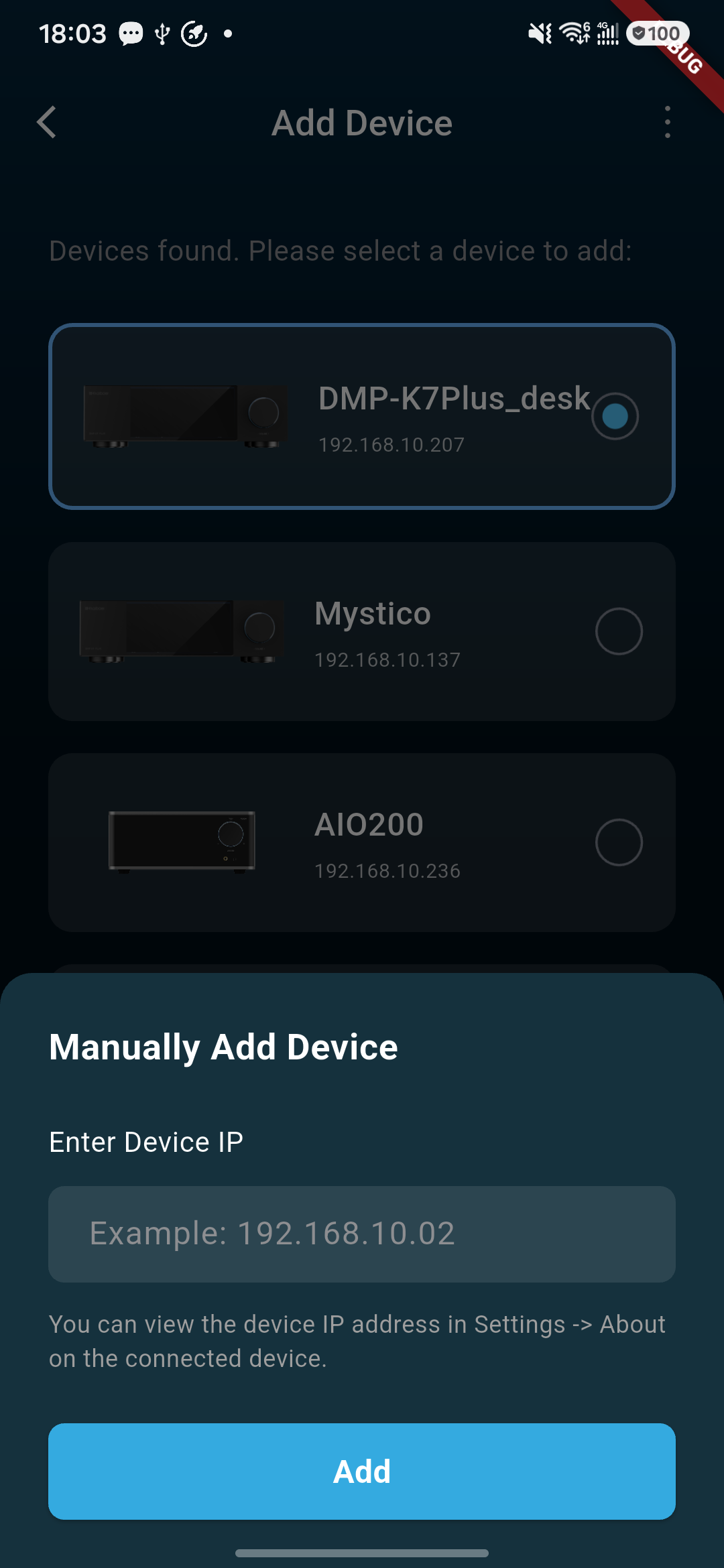
If the device cannot be found by auto-search, use the manual add function.
Open "More Functions" or the add-device entry on the device search page.
Select manual address input.
Enter the device's currently available network address.
Submit and wait for the app to detect the device.
Verify the identified device identity, then confirm to add.
Manual device-add screen with IP address entry.Discovered-device list for connecting a device.Kaiboer Home manual-add screen with discovered devices and IP address entry.
DAC Bluetooth Network Configuration
Purpose: Configures Wi-Fi for a device on first use out of the box. The phone temporarily connects to the device over Bluetooth to perform the configuration.
Workflow — 4 steps
Bluetooth scan: The phone scans for nearby devices over Bluetooth.
Select the target device (it must be in Bluetooth pairing mode).
Select Wi-Fi network
The phone lists all available nearby Wi-Fi networks.
Choose a network, or enter the SSID manually for a hidden network.
Enter Wi-Fi password
Enter the password of the selected network.
A show/hide toggle is available for the password field.
Progress is shown during configuration.
On success, the device reports Configuration complete and displays its IP address.
Scan to Add Device
If the device or packaging provides a control QR code, you can add it by scanning.
Enter the scan entry on the add-device page.
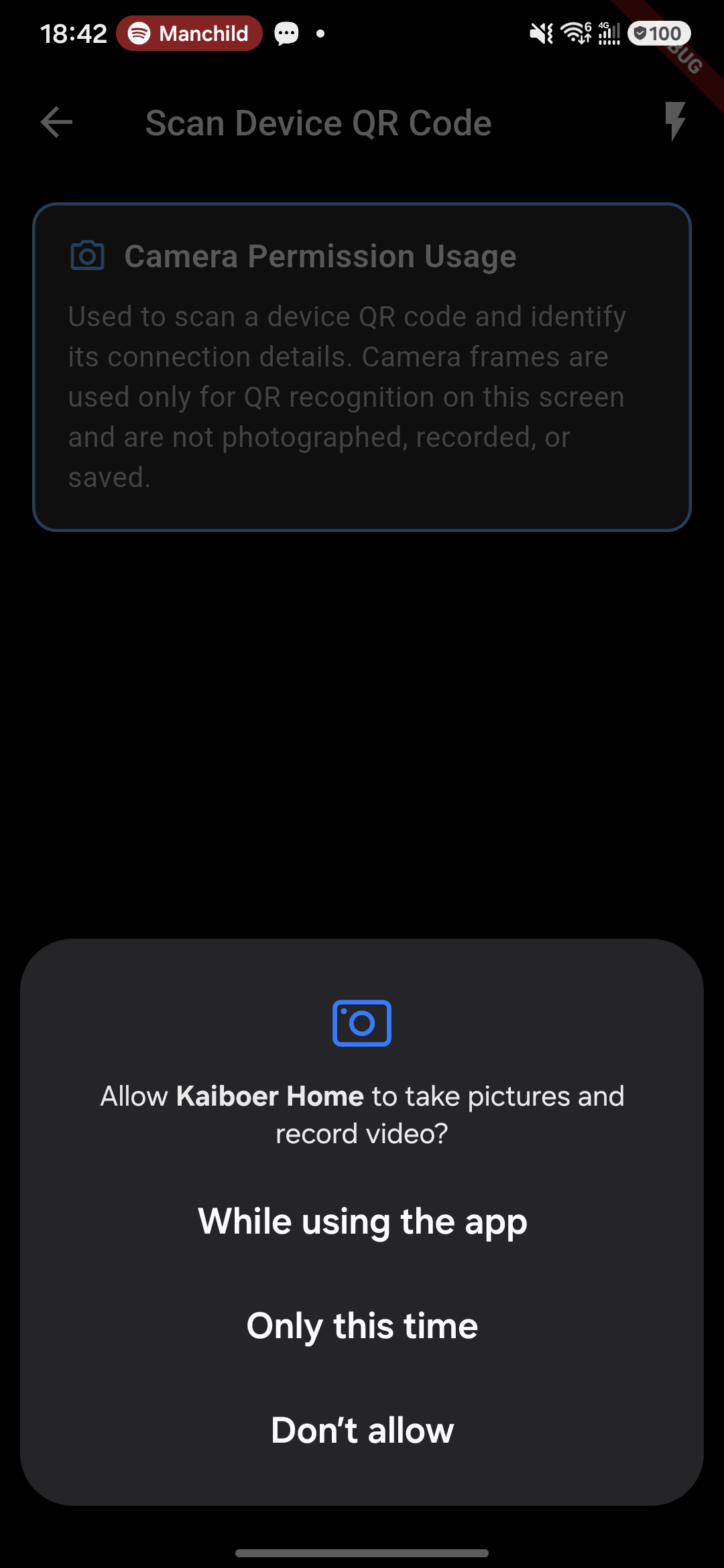
Allow camera permission as prompted by the system.
Scan the target device QR code.
Verify the identified device name, model, or identifier.
Confirm the device and wait for the connection to complete.
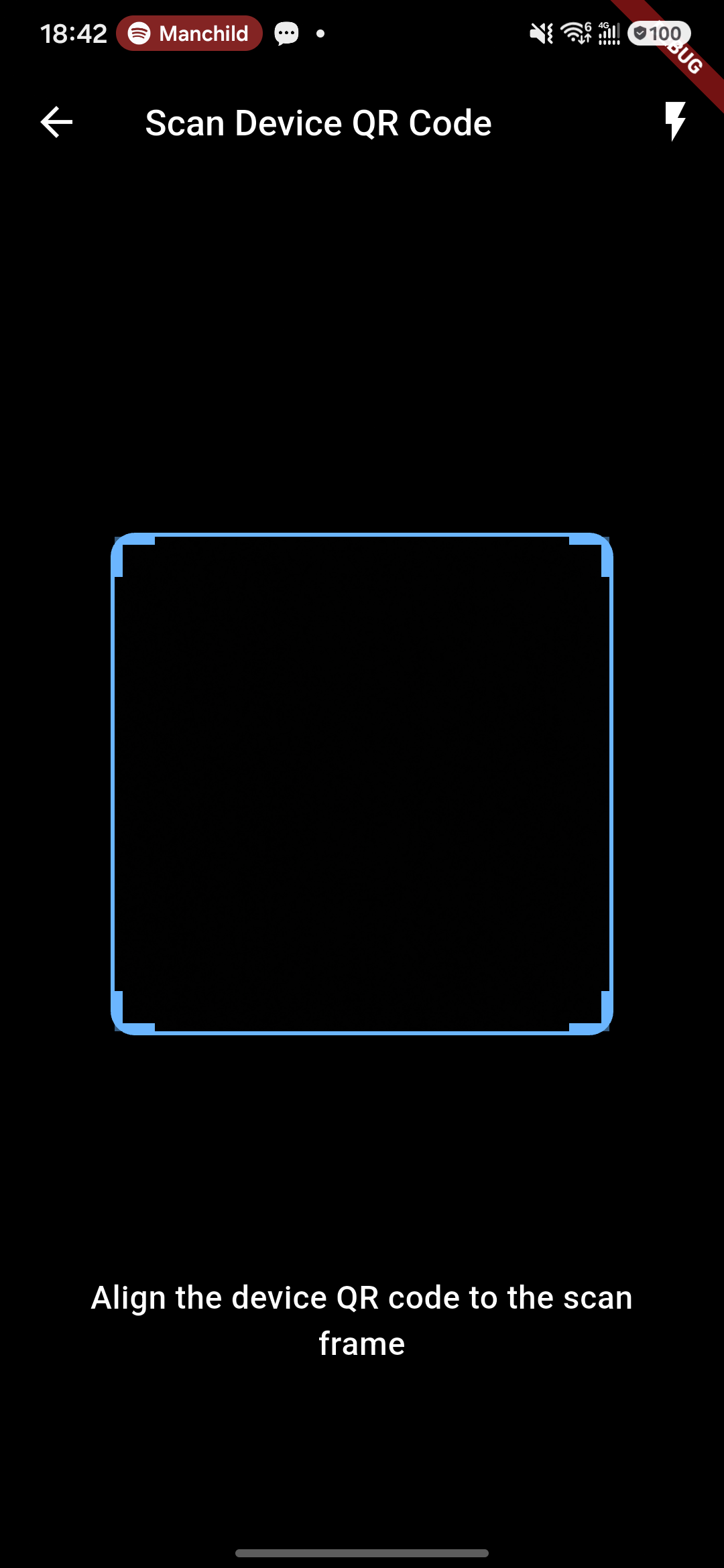
Device QR-code scanner.Camera-permission prompt for the device QR-code scanner.Kaiboer Home device scan results and add-device actions.
Switch or Remove Device
When multiple devices exist, you can switch the current control target in the device list. Before switching, confirm the device name and model to avoid mis-operating other devices.
Removing a device only deletes the connection record saved on the phone; it does not delete the music, collections, or playlists on the device. After removal, if you need to continue using it, you must add it again.
Home
Home Display
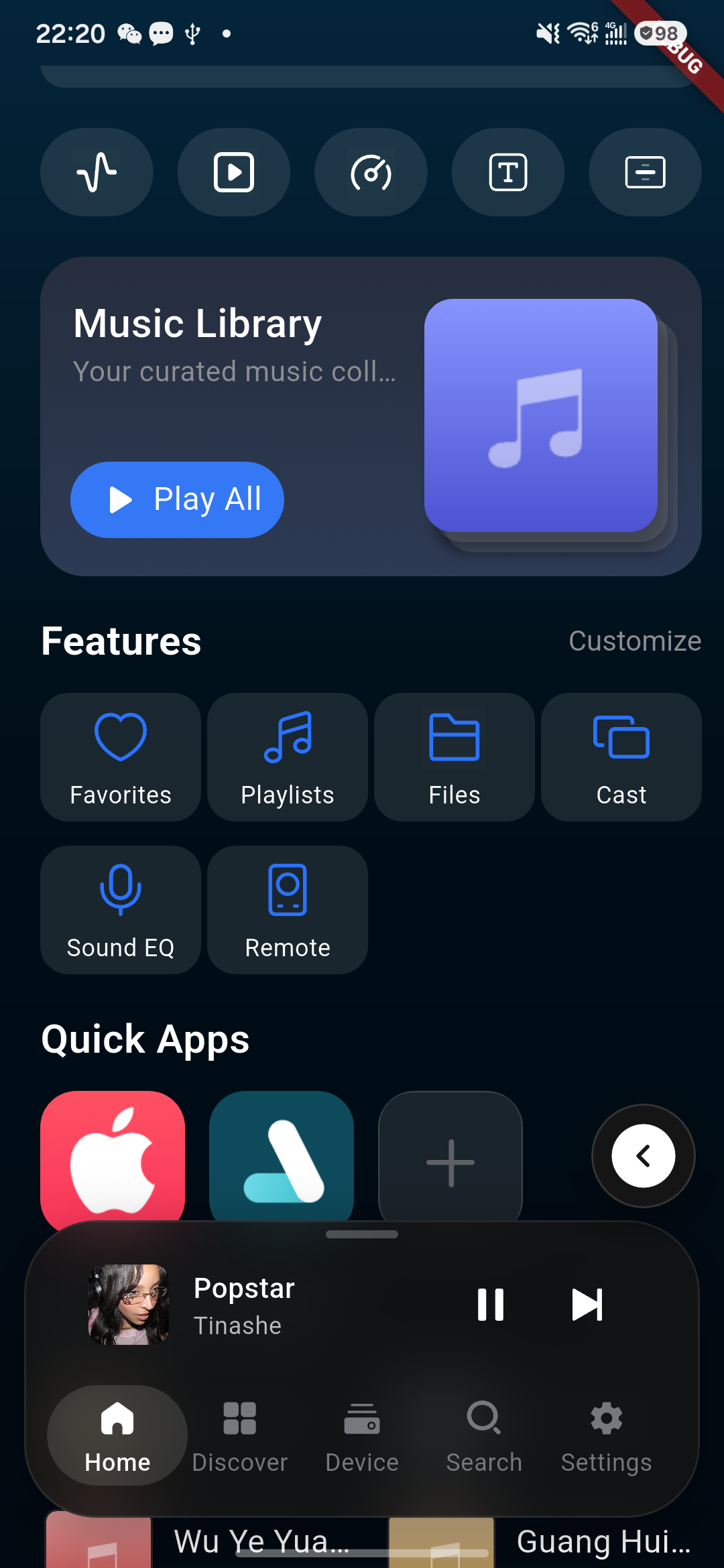
The Home page is the common entry point of Kaiboer Home, used to quickly view recently used content, continue playback, and enter common functions.
The Home page includes:
Music Library
Quick-function entries
Quick apps
Recently Played
Favorite Albums
Favorite Artists
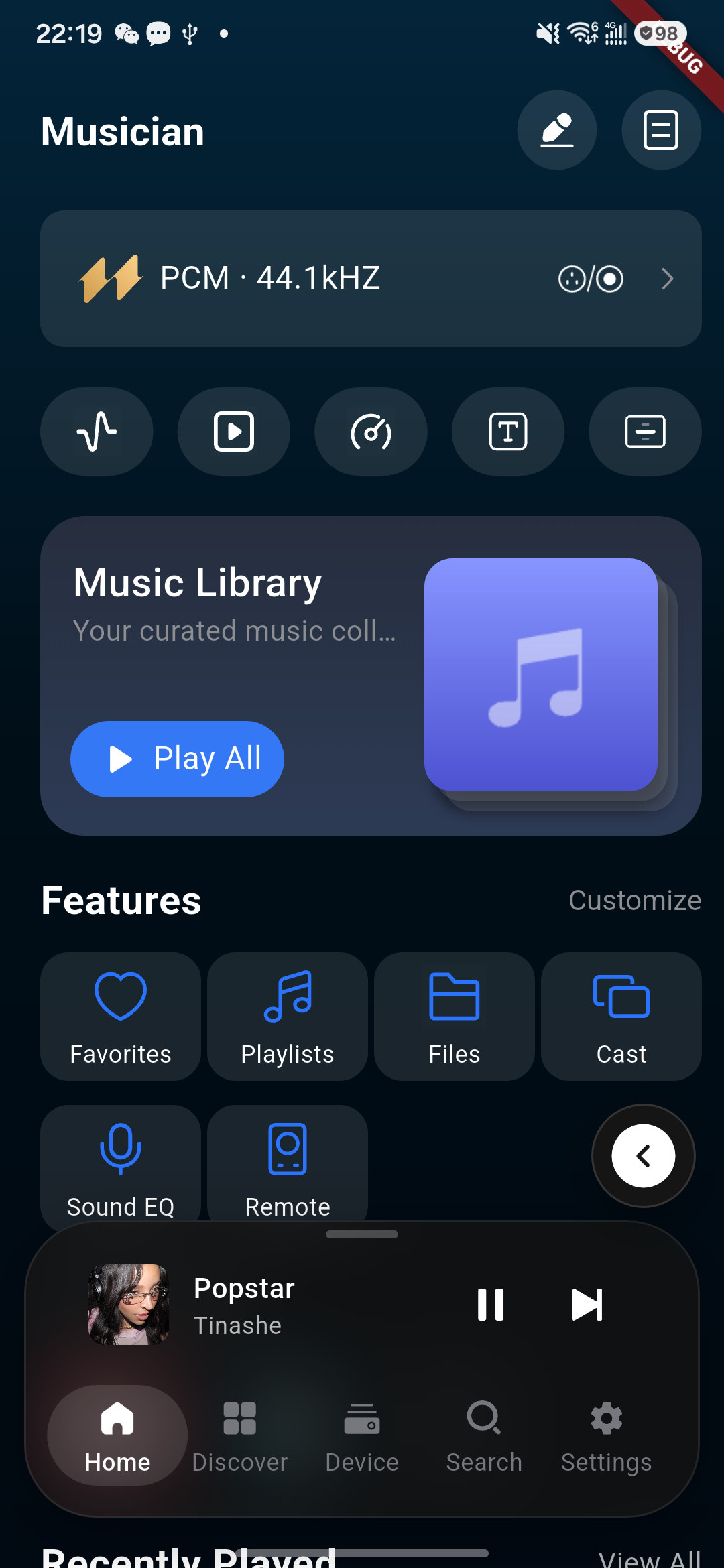
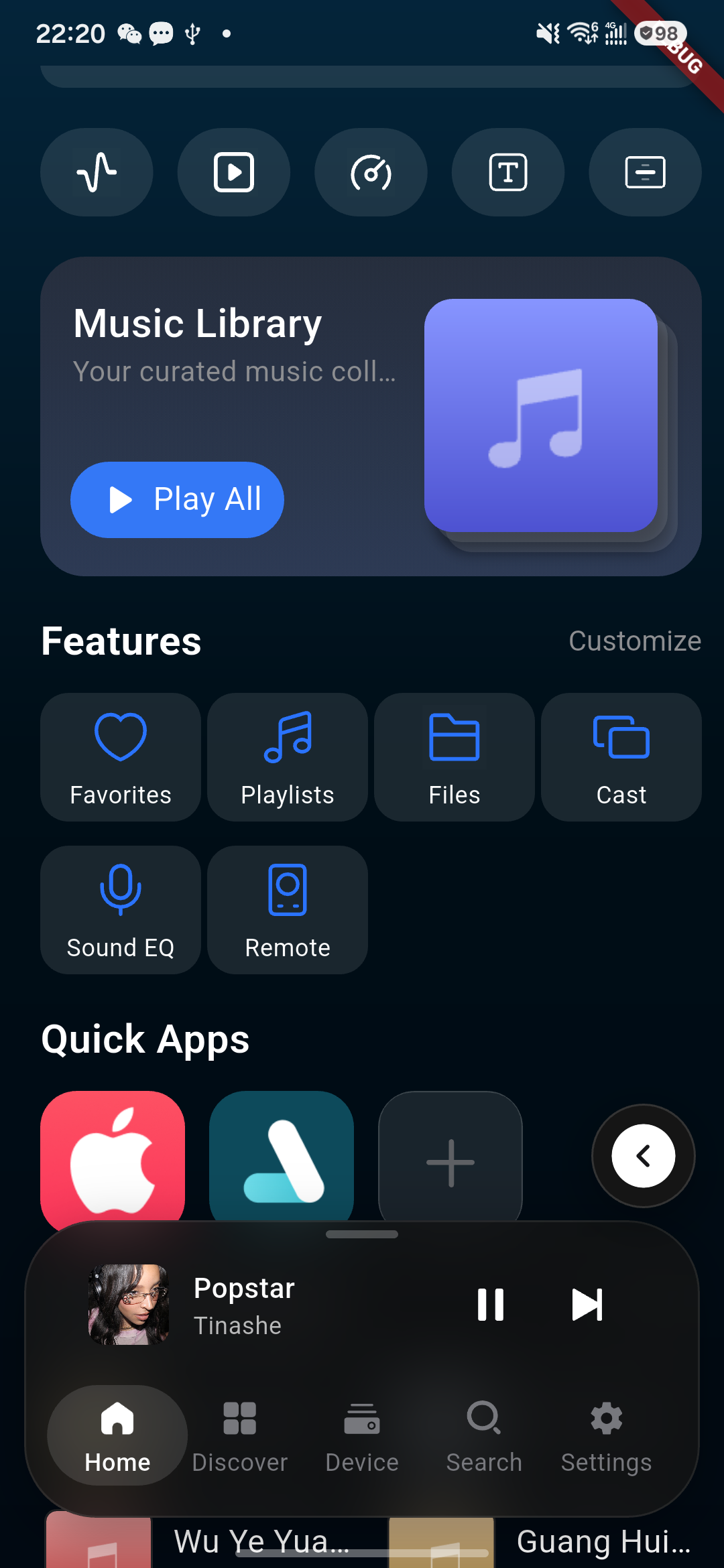
Kaiboer Home dashboard with feature modules.
Home Editing
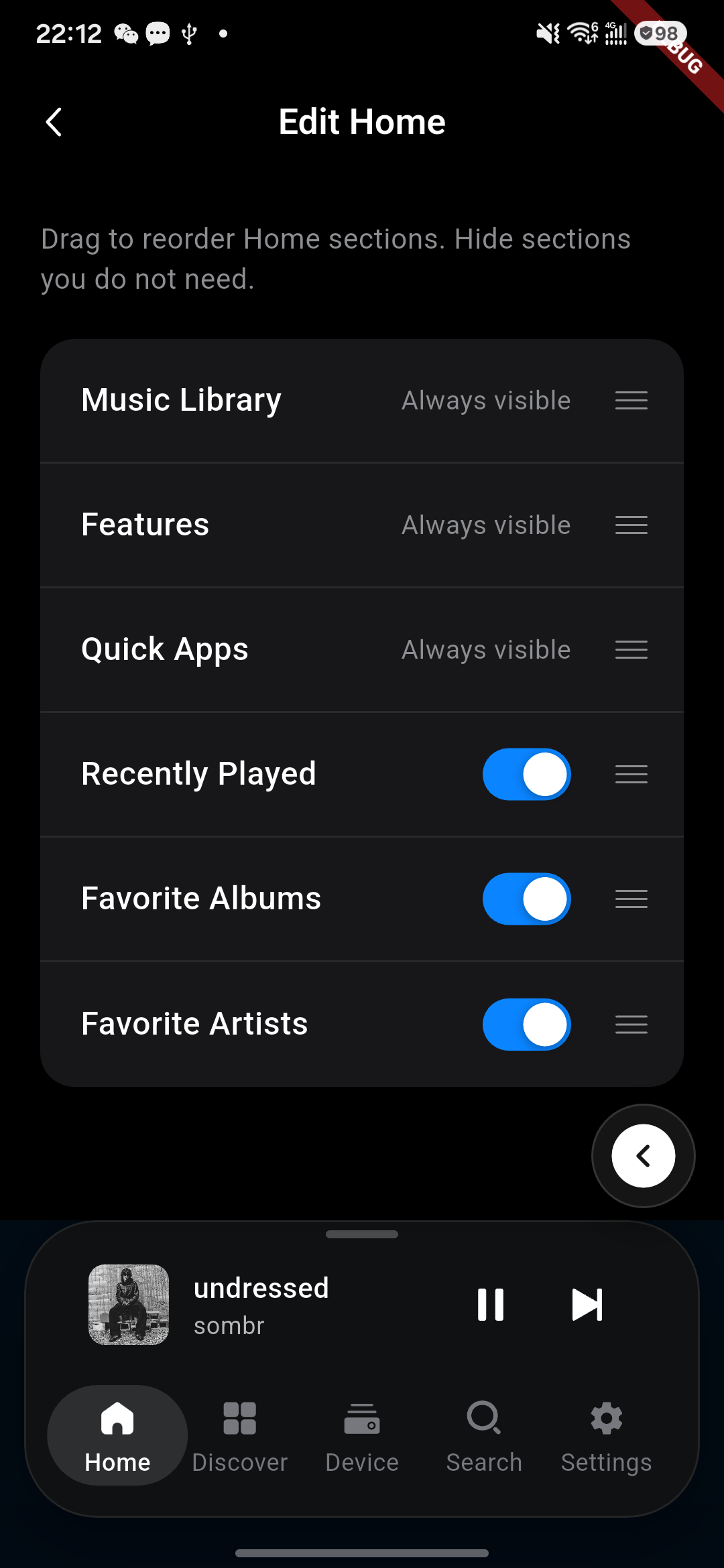
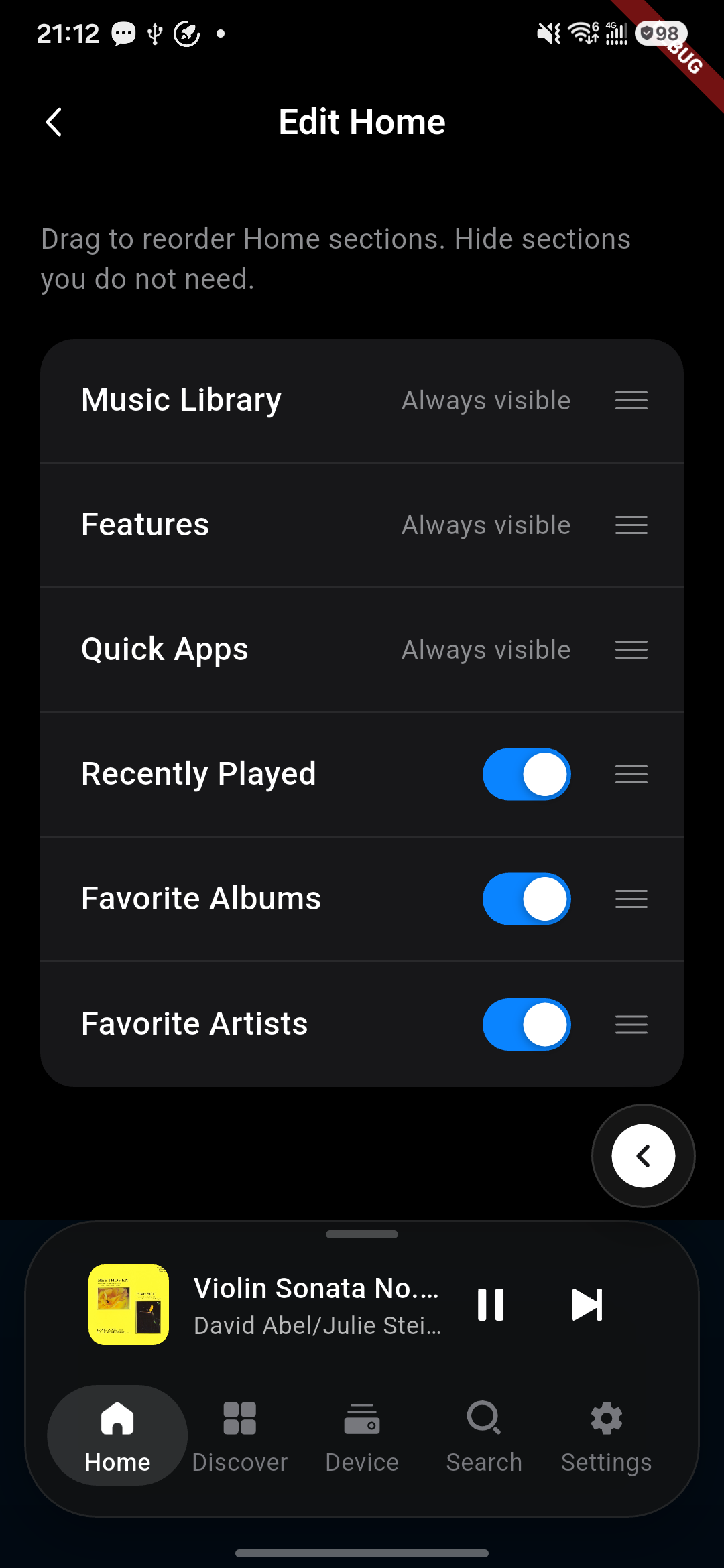
In the top-right corner of the Home page, tap the Edit button to reorder the function modules on the page according to your personal preference.
Home-page editing screen for rearranging modules.Edit Home: reorder or hide Home sections.
Quick-action Buttons
In the upper part of the Home page, we have a row of quick-action buttons. Their functions from left to right are:
Device displays the spectrum page
Device displays the player page
Device displays the VU meter page
Device displays the lyrics page
Device displays the art lyrics page
Kaiboer Home quick-action buttons.
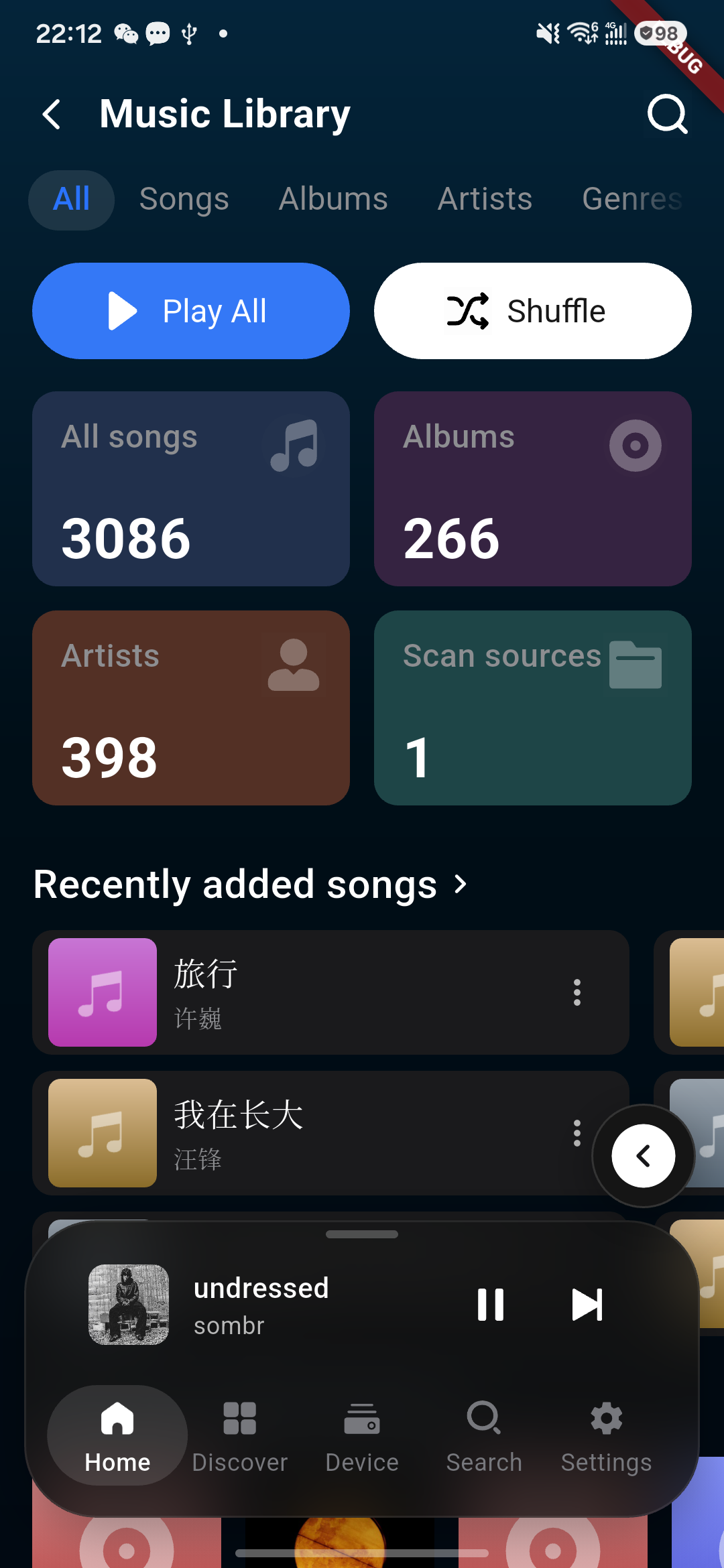
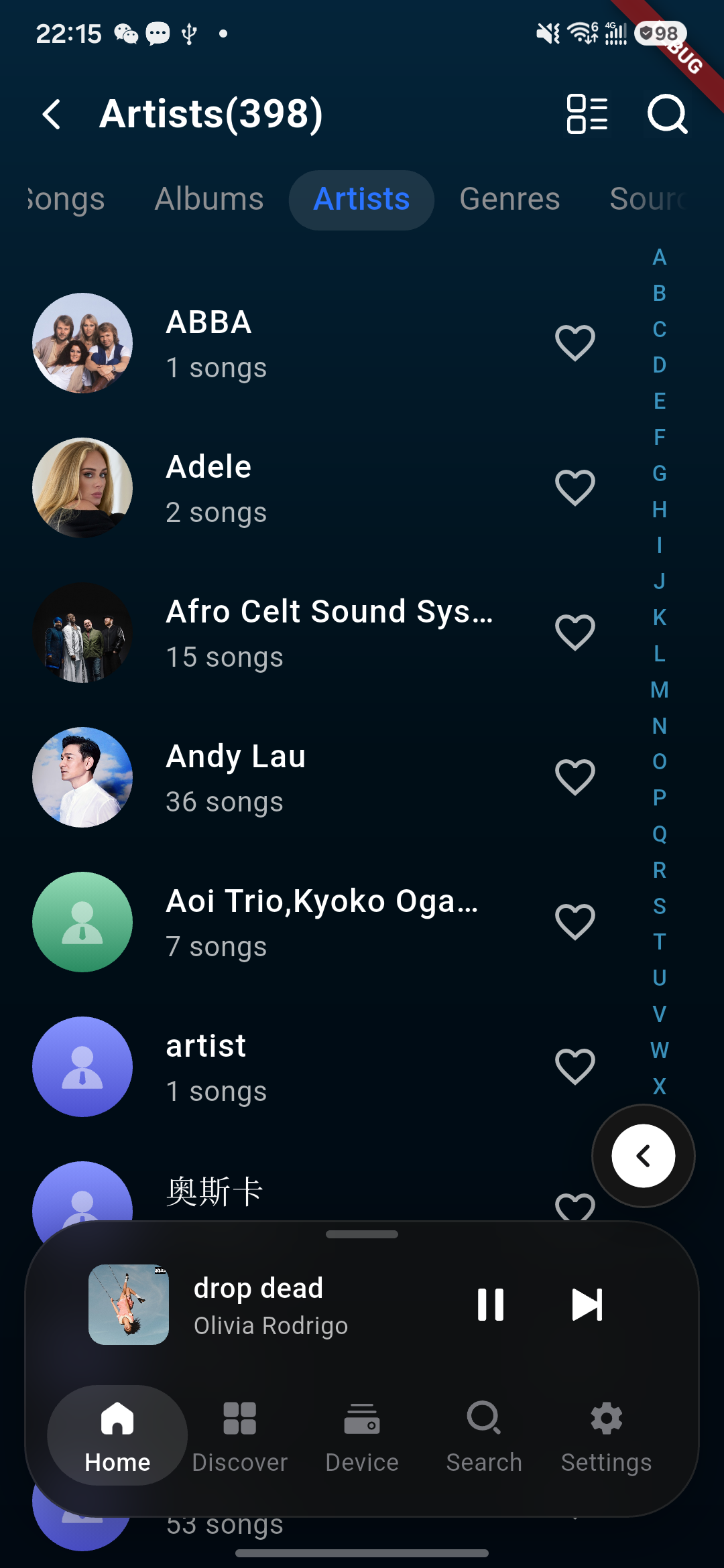
Music Library
Play scanned songs
Play albums and artists
View the genre library and play
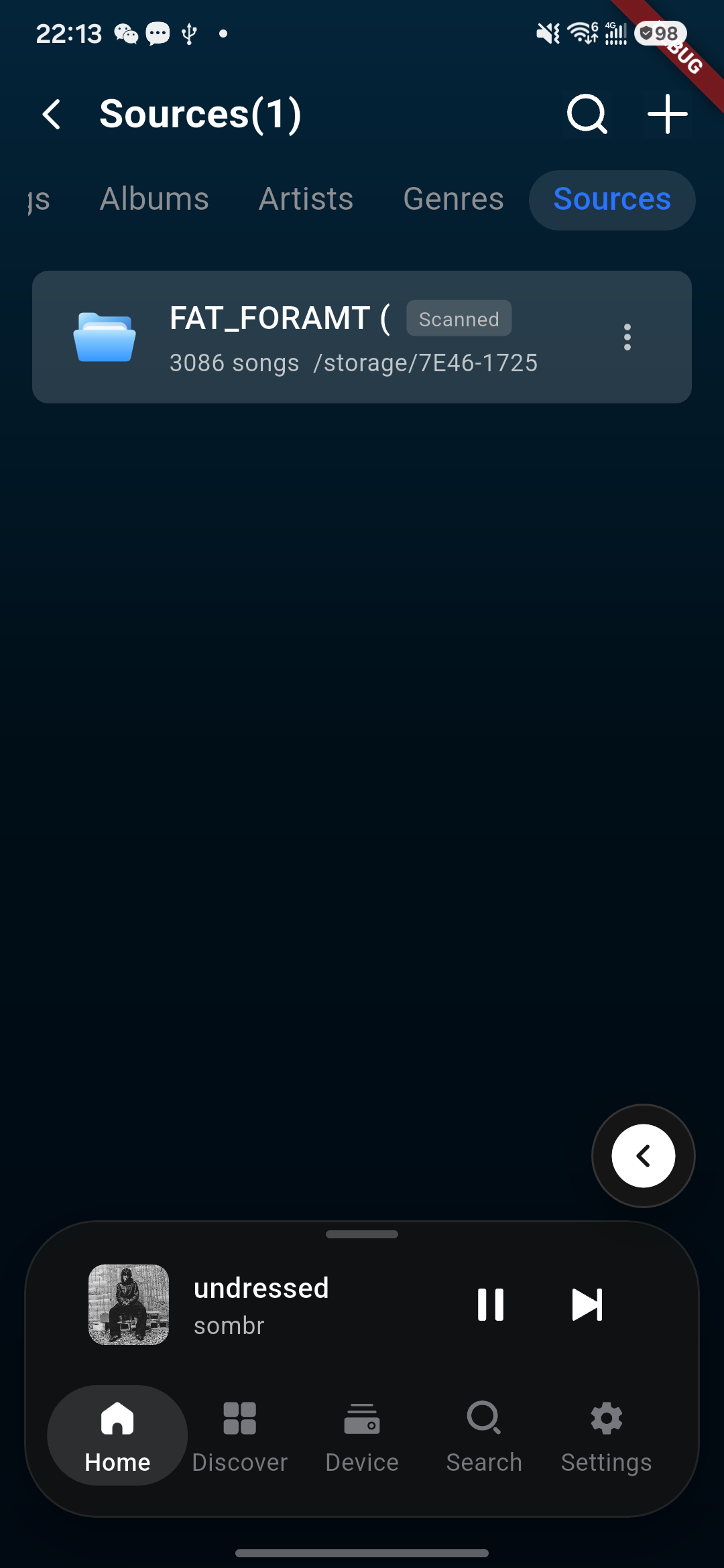
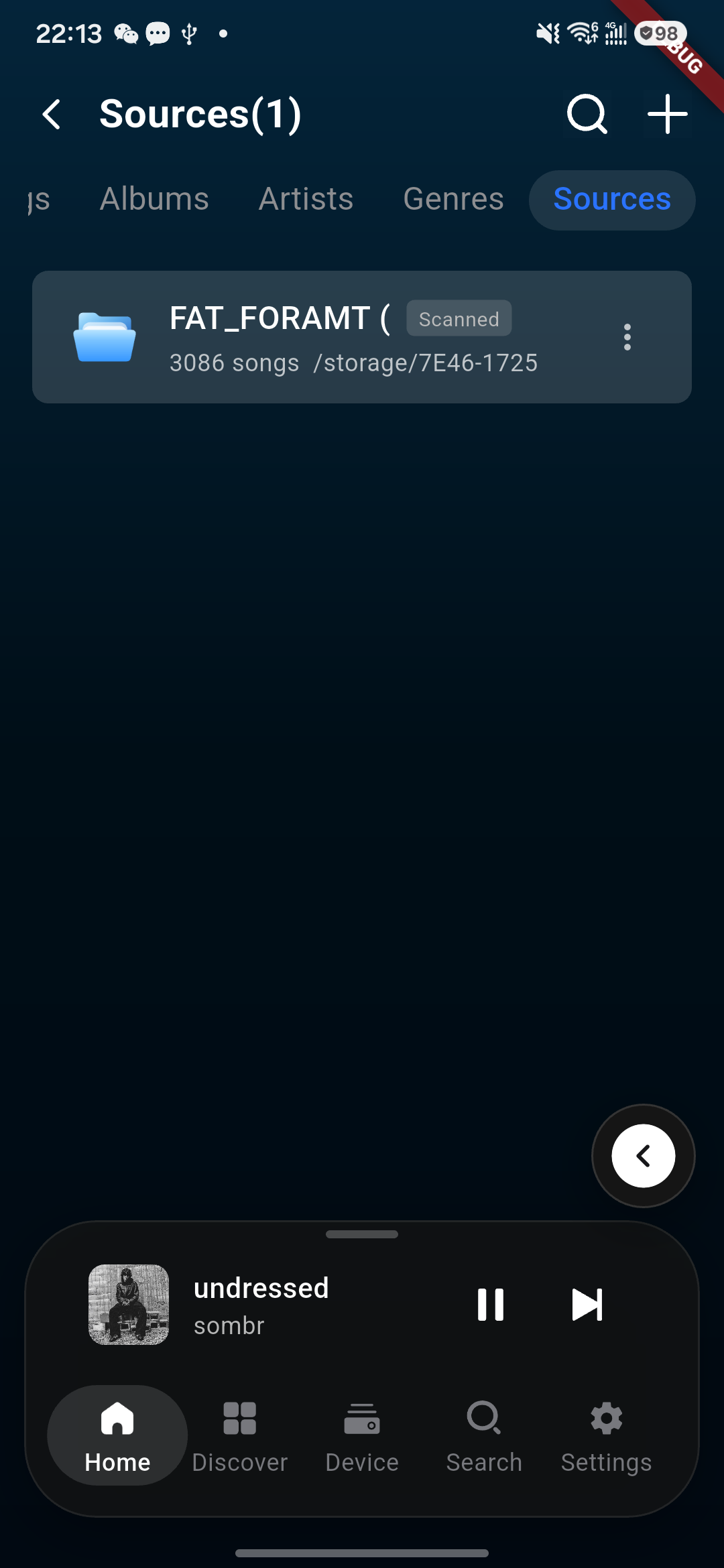
View the audio source and scan for new sources
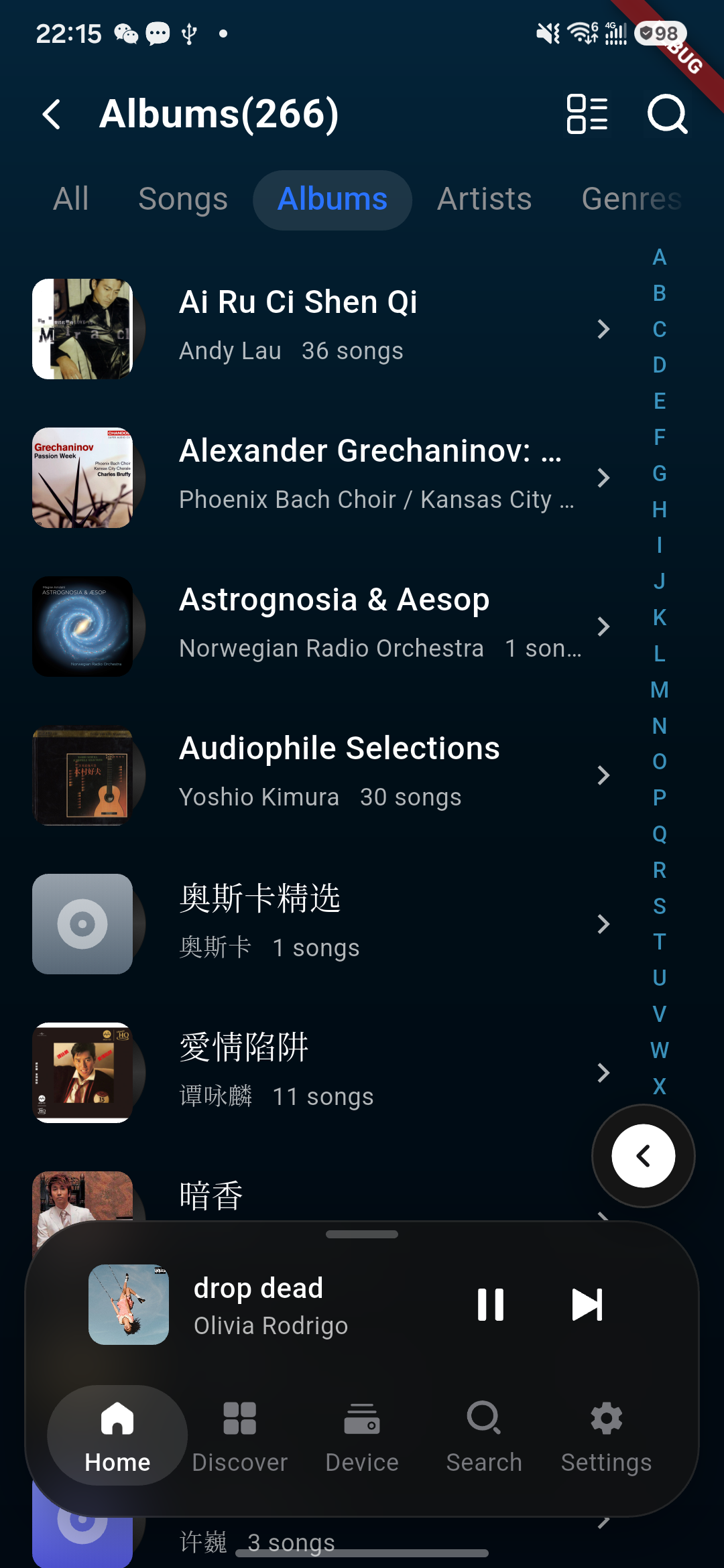
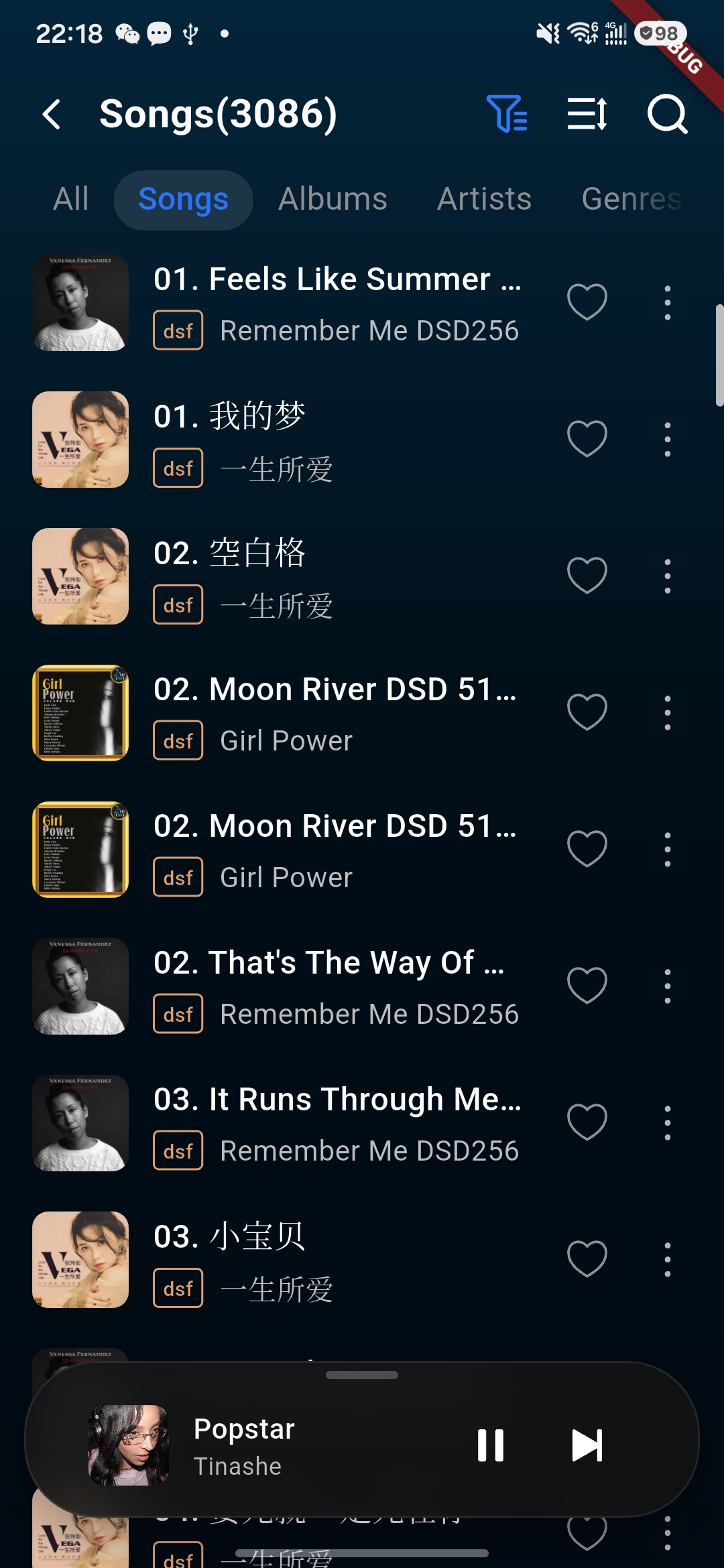
Music Library screen in Kaiboer Home.Music-source list in Kaiboer Home.Music Library artists screen.Music Library albums screen.Music Library songs screen.
Scan Library Function
After scanning external-storage or internal-storage song sources, you can enable rich features such as collection and custom playlists.
Tap the audio source
Music-source selection for library scanning.
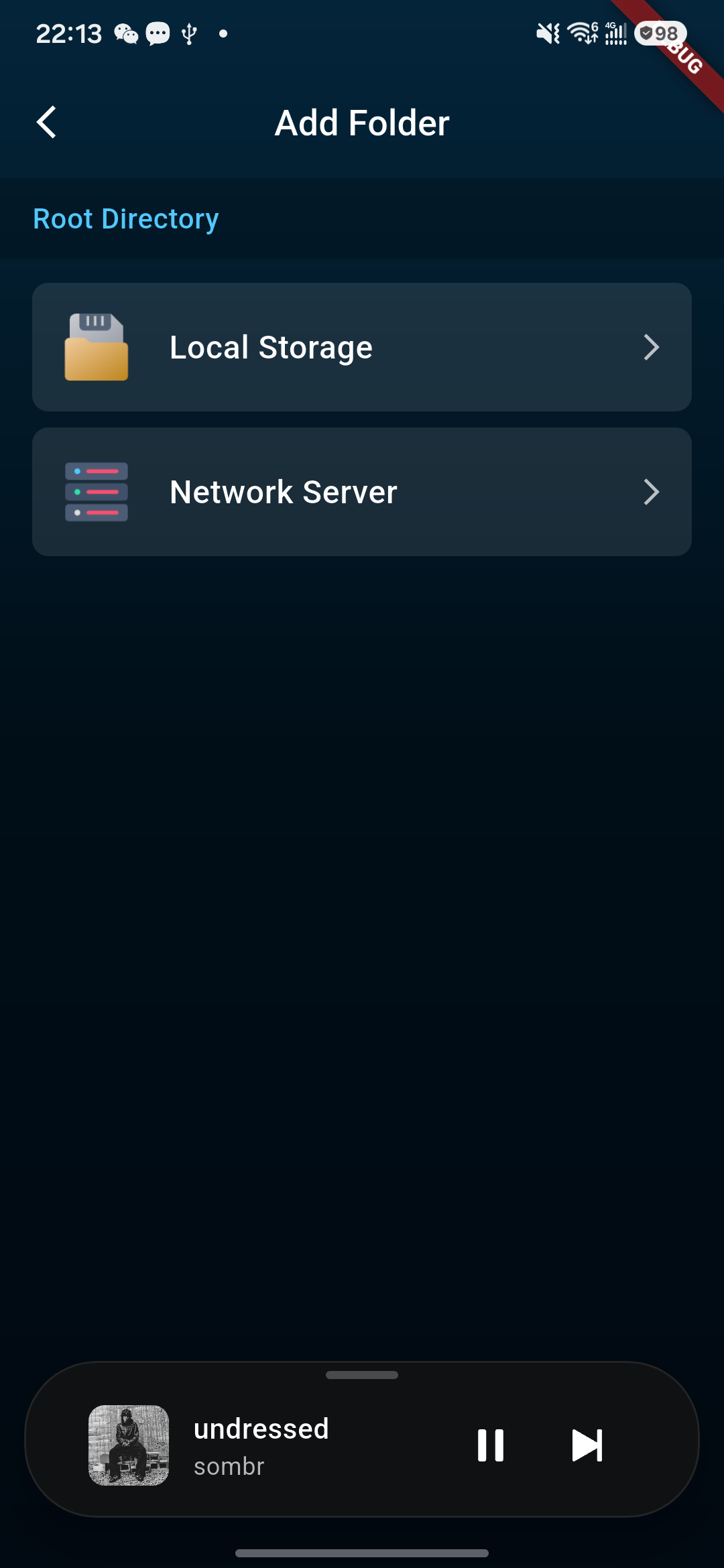
Tap the plus sign in the top-right corner to add the audio source to be scanned
Select where your audio source is stored, local or network server
Add a music source for library scanning.
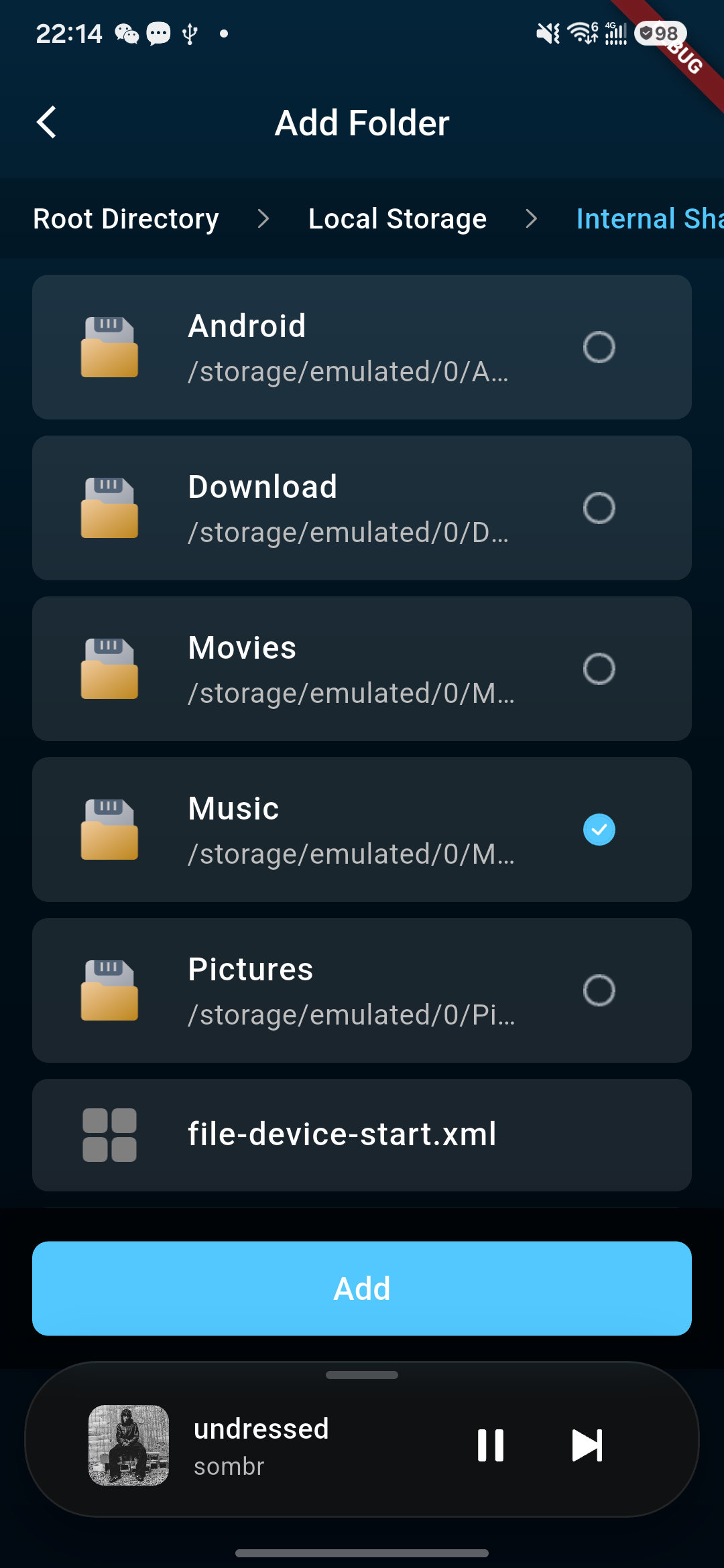
Check the folders you want to scan, then tap Add
Folder selection for library scanning.
Wait for the scan to succeed, and check the actual number of songs scanned in the Music Library
Quick-function Entries
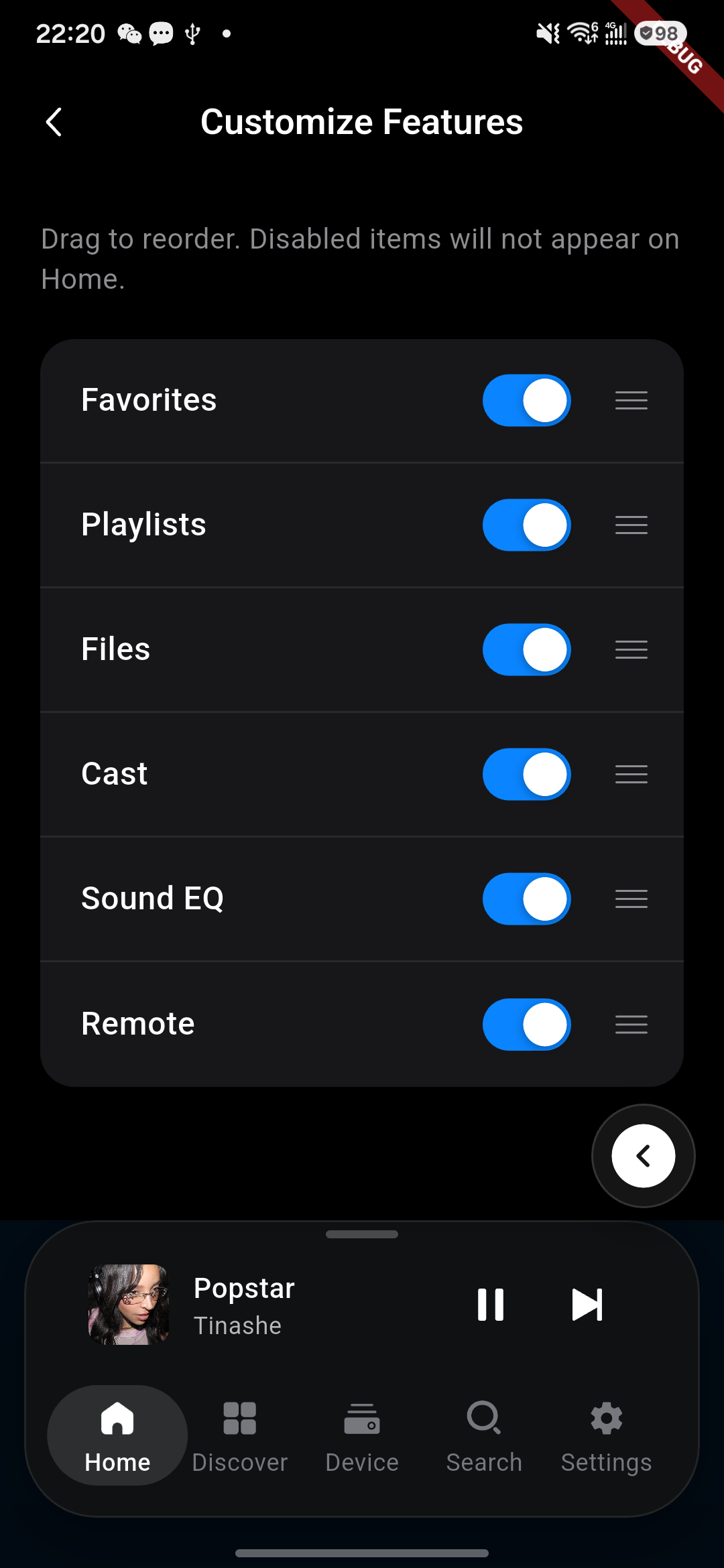
You can customize the Home page function entries according to your usage habits. Use the toggle to control whether a function is displayed, and drag to adjust the function order, making favorite, playlist, files, screen-mirroring, sound optimization, and remote control common functions more convenient.
Home-feature customization screen.Kaiboer Home quick-app shortcuts.
Screen Mirroring Function
Tap the screen-mirroring function on the Home page, and wait for the device to connect successfully before entering screen mirroring
Device screensaver style selection.Kaiboer Home quick-app shortcuts for screen mirroring.
Tap the "more screen-mirroring functions" button on the right side of screen mirroring to expand more screen-mirroring functions
Connected screen-mirroring view in landscape.
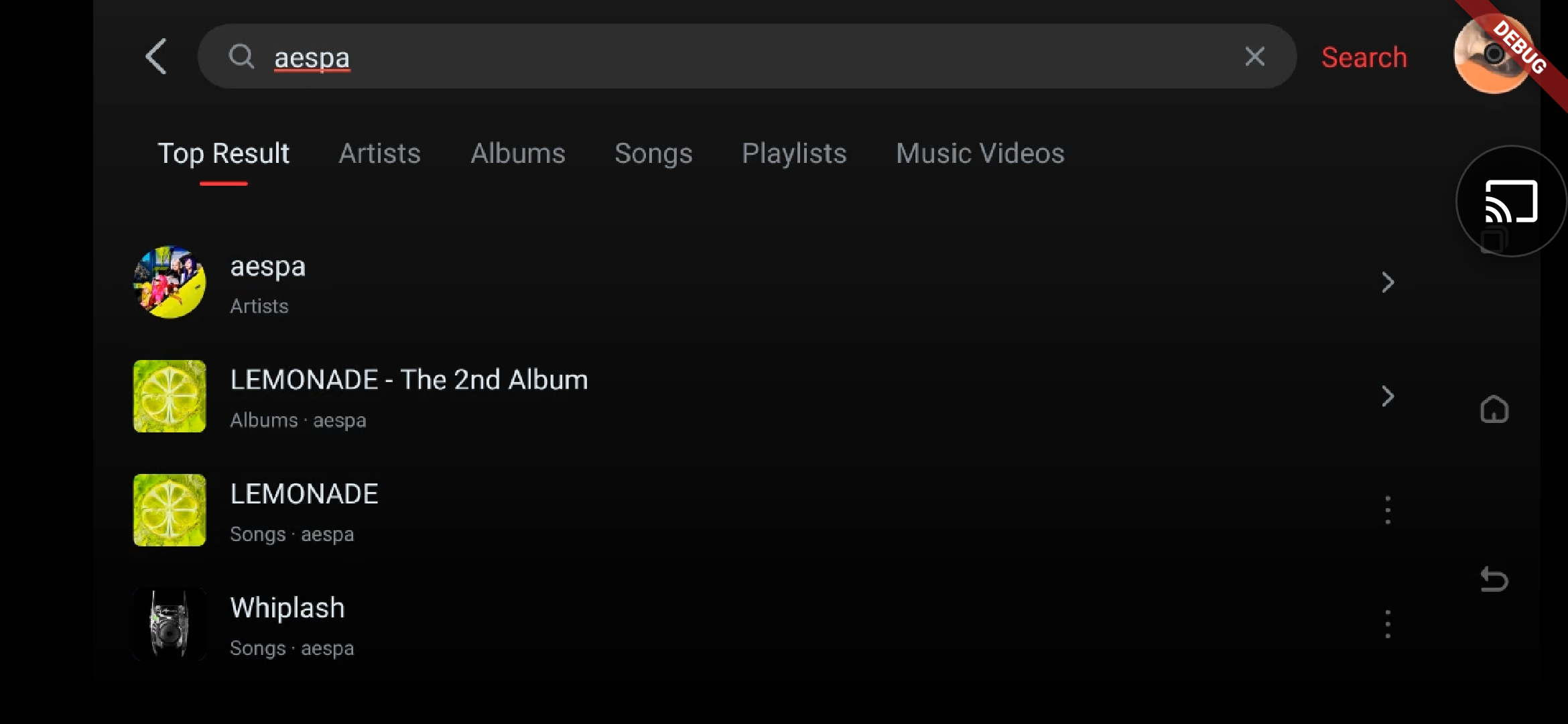
Connected screen mirror in landscape: this example shows the DMP Apple Music search screen. Use the controls on the right to access additional screen-control functions.
Sound Optimization Function
The room-acoustics function can optimize sound for the room, listening position, and acoustic environment. It is intended to improve balance, clarity, and soundstage performance; available controls may vary by device model and software version.
Simple Remote Control Function
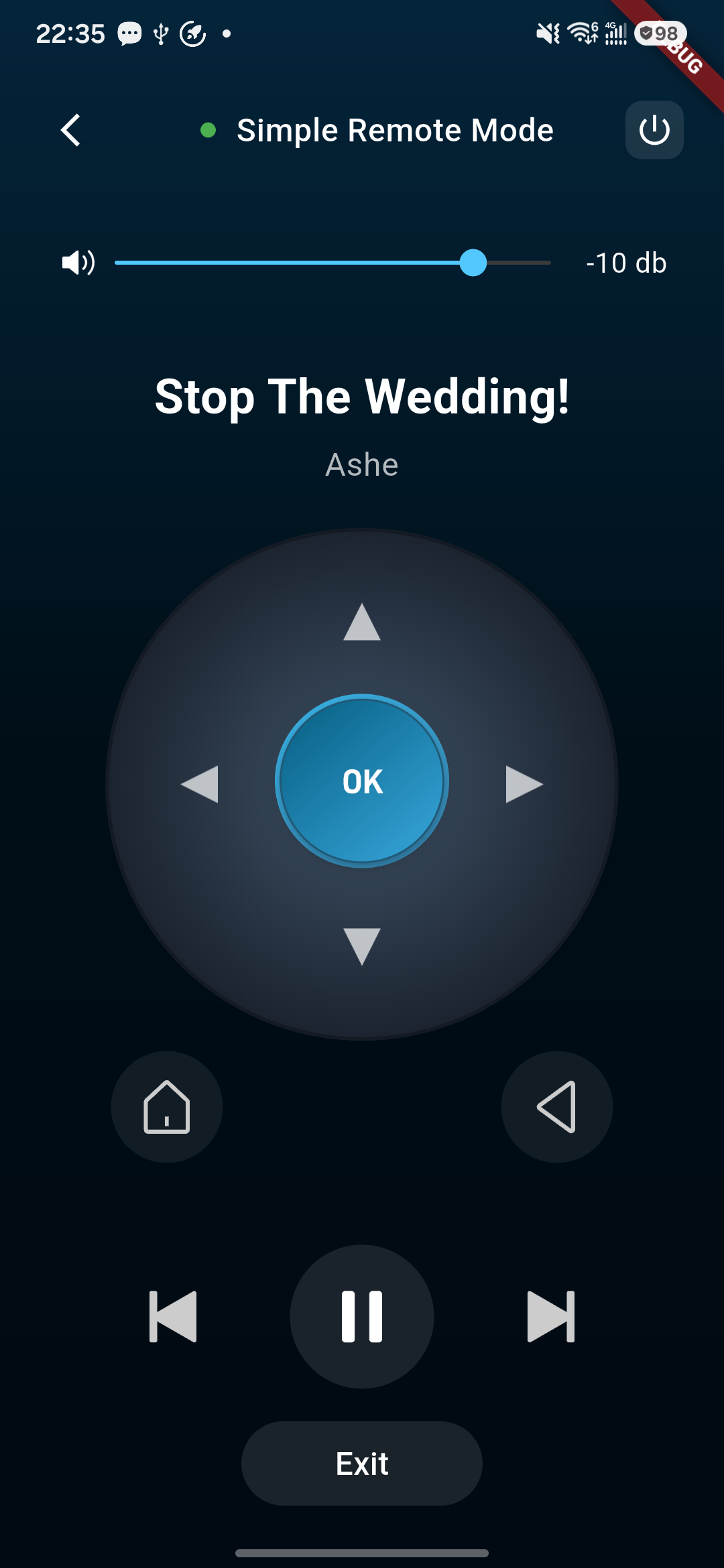
Turn your phone into a dedicated remote control for the device — intuitive operation with timely feedback.
Direction navigation: The circular control pad supports up/down/left/right and confirm; long-press also responds, with highlight and vibration feedback on press for clear tactile feel.
Volume adjustment: Drag the slider to adjust volume; the current decibel value is shown in real time.
Playback control: One-tap previous, play/pause, next; current song name and artist shown in real time.
Quick actions: Home and Back keys are readily available; the top shows connection status and one-tap shutdown.
Immersive experience: Full-screen dark interface, not harsh on the eyes in low-light environments.
Simple remote-control screen with directional controls.Simple remote-control screen with device actions.
Quick Apps
You can manage the streaming services and third-party apps displayed on the Home page here, such as Apple Music, Qobuz, Spotify, Tidal, Amazon Music, and SoundCloud. Use the toggle on the right to control whether the app entry is displayed on the Home page. After turning off, only the quick entry is hidden; the app account and existing data are not affected.
Quick Apps management screen.
Recently Played
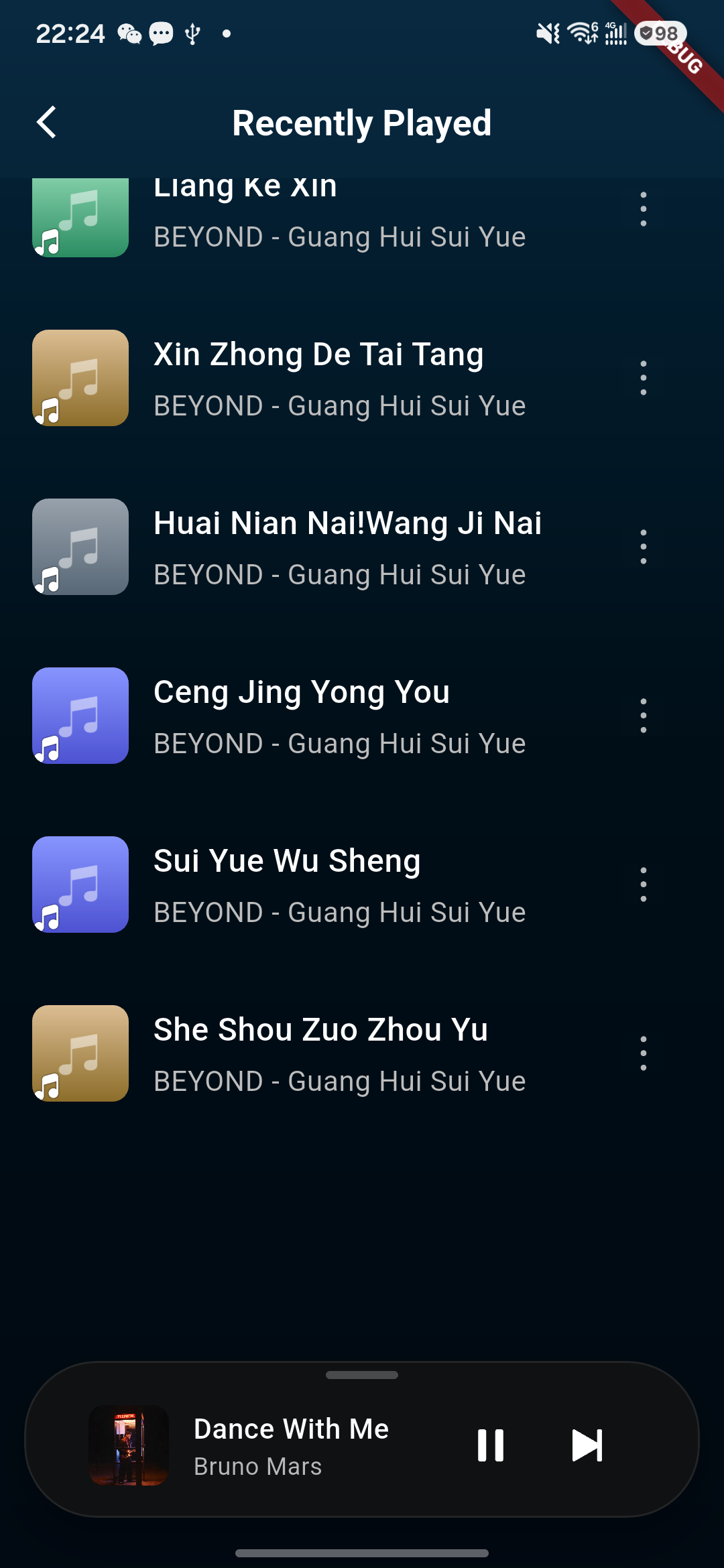
"Recently Played" records the music you have played recently, showing song cover, name, and artist info, for quick lookup and continued playback. Tap a song to play; the "More" button on the right enables related operations; the bottom player supports playback control and page switching.
Recently Played list in Kaiboer Home.
Favorite Albums
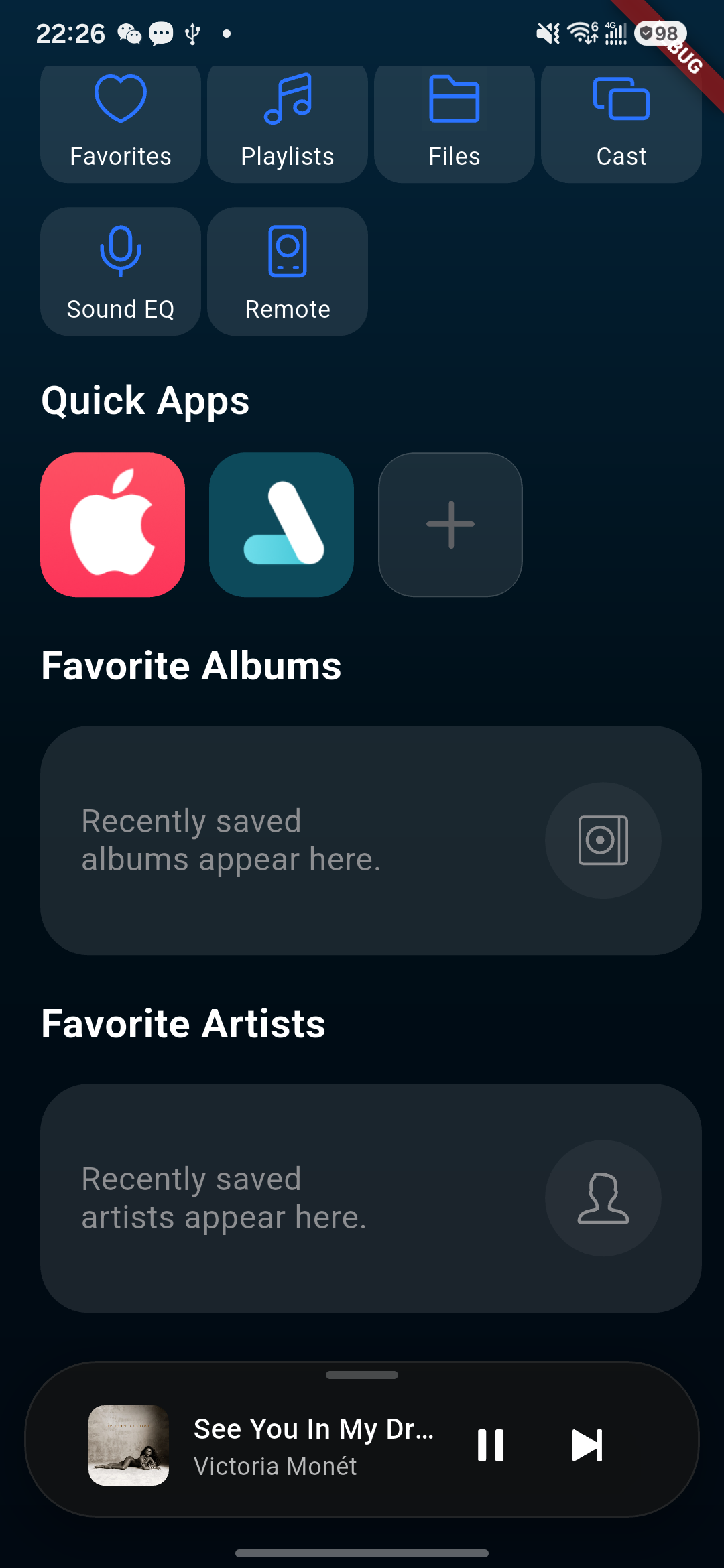
"My Collection" centrally manages the content you collected on local and various music platforms, and you can switch to view categories such as Recently Played, Apple Music, etc. You can view and create playlists, play collected songs, manage followed artists, and perform related operations via the "More" button on the right.
Favorite Albums screen.
Favorite Artists
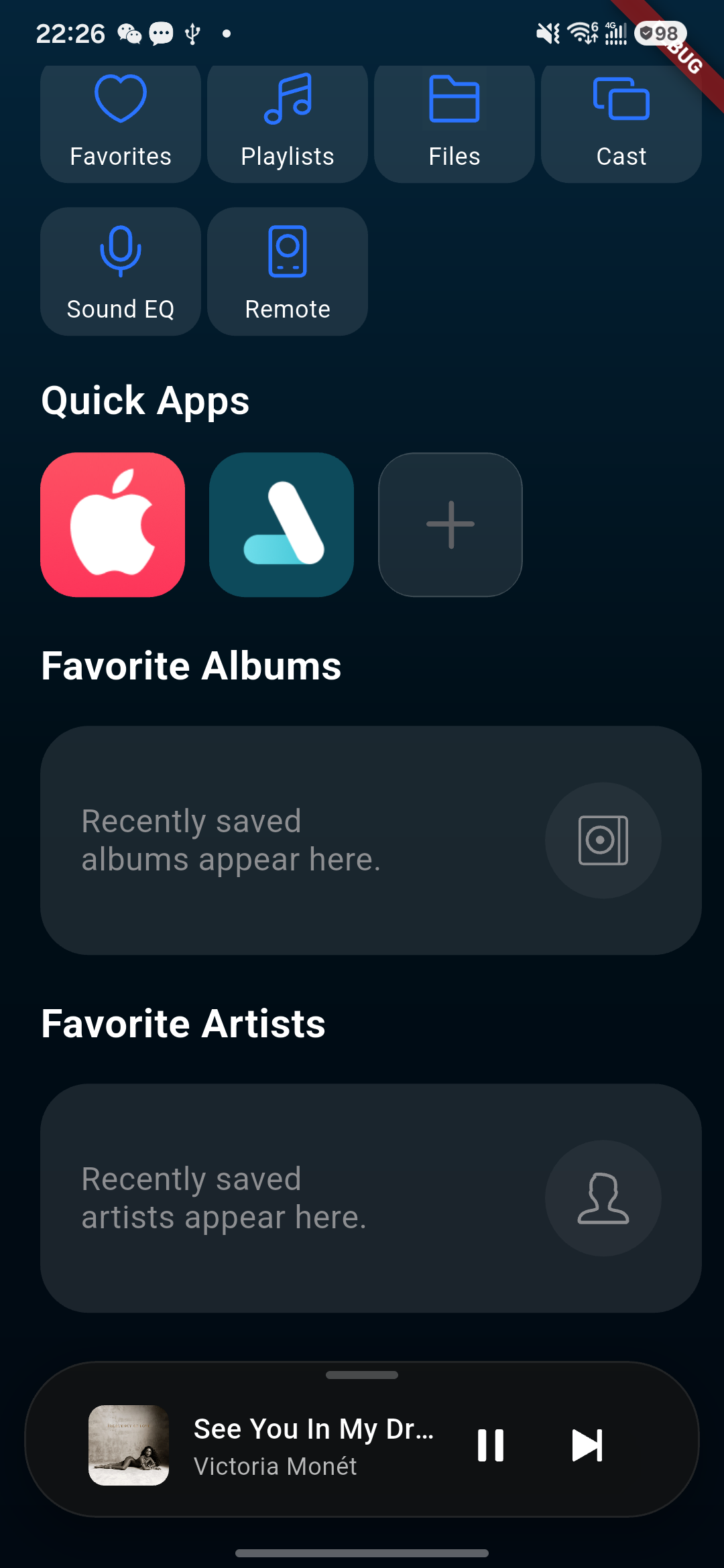
"Followed Artists" centrally displays the artists you follow and their names; the number after the title indicates the current follow count. Tap an artist to enter details and view related songs and albums, making it easy to keep following your favorite music content.
Favorite Artists screen.
Player
Player Control Layout
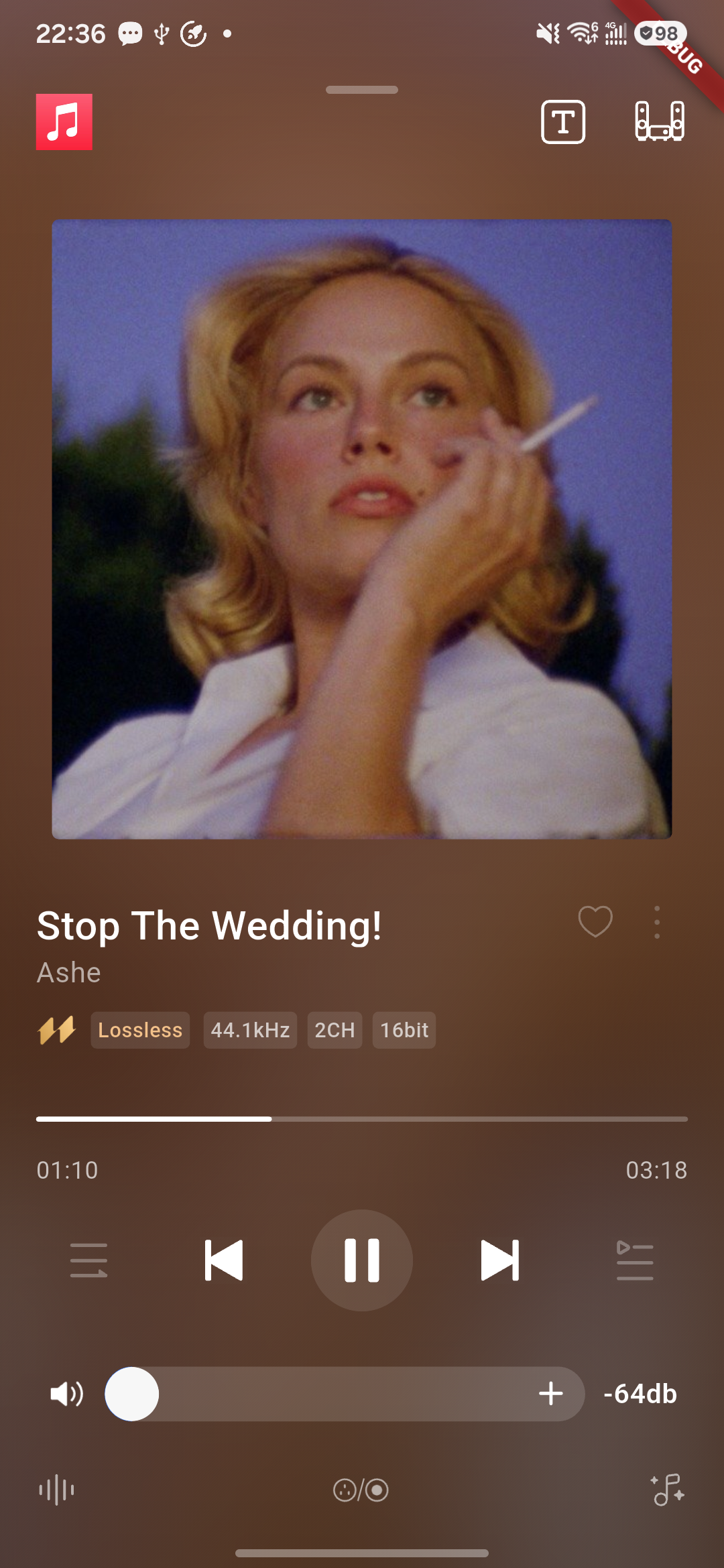
Phone player-control layout.
Phone Player Control Functions
The phone player supports remote control of the connected device. Users can view the playlist, switch songs on the phone, and send playback interface, lyrics, spectrum, VU meter, and audio output related commands to the device.
After entering the player page, confirm the phone is connected to the target device, then you can use the following functions.
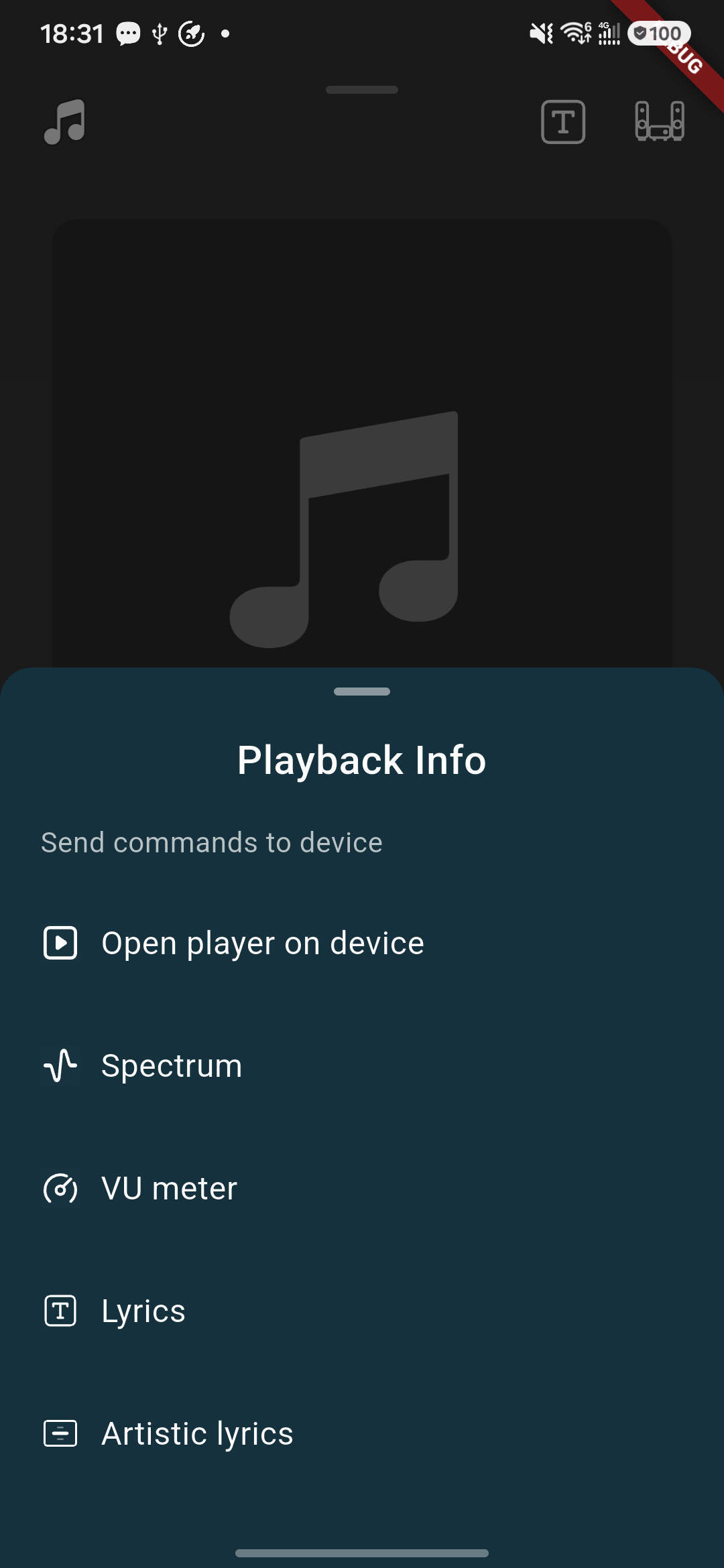
Playback Info
Tap the function entry in the player to open the "Playback Info" panel. This panel is used to send different playback display commands to the device.
Open device playback interface
Enter the device-side player page to view complete playback info and the control interface on the big screen.
Spectrum
Display the real-time spectrum changes during music playback on the device side, intuitively presenting the sound dynamics of different frequency bands.
VU meter
Display the real-time level changes during playback, used to view the dynamic state of the current audio signal.
Lyrics
Display the current song lyrics on the device side, for users to follow the music and view lyric content.
Art lyrics
Display lyrics in a more visually expressive way, providing richer visual effects for the playback page.
Kaiboer Home Playback Info panel with device-control commands.
Playlist
Tap the playlist button to view the current playback queue and the number of songs.
Tap a song in the list to switch the current playback content.
The song currently playing is highlighted in color and shows a playback-status indicator.
Tap the locate button in the top-right corner to quickly jump to the currently playing song.
Songs in the playlist are arranged in the current queue order; users can quickly browse subsequent playback content.
Audio Input/Output Settings
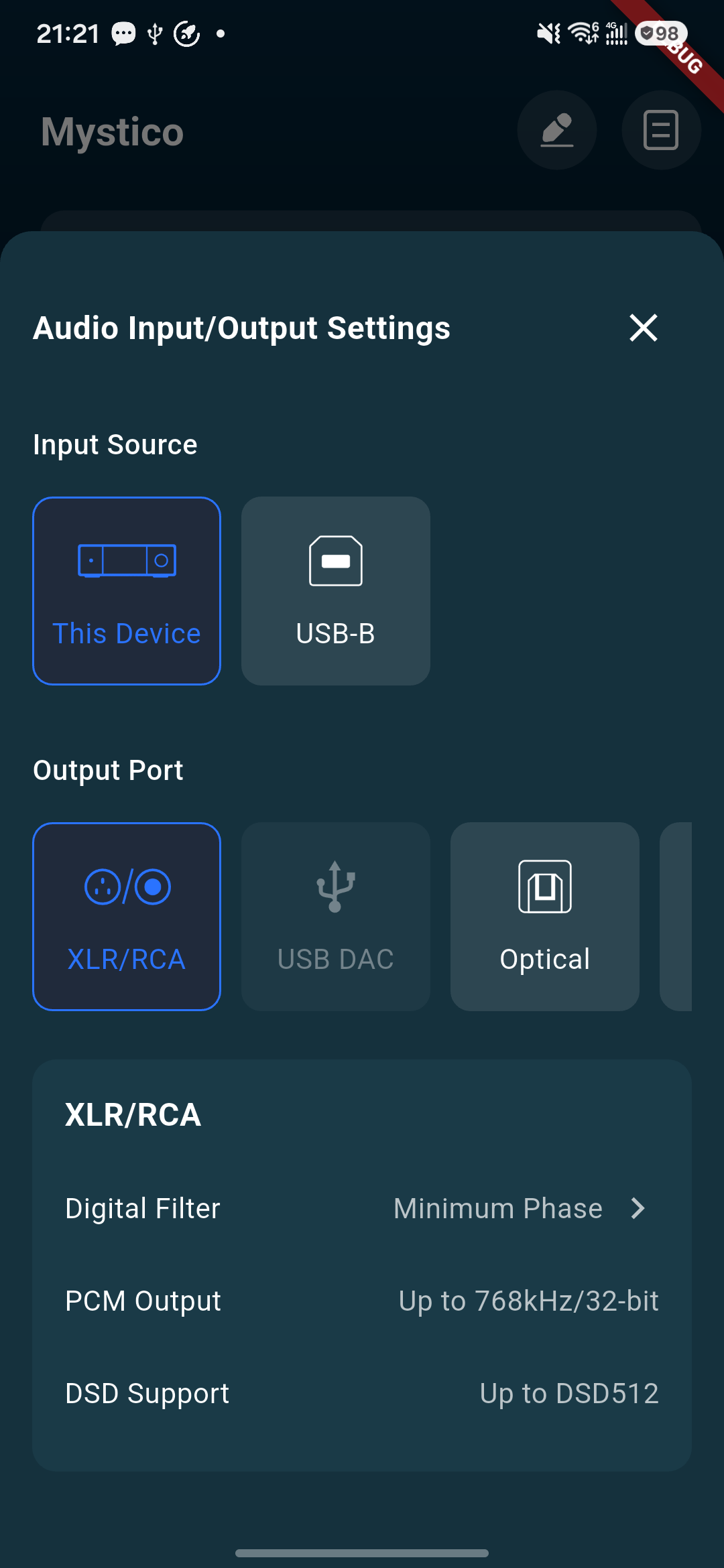
Tap the audio settings entry to select the audio input source and output port.
Input source
Local: Use the current device as the audio input source.
USB input: Only shown on devices that support USB-B input.
Output port
Depending on the actual device connection, you can select the following output methods:
USB DAC
Optical
HDMI
RCA/XLR (shown on built-in DAC devices that support this output)
The currently selected input source or output port is highlighted in blue. Some unavailable interfaces are shown in gray and cannot be selected.
After selecting an output port, the page displays information such as the current audio output format, the highest PCM sample rate, and the DSD output method. The formats and sample rates supported by different output interfaces may differ; please refer to what the device actually displays.
Audio Input/Output Settings: input source, output port, and supported formats.
Original Sound Pass-through
The original sound pass-through function is used to reduce audio processing and keep the original sound performance of the music as much as possible. After entering this page, you can select the following audio optimization modes:
Room acoustics
Optimize sound based on the room environment, improving problems such as low-frequency rumble, standing waves, and left-right soundstage imbalance.
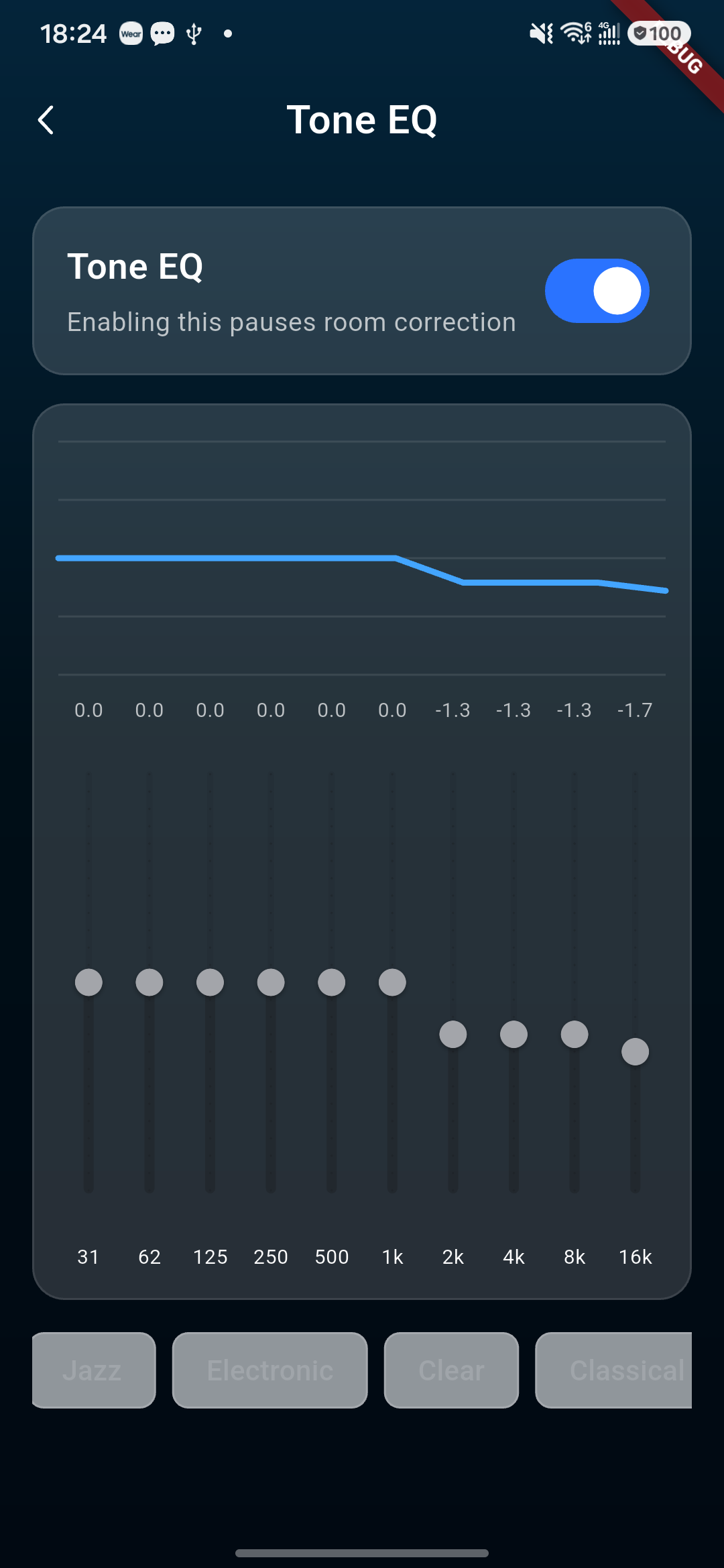
Tone equalization
Adjust the sound style according to personal preference, obtaining a listening experience more in line with usage habits.
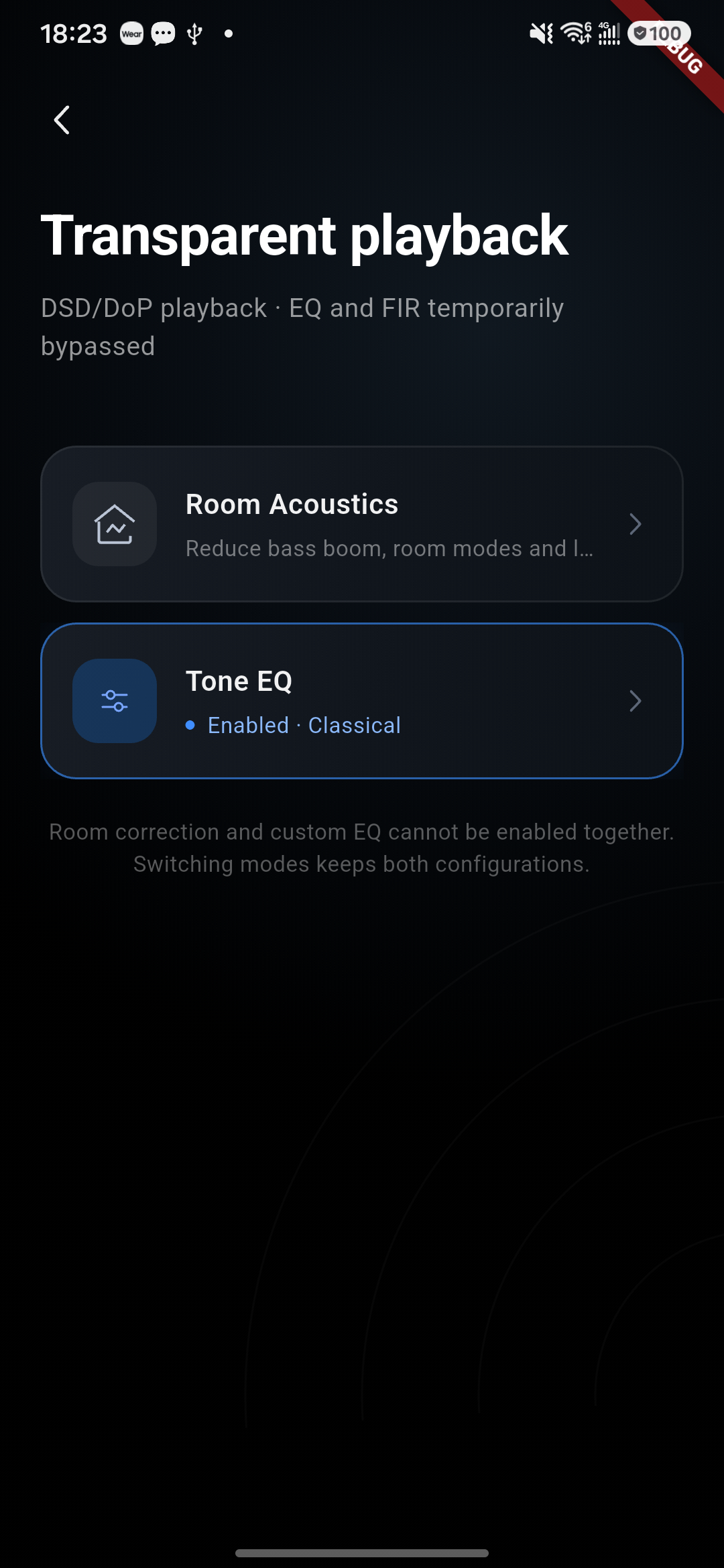
Room acoustics and custom tone equalization cannot be enabled at the same time. Switching modes does not delete the original configuration; after re-enabling, the previous settings can still be used.
Tone EQ controls in Kaiboer Home.
Tone EQ example: adjust tonal balance here. This screen illustrates equalization controls, rather than transparent playback with processing bypassed.
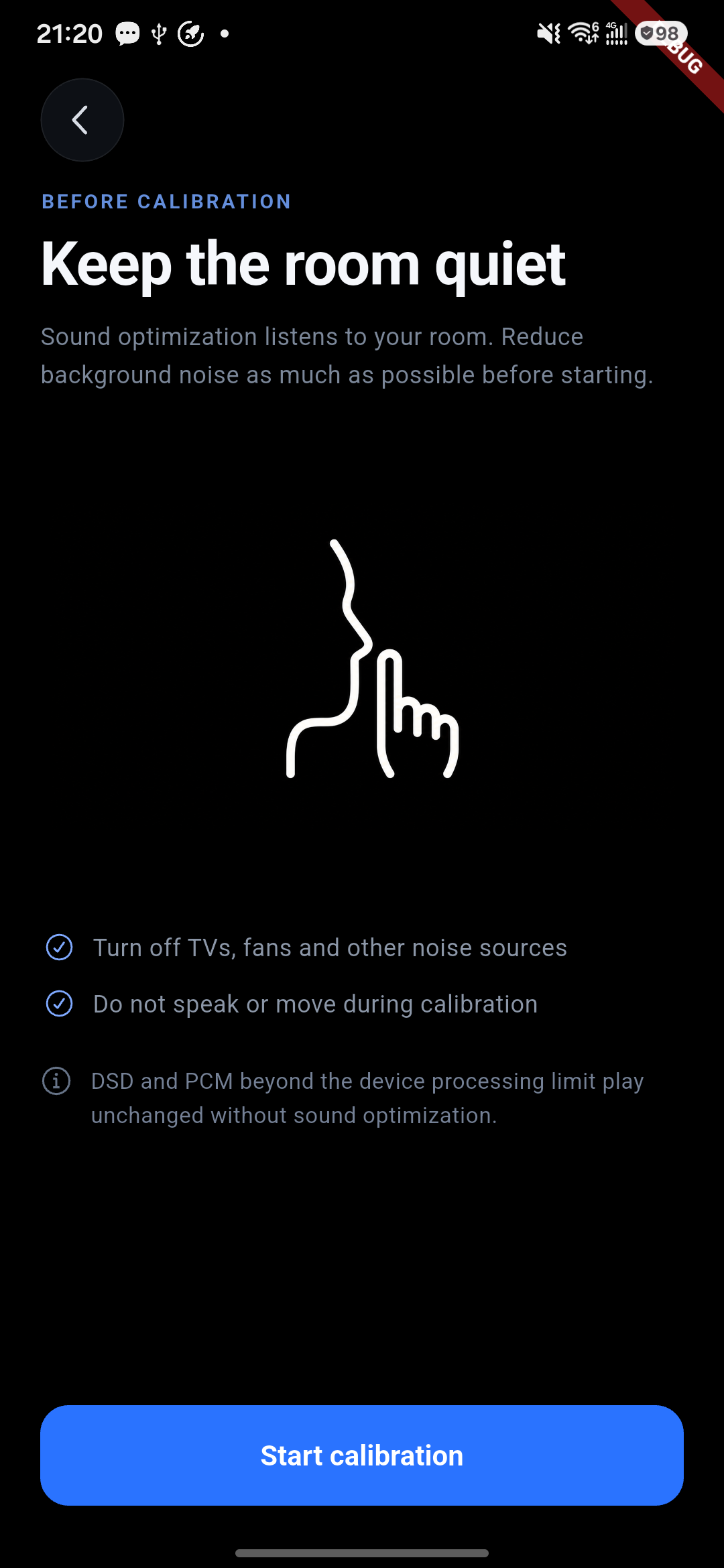
Room Acoustics: pre-calibration guidance before starting.Kaiboer Home transparent-playback screen with audio processing options.
Device Control Button
The device control button in the player page is used to confirm the current control device and send the phone's playback commands to the target device. Before using functions such as the playback interface, playlist, lyrics, spectrum, and audio settings, please confirm that the correct playback device is connected.
AI Song Encyclopedia
AI Song Encyclopedia is an intelligent introduction and Q&A function for music content. When users play or browse songs, they can quickly learn about the song's creative background, singer and album information, music style, and the story behind the song through AI.
In addition to viewing basic information, users can also ask questions freely around the song to further explore music content. AI organizes complex music materials into simple and easy-to-understand introductions, allowing users to discover more music knowledge and cultural background while listening to songs.
Highlights:
Quickly learn about song, singer, and album information
Intelligently parse song style and creative background
Support continuing to ask questions around the current song
Explore music content in a natural conversation way
How to use:
Enter the song playback page, tap AI Song Encyclopedia, to view related introductions, and you can also enter questions to interact with AI.
Discover
Discover Page Function
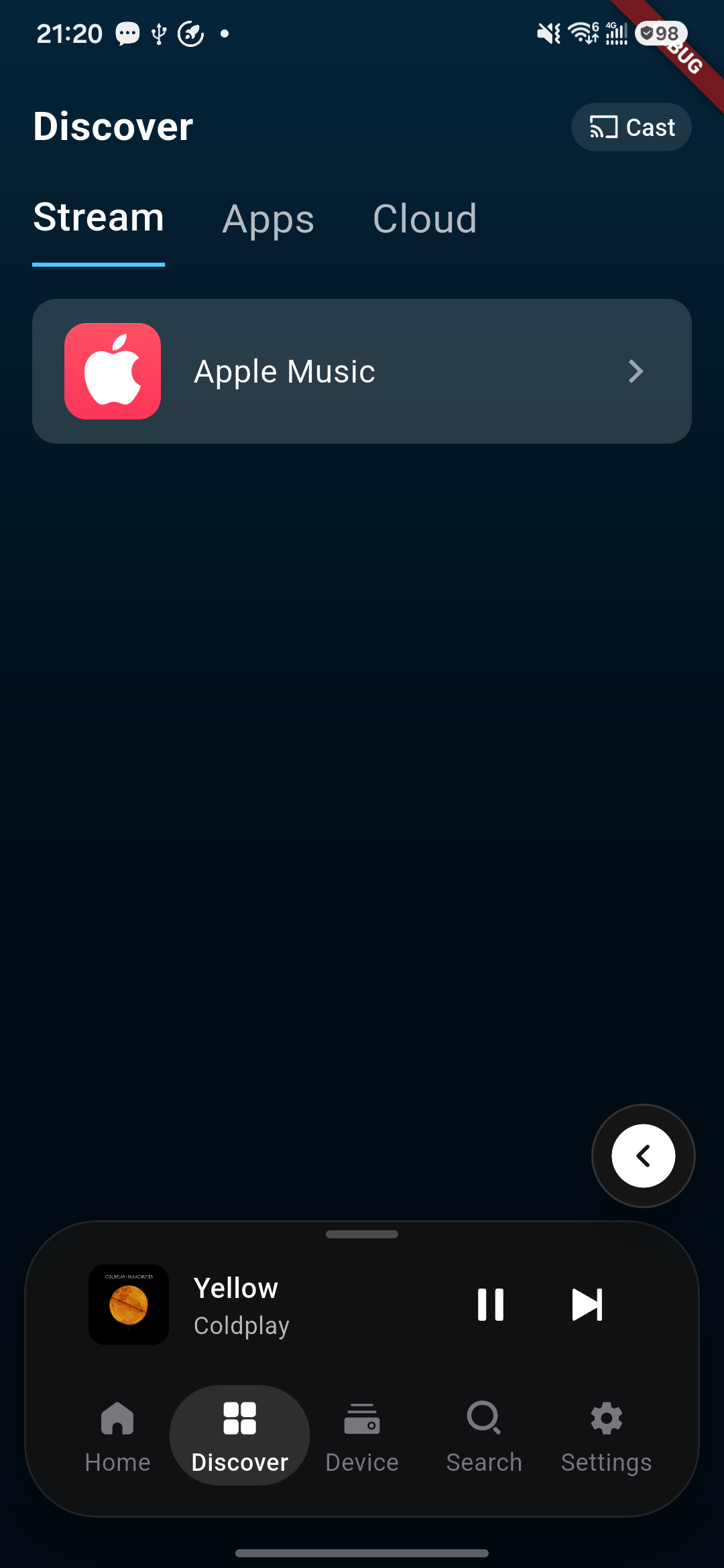
The Discover page is used to browse online music and recommended content. Depending on the current app version and device capabilities, it includes:
Streaming entries such as Apple Music.
Third-party app or cloud-drive entries.
Some entries require logging into the corresponding service; some content is also affected by device capabilities, network, and regional service restrictions.
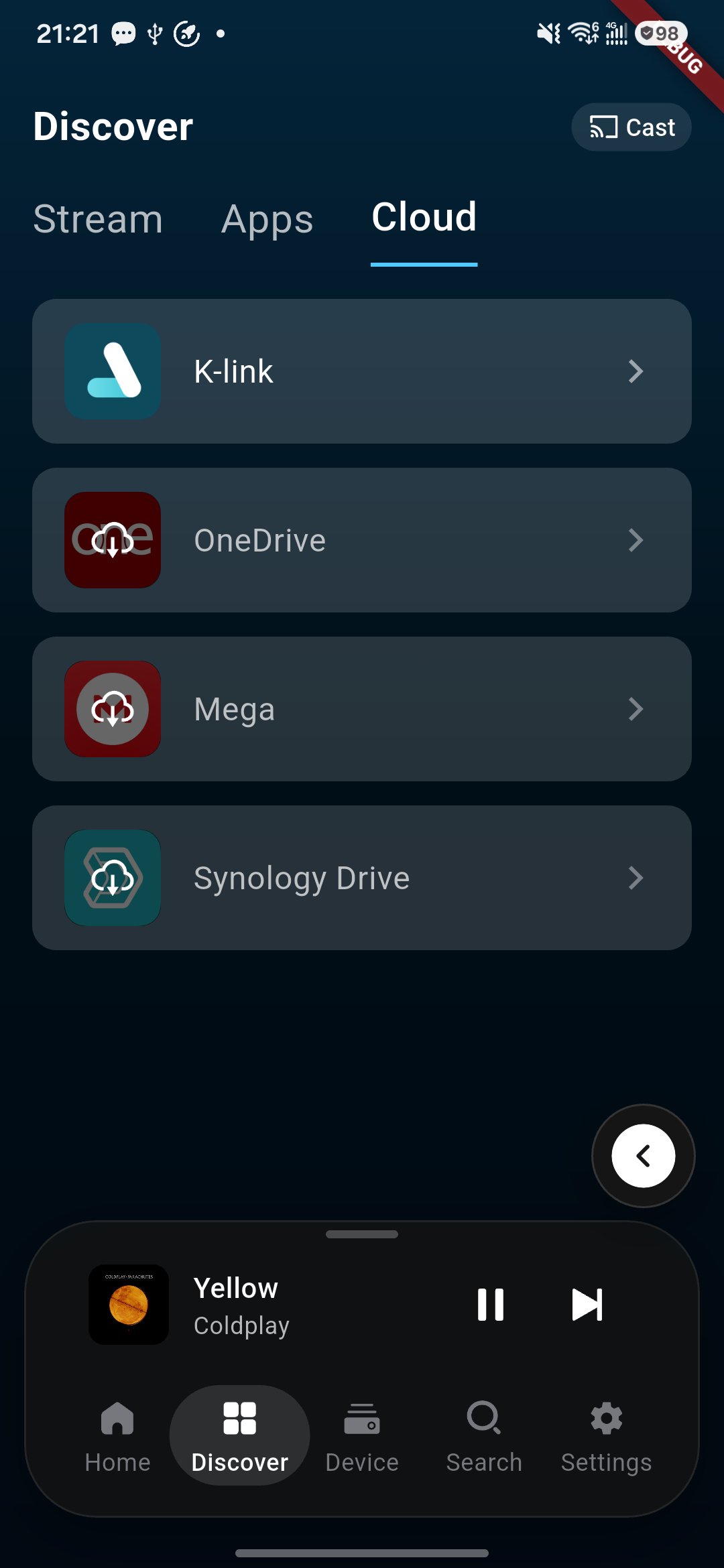
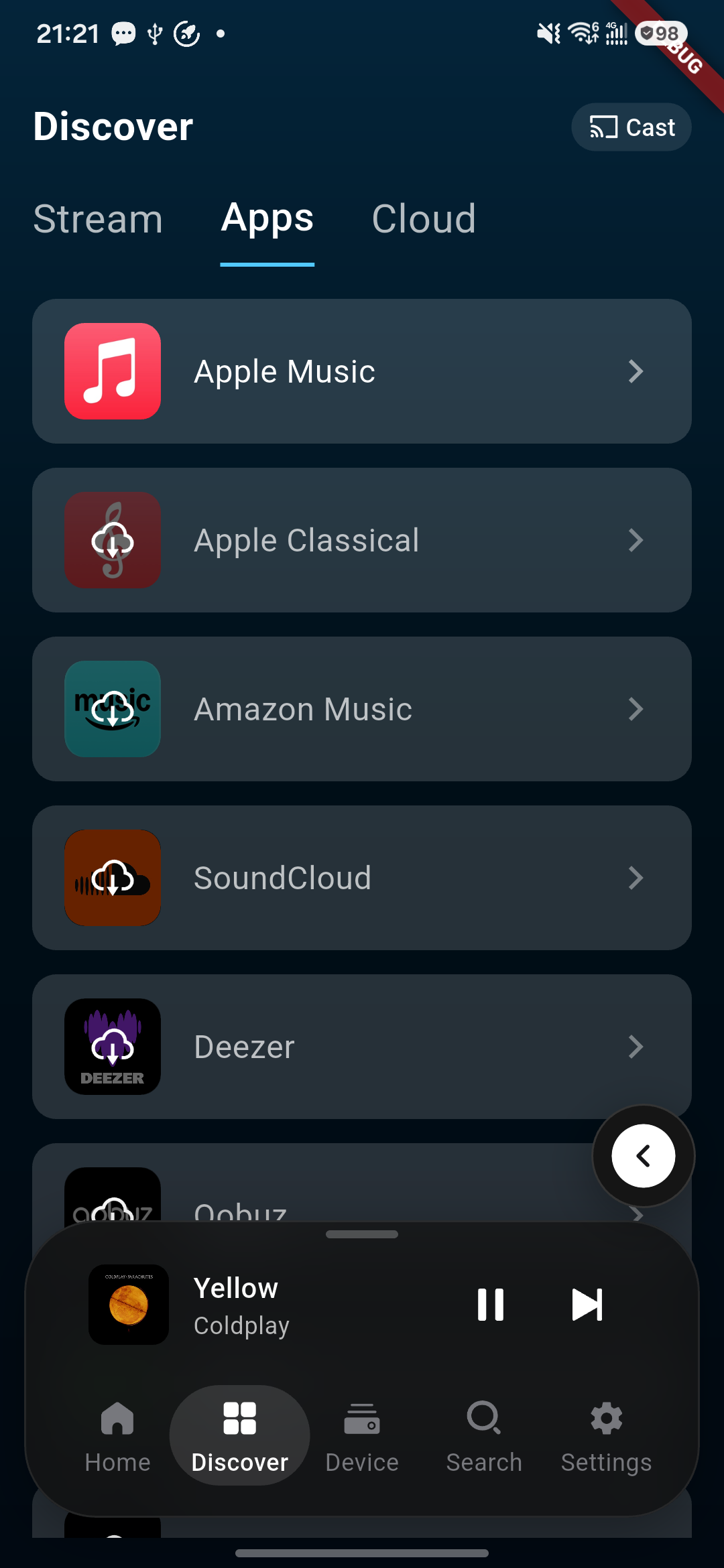
Discover — Cloud: available cloud-service entries.Discover — Apps: available music-service entries.Discover — Stream: available streaming entry.
Streaming Login
For detailed streaming usage, see the 10. Streaming Music Services guide.
When a streaming entry shows login, authorization, or empty state:
Enter the login entry of the corresponding service.
Complete login or authorization as prompted.
Return to Kaiboer Home.
Re-enter the Discover, Search, or personal content page.
Data between different streaming accounts is independent. Before switching accounts, please confirm that the current collections, playlists, and playback content belong to the correct account.
Device
Device Page Function
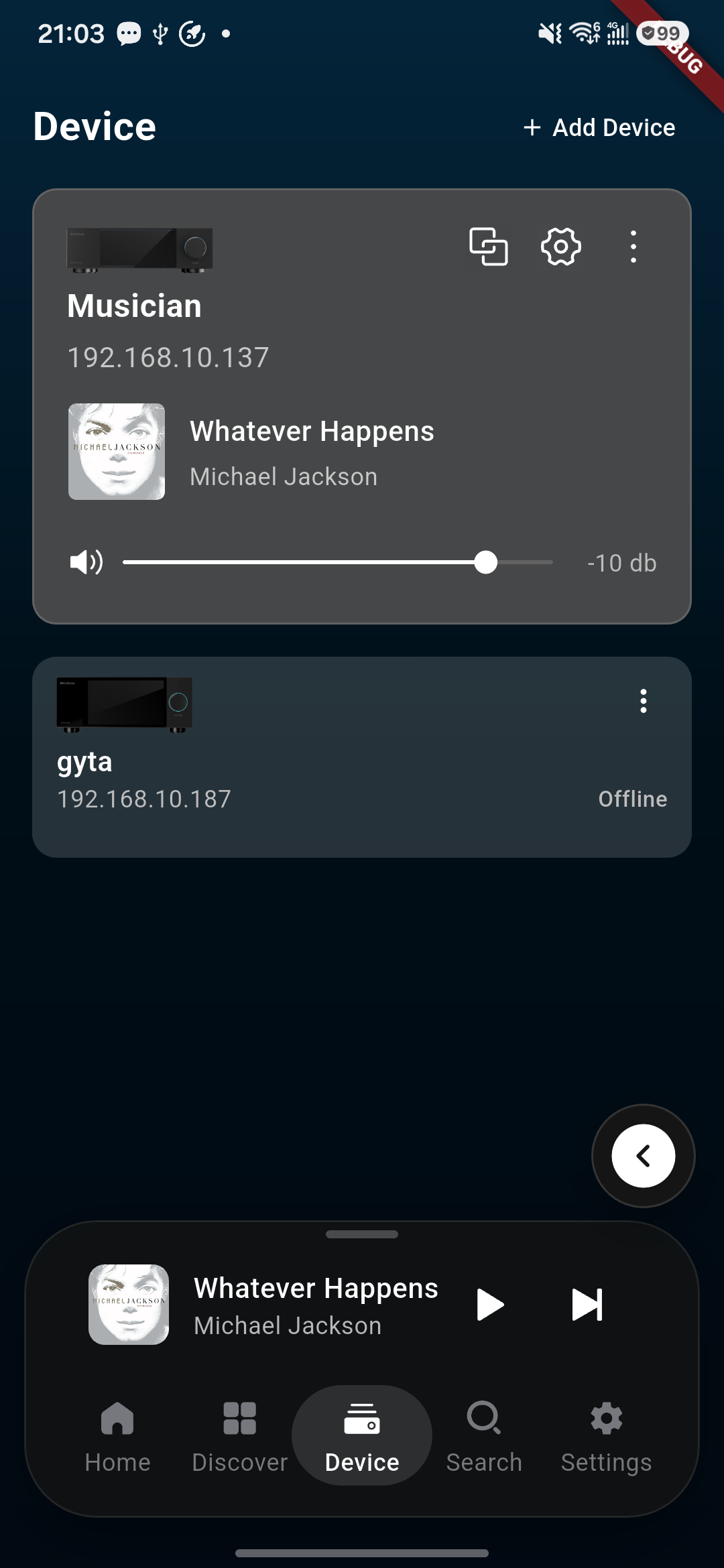
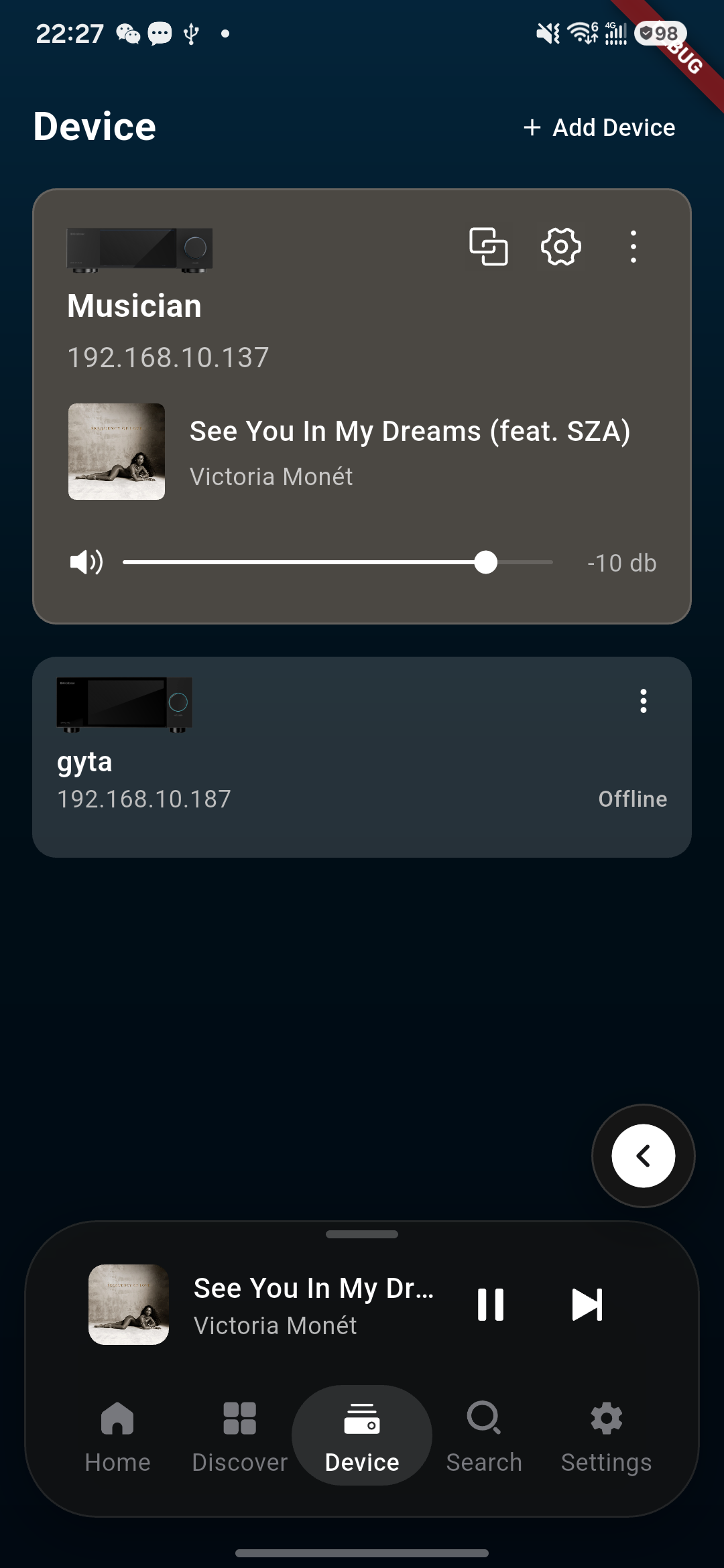
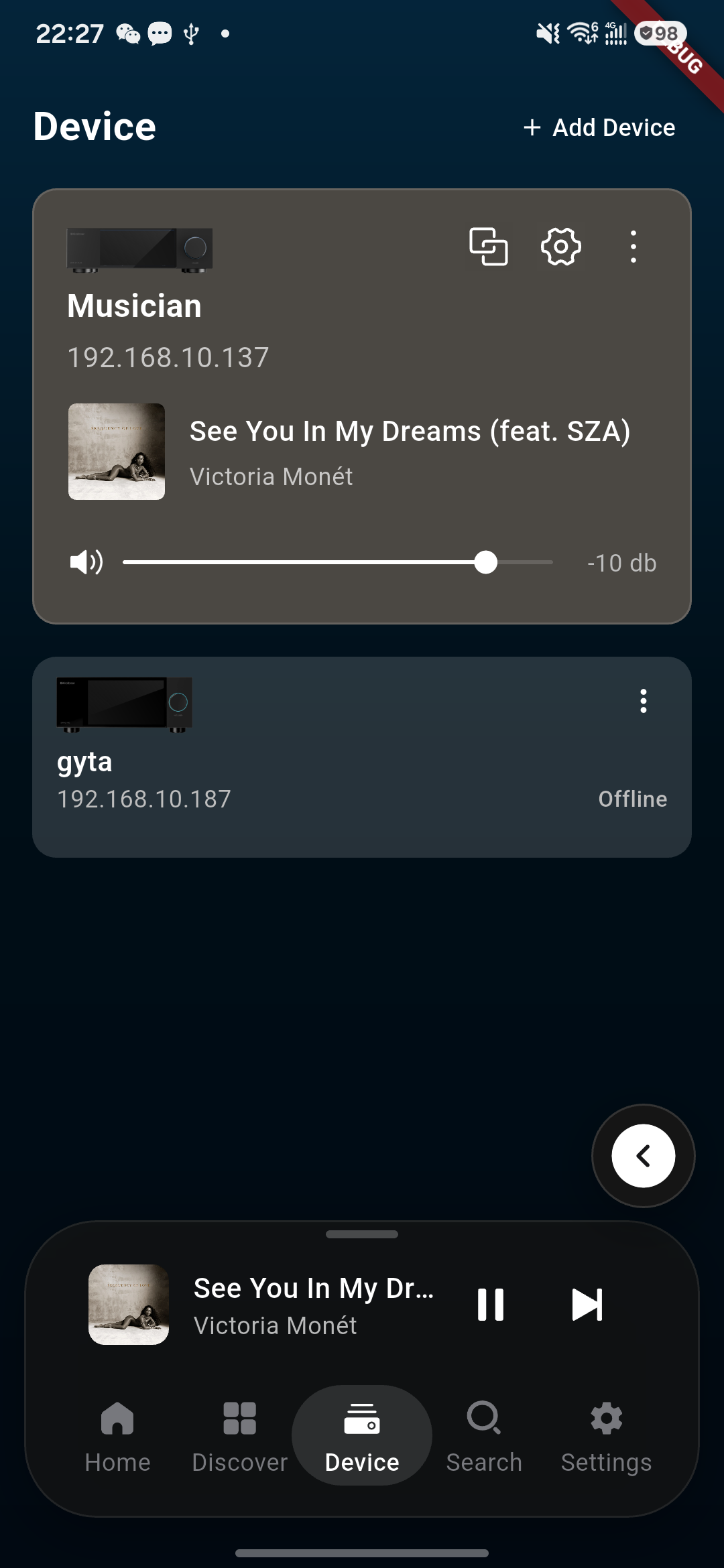
The Device page is used to view the currently connected Kaiboer device and perform playback control, audio settings, and device-related operations.
Common information includes:
Device name and model.
Online/offline status.
Currently playing song.
Playback status and progress.
Volume.
Current playback source.
Available inputs and outputs.
Device: device status and currently connected player.Connected-device page in Kaiboer Home.
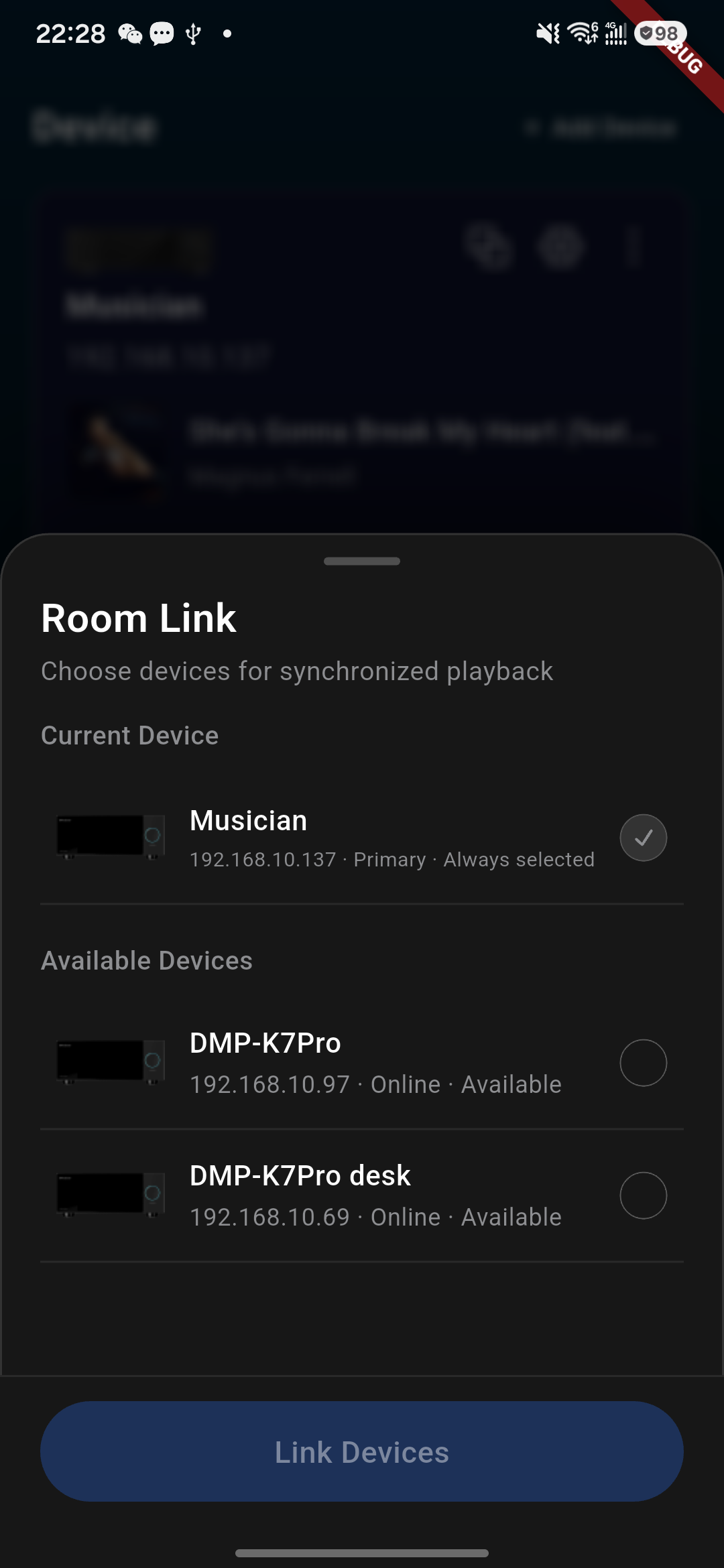
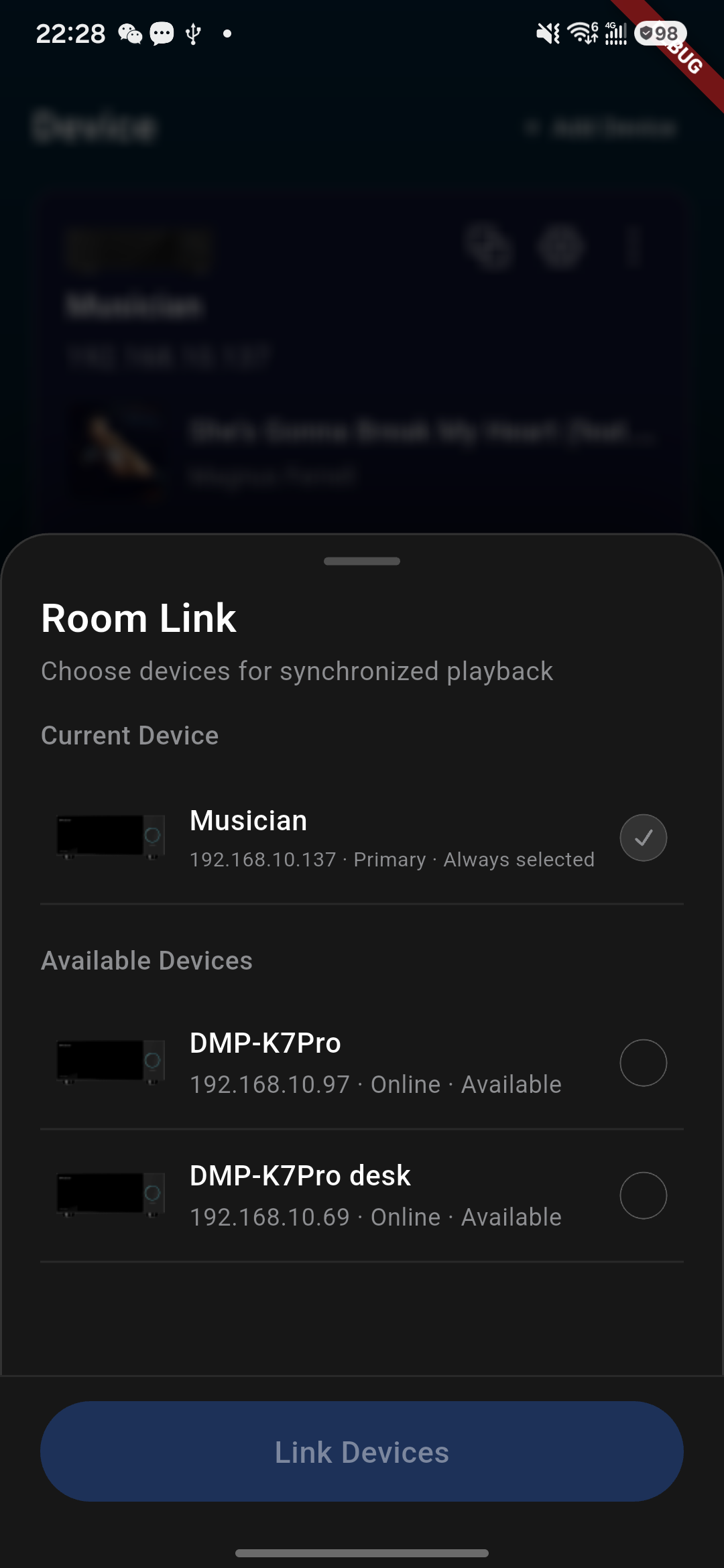
Supports unified viewing and management of Kaiboer devices in different rooms, selecting the corresponding room and device for playback and control as needed, satisfying multi-room music usage scenarios.
Select devices to sync playback.
Add or remove linked devices.
Save or release link settings.
Multiple devices play music in sync.
View the playback status of each device.
Adjust the volume of each device separately.
Control music playback, pause, and switch to next track.
Connected-device page with the MultiRoom entry.Room Link device picker.Room Link device picker with available devices.
Remote Control Device
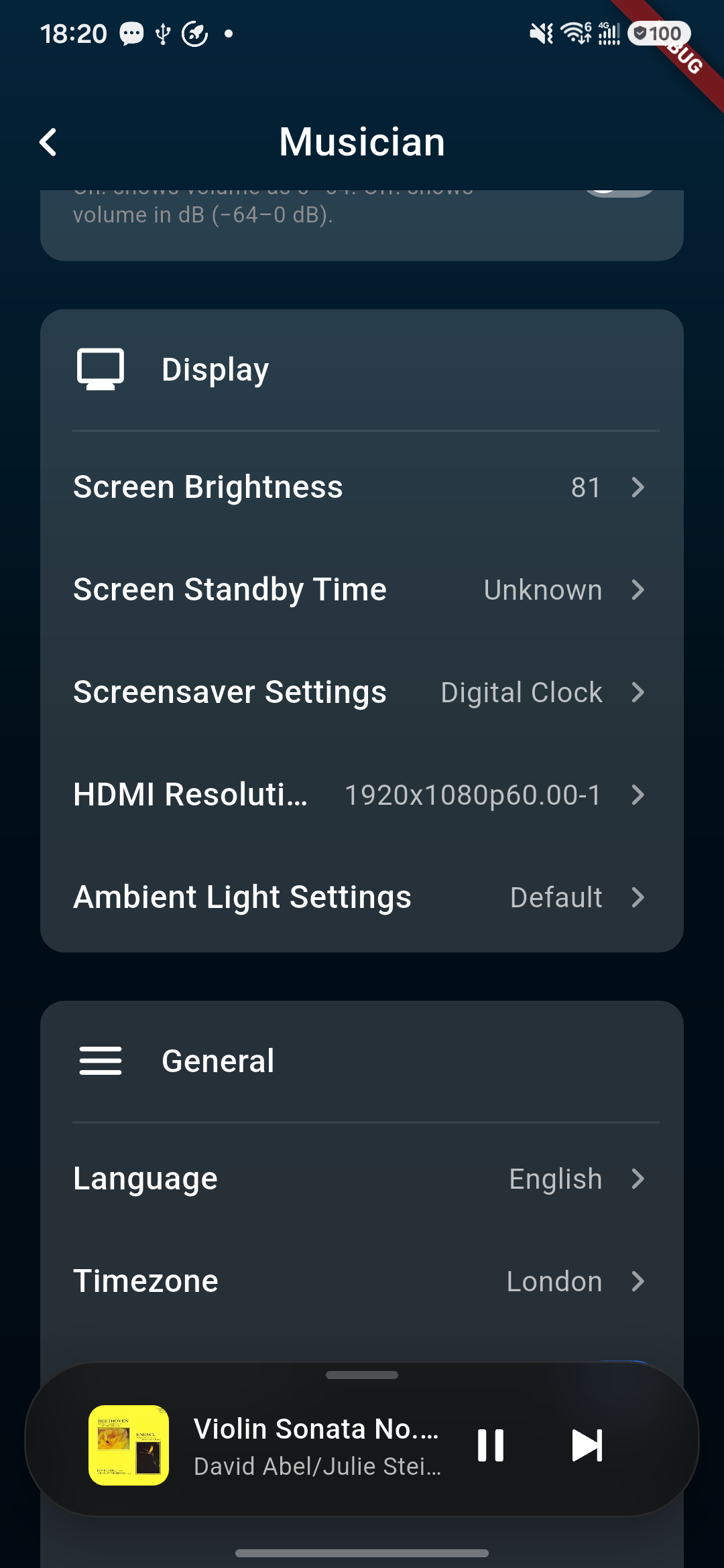
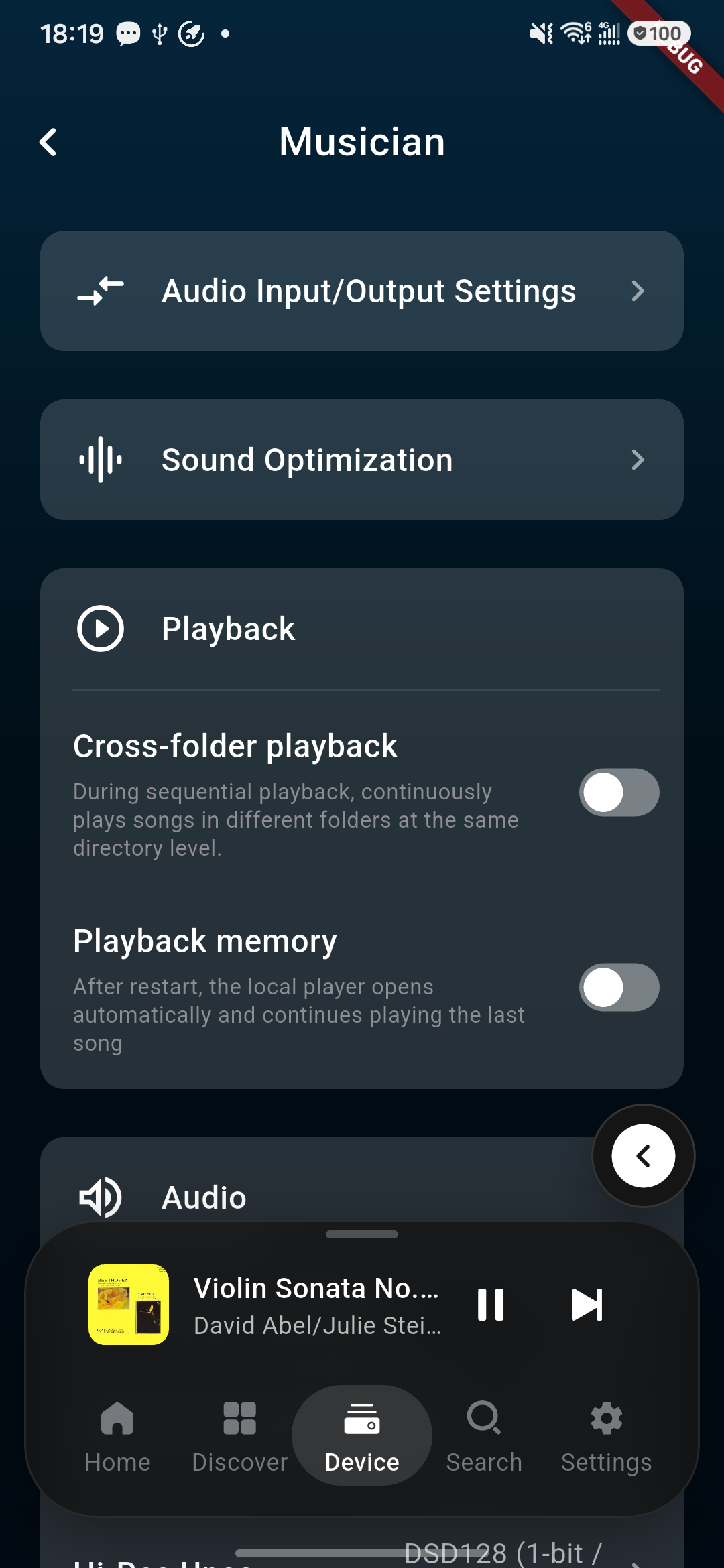
You can remotely control the connected Kaiboer device via your phone, performing audio input/output settings, sound optimization, maximum volume settings, etc. without walking to the device.
Kaiboer Home General settings screen.Remote device-control screen with display settings.Remote device-control screen with audio settings.
Audio Settings
Maximum volume setting
DSD fixed sample-rate output
Digital filter
Playlist quantity
VU meter algorithm
Pure digital signal output volume control
Auto-mute when switching output mode
Jump to playback interface when playing
Add only single track to playlist
Display Settings
Screen brightness adjustment
Screen standby time
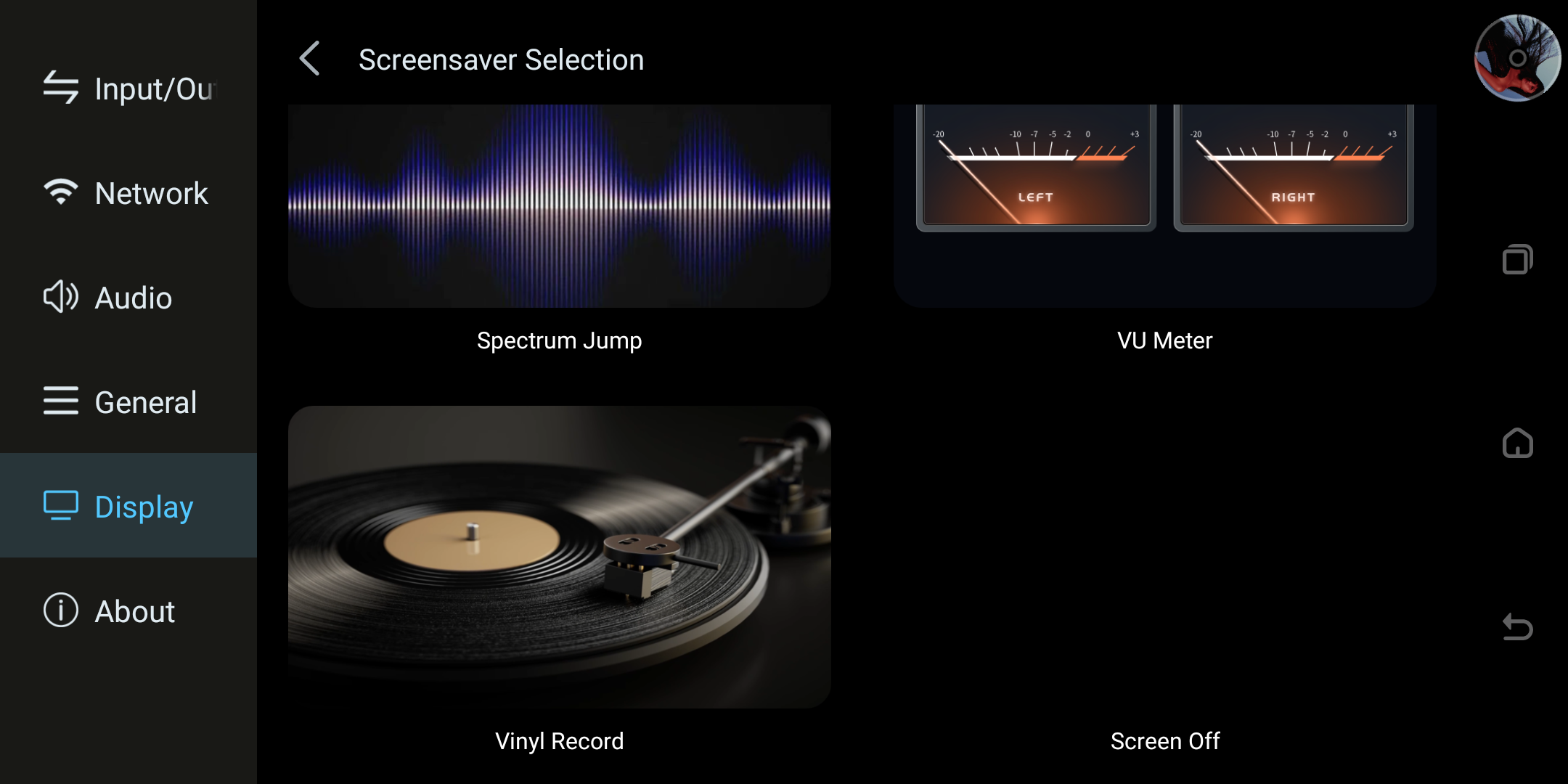
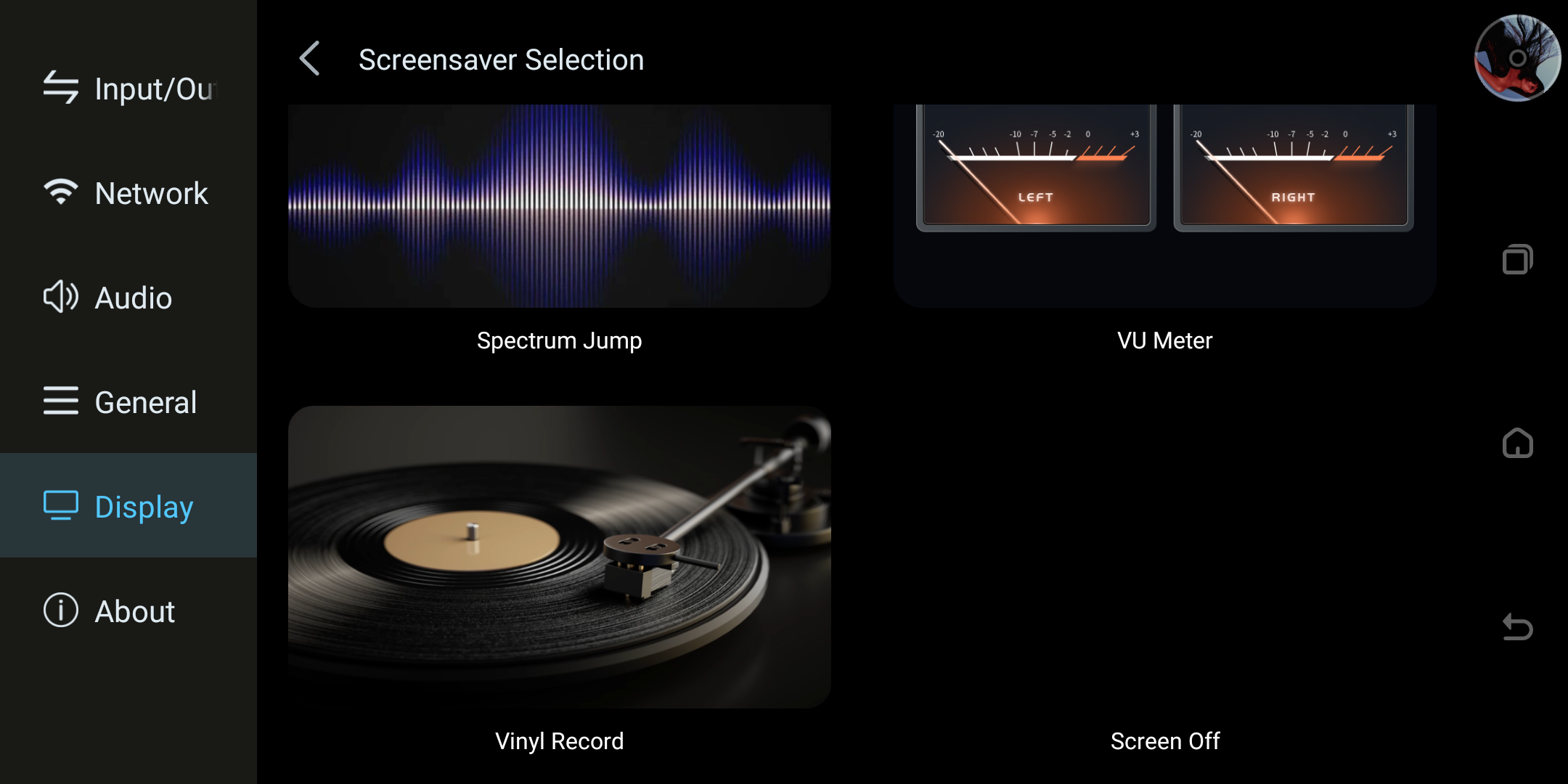
Screensaver setting
Device screensaver style selection.
Current screensaver reference: Spectrum Jump, VU Meter, Vinyl Record, and Screen Off are shown here. Digital Clock and Retro Clock remain available choices; select the preferred card in the device Display settings.
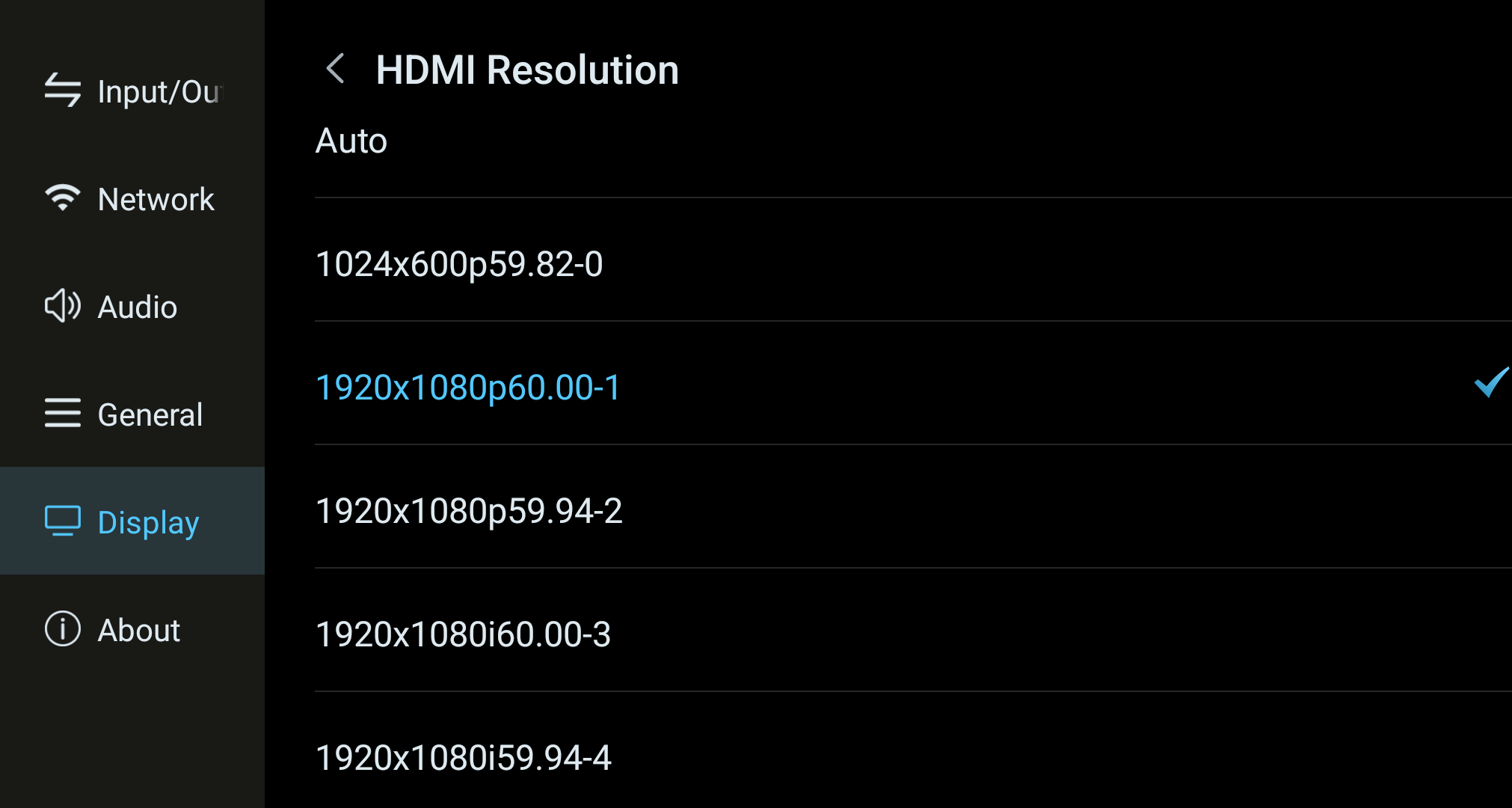
HDMI resolution
HDMI resolution selection screen.
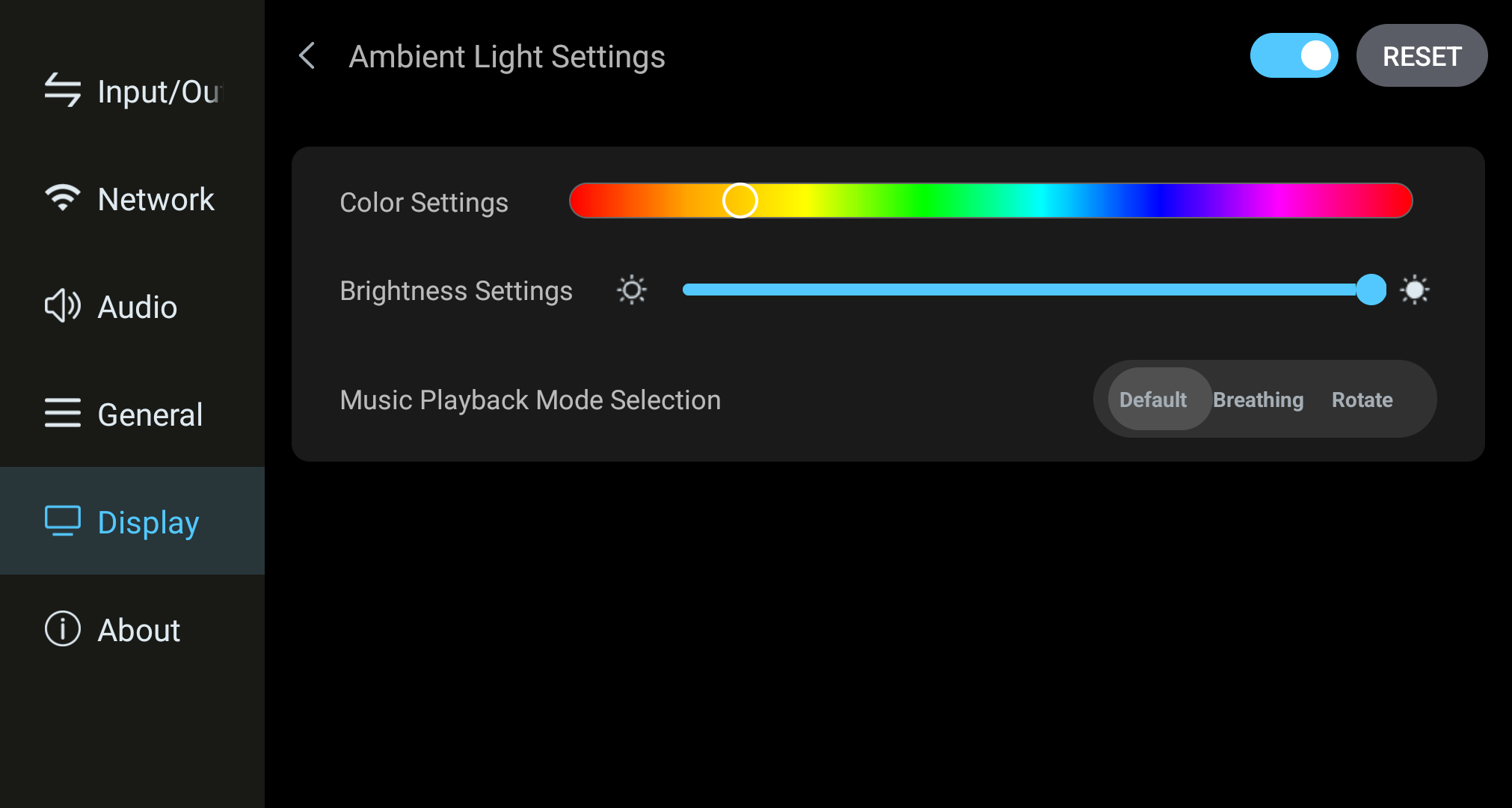
Ambient light setting
Ambient-light settings screen.
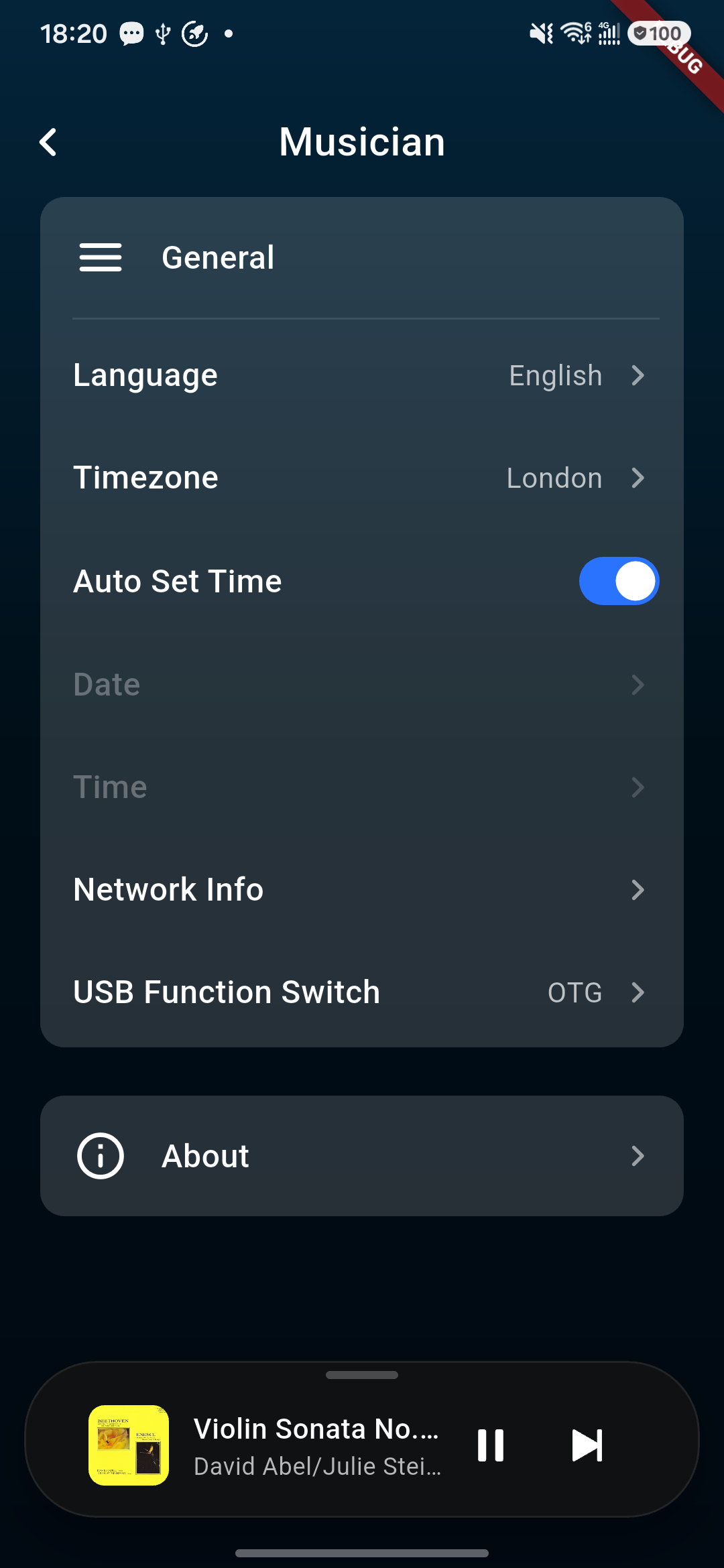
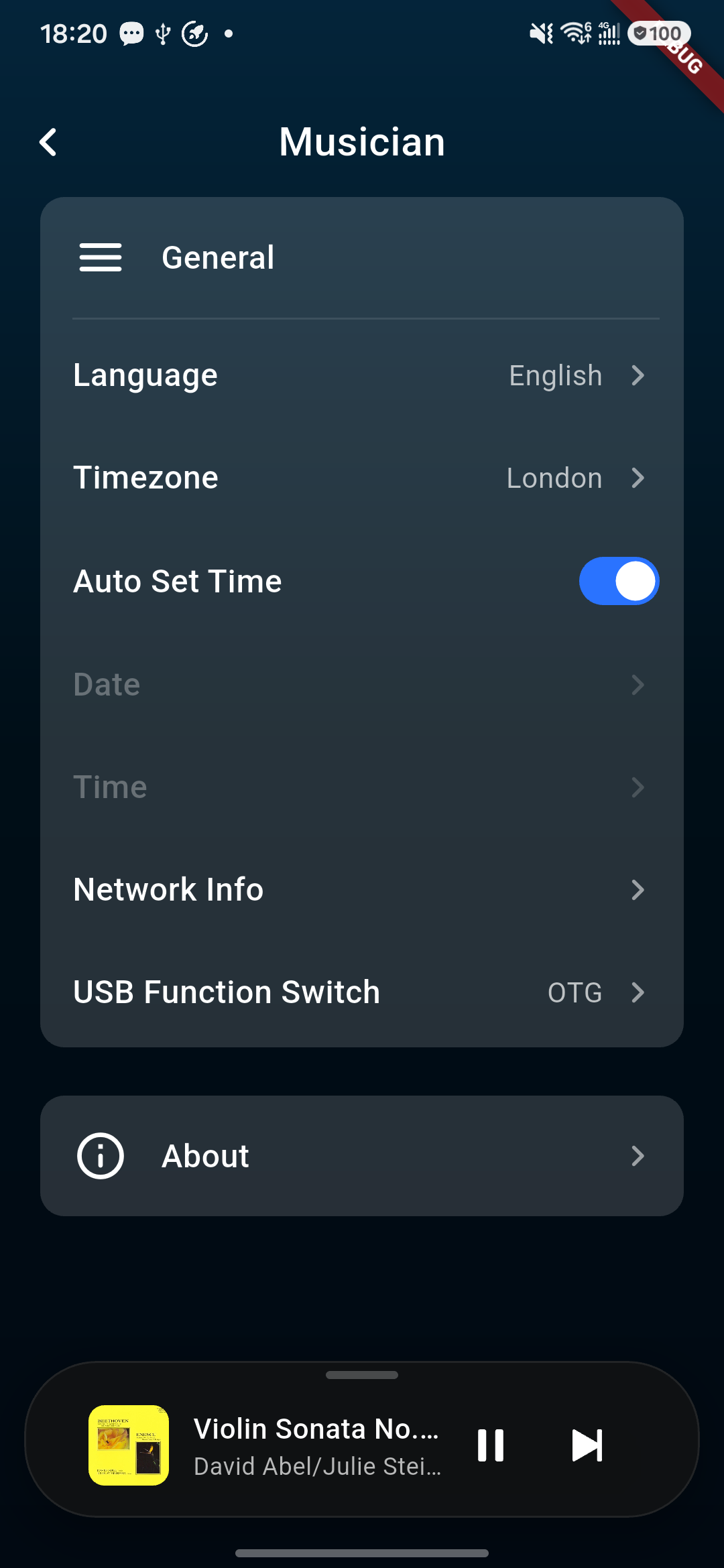
General Settings
Language
Time zone
Auto-set time
Date and time
Network info
USB function switch
General settings screen in Kaiboer Home.
About
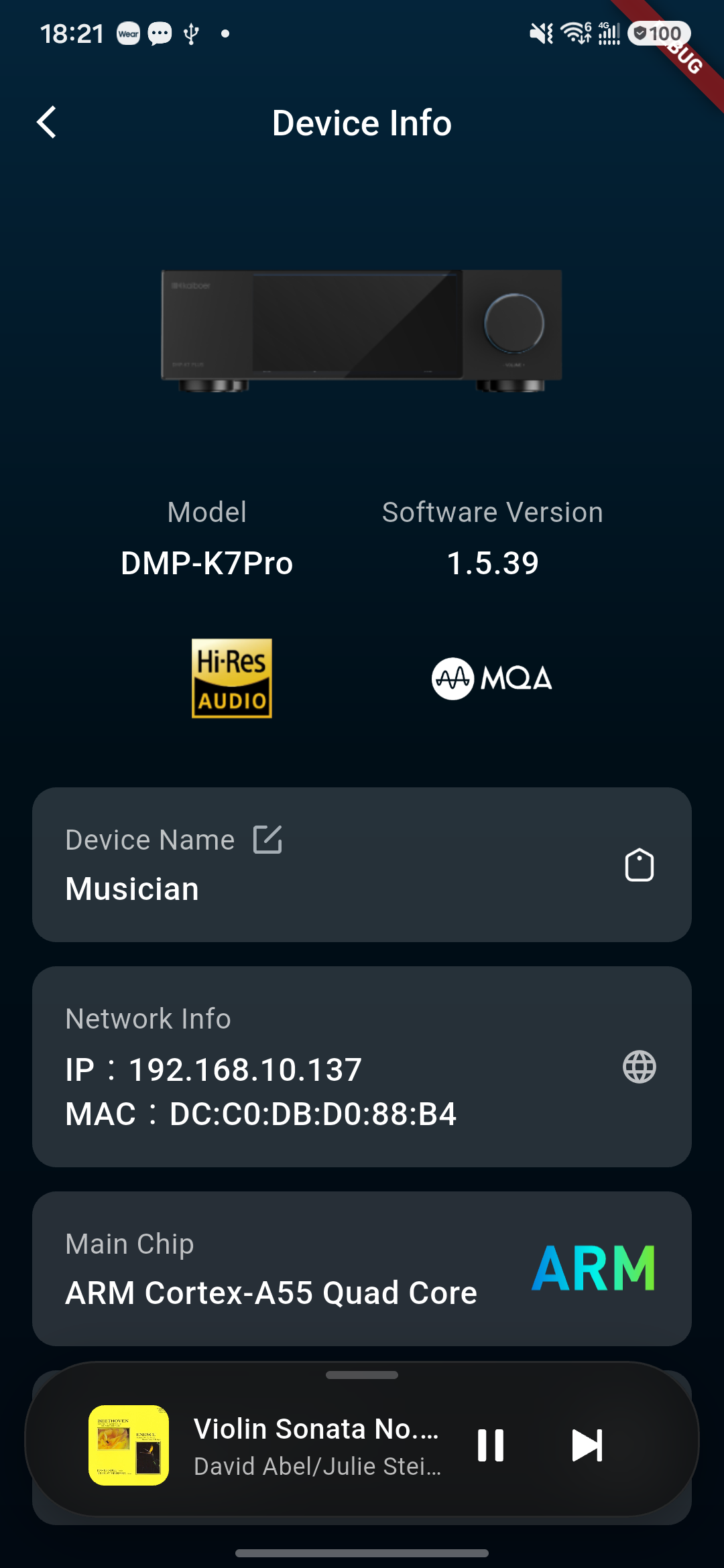
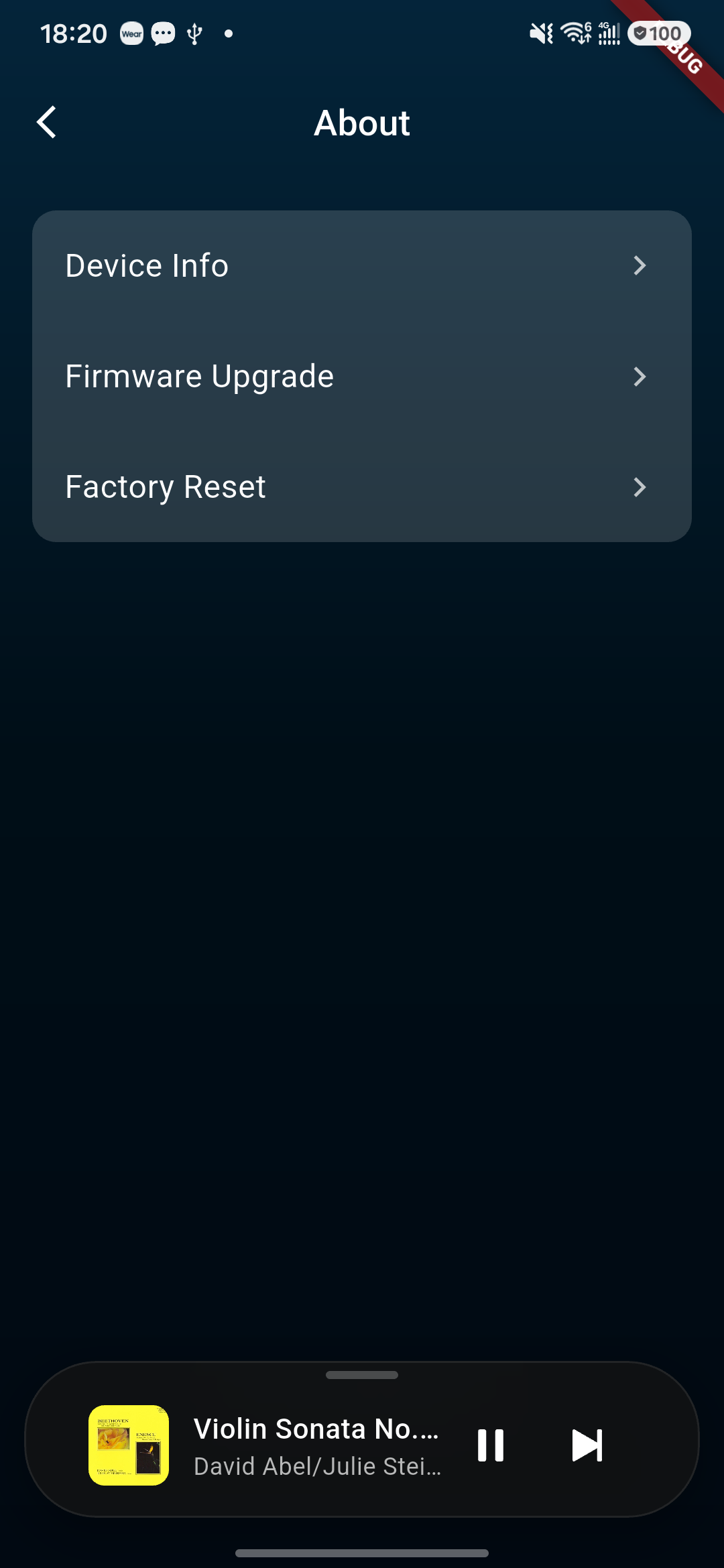
On the About page, we can see our device information, including the device's software version and hardware information.
Device information screen.Kaiboer Home About screen with device information, firmware, and reset options.
View Currently Online and Available Devices
The Device page displays the currently online devices and connectable devices, showing device name, model, and connection status, for quick selection and management of target devices.
Adjust Volume
You can adjust the playback volume of the current device via your phone, and also perform mute and unmute operations; the adjustment result syncs to the device side.
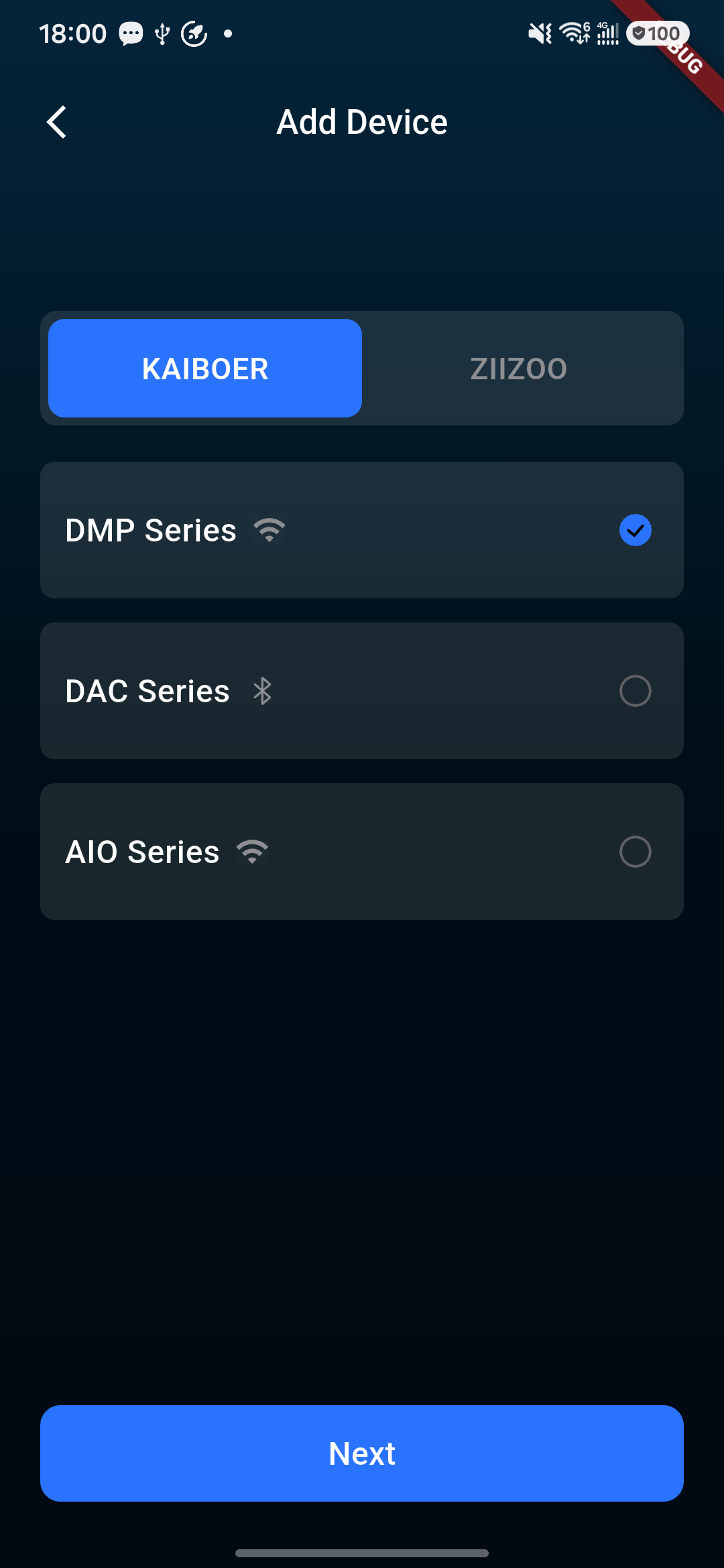
Add New Device
You can add new Kaiboer devices via auto-search, manual input of device info, or QR scan. After successful addition, you can view and connect/control it in the device list.
Add-device screen with supported product series.
Device Management
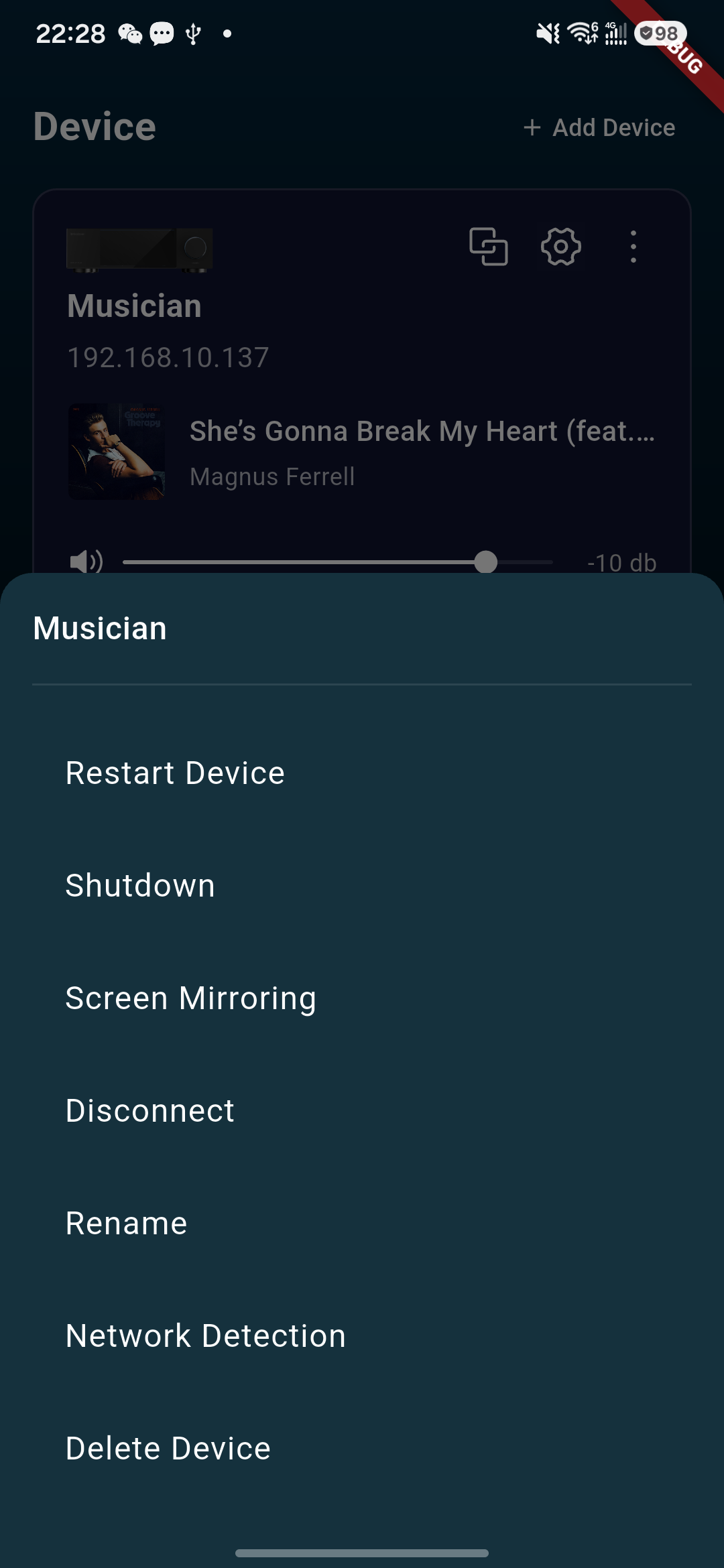
You can perform management operations such as disconnect, shutdown, restart, and rename on the current device. Before performing shutdown or restart, please confirm that the correct device is selected and ensure it will not affect ongoing playback.
Device-management menu.
Search
Search Content
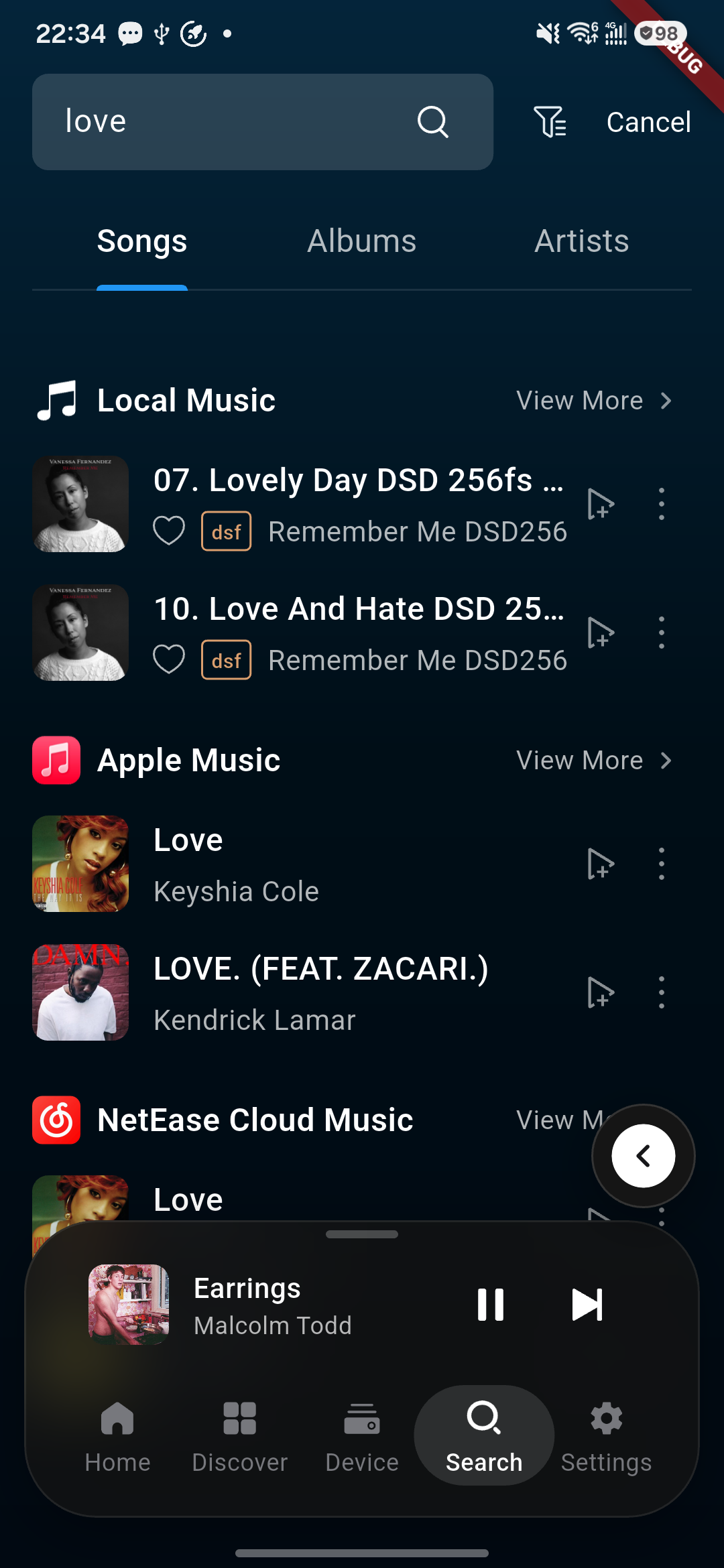
The Search page is used to find songs and other music content. Depending on the current version, search results include:
Songs.
Albums.
Artists.
Playlists or other content types.
Search results are affected by the currently selected music source, login status, and network conditions.
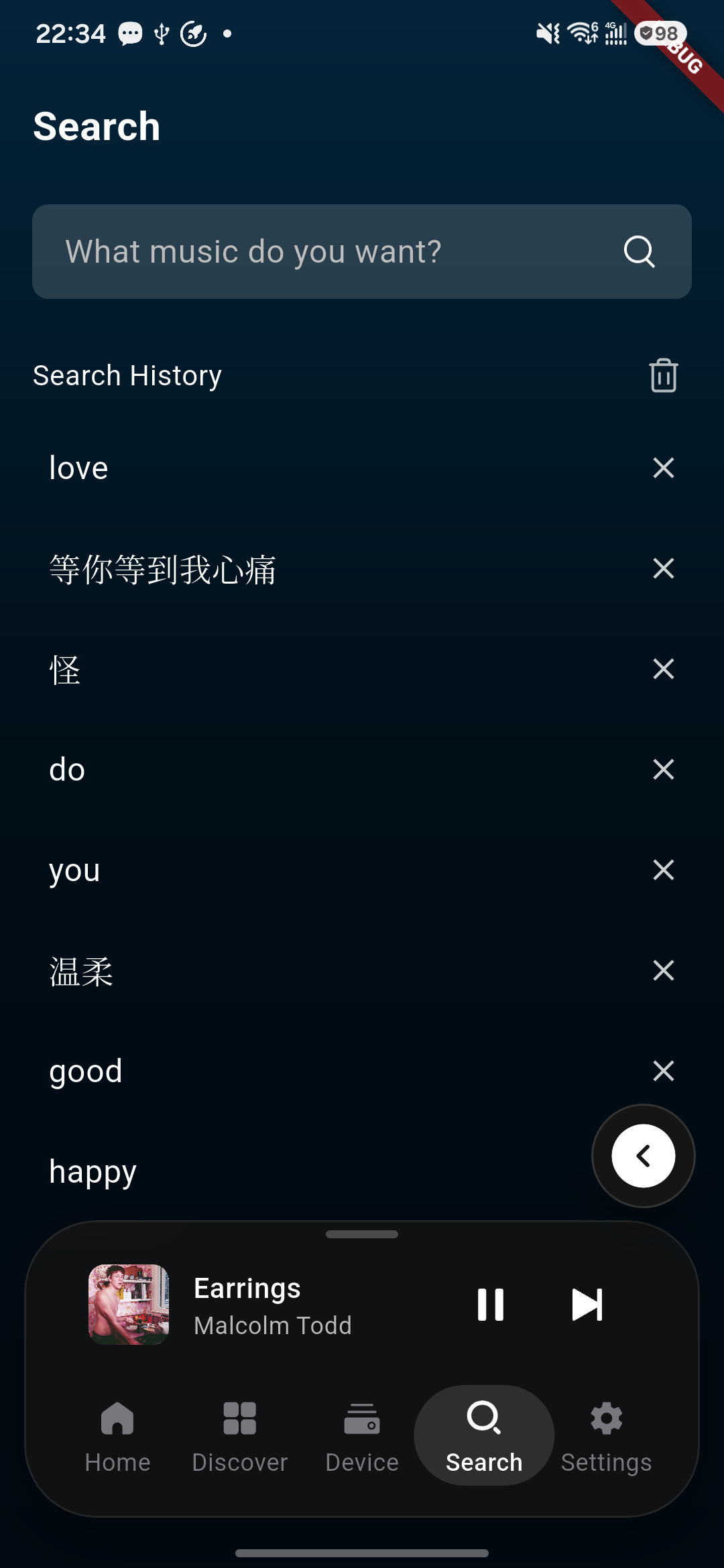
Search-results screen in Kaiboer Home.Search history screen in Kaiboer Home.
Using Search
Enter "Search".
Tap the search box and enter keywords.
Submit the search.
Select song, album, artist, etc. in the result categories.
Tap the target result to view details.
Play, collect, or add to playlist as needed.
Settings
Settings Page Function
The Settings page is used to manage the app's general options, account status, permissions, and some device-related configurations.
Specific settings may vary depending on the app version, device model, and current connection status.
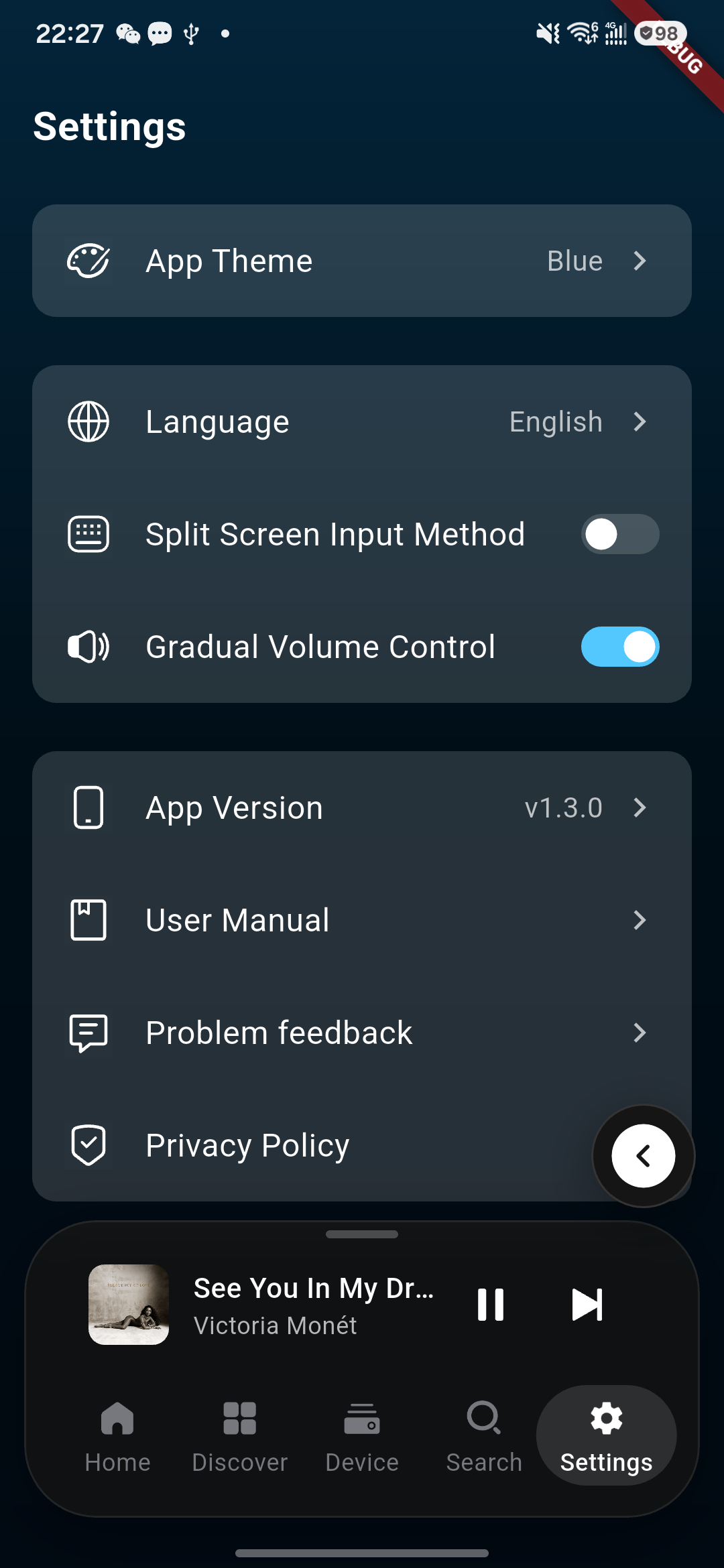
Settings page in Kaiboer Home.
General Settings
General settings may include app appearance or theme, language, and version information. Available items can vary by app version and the connected device.
Other Functions
Notification Bar Media Playback Control
On supported Android versions and playback sources, Kaiboer Home can display media controls in the notification panel and on the lock screen. Allow app notifications and keep the app connected to the player. The layout and availability depend on the phone, app version, permissions, and active playback source.
Some Android media panels may label the output as Phone speaker even when Kaiboer Home is controlling a DMP. Confirm the connected device in Kaiboer Home; the phone media-output label alone does not identify the DMP audio route.
⚠️ Note: iOS currently has no notification function.
Quick Reference
Goal
Recommended Path
Add new device
Connect/Device → Search device, manual input, or scan
Continue playing recent content
Home → Recently Played or bottom player
Browse recommended content
Discover → Recommendations, playlists, rankings, or streaming entries
Control volume and playback
Home bottom player or Device page
Play local files
Device → Storage source → Folder → Audio file
Find songs
Search → Enter keywords → Select result category
Modify device audio output
Device → Audio settings → Output
Modify app general options
Settings → General settings
Reconnect offline device
Connect/Device → Re-search or reconnect
Q1. What if the device cannot be found?
A: Confirm the device is powered on and the phone and device are on the same network; then re-search. If still not found, use manual input or scan to add, and verify the device identity.
Q2. The device shows online but cannot play. What to do?
A: Confirm the current device is not controlled by another phone; check network, volume, output method, and playback source. Re-enter the device page to view status; reconnect if necessary.
Q3. The streaming page has no content. What to do?
A: Check whether the corresponding service is logged in, whether the network is normal, and whether the current account has access permission. Empty results or login prompts when not logged in are normal prompts.
Q4. No sound after tapping play. What to do?
A: Check device volume, audio output, amplifier or headphone connection, and whether the current song has actually entered playback. Seeing only button feedback or loading complete does not mean sound is already output.
Q5. Cannot find a setting item. What to do?
A: Settings can vary by device model, device firmware, Kaiboer Home version, and connection status. Confirm that you are connected to the intended device and refer to the options currently shown in the app.
From the day you receive your product. The seller covers all costs for quality defects.
5 years
Repair support
At-cost repairs after warranty. Replacement parts can be supplied by agreement.
7 days
Unconditional returns
Return any product within seven days of receipt, unconditionally.
Buyer-paid
Import duties & taxes
Paid by the buyer. We provide accurate declarations and documents to assist clearance.
Read full warranty, returns & customs details
Worldwide one-year warranty: All products are covered for one year from receipt. The seller covers all costs to resolve quality defects during this period.
Five-year repair support: After the warranty ends, quality defects within five years of receipt can be repaired at cost. With your agreement, replacement parts can be supplied without returning the product to China.
Seven-day unconditional returns: All products may be returned unconditionally within seven days of receipt.
Import duties: All import duties, taxes and customs charges are paid by the buyer. The seller provides accurate declarations and supporting documents based on the actual transaction to assist clearance.