Manual contents
MultiRoom Linked Playback
On this page
Overview — What is MultiRoom Linked Playback?
MultiRoom Linked Playback lets you group compatible devices on the same local network. After a group is linked, playback is intended to stay synchronized across the joined devices; confirm sync after linking because network conditions can affect the result.
Before You Start
- Connect the main device and the devices to be linked to the same discoverable local network; avoid guest networks or networks with AP Isolation enabled.
- Make sure the devices are online and have been upgraded to a system version that supports room linking.
- Select only devices shown as available or eligible in the current list. Status labels can vary by device and software version.
Quick Start
On the device
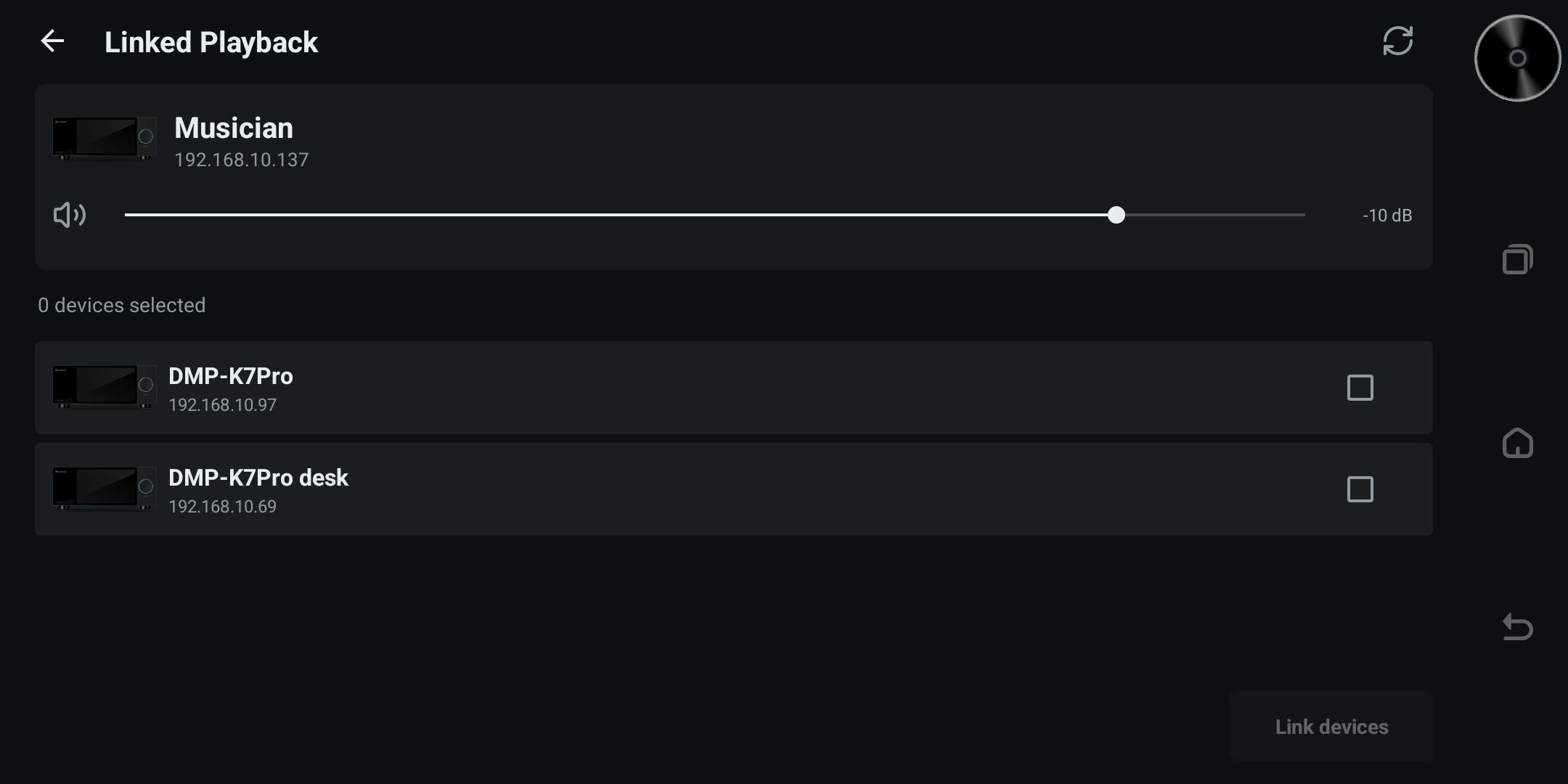
- First choose one device as the main device and open the player interface.
- Tap the "MultiRoom" icon at the top of the player.
- On the MultiRoom page, confirm the page shows this device's information and the list of available devices on the local network.
- Check the devices you want to join the MultiRoom group (multiple can be selected at once).
- Tap "Link Devices".
- Wait for the page to confirm the devices are linked successfully.
- Play a song on the main device.
- Confirm the checked devices play the song in sync.
- On the player page you can check whether the MultiRoom icon is blue; if it is blue, the MultiRoom function is active.
On the phone (Kaiboer Home)
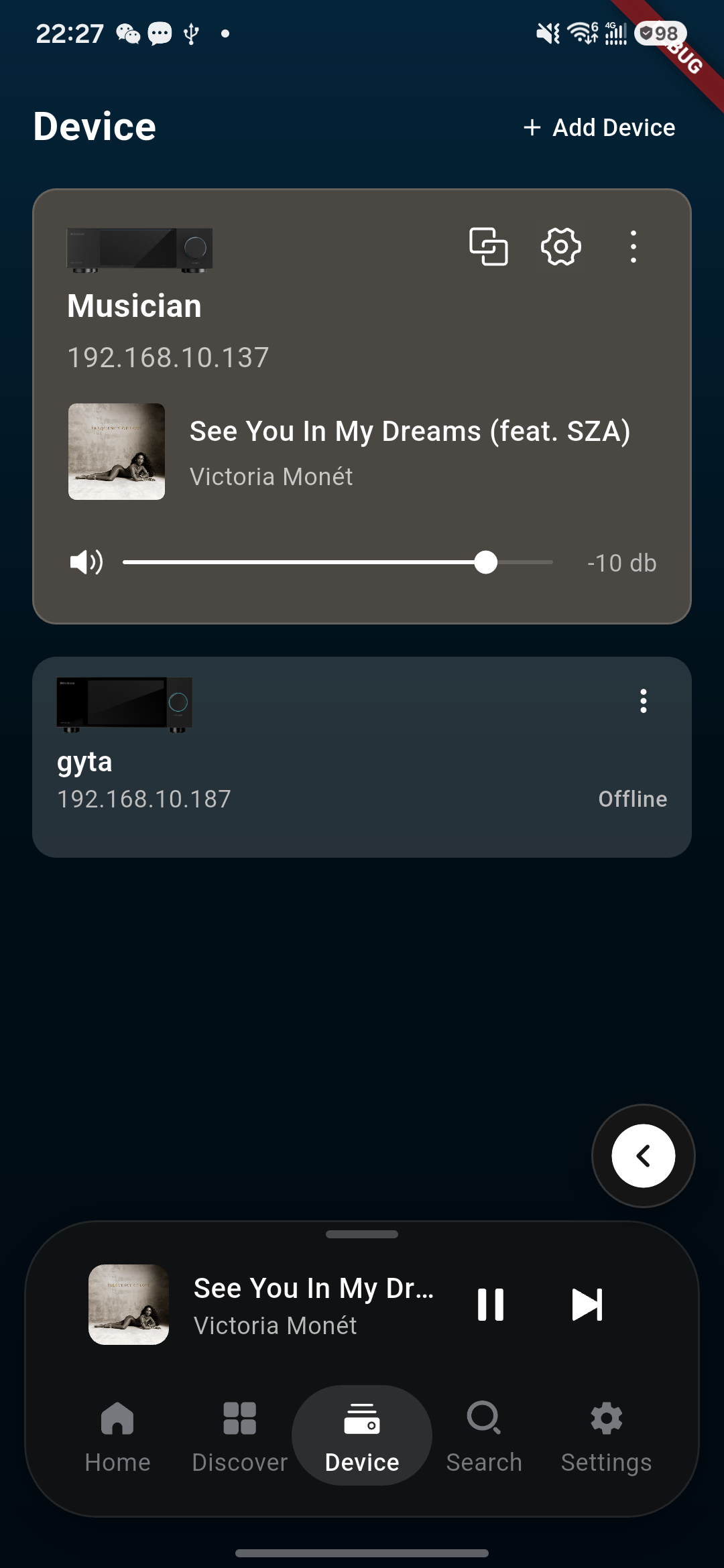
- In Kaiboer Home, connect to the device you want as the main device, then open the bottom device page.
- Enter the MultiRoom page; confirm the page shows this device's information and the list of available devices on the local network.
- Check the devices you want to join the MultiRoom group (multiple can be selected at once).
- Tap "Link Devices" and wait for the page to confirm the link is successful.
- Play a song on the main device and confirm the checked devices play it in sync.
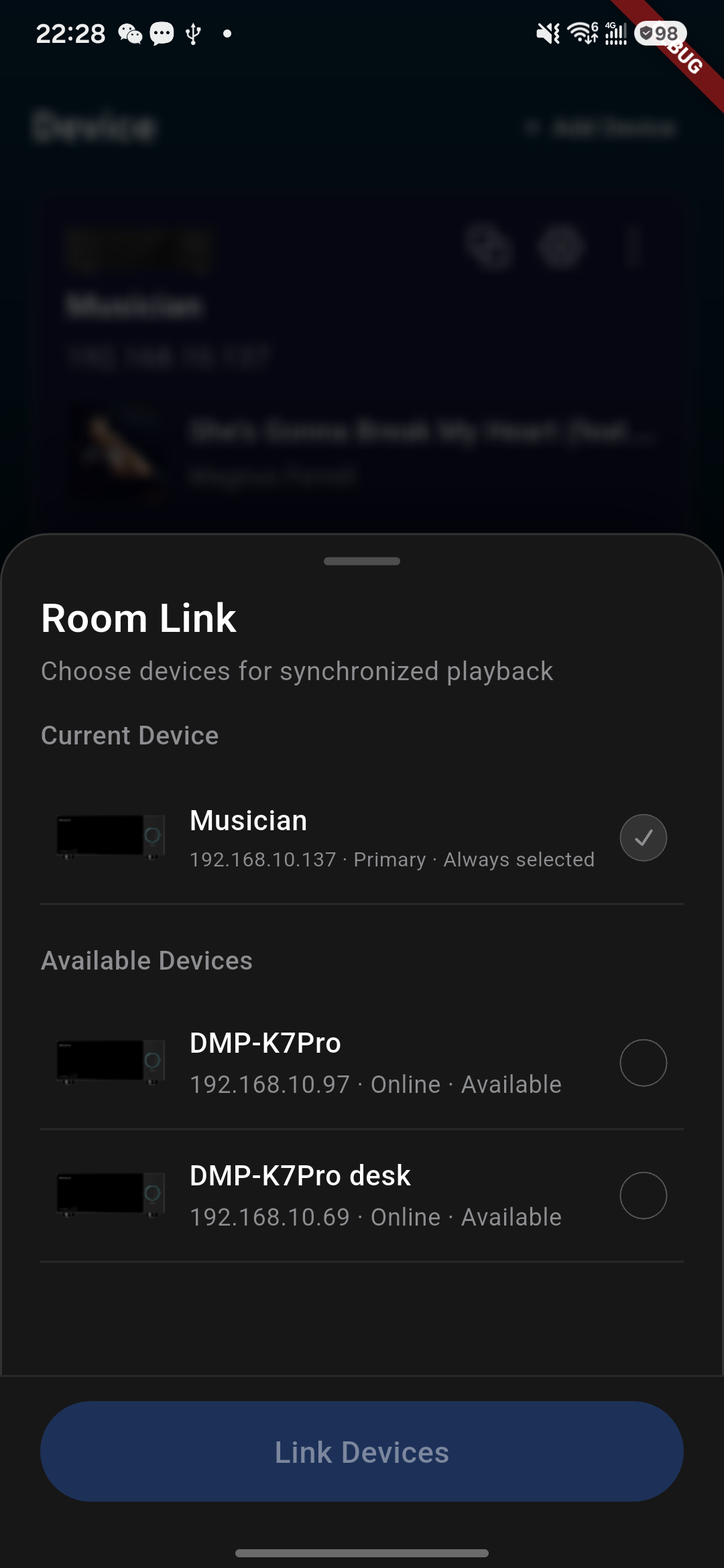
Room Link before linking: the primary device stays selected. Choose eligible devices from Available Devices, then tap Link Devices. This example shows the selection screen before a group is created.
Notes
- Before creating a link, make sure all devices are on the same local network and stay online; do not use guest networks or networks with AP Isolation enabled.
- Initiate the link from the chosen main device, and only play a song to check sync after the page confirms the link is successful.
- During linking, if any device disconnects, powers off, or switches to another network, linked playback may be affected; after restoring the network, re-enter the MultiRoom page to check device status.
- Select only devices shown as available or eligible in the current list. If the target device is not shown, refresh or re-search the device list and follow the current on-screen status labels.
- To add or remove devices, or to end the current link, return to the MultiRoom page and use the available group-control option shown on the current screen. Confirm that a removed device returns to the available list or that the linked status is no longer active.
- The phone (Kaiboer Home) and device-side operations follow the same logic, but page entries and layouts may differ — follow the current on-screen prompts.